


Participant
February 4, 2017
Answered

Cached Preview needs 2 or more frames to playback?

  • February 4, 2017
  • 13 replies
  • 15727 views

Hi, I have been struggling with this After Effects for 2 days now and badly need to fix this.

When I try to preview what I am working on in my composition by pressing my space bar and clicking on the play button, I get this pop up message: "Cached Preview needs 2 or more frames to playback". When I click OK, I usually get the following pop-up: "Fresh layer cache check-out failed".

I cannot seem to get more than one frame in green or blue (cached). I have already tried Purging the memory, cleaning the database & cache and emptying my disk cache. I have also tried working on my other after effects files ( which all worked fine a few days ago) and they all have trouble previewing. I also tried working on earlier versions of After Effects and that either did not change my situation or could not open my files (not compatible versions, which is confusing to me because I have switched versions in the past when having a problem in AE and never had files not open because of version compatibility).

My max disk cache size is 75, which has always worked fine for me, with 12 GB RAM available for AE.

My "Reduce cache size when system is low on memory" is NOT checked and I have no other programs running.
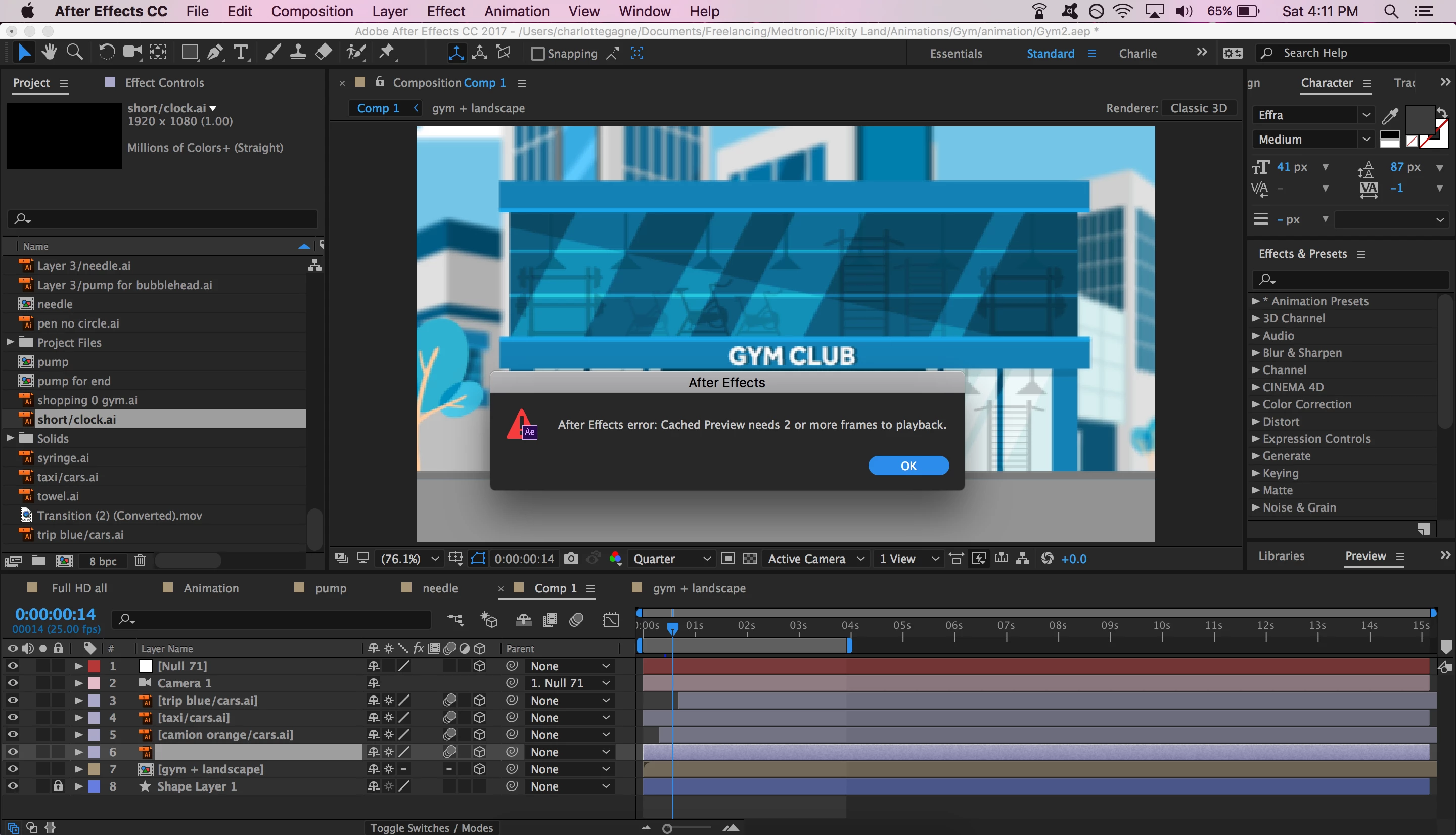
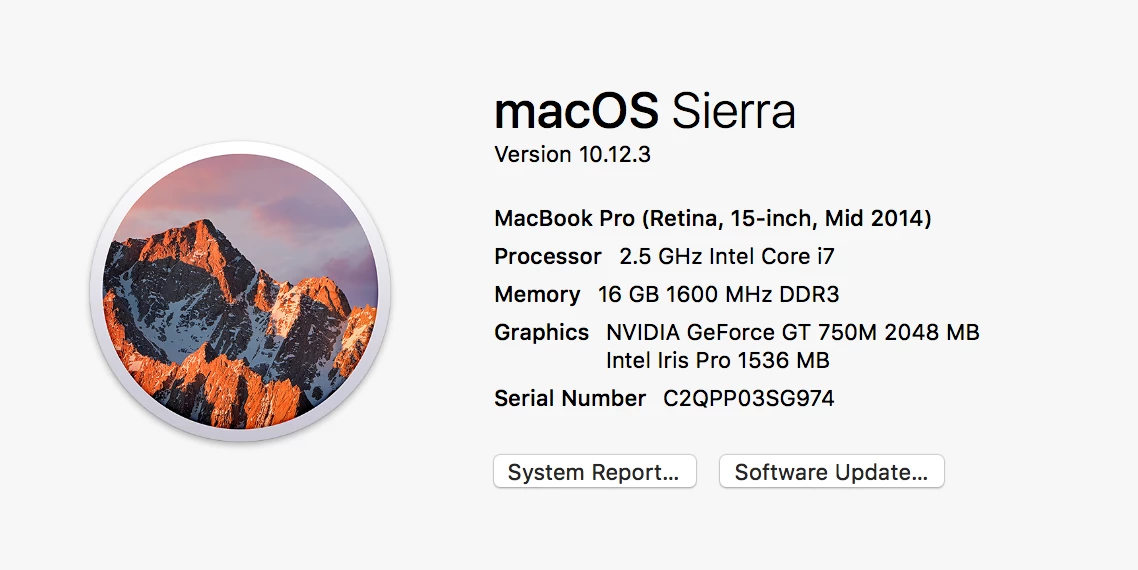
Running latest version of After Effects 2017, 14.0.1.5

It's my first time posting a question on here so if I'm missing any useful info, please let me know.

I see a lot of people asking this same question on forums and have tried many of the tricks and tips, even the strange or very general ones, cleaned up a ton and restarted the computer and the program many times. None of the forums questions seemed to have been answered with a clear answer though, so hoping someone can help me as the Adobe chat will only open in two days and I have clients waiting for their work.

Thank you

This topic has been closed for replies.
Correct answer charlie@dinosandteacups

Hi Kevin, I did not get an answer from Adobe no.

The only solution I have is obviously to empty disc cache, cache memory, etc, the basics. Also downloading new version, previous version, and redoing those clearing steps over and over. It eventually stopped giving me that message. Not sure it's the best solution however as it is frustrating and time consuming.

13 replies

thepixelsmith
Community Expert
Community Expert
February 4, 2022

That's strange. Usually when I see that message it is because your work area bar has it's Start and End points at the same place. 

The work area bar is the thick gray bar beleow the number on your timeline's time ruler, it had a blue start and a blue end bar.

Usually, you double click on the work area bar to reset it to the full length of the timeline.


But I can see in the screen shots that the work area bar is longer than 1 frame.

Usually in a situration like this I reset preferences and clear the disk cache.

manik swadiaya
Participant
February 4, 2022

Hopefully with this improvement, the edit will be more fun and the results will be better. success always, as the author of 3835info  I am really helped by the update. although you have to keep learning. spirit

3835.info
Participant
February 4, 2022

I just had to clean all memory and cache, adding more memory to After Effects, restarted software and then I created another new composition to copy-paste all layers from my fail composition.

Participant
January 31, 2022

Hello, i was just reading this question and somehow figured out that even after doing all this, the thing that's stopping after effects should probably be a plug-in i have recently installed, well i installed optical flare from videocopilot and it gave me a dailog box to log-in or register and as i downloaded it as free(ikw I'm wrong and i shouldn't download it free😅) i didn't kw what to enter so i just closed it and while i went in google to find a image it showed me the cached frames error 

hope ur problem is solved


Participant
July 21, 2020

Done purging ,clearing media cache ,reducing media cache and everyhting as said .But still the problem perisist.At last found a simple solution and came from a basic thought ,create a new composition with 20 seconds as timeline length(take length according to your project) and copy all the layers from the problematic composition and place in the newly created composition,and you are good to go.

Thank you

Participant
June 13, 2018

I have had this problem also, and only just started using After Effects. However, I just discovered that for some reason my workspace had become truncated to 1 frame - as soon as I noticed and expanded it again, the error went away. I'm not sure how this happened, but my previous direct action was to split a frame. I guess I may have accidentally hit the keyboard shortcut to trim the work space's out position.

Look out for that also, it's just one more thing that can cause the error to add to the list - I've not seen it mentioned here yet.

Jendives
Participant
February 1, 2018

I purged the cache, it still didn't work. Then I noticed I had Illustrator and the Media Encoder also opened, so I closed them and it worked!

I guess my 16go of ram are not enough if I need to run AE, AI, ME and PS at the same time... plus Chrome opened with multiple tabs...

The programs of Adobe should inform us in a more precise way... I just 20mn trying to figure this out... and that wasn't too much compared to some of you guys who probably spent over an hour on this... it could kill your day schedule... and make a client unhappy...

Participant
September 7, 2017

Same thing just happened to me so I shut down the program and restarted and that cleared up the problem. Just a thought. I was thrilled when it actually worked.

Participant
July 19, 2017

I am also only using text with After Effects and getting the error, with the classic renderer. However, I can avoid the error message if I begin my preview from 00:00:01 instead of 00:00:00.

Participant
January 24, 2020

Try to stretch your Work Area more than 2 frames.

Participant
November 11, 2020


Thanks for the comment. It was hard to find the "work area", but I noticed the blue bar on top of the timeline and it says 'work area'.  I stretched it and the message no longer showed up!  🙂


Participant
June 17, 2017

Fixed it! Preferences > Memory, and make sure "Reduce Cache size when system is low on memory" is NOT checked. Worked for me anyway when absolutely nothing else did.

Participant
April 24, 2021

Thank you! this is the only thing that worked for this issue!!