I took a quick look at your project. You'll need to incorporate sourceRectAtTime() for the position on both layers, probably add a null as a master position controller, and throw in some other expressions and controls to set padding and offset the spacing between layers. You also need to decide if you want to continue to use a text box or rely on carriage returns to create multiple lines.
If I get some time this afternoon, I will post some example expressions and layouts. It's pretty straightforward, but cleaning up your project will take some time.
Here are a couple of expressions to get you started. First, put your Main Headline layer on top of the smaller text layer. Then, add the expression to both text layers' Anchor Points to center the Anchor Point inside the text, regardless of the paragraph justification.
// Center Anchor Point
box = sourceRectAtTime();
[box.width/2 + box.left, box.height/2 + box.top];
This will center both text blocks in the Comp Panel.
Now add this expression to the bottom text layer's position to position it directly below the top text layer:
ref = thisComp.layer(index -1);
P = ref.position;
refBox = ref.sourceRectAtTime();
box = sourceRectAtTime();

vPad = 20; // 20 pixel pad - could be a slider
refBtm = refBox.height/2 ;

P + [0, box.height/2 + refBox.height/2 + vPad]
This will stack the bottom layer below the top text and give it a 20-pixel gap.
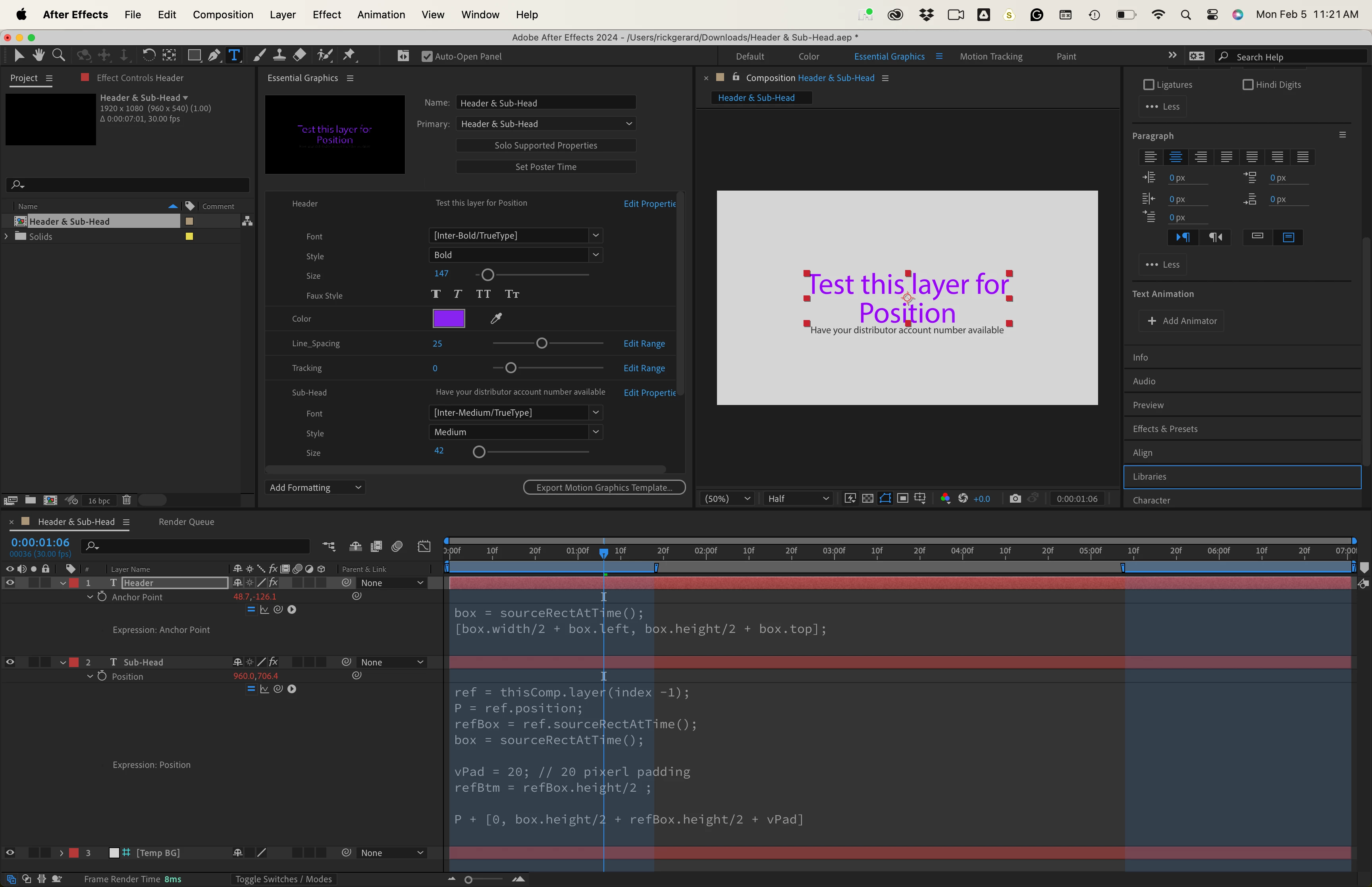
I also added a light gray solid guide layer to the timeline to make it easier to see the dark text. Guide layers will preview but they will not render.
You can set the position of the top text layer by applying the Effects/Expression Controls/ Point Control to the layer's position or with an expression that relies on sourceRectAtTime().height and top to keep the top of the main text layer in a constant position.
Maybe this will get you started. I'm on my way to a location shoot. I'll check back later.
Here's a project file for you.



 AdChoices