



Lavish_Moonlight0D4C
Inspiring
August 9, 2023
Answered

How to use one text layer to control text for other text layers with different formats?

  • August 9, 2023
  • 2 replies
  • 2361 views

So I have multiple sizes of a video (9x16, 16x9, 1x1, etc) which uses the same text throughout. I know there are going to be revisions on copy so I would like to be able to use one master text layer, set up in essential graphics, that will allow me to control the text for every size. I am trying to reduce having to replace copy for every size, as well as keep the styles and effects exact, by pulling from one place.

I've tried using "getStyleAt(0,0).setText()" which works, but I cannot adjust the text format for each individual size. I would like to be able to change the format (left align or center) and te amout of lines for each size (two lines of text vs three lines of text), but keep the text and styles of the master text layer.
 

This topic has been closed for replies.
Correct answer Lavish_Moonlight0D4C

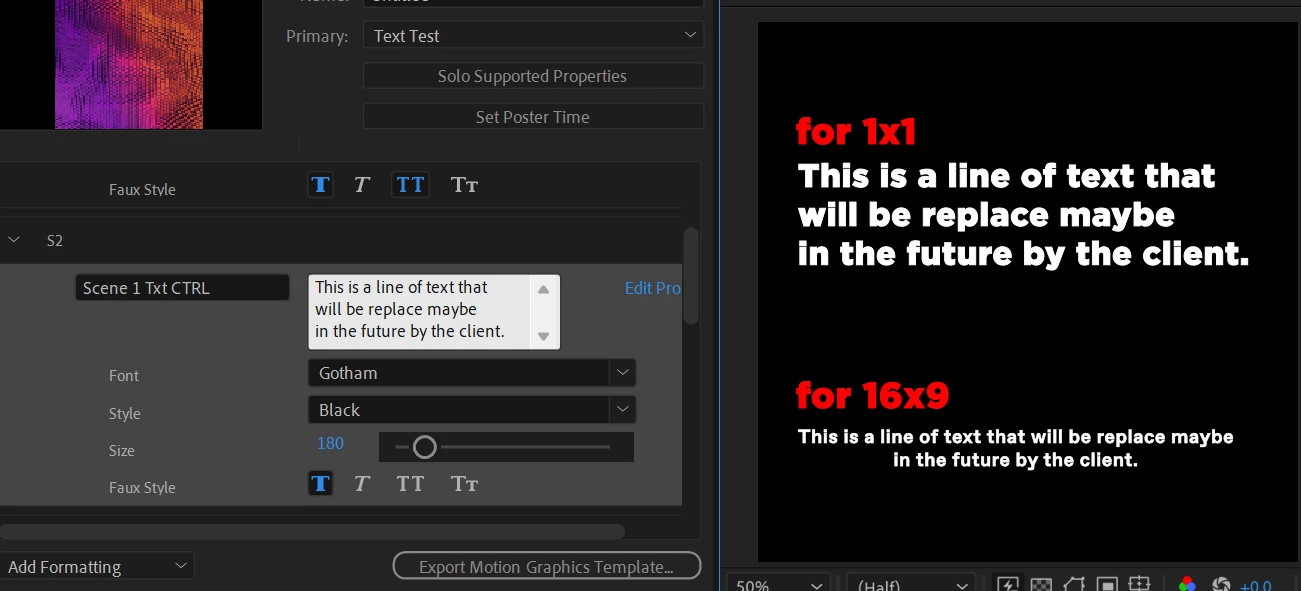
So I misspoke and found that all I needed to do is just play around with it a bit more. I found the soultion by using paragraph text. So @Mylenium it is indeed possible which is why I'm going to mark this a the correct answer as it answers/solves the question asked. See solution below:

I created a Master comp and created a paragraph text box as my master source. I then added its source text to the essentials panel where I added the text string.


Several "child" layers, which have their source text linked to the master source layer, where placed in each comp that will have a different size. These are also paragraph texts which allows resizing of the paragraph bounding box that'll force the line breaks when scaling the width. I can also change paragraph alignment (left, center, right) for each size variation without messing anything up.

Since the master source paragraph is in the essential graphics panel, I can manipulate the text and font from there and for each "child" text layer I used the expression below in the Source Text to allow manipulation from the essential graphics panel.


sourceTextProperty = comp("MASTER").layer("Scene-01-txt01").text.sourceText;

newStyle = sourceTextProperty.getStyleAt(0,0);

newStyle.setText(sourceTextProperty);

2 replies

ShiveringCactus
Community Expert
Community Expert
August 9, 2023

I think there are two problems here.  When you add an EG text comp to a layer, any settings you set will only apply to that EG layer.  So any changes made won't reflect across the different formats.  You could use a convoluted precomping to solve this but a safer way might be to use a CSV file with all your captions in.  That way you can update the text in one file and it will work for all comps.

The second problem I think it simpler to solve, you want to have text appear on two or three lines, so I'd make an EG with two text layers, whose visibility is controlled by an EG checbox / dropdown.  Both text layers can have their content derived from the same source text, which is just a case of linking one sourcetext property to the other using the pickwhip.

Lavish_Moonlight0D4C
Inspiring
August 10, 2023

Yeah this is a bit much. I don't think theres a solution for this unfortunately. Maybe in the future there would be a way to solve this with auto text box, or allowing to pull a text value from a string. Thanks 

Lavish_Moonlight0D4C
Lavish_Moonlight0D4CAuthorCorrect answer
Inspiring
August 10, 2023

So I misspoke and found that all I needed to do is just play around with it a bit more. I found the soultion by using paragraph text. So @Mylenium it is indeed possible which is why I'm going to mark this a the correct answer as it answers/solves the question asked. See solution below:

I created a Master comp and created a paragraph text box as my master source. I then added its source text to the essentials panel where I added the text string.


Several "child" layers, which have their source text linked to the master source layer, where placed in each comp that will have a different size. These are also paragraph texts which allows resizing of the paragraph bounding box that'll force the line breaks when scaling the width. I can also change paragraph alignment (left, center, right) for each size variation without messing anything up.

Since the master source paragraph is in the essential graphics panel, I can manipulate the text and font from there and for each "child" text layer I used the expression below in the Source Text to allow manipulation from the essential graphics panel.


sourceTextProperty = comp("MASTER").layer("Scene-01-txt01").text.sourceText;

newStyle = sourceTextProperty.getStyleAt(0,0);

newStyle.setText(sourceTextProperty);

Mylenium
Legend
August 9, 2023

Not possible. One of those limitations of the process.


Mylenium