


Community Manager
March 18, 2024
Question

Feature Focus: New After Effects Spectrum UI & Windows UI Performance Improvements

  • March 18, 2024
  • 22 replies
  • 16428 views

Today, we’re proud to announce a new look for After Effects in Beta!
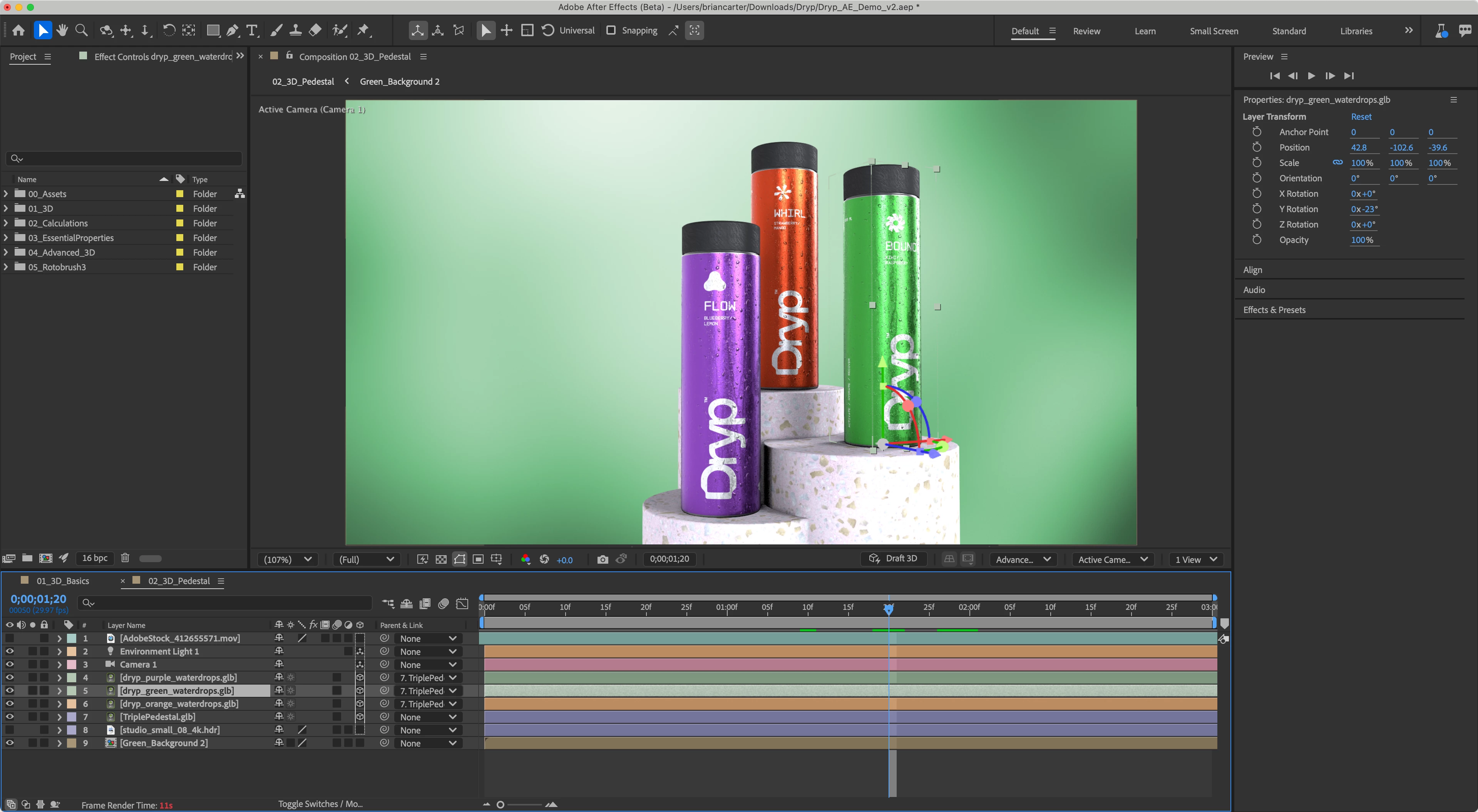
 

As of Beta Version 24.4 build 20 — available today — After Effects is themed and styled using Adobe’s Spectrum design with a new modern look across the entire app.
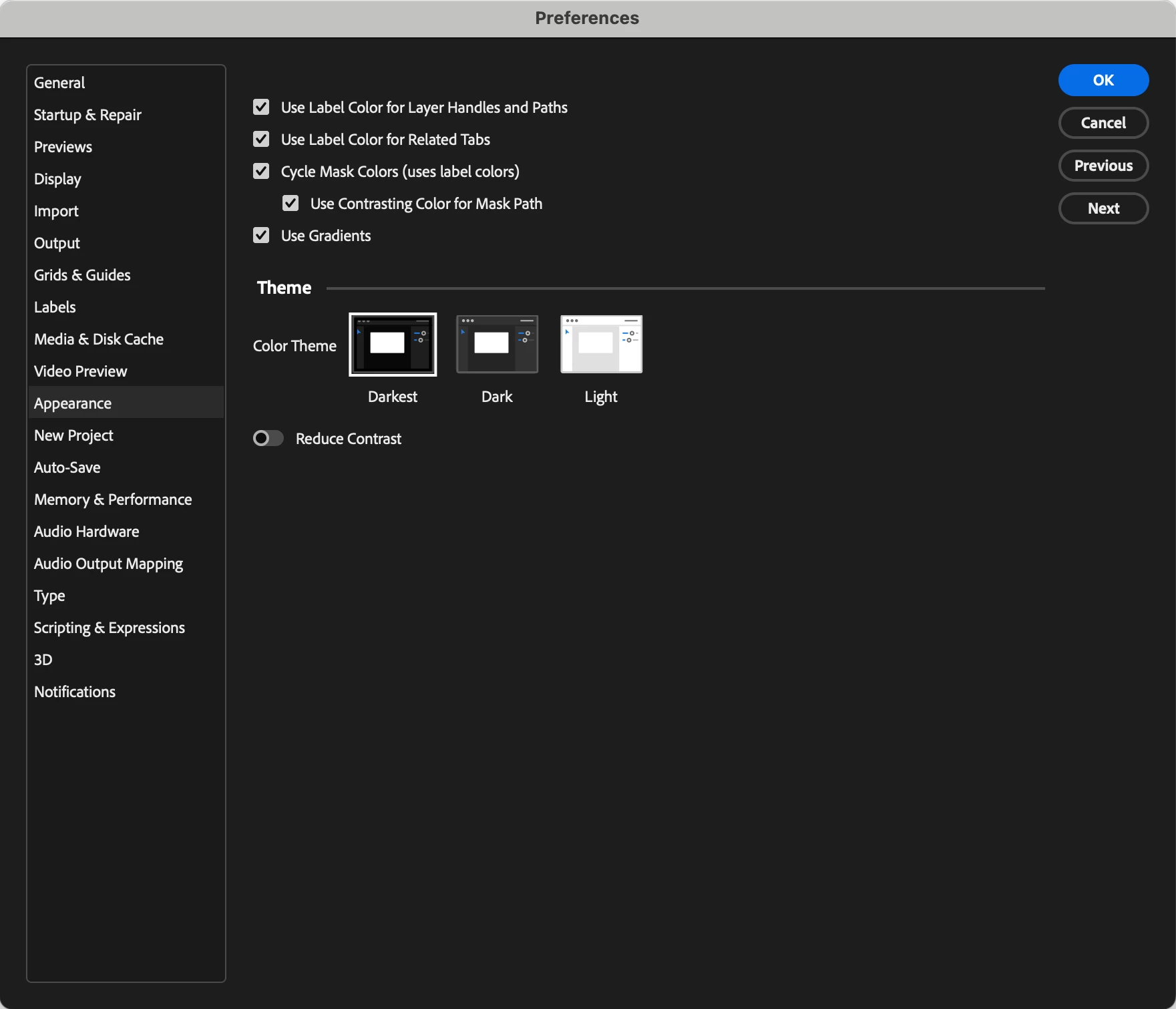


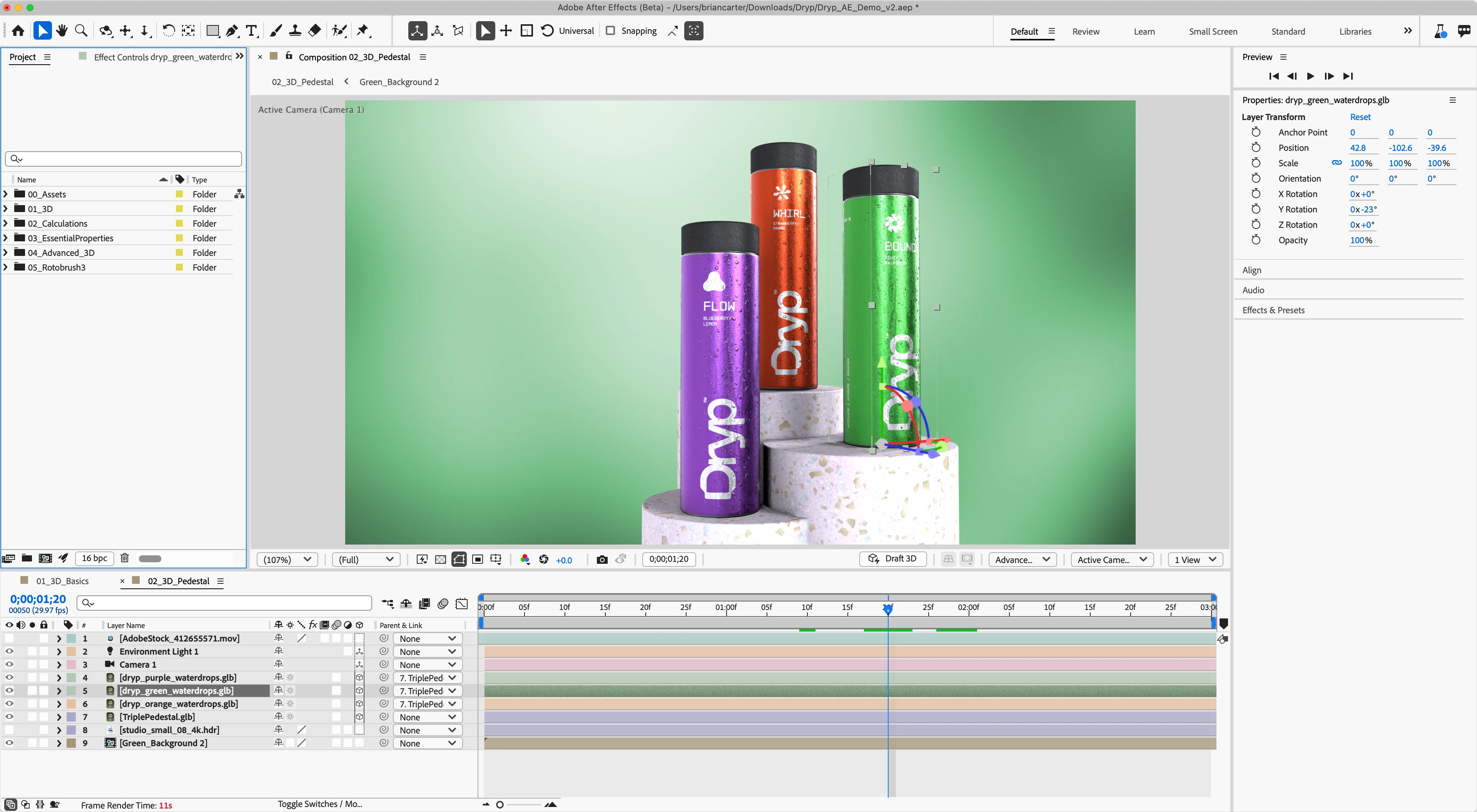
After Effects Beta now ships with three different themes: Darkest, Dark and Light. There’s also a new toggle for switching between a high-contrast mode for easier visibility and accessibility or a low-contrast mode for focusing on your content.
 

Additionally, we’re also shipping GPU-accelerated UI performance improvements on Windows computers. This improvement may be most noticeable in timeline interaction, comp overlay drawing, and on multiple monitors. 

This is a beta release with additional fixes and changes rolling out in the coming weeks. Please let us know if you encounter any issues — particularly with specific GPUs — or have suggestions. Feedback from our beta community is appreciated and essential for building better and stronger versions of After Effects. We’re so excited for you to try the After Effects Beta and can’t wait to hear what you think!

Known issues:
Users with some older Intel Integrated GPUs may experience some instability with our updated overlay — work is in progress on this, and we will update when this is fixed. If you experience any instability, please let us know. 


We have done testing with ScriptUI but can't anticipate every third party script out there, please let us know if there are scripts that are not working. In some cases, the script developer may need to update their script. 

We have tracked down an issue with some third-party scripts that use png files on Windows that causes an "Unexpected Data Type" error. We are currently investigating. 
If you delete the ModifiedWorkspaces and OriginalUserWorkspaces folders in the preferences to reset the workspaces, you should be able to open After Effects (Beta) without encountering the error. If you then open third-party panels one at a time, you will be able to determine which one(s) are causing the error, which should allow you to continue using the Beta.
Update: this issue has been fixed in build 28.

We have also fixed an issue with single character buttons not rendering the character.

22 replies

Community Manager
April 2, 2024

As of build 28, ScriptUI panels that reference .png files should load correctly on Windows. 

Participating Frequently
April 1, 2024

Hi,


Small buttons with a single text character don't display in the beta. As you can see in the attachment, the small button just has a "?" but it's not visible in the beta UI


Dan Ebberts
Community Expert
Community Expert
May 12, 2024

I'm seeing this with my scripts on latest beta (24.5.0x34) on Win 11.

Community Manager
May 13, 2024

Hi Dan and ajk48n3  — we are working on a fix for this! 

Inspiring
March 28, 2024

Following....I mentioned some things in the old "Interface is slow and laggy" thread but just wanted to post some of my tests here in case those were somehow missed....

---------------------

I get that this is early days on this re-code of the interface but was hoping for a little bit more of a FPS boost than what I'm seeing currently. 


Hoping this is cleared up with the aforementioned layer controls bug but I was getting pretty bad dropped frames even with those turned off. Video attached of my test. 


TL;DR. Still drawing keyframe icons at about 7FPS when the goal should be at least 30-60FPS.


I spent a little bit more time with the beta today and did my standard AE "tortue test" of trying to move around 50 keyframes on solids with no animations. In my opinion this should be no issue but AE struggles with moving keyframes around still and that drives me mad. I concur with Carlos that the general snapiness is much improved but once you move into heavier numbers of keyframes it still lags pretty heavily. 


Test setup.


1920x1080 24FPS comp

100 Solid Layers

Position keyframe placed all on the same frame (alt+shift+p)

Select first 50 keyframes.

Drag them about while recording with OBS. 

Count number of frames until keyframes jump to next position and determine keyframe draw FPS.

No animation should have to be recalculated and the "frame render time is at 6ms" or 166FPS. 


AE 24.2.1. (current stable) - no better than 6FPS

AE 24.4.0 (current beta) no better than 8FPS


As a comparison I selected a bunch of animation free keyframes in blender and dragged them about and it had no issue drawing the position of the keyframes on every frame. Not an apples to apples comparison obviosuly, but still think there is far too much jank in the timeline. 


The goal should be to draw the keyframes or other timeline elements (including window resizing, other aspects of the interface) at 60FPS. Even 30FPS would be game changing, currently still dealing with 6-7FPS on fairly simple edge cases. 


https://www.youtube.com/watch?v=eVu0uuGvEY0


Ran the test again with layer controls off and it's marginally better but still concerning overall.


This time around trying to illustrate the performance drop when selecting more than 10 keyframes...same overall setup as before. 


In the beta (24.4.0 x20) w/ controls off I got about 25-30 FPS when selecting 10 keyframes and dragging them about (2-3 frames to update)

In the stable build (24.2.1) I got about 12-13FPS doing the same thing and the update time jumps all around from as good as 2 frames to as bad as 10 frames. So there has been a significant improvement when moving a small amount of keyframes. Not 60FPS smooth, but reasonably smooth overall. 


Again in the beta, once you jump up to 50 keyframes in the beta it takes about 6 frames to update the screen, or about 10FPS. About 2-3 FPS better than with layer controls left on but still nowhere near what I score as "smooth."


I didn't try to score 50 Keyframes in the stable build with controls off, but that is a known "laggy" interaction so didn't feel like scoring it.  


Community Manager
May 13, 2024

Hi Scott!


Thank you so much for this. It's going to be extremely helpful going forward. 


We are aware that the work we've done to get the UI drawing on the GPU is only the first step and that there are other places where improvements are still needed.  Rest assured, we're not considering this work done yet! 

Inspiring
March 27, 2024

Hi there again,


I have another issue, which is not really new to the Beta version but it is regarding Script UI, so I thought this would be a good time to address it:


On Windows, when the Display Scaling is set to 100% iconbuttons and images look good. When Display Scaling is set to 125%, 150% or anyhting above 100% iconbuttons get blurry, which is understandable. But images look really jaggy. It seems that iconbuttons get anti-aliased, whereas images do not. 

Is it possible that images can get the same treatment as iconbuttons? I guess a lot of people are using 4K monitors with display scaling and it would be nice if the UI wouldn't be so jaggy. (I often use images with event listeners to build custom buttons)


On MAC when I link to an image that is double the size but scale it down to 50% so it appears to have the same size, iconbuttons and images look really nice and crisp. I thought this is a good trick for Windows as well, but they look jaggy, even when Display Scaling is set to 100%. I have attached an image showcasing this.


Is this something that can be improved?


ConstantinMaier
Inspiring
March 27, 2024

Yeah, this has been bugging me for a long time too! That's why I use pretty much only iconbuttons in my newer scripts now but sometimes I don't even want to use iconbuttons. 😄 Maybe this could get fixed with the general overhaul of the UI?

ConstantinMaier
Inspiring
March 26, 2024

@Brian C Carter and @Jessica McMillan 


First of all, as stated in my other comment here, congrats on the new UI. This feels much better than before, especially in terms of the speed on Windows!


However, in addition to the already mentioned issues in this thread, I have two to three problems myself with the new UI:


1. Shy'd layers aren't easily identifiable anymore


In the old UI, shy'd layers were indicated by a very visible line. However, in the new UI, the color of this line a much more like the general UI color whereas the lines between regular layers are siginificantly stronger (meaning darker). This makes it much harder to make out whether you have shy'd layers in between your regular layers. I'd like to ask you to darken the line where shy'd layers are (or to reduce the darkness between regular layers). To show you what I mean I created this image:


2. New font not as readable as the old one


I personally liked the older font more. The new font is bolder and therefore the letters are harder to read - at least that's how it is for me. I assume the new font is some type of new general UI you're going for, so it's probably unrealistic to ask of you to change this back to what it used to be but I figured I might try. 😉 Or maybe you could implement some way to select either of the fonts?


3. Super niche issue with certain Unicode blocks


Additionally, and this is admittedly a super niche aspect that's probably just affecting me and a very small portion of users but the old font allowed for a Unicode block like Halfwidth and fullwidth forms to render in a very distinct way whereas the new font renders it pretty much like any other regular letter. I made much use of the old font's behavior in my scripts in order to indicate layer statuses in clearly visible way. Unfortunately, this isn't possible with the new font anymore. Now, I know it's a super niche issue, so I'm not asking for you to change this but I at least wanted to bring it up. Maybe if there's some way to revert back to the old font (as requested in #2 to improve readability), this could also resolve this issue. Here's an image about what I'm talking about:


Thanks for all your work and I hope you consider my suggestions. 🙂


Best wishes, Constantin

Participating Frequently
April 1, 2024

It's not just you for the bold text. There is less space between letters and it makes the text harder to read

Participant
March 21, 2024

i dont like the fact that i cant change the color of the theme anymore, it has to be blue... i used to always change the color but that doesnt seem to work anymore


<edited by moderator>

Rene Andritsch
Community Expert
Community Expert
March 20, 2024

Please read my take on the new UI here: https://community.adobe.com/t5/after-effects-ideas/beta-ui-changes-lose-sweet-spot-for-contrast/idi-p/14501868
I think some of the great contrast that is in the current release got lost.

Inspiring
March 19, 2024

Good to see the Character panel font menu displays white on black, and I can finally see the scrollbar to the right of it!


I do have some issues with the ScriptUI changes:


- The new lighter rounded buttons are maybe ok for creating oversized UI with big chunky buttons, but they don't really fit the rest of the UI and are unusable at small sizes. The text makes poor use of space (and seems misaligned vertically). The old style was usable with visible text down to a single character inside a 20x20 button. Most of my buttons are now just empty grey blobs or at best have text truncated with an ellipsis. I imagine any button that specified a size will suffer.


- At least with custom buttons you can draw text and stroke a rectangular path onto them to look exactly like the old buttons, but mine with light text are unreadable on the Light appearance. I'm not sure if ScriptUI graphics / themes give us what we need to deal with any appearance changes on custom controls? I found the ScriptUI theme/color docs kinda vague. Due to extensive use of custom buttons my current project's UI has mostly survived the button-apocalypse, but it's utterly destroyed by light mode! 🙂


- I'm seeing truncated text with ellipsis on DropDowns too. Maybe the layout manager isn't taking the chunkier controls into account?


- Small EditText controls again make poor use of internal space. 2 characters don't comfortably display inside an EditText that was specified for characters:3. Just seems unnecessarily cropped inside the control.


- Disabling a control now causes it's UI to lighten rather than blend into the background, adding visual noise to my UI. I'd rather make them invisible if it's like this.


- I like that scrollable, multiline EditText controls now have dark backgrounds too. Small point, the still bright white scrollbar stands out as being unchanged..


Community Manager
March 19, 2024

Hello Paul,

We are actively looking into these issues in ScriptUI. Would you mind if I reach out to you through a DM to discuss and workthrough specific issues you are seeing in your ScriptUI panels? We were made aware of a few issues yesterday (like single character/image button centering). Would love to capture what you are seeing in tickets and work through resolving them.

Thanks for all the feedback!

All the best,
Jessica McMillan
AE Engineering

All the best,Jessica McMillan - AE Engineering
Inspiring
March 19, 2024

Hi Jessica,

Yep feel free to DM me. I'm prepping some screenshots for you now.

Paul

Known Participant
March 19, 2024

Hi there @Brian C Carter 

I just tried AE beta 24.4.20. finally the timeline panel lagging is almost gone, but, 3D gizmos lagging is really really really bad, as I show here.
https://youtu.be/aqfmHvd3D4Y
It's unusable! Please fix it. It's impossible to work with 3D layers. I reported the issue 2 years ago. It doesn't make sense to add 3D features if the UI doesn't work. I'm on Ryzen 2700x, 32GB ram, Rtx 4070 super.
Cheers

Community Manager
March 19, 2024

Hi Marco

Thanks for the feedback about the Gizmo. That is a different issue than our GPU UI but we'd be very curious if you've noticed any worse performance in this Beta.

Known Participant
March 19, 2024

Hi @Brian C Carter 

Apart from the gizmo issue, AE works fine. The keyframe and layers dragging is not as fast as it was in CS6 or CC, but the improvement is notable.

 
Inspiring
March 19, 2024

Hi,


those are some really nice changes but I tried out several scripts - my own included - and all the scripts, that use images don't run at all on my Windows machine.

The script UI doesn't show up and I get the following error message in an infinite loop (I have to force quit AE):

"After Effects (Beta) error: Unexpected data type".


Her are my specs:

Application: After Effects (Beta) v24.4.0.20

OS: Windows v10.0.22631, RAM: 127,80 GB GB, CPUs (logical): 20, GeForce RTX 4080


On my Macbook Air M1 it works however.  (OS: Sonoma 14.2.1)


Anyone else having these problems on Windows?


dbDavideBoscolo
Legend
March 19, 2024

Same issue with some scripts here!

Community Manager
March 19, 2024

Hello @Christian Lengger  and @dbDavideBoscolo ,
We were made aware yesterday with the release to beta that there is a current issue with the new GPU UI drawing in regard to PNGs used in Script UI. We are looking at it thanks to all of your feedback and hope to have a quick turnaround for a fix into beta. 

In the meantime, starting in safemode should allow you to temporarily disable scripts as well as panels and reset your workspace if needed to avoid this issue in the short term.

We will update here when we have a Beta build posted with the fix.

Thanks again for bringing this to our attention.

All the best,
Jessica McMillan
AE Engineering  


All the best,Jessica McMillan - AE Engineering