Participant
January 8, 2016
Answered

Buttons changing color when clicked

  • January 8, 2016
  • 1 reply
  • 2802 views

I'm a new Captivate 9 user (no previous Captivate experience). I have a project with buttons to trigger multistate changes and to navigate between slides. In most cases, the buttons are changing to a red/pink color when clicked. How can I control the color/style of a button when clicked to prevent this from happening? I have the same result with a project preview and published file. Thanks!

This topic has been closed for replies.
Correct answer Lilybiri

Check the object styles for the Buttons (you don't tell which type of button you are using) in the Object Style Manager (to be found under Preferences):
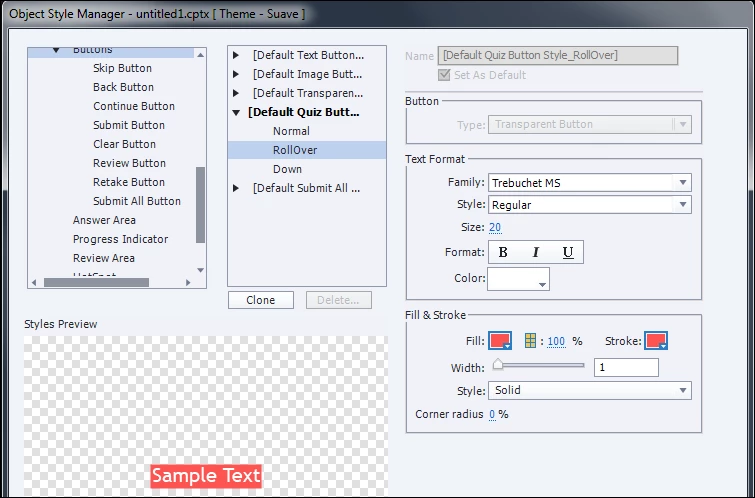
Look for the type of button you are using (the screenshot is for the Default Quiz button, you see there is also a Default Text Button style, and style for the other type of buttons, shapes all have possible states as well because they can be used as buttons). Expand the style (using the triangle) and look at the rollover state. You can change that state, and the down state as well. It is not clear from your question if you talk about the Rollover or the Down state. Those are InBuilt states for buttons. The color you see in the states depends on the theme you are using in your project. Each theme has a theme colors palette.

It is normal that a button has those states, why would you want to have the same state for the three: normal, rollover, down? I published some articles about CP9, where you'll see different types of button states, here are two links:

Playing with Captivate 9 - Captivate blog

1 action = 5 Toggle Buttons - Captivate blog

1 reply

Lilybiri
LilybiriCorrect answer
Legend
January 9, 2016

Check the object styles for the Buttons (you don't tell which type of button you are using) in the Object Style Manager (to be found under Preferences):

Look for the type of button you are using (the screenshot is for the Default Quiz button, you see there is also a Default Text Button style, and style for the other type of buttons, shapes all have possible states as well because they can be used as buttons). Expand the style (using the triangle) and look at the rollover state. You can change that state, and the down state as well. It is not clear from your question if you talk about the Rollover or the Down state. Those are InBuilt states for buttons. The color you see in the states depends on the theme you are using in your project. Each theme has a theme colors palette.

It is normal that a button has those states, why would you want to have the same state for the three: normal, rollover, down? I published some articles about CP9, where you'll see different types of button states, here are two links:

Playing with Captivate 9 - Captivate blog

1 action = 5 Toggle Buttons - Captivate blog

Participant
January 11, 2016

Thank you for your quick response it was helpful. Somehow I had overlooked the Object State drop down box on the preferences panel. Here's a screenshot of where I made the change:

Lilybiri
Legend
January 12, 2016

I always point to the Object Style Manager because I know many users don't even know about its existence. I will try to explain why. In your screenshot I see that the default style for this shape button is overridden (look at the + sign appearing in the Style Name field). That is very bad practice, and the result of changing a style for one button, locally. If you want another button to have the same look, you will have to repeat that process again. It is much better to either change the default style in the OSM or create a new style. That way you will save a lot of time later on if you (or the client) decides to change some aspects of that style. Examples:

  • at this moment you don't want a rollover state but later you decide it is much user-friendly to show that state (which I strongly believe)
  • at this moment you want a grey button, but in the next project it should be blue

Such changes when done in the Object Style manager to the style that is applied to all your buttons, and not overridden, will be applied immediately to all your buttons.
