Known Participant
June 25, 2015
Answered

Captivate next button on top in quiz slide

  • June 25, 2015
  • 2 replies
  • 1881 views

Hi,

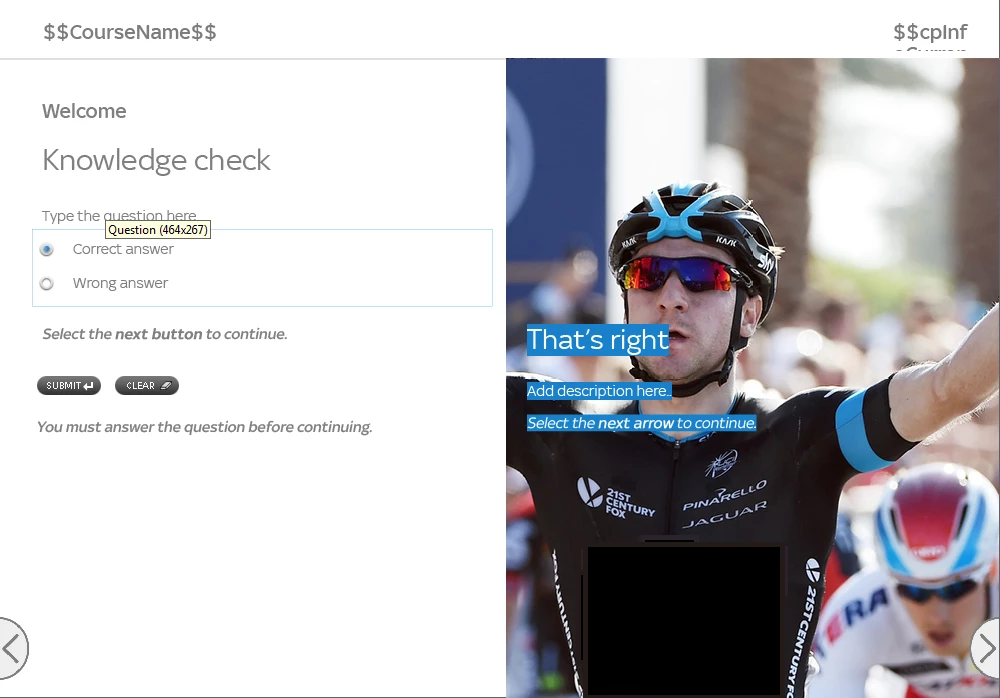
I am working on a new eLearning (please see images below).. then next button (bottom right) sits on top of the cyclist image (this image appear when the user answer correctly), however when I publish the project (second image) the cyclist image appears on top of the next button which makes it impossible to click the next button.

Can you please advice on how to change the staking order for the next button to sits on the top? thanks

    This topic has been closed for replies.
    Correct answer Lilybiri

    I haven't changed any of the default processes, all I did was change the look of the next button.

    The reason I am using the next button is because every slide on the project includes a back and next buttons so for consistency.

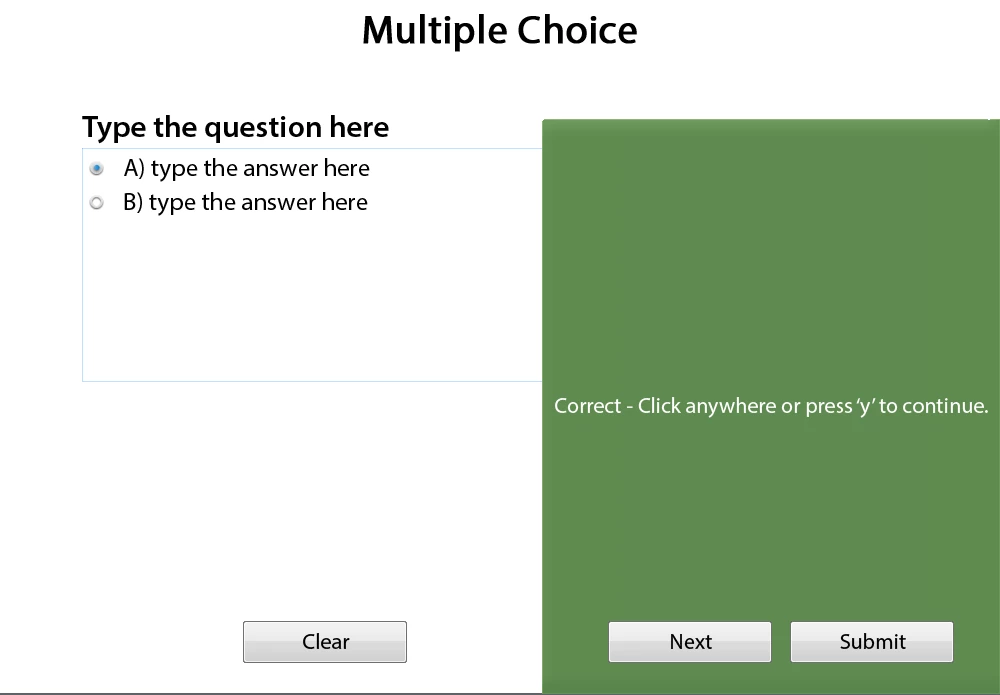
    I have created a new quiz slide and keep it exactly as it is apart from expanding the correct answer feedback to overlap with the next button, hopefully that will explain it better

    Edit view:
    Runtime view:
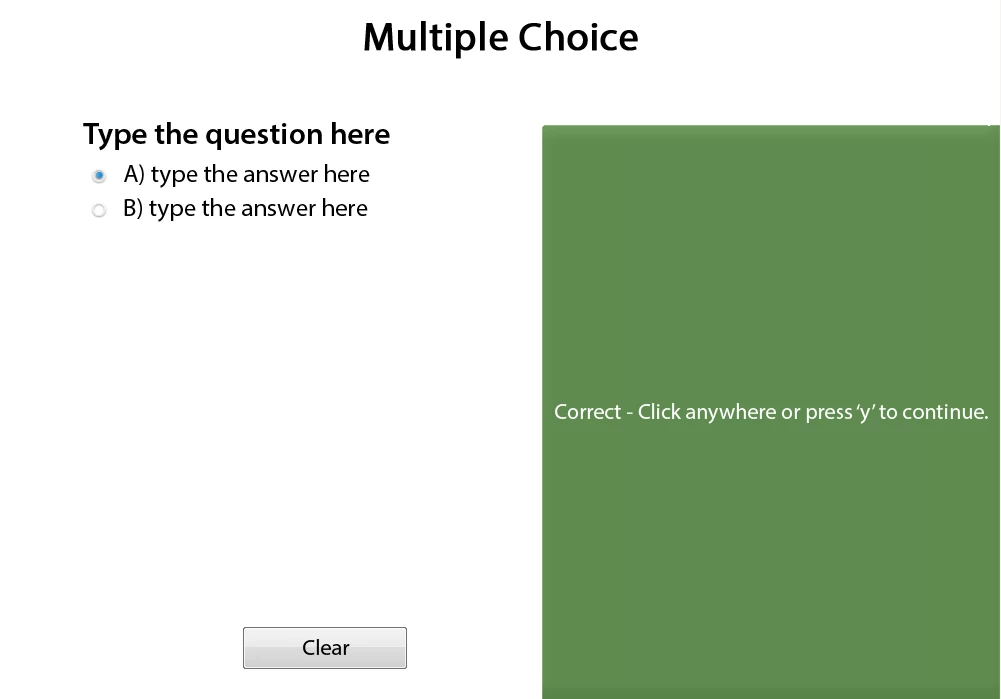

    Got it, and know cause. Feedback captions or shapes will always appear on top of everything, that is also the case for buttons, shape buttons, click boxes! Now I understand what is happening: you replaced the feedback caption by that image and that is causing the issue. The Next button is not acting as a Next button, but it is clicking on the slide (second step of the submit process) that is advancing the slide, not the Next button.

    I hope this explains what I mean? There is a way to have images appear, but don't replace the feedback because you'll always have this issue. Did you read the blog post?

    2 replies

    RodWard
    Community Expert
    Community Expert
    June 25, 2015

    Have you checked on the timeline to see where these buttons are positioned in the stacking order?  The higher up the order of layers, the closer to the top they should be to the top.

    Sometimes Captivate seems to indicate in Edit mode that an object IS on the top of the timeline when in reality its not and this only becomes apparent when you play the project at runtime.

    Try selecting the button and use the toolbar icon to Bring Selected Object to the Front.  That usually fixes it.

    Lilybiri
    Legend
    June 25, 2015

    What is this Next button? Can you explain: shape button, on Master slide, timed for rest of project...

    All embedded objects on a question slide have top priority. The default second step for the Submit process, instructions for which appears in the feedback caption has been eliminated, how did you do that?

    Known Participant
    June 25, 2015

    Hi Lilybiri, the next button is the standard button you normally get when you create a quiz slide, I then changed it to be an 'Image Button' and selected the button I have created in Photoshop.

    RodWard‌ in the timeline view when I select the next button then go to 'Modify' menu the 'Arrange' options are greyed down.. In 'Master slide' view I selected the quiz master slide and made sure the next button is set to 'Bring to top' but it still appearing behind the image.

    I also selected the 'Master Slide Objects On Top'' check box

    Lilybiri
    Legend
    June 25, 2015

    If it is an embedded object (Next normally doubles as Skip during Quiz) it should be on top of the stack all the time. I asked you also how you did change the two-step Submit process, because default way is to Click on the slide or press Y to execute the actions specified on Quiz level. Your approach to use the Next button is not the way Quiz slides are designed at all.

    I tried to explain the design, and some tweaking possibilities in this post:

    Question Question Slides in Captivate - Captivate blog