Inspiring
August 6, 2013
Answered

Drag & Drop- Auto Submit All Answers, even if Incorrect

  • August 6, 2013
  • 1 reply
  • 2438 views

In the Drag & Drop Interaction, there is a check box to Auto Submit correct answers.  Is there a way to auto submit after all of the drag sources have been placed on a drop target, even if they are incorrect?  I played around a little with conditional actions and couldn't come up with a solution.

Captivate 7,  Windows 7

Thanks! 

This topic has been closed for replies.
Correct answer nsukumar

Hi there,

As per the current design, 'Auto Submit' works only for correct answers. You can try adding the following advanced action in case if you don't want to report the Drag and Drop interaction.

1. Create a user variable called 'count' with value '0'.

2. Create a conditional action with the following statements.

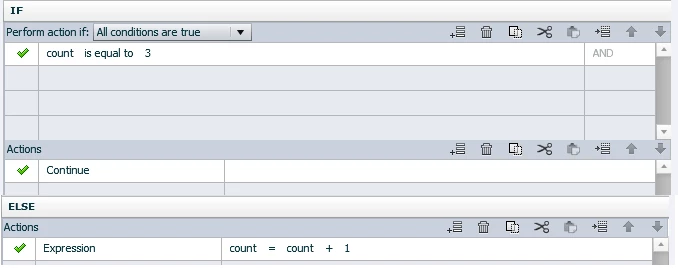
Assume your total number of Drag sources is 4, and then create a conditional action with the following statements
Select the Target Object, Click on the 'Accept' button from Drag and Drop Properties Panel. (Accepted Drag Source dialog should open up)

Set 'On Drop action' as Execute Advanced action, select the advanced action created in the above step, (set it for all sources).

This action gets triggered while dropping sources and the else part gets executed on drop the last source object and movie continues to the next slide

As I mentioned before, this doesn’t actually submit the question so it won’t work with 'Reporting' scenarios.

Thanks,

Nimmy Sukumaran.

1 reply

nsukumar
Adobe Employee
nsukumarCorrect answer
Adobe Employee
August 7, 2013

Hi there,

As per the current design, 'Auto Submit' works only for correct answers. You can try adding the following advanced action in case if you don't want to report the Drag and Drop interaction.

1. Create a user variable called 'count' with value '0'.

2. Create a conditional action with the following statements.

Assume your total number of Drag sources is 4, and then create a conditional action with the following statements

Select the Target Object, Click on the 'Accept' button from Drag and Drop Properties Panel. (Accepted Drag Source dialog should open up)

Set 'On Drop action' as Execute Advanced action, select the advanced action created in the above step, (set it for all sources).

This action gets triggered while dropping sources and the else part gets executed on drop the last source object and movie continues to the next slide

As I mentioned before, this doesn’t actually submit the question so it won’t work with 'Reporting' scenarios.

Thanks,

Nimmy Sukumaran.

Karlea_MAuthor
Inspiring
August 7, 2013

Fantastic solution.  Thank you for your detailed response!