Participant
May 11, 2023
Answered

Mask geometry edge

  • May 11, 2023
  • 1 reply
  • 2254 views

Hi everyone. I need to know how to acess to the geometry edges. Let say I have a cylinder without cap at the top or bottom and I need to mask the edge. I know that there is the UV border but this will mask the vertical seem that cuts the side of the cylinder, so I was wondering if there is any other method to mask the edge of the geometry only. 
Thanks a lot!

This topic has been closed for replies.
Correct answer Cyril Dellenbach

Hello @AndresFHO,


Thanks for the question.


The options I see are: 


1. Use the Polygon Fill tool to select only the faces at the border. This will obviously only work if you have edge loops at the border of the mesh.
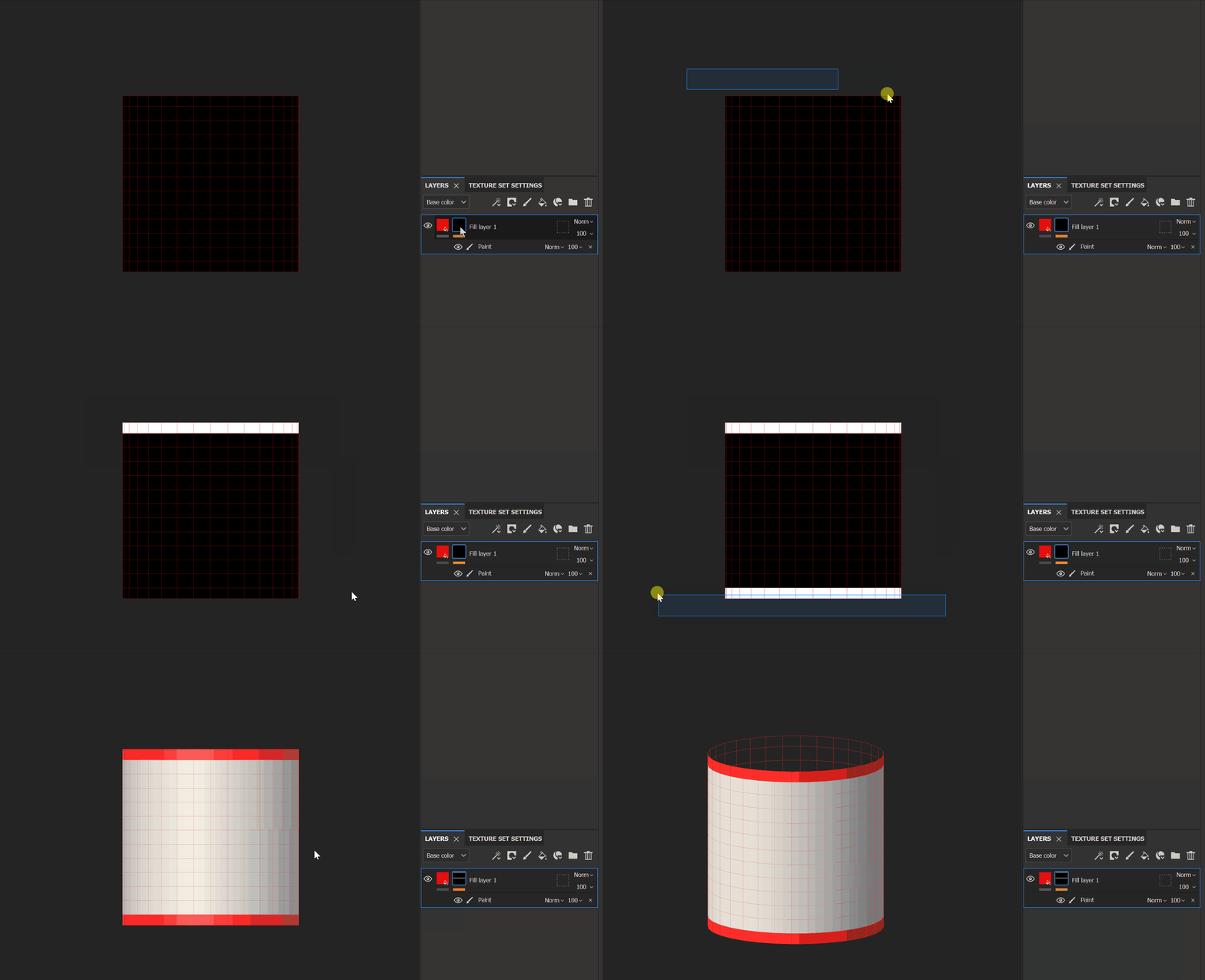


2. Make sure the UV shell fill its tile, then use the UV Border generator. This way, it shouldn't consider the vertical seam.
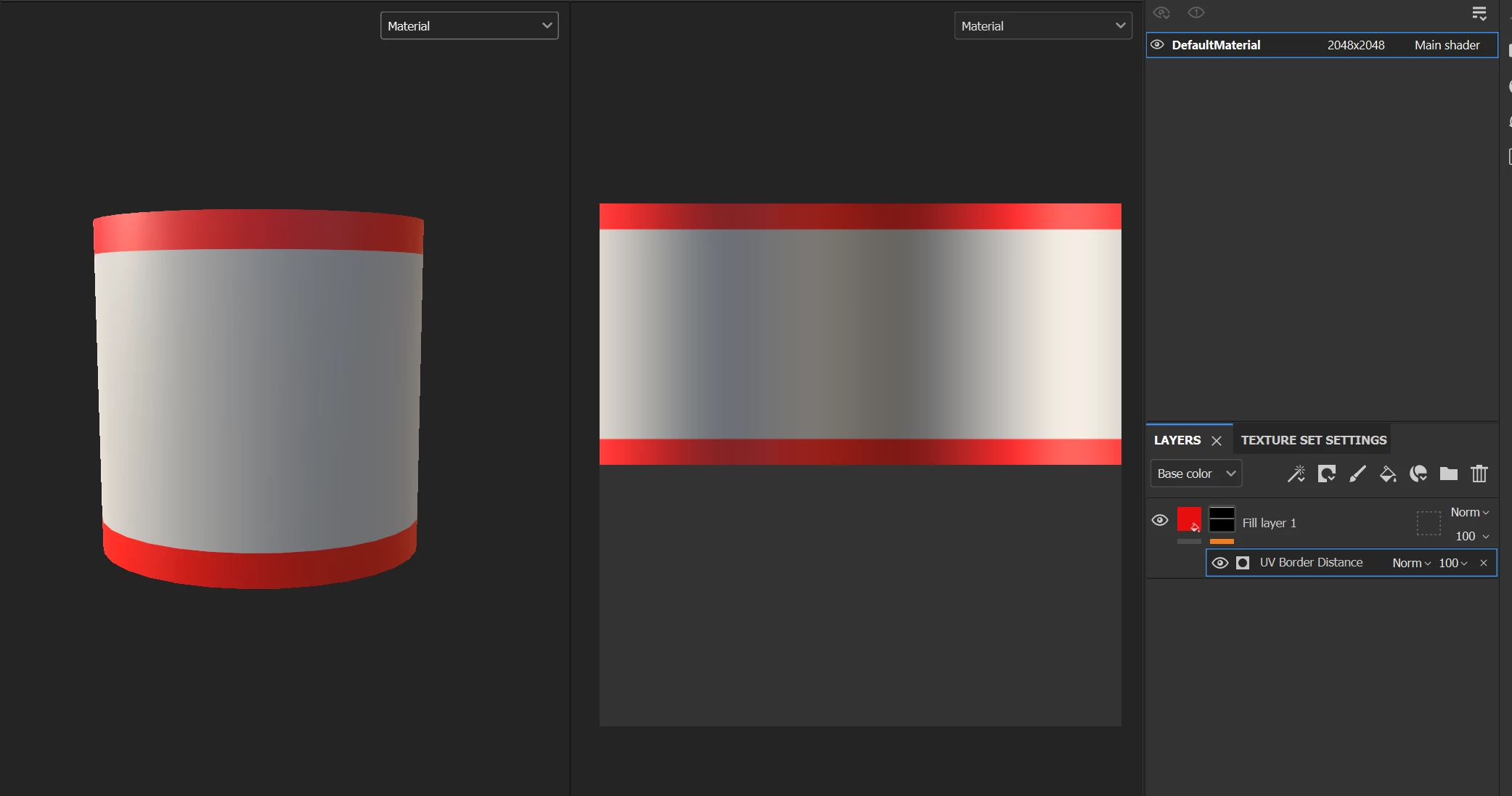


3. Use the UV border, add a paint effect, switch his blending mode to Sub, and paint the vertical seam to erase it. This solution isn't very versatile, but sometimes you don't have many other choices.


4. My last solution would be to simply paint the Border in the 2D View while holding the shift key to make straight lines. Not the best one, I agree.


On a side note, this won't work with an empty cylinder, but depending on the mesh, the baked maps could help to select the borders.


I hope this will be useful.


Best regards,



1 reply

Cyril Dellenbach
Community Manager
Cyril DellenbachCommunity ManagerCorrect answer
Community Manager
May 12, 2023

Hello @AndresFHO,


Thanks for the question.


The options I see are: 


1. Use the Polygon Fill tool to select only the faces at the border. This will obviously only work if you have edge loops at the border of the mesh.


2. Make sure the UV shell fill its tile, then use the UV Border generator. This way, it shouldn't consider the vertical seam.


3. Use the UV border, add a paint effect, switch his blending mode to Sub, and paint the vertical seam to erase it. This solution isn't very versatile, but sometimes you don't have many other choices.


4. My last solution would be to simply paint the Border in the 2D View while holding the shift key to make straight lines. Not the best one, I agree.


On a side note, this won't work with an empty cylinder, but depending on the mesh, the baked maps could help to select the borders.


I hope this will be useful.


Best regards,



Cyril Dellenbach (Micro) | QA Support Artist | Adobe
AndresFHOAuthor
Participant
May 25, 2023

Hi Cyril, thank you for your reply and sorry for the late response.
My particular case it's a bit more complicated than the cylinder but the theory is just the same. 
This is my shape, it's an skirt. I want to select only the edges and iterate over them, but, I would like to be able to manage this in a more procedural way because I need to create an smart material from this to be reused in several assets

So here is my mesh with the edges selected, now, I use UV Border Distance in multiply


As you can see the seam its is still visible, so it means that I have to go and paint by hand. 
I guess that since you gave me several methods and most imply that I have to paint by hand it means that it's not possible to achieve this in the way I need it, it's that right?
Thank you for you help


Cyril Dellenbach
Community Manager
Community Manager
May 25, 2023

Hmmm, you could use two Position generators. The generator will add a vertical gradient and by turning the contrast parameter to 1, you'll be able to use the balance to chose where the mask starts/ends.


But this solution will probably bring many other issues when used on other projects than the skirt.


Unfortunately no, I can't think of another solution to your issue in Substance 3D Painter (if someone does, please let us know).


Best regards,


Cyril Dellenbach (Micro) | QA Support Artist | Adobe