
Participating Frequently
September 4, 2020
Answered

Cloud files not syncing; desktop app stuck on "Getting storage information"

  • September 4, 2020
  • 4 replies
  • 4768 views

Issue:

  • Changes made in "Your Work" tab of desktop app do not sync to assets.adobe.com
  • Folders created on assets.adobe.com show up in desktop app as "Online only" and files moved to those folders are not displayed in desktop app. 
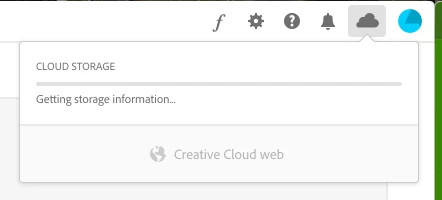
  • In the desktop app, clicking the cloud icon in the toolbar shows an unmoving progress bar stuck on "Getting storage information." (see attached)
 

Attempted Troubleshooting:

  • I've logged out and quit Adobe CC, restarted my computer, etc.
  • I'm not having any internet connectivity issues
  • I'm well under my storage quota
  • There are no reported outages on status.adobe.com
  • No errors are displayed in the app
  • No options.tix file or log files are present in CoreSync folder on my computer
This topic has been closed for replies.
Correct answer Ivoryplum

I had this problem, and tried everything that had been recommended.


What finally worked for me was:

- Navigate to your libraby folder (Finder>Go>Go To Folder: ~/Library/)

- Open Application Support folder

- Right-click on the Adobe folder, and click 'Get Info'.

- Click the 'lock' icon in the bottom right, and enter in your computer password.

- Under 'Sharing & Permissions' change all for "Read & Write".


Only System was on "Read & Write", and once I changed the remaining from "Read" to "Read & Write" Creative Cloud instantly started syncing. Hope this helps!

4 replies

IvoryplumCorrect answer
Participating Frequently
October 4, 2021

I had this problem, and tried everything that had been recommended.


What finally worked for me was:

- Navigate to your libraby folder (Finder>Go>Go To Folder: ~/Library/)

- Open Application Support folder

- Right-click on the Adobe folder, and click 'Get Info'.

- Click the 'lock' icon in the bottom right, and enter in your computer password.

- Under 'Sharing & Permissions' change all for "Read & Write".


Only System was on "Read & Write", and once I changed the remaining from "Read" to "Read & Write" Creative Cloud instantly started syncing. Hope this helps!

rkotakonda
Participating Frequently
February 8, 2021

https://helpx.adobe.com/creative-cloud/kb/fix-creative-cloud-error-131.html


Follow this process believe me it worked for me. Just follow the "how to quit these background processes, follow the steps for your operating system". for both operating systems.


Participating Frequently
September 4, 2020

And just like that, with zero further action on my part, it starts working again. Gotta love this bug-ridden product. Always a pleasure.

Participant
September 11, 2020

Wait, so how exactly did you get it to work?


Mine says the same thing and its stuck on updating at 23%. 

Participating Frequently
September 11, 2020

I didn't do anything; it just randomly started working again on its own. Must've been a temporary glitch on Adobe's side.

Participating Frequently
September 4, 2020

No dice!


  • FAQ — No FAQs relevant to issue
  • Sync Settings — Article/feature out of date
  • Error: "Unable to sync files"
    • Pause syncing button is non-functional
    • No errors are displayed in the app
    • Not using any reserved characters
    • File and folder names are well within character limit
    • No trailing characters
    • No aliases or shortcuts
    • No files are open
    • No conflicted copies
    • Keyboard shortcuts to restart sync and clear cache appear to be nonfunctional
  • Sync and email — Not relevant to issue
  • My Assets — Not a help article
  • File sharing — Not relevant to issue


I imagine the root of the problem is the fact that clicking the cloud icon in the toolbar shows an unmoving progress bar stuck on "Getting storage information," but I have no idea why that's happening or how to fix it.