AngelV
Participant
March 3, 2021
Answered

Last Creative Cloud update create a new Library folder on MacOs Big Sur

  • March 3, 2021
  • 11 replies
  • 7756 views

Hi, there is a mysterious new Library folder on my Documents folder after the last Creative Cloud update on my brand new iMac mid 2020 with Macos Big Sur 11.2.2 installed


does anybody knows how to delete it? and if it is safe to do that?

Thanks

Correct answer David__B

(Update 4-8-2021: This is now fixed in the latest version of the Creative Cloud desktop app, version 5.4.3.544 or later when installing, however it will not remove the folder automatically if it was created by a prior installation. Please follow the steps below to delete the folder after which it will not reappear after rebooting the system. Additionally, please follow the steps described here to update to the latest version version of the Creative Cloud desktop app if needed.) https://helpx.adobe.com/creative-cloud/help/creative-cloud-updates.html#Checkforlatestupdates

Sorry for the inconvenience regarding this. After inquiring with our developers, we learned that the creation of this folder was an oversight related to testing. The folder is harmless and doesn’t impact the system in any way. It will be removed with a future Creative Cloud update but can also be deleted manually in the meantime if you want.


To delete the folder manually please use one of the following options


Option 1


  1. Open the Documents folder
  2. Cntrl/Right click the Library folder and choose the option to Move to Trash
  3. Type in the system password when prompted


Option 2


  1. Open terminal from HD> Applications > Utilities
  2. In the terminal window type sudo chown -R <current user> <path to user Documents/Library>


Note: the current user should be listed in terminal when you open it and you can drag and drop the folder into the terminal window to get its path.


On my system the terminal window looked like this
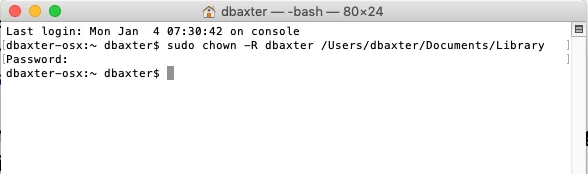


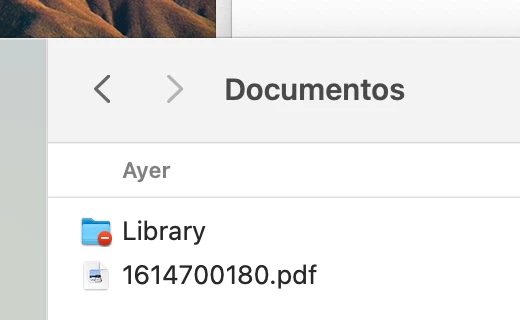
After typing in the command press Return, it should then prompt for your Mac password. Type this and press Return again. If you completed the process successfully the warning symbol should be removed from the folder. From there simply delete the folder.
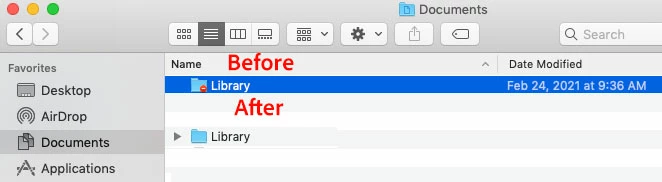
 

In some instances, the folder may reappear after reboot, should this occur, simply repeat one of the above options.


In addition to the solutions above engineerings has also released this kb article related to the issue
https://helpx.adobe.com/download-install/kb/library-folder-created-on-macos.html


This article has a link to an installer for Creative Cloud desktop in which the issue is resolved.
https://creativecloud.adobe.com/apps/download/creative-cloud

 

11 replies

David__B
Adobe Employee
David__BCorrect answer
Adobe Employee
March 11, 2021

(Update 4-8-2021: This is now fixed in the latest version of the Creative Cloud desktop app, version 5.4.3.544 or later when installing, however it will not remove the folder automatically if it was created by a prior installation. Please follow the steps below to delete the folder after which it will not reappear after rebooting the system. Additionally, please follow the steps described here to update to the latest version version of the Creative Cloud desktop app if needed.) https://helpx.adobe.com/creative-cloud/help/creative-cloud-updates.html#Checkforlatestupdates

Sorry for the inconvenience regarding this. After inquiring with our developers, we learned that the creation of this folder was an oversight related to testing. The folder is harmless and doesn’t impact the system in any way. It will be removed with a future Creative Cloud update but can also be deleted manually in the meantime if you want.


To delete the folder manually please use one of the following options


Option 1


  1. Open the Documents folder
  2. Cntrl/Right click the Library folder and choose the option to Move to Trash
  3. Type in the system password when prompted


Option 2


  1. Open terminal from HD> Applications > Utilities
  2. In the terminal window type sudo chown -R <current user> <path to user Documents/Library>


Note: the current user should be listed in terminal when you open it and you can drag and drop the folder into the terminal window to get its path.


On my system the terminal window looked like this


After typing in the command press Return, it should then prompt for your Mac password. Type this and press Return again. If you completed the process successfully the warning symbol should be removed from the folder. From there simply delete the folder.


In some instances, the folder may reappear after reboot, should this occur, simply repeat one of the above options.


In addition to the solutions above engineerings has also released this kb article related to the issue
https://helpx.adobe.com/download-install/kb/library-folder-created-on-macos.html


This article has a link to an installer for Creative Cloud desktop in which the issue is resolved.
https://creativecloud.adobe.com/apps/download/creative-cloud
 

Participating Frequently
March 11, 2021

I’m happy to hear that Adobe is now aware of this bug. Thank you for your confirmation!


As I mentioned in my post above I already performed those steps described in your “Option1”.

But in my case that folder reappears with every system reboot, no matter how often I delete it.


Therefore, I better wait for the upcoming bug-fix version of Creative Cloud which hopefully will resolve this issue.

Participant
March 22, 2021

Been having the same issue with the restricted folder. I just did a re-instal of CC and the folder is gone. It was such a minor issue, but it had me stumpped. I did not want to delete it. After the re-instal and a relaunch of my Finder (control + option, click on Finder, select relaunch Finder) cleared it up and got rid of it.

Participant
March 9, 2021

Are there any news regarding this issue? Was someone able to confirm that Adobe is aware and working on a fix?


Just to add my voice to the list: the same folder appeared in my Documents folder on March 2nd (on both of my Macs) and the time stamp is identical to the CC app.


(2019 27" iMac & 2015 15" MacBookPro, both running Catalina)

AngelV
AngelVAuthor
Participant
March 6, 2021

After a large Apple Care support session, can conclude it is an Adobe Creative Cloud bug, somewhere in the desktop app settings creates that Library folder


firstsoprano1
Participant
March 8, 2021

Same problem here. AngelV, did Apple Care Support suggest how to remove it?


AngelV
AngelVAuthor
Participant
March 9, 2021

we removed, but come back when Creative Cloud app start

Participant
March 6, 2021

Can confirm as well. The same locked folder appeared when Adobe Creative Cloud updated today 03/05. It was the only thing that updated on my computer.

AngelV
AngelVAuthor
Participant
March 5, 2021

Actually, I contacted Apple support and they are taking care of the problem.

Participant
March 11, 2021

I'm facing the same issue. Did they tell you what can be done or how long it can take?

chris_michalik
Participant
March 5, 2021

I'm having the same issue, a locked "Library" folder mysteriously appeared in my "Documents" folder. Changed permissions and deleted it only to have it there again after restarting. I did some quick testing with application write permissions and it appears to be created by either Adobe Desktop Service or Creative Cloud Helper on system startup.


I went to the chat support and they were utterly useless. All they could tell me was that Creative Cloud can only be installed of the main drive by default.


Glad to see this looks to actually be Adobe related and not something malicious (my initial fear). But definitely still something Adobe needs to address, there are at least 3 other locations where having this folder (if it's even necessary) would make more sense.

Participant
March 5, 2021

AGREED -- Are these forums monitored by adobe support people? I certainly hope so. A diligent support team should already be working to remedy this bug, so we can delete the rogue folder and not have it re-generate after re-launch/re-start.

kglad
Community Expert
Community Expert
March 5, 2021

no.


if you want to report a bug, https://www.adobe.com/products/wishform.html


AngelV
AngelVAuthor
Participant
March 4, 2021

Hi all, last night I contacted Adobe support via chat and they told me this is a bug concerning to MacOs Apple, I insisted with creation time with the last Creative Cloud update are exactly the same.


Participating Frequently
March 4, 2021

Exactly the same here with me on macOS Mojave:-(


Deleting the locked folder leads to nothing. Because it will be recreated after every system restart. The only difference is that it shows up as unlocked and one can now find a Subfolder named "Logs" in it, without any content.


Waiting for a bugfix as well.

Participant
March 4, 2021

Same issue also here! I hope for bugfix!

Participant
March 4, 2021

Confirmed, that same locked LIbrary folder appeared inside the /Documents folder on all 3 of my intel Mac laptops on March 2nd after I performed some routine app updates.


I trouble-shot this by comparing creation time of that Library folder with modification times for my recent app updates. This pointed to the Creative Cloud app updates that were issued on March 2nd at the same time as the rogue Library folder. Creative Cloud app did this.


"Get Info" on the folder showed it has zero k contents. I deleted it, re-started, and the same folder was created in its place after re-start.


IMPORTANT:

****Adobe needs to address the faulty update for Creative cloud that they issued on March 2nd****