Participant
August 9, 2018
Answered

branched: decal distortion

  • August 9, 2018
  • 1 reply
  • 337 views

I have this same problem. Whenever I add my PNG that I want rendered on the glass shape, it only appears undistorted whenever it is small and away from the edges(see top attached image). BUT, whenever it is enlarged or touching the edges it becomes distorted, warped or scrambled(see bottom attached imaged). Which makes this difficult or impossible for my situation because I need to be 1/8" away from the edge of the glass cutout. Is there any fix for this?.
    This topic has been closed for replies.
    Correct answer mitchellw40891860

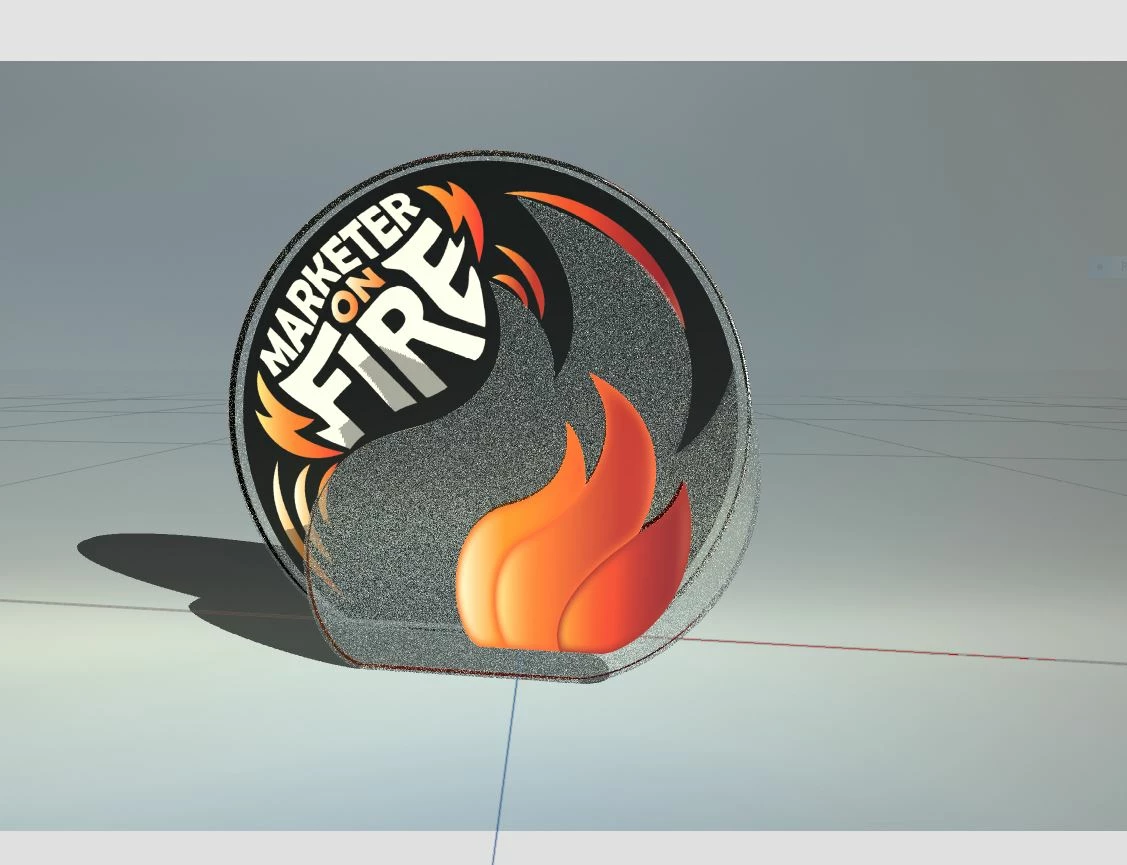
    I have found near solution of sorts. I went back to Photoshop and opened the .PNG for the decal that I wanted to place on the 3D object. I then opened the 3D tab and rendered it in 3D with the '3D Postcard' option selected instead of '3D Extrusion,' and exported the 3D object as an .OBJ. Next, I imported the decal(which is now not technically a 'decal,' but a 3D object) as a 3D object and placed it in front of the glass to achieve the desired effect(see image below). Initially, the 'decal' was too transparent, but to fix this, I simply copied it a couple of times and overlapped the copies on top of one another to create the opacity I wanted. I know this isn't technically a solution to my problem, so if anyone knows a real fix to attaching decals to a complex 3D object without distortion or warping then feel free to chime in. Thanks.

    1 reply

    Ussnorway7605025
    Legend
    August 11, 2018

    I would make a copy of the front "flame" part and use metal instead of glass as the material then place the "flame" decal on the metal part and adjust that so the glass part is in front... that should give the effect you want but you may need to adjust the lights | angle a bit as well

    Participant
    August 13, 2018

    I changed the material to metal and did what you said, but the material seems irrelevant. The graphic decal still warps or distorts when it gets close to the edges of the 3D Object(image below).

    mitchellw40891860AuthorCorrect answer
    Participant
    August 13, 2018

    I have found near solution of sorts. I went back to Photoshop and opened the .PNG for the decal that I wanted to place on the 3D object. I then opened the 3D tab and rendered it in 3D with the '3D Postcard' option selected instead of '3D Extrusion,' and exported the 3D object as an .OBJ. Next, I imported the decal(which is now not technically a 'decal,' but a 3D object) as a 3D object and placed it in front of the glass to achieve the desired effect(see image below). Initially, the 'decal' was too transparent, but to fix this, I simply copied it a couple of times and overlapped the copies on top of one another to create the opacity I wanted. I know this isn't technically a solution to my problem, so if anyone knows a real fix to attaching decals to a complex 3D object without distortion or warping then feel free to chime in. Thanks.