


duck90005733660
Known Participant
August 3, 2021
Answered

Materials not applying correctly

  • August 3, 2021
  • 2 replies
  • 2124 views

I’ve recently started using Blender to create objects, but for now I am still using Adobe Dimension to build my scene since I already know it and am midway through a project.

I just imported my first blender related object, and I’m not able to match the material of existing objects to the new object. The new objects absorb the color, but not the “texturing” (e.g. surface variations).

Note the rifles and pistols on the left have nice tonal variations, and the batons on the right do not.

I’ve tried using the sampler tool and starting from scratch with the Darken Antique Bronze and then adjusting color and other properties.
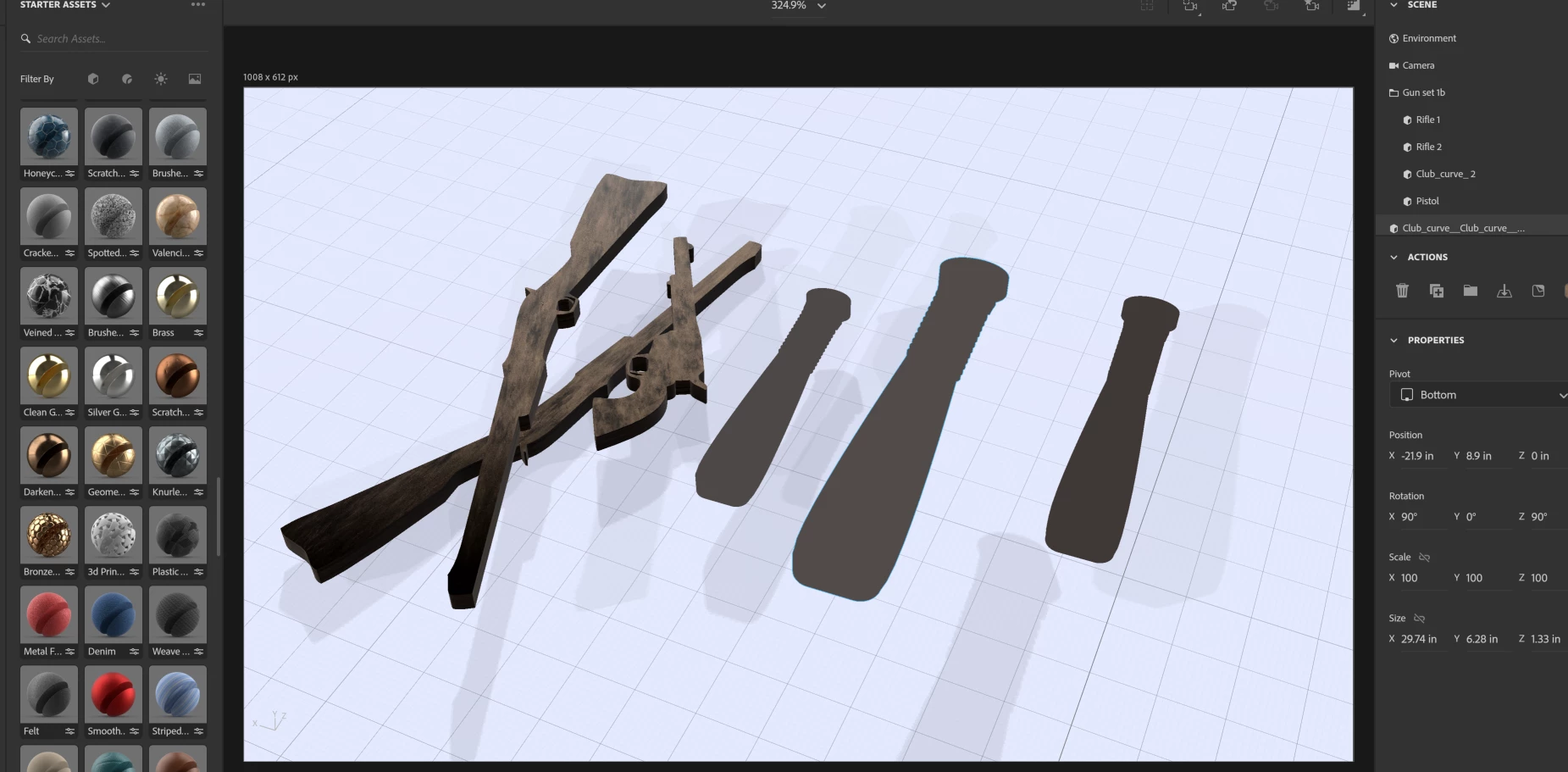


This could well be some setting in Blender as I’ve ad no problem importing objects I’ve created in Photoshop and Sketchup, so I’m asking in my Blender community also. But if anyone has any ideas, I’d sure be grateful. 

This topic has been closed for replies.
Correct answer Ussnorway7605025

try this;

step 1 load the model you have sort of working into Dimension and take \ share a screengrab so we can see it... this is the model you made in Blender that looks ok until you try to add a new material


step 2 with that model selected in Dimension [ie. before change the material step] , ask Dimension to generate a new Uv for it from the top tool bars... does this now allow you to change materials without breaking the model?

2 replies

Ussnorway7605025
Ussnorway7605025Correct answer
Legend
August 3, 2021

try this;

step 1 load the model you have sort of working into Dimension and take \ share a screengrab so we can see it... this is the model you made in Blender that looks ok until you try to add a new material


step 2 with that model selected in Dimension [ie. before change the material step] , ask Dimension to generate a new Uv for it from the top tool bars... does this now allow you to change materials without breaking the model?

duck90005733660
Known Participant
August 3, 2021

@Ussnorway7605025 

Fabulous! I just did that, and it worked

I also found I can create the UV map a different way in Blender, and then the export/import works. What I did is this:

  • In Edit Mode
  • Go to UV |Smart UV Project
  • Click OK

I used the defaults, except Island Margin, I changed to .03.  I have no idea what this is actually, but a YouTube video suggestid that, and for now it's working for me.

Thanks to YouTube and helpful people like you, I'm figuring this stuff out one step at time!

Ussnorway7605025
Legend
August 3, 2021

the baton looks like an extrusion and if made in Photoshop then you forgot the 'generate UV' step... in any event the error is in the models and pretty easy to repair


p.s, make wavefront Obj models

duck90005733660
Known Participant
August 3, 2021

@Ussnorway7605025 Thank you!  I'm really new to this, and didn't understand the funtion of the UV map.  I've done some reading now, so I'm starting to get it.


I'm not using Photoshop, I'm using Blender. I found a modifier that adds the UV map, and it seems to have done the trick.


Thanks for pointing me in the right direction!