


Inspiring
April 2, 2018
Answered

Greater Than/Less Than/Greater Than or Equal To/Less Than or Equal To Symbols

  • April 2, 2018
  • 3 replies
  • 28344 views

In FrameMaker 12, how do you type greater than/less than/greater than or equal to/less than or equal to? For example, how would you type "less than or equal to 3" with symbols instead of words? Right now, my workaround is to create a new equation, pick what I want from the Relations group, and then drag the border of the equation box in until it covers the question mark on the left side of the equation.

This topic has been closed for replies.
Correct answer Barb Binder

Hi Cameo:

I just tested it and got the same result. The less than or equal to works, but I got a square for greater than or equal to.

So... there are two ways to get these symbols: the FrameMaker shortcut and entering an ANSI code. Not sure it there is an error in my shortcut book, or if things have changed—it's from May 1995.

But switching to the ANSI code still works as expected. Hold the Alt key down with your left hand, and type 0179 on the numeric keypad on your keyboard—not the numbers at the top of the keyboard—and then release the ALT key. (For symmetry, Alt+0163 is less than or equal to).

~Barb

3 replies

K.Daube
Community Expert
Community Expert
April 6, 2018

Hi Cameo,

Since the standard FM "Insert special character" is very meager I wrote a script serving my requirements. Not everybody has the same requirements, so the script is source code and you can change the symbols in there - use Unicode symbols only.

See Enhanced Toolbar for FM-14-en . On Request you can get the script alone.

Barb Binder
Community Expert
Community Expert
April 3, 2018

Hi Cameo:

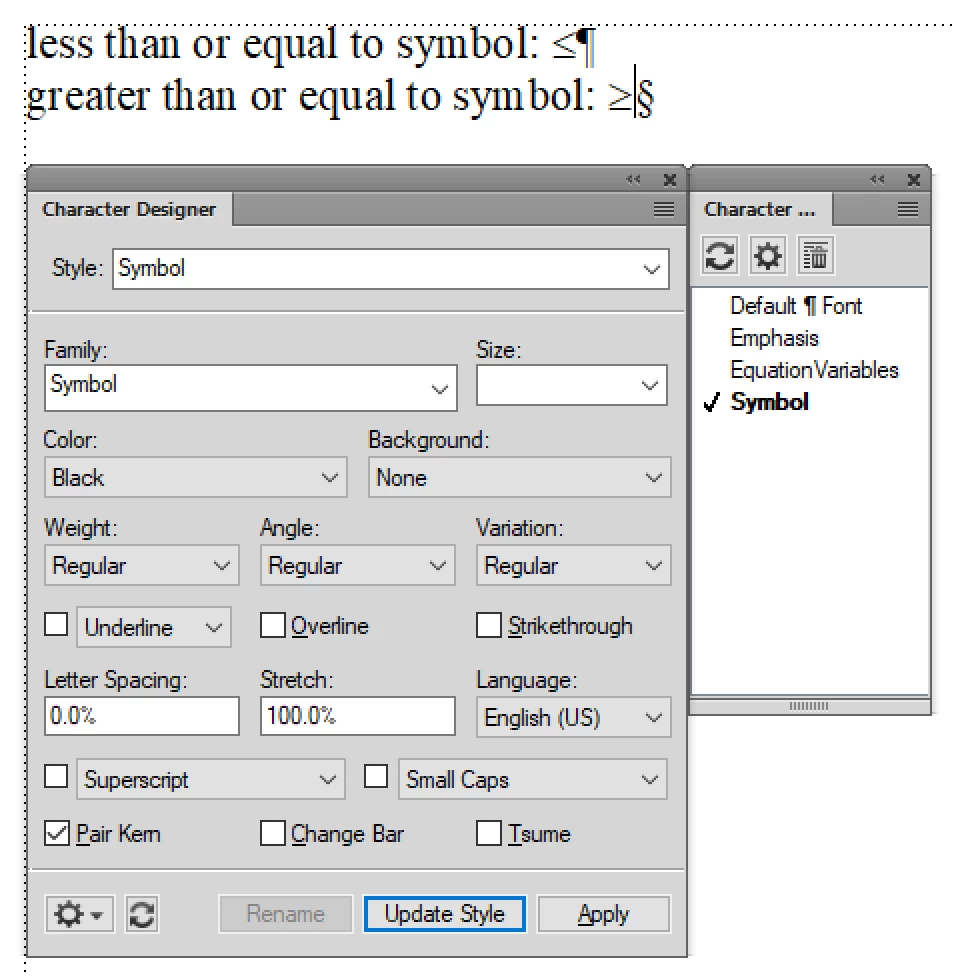
Or, for type Ctrl+q # and for type Ctrl+q 3, then use a character tag to change the font to Symbol.

(These are sequential shortcuts, so for the first one, hold the Control key and press q. Release both and then type either 3 or Shift+3.)

~Barb

~Barb at Rocky Mountain Training
Inspiring
April 3, 2018

Hi Barb,

Ctrl+q # works for me perfectly! However, Ctrl+q 3 turns into a square when I change the Character Tag in the Character Designer pod to "SymbolFont."

Cameo

Community Manager
April 3, 2018

My recommendation here is to use the "real" glyphs defined in Unicode for this. This way, you actually get the real glyphs definied in the Unicode Standard, instead of some other character that just looks like it.

When you insert "£" and format it with font "Symbol", it will look like the correct ≤ glyph, but in fact, it's still just the "£" character.

Same for "³" - format it with font "Symbol" and it will look like the correct ≥ glyph - but actually it's still just a "³".

You can type in \u2264 for “less-than or equal to” and/or \u2265 for “greater-than or equal to” in the Change To Text field in the “Find/Change” dialog. Put the insertion mark where you want to insert the glyph and click “Change” in the “Find/Change” dialog.

Make sure, to use a font, that actually has these code points populated (e.g. Arial, Times New Roman, Calibri, …)

Unicode Name

Unicode

Code for Find/Change Dialog

Rendered Glyph

LESS-THAN OR EQUAL TO

2264

\u2264

GREATER-THAN OR EQUAL TO

2265

\u2265

Jeff_Coatsworth
Community Expert
Community Expert
April 2, 2018

Unicode U+2265 (\u2265) ?