Barb Binder
Community Expert
Community Expert
February 26, 2024
Answered

How to locate all occurrences of a specific image and delete it

  • February 26, 2024
  • 9 replies
  • 934 views

Hi FrameMaker Friends:


I'm trying to help a client locate all occurrences of a specific image and delete it. Here's what I've tried so far:

  1. If we assign an object style to the ones we are looking for (it's the same image used in multiple places, removed after each round of edits), Fm can use Find/Change to locate and select a frame based on the object style name, but won't delete it.
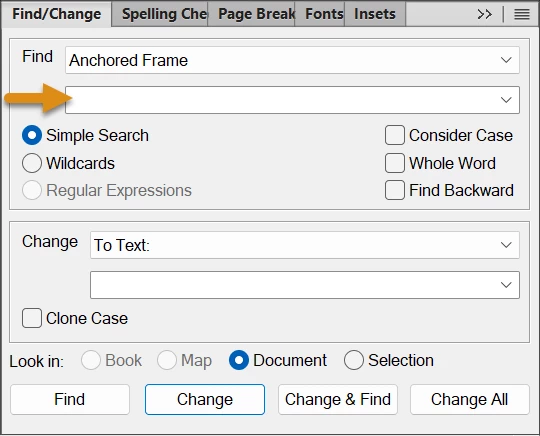
  2. Fm can use Find/Change to locate all anchored frames and remove them but it's all of them.


So, how is the text field used for an anchored frame search? Is there something I can type in there that will allow me to narrow the scope? I tried filename and full path with filename, neither worked. Any other ideas?


Thanks in advance, 


~Barb

    Correct answer frameexpert

    Hi Barb, I am so sorry for the delay and for posting a broken script! I tried the script and found some errors being written to the Console. Here is the updated, working version. Note that the script will delete the anchored frame containing the image. If you want to keep the anchored frame and just delete the image, replace this line:


    aframes.push (parent);


    with this:


    aframes.push (graphic);


    Here is the updated script:


    main ();
    
    function main () {
    
        var doc;
        
        doc = app.ActiveDoc;
        if (doc.ObjectValid () === 1) {
            processDoc (doc);
        }
    }
    
    function processDoc (doc) {
    
        var regex, aframes, count, i;
        
        regex = /rocketwide\.ai$/i;
        
        // Turn off the displaying property to speed the script and prevent flicker.
        if (app.Displaying === 1) {
            app.Displaying = 0;
        }
    	
        // Get the anchored frames that contain an image matching
        // a regular expression pattern.
        aframes = getAFrames (doc, regex);
        
        // Delete the anchored frames.
        count = aframes.length;
        for (i = 0; i < count; i += 1) {
            aframes[i].Delete ();
        }
        
        // Restore the document display and refresh the screen.
        if (app.Displaying === 0) {
            app.Displaying = 1;
    		doc.Redisplay ();
        }
    }
    
    function getAFrames (doc, regex) {
    
        var aframes, graphic, parent;
        
        // Make an array to store the anchored frames.
        aframes = [];
        
        // Loop through the graphics in the document.
        graphic = doc.FirstGraphicInDoc;
        while (graphic.ObjectValid () === 1) {
            // Test for an imported graphic.
            if (graphic.constructor.name === "Inset") {
                // See if the imported graphic matches the regular expression.
                if (regex.test (graphic.InsetFile) === true) {
                    // Get the parent frame of the graphic.
                    parent = graphic.FrameParent;
                    // Make sure it is an anchored frame.
                    if (parent.constructor.name === "AFrame") {
                        // Push it onto the array.
                        aframes.push (parent);
                    }
                }
            }
            graphic = graphic.NextGraphicInDoc;
        }
        
        // Return the array of anchored frame objects.
        return aframes;
    }



    9 replies

    Barb Binder
    Community Expert
    Community Expert
    March 5, 2024

    Hi Rick:


    My apologies that this is dragging on. I'm in class all week again. I can run the script with both methods you described, but it isn't doing anything. Or at least, it isn't locating and removing the referenced image.


    ~Barb

    ~Barb at Rocky Mountain Training
    frameexpert
    Community Expert
    frameexpertCommunity ExpertCorrect answer
    Community Expert
    March 7, 2024

    Hi Barb, I am so sorry for the delay and for posting a broken script! I tried the script and found some errors being written to the Console. Here is the updated, working version. Note that the script will delete the anchored frame containing the image. If you want to keep the anchored frame and just delete the image, replace this line:


    aframes.push (parent);


    with this:


    aframes.push (graphic);


    Here is the updated script:


    main ();
    
    function main () {
    
        var doc;
        
        doc = app.ActiveDoc;
        if (doc.ObjectValid () === 1) {
            processDoc (doc);
        }
    }
    
    function processDoc (doc) {
    
        var regex, aframes, count, i;
        
        regex = /rocketwide\.ai$/i;
        
        // Turn off the displaying property to speed the script and prevent flicker.
        if (app.Displaying === 1) {
            app.Displaying = 0;
        }
    	
        // Get the anchored frames that contain an image matching
        // a regular expression pattern.
        aframes = getAFrames (doc, regex);
        
        // Delete the anchored frames.
        count = aframes.length;
        for (i = 0; i < count; i += 1) {
            aframes[i].Delete ();
        }
        
        // Restore the document display and refresh the screen.
        if (app.Displaying === 0) {
            app.Displaying = 1;
    		doc.Redisplay ();
        }
    }
    
    function getAFrames (doc, regex) {
    
        var aframes, graphic, parent;
        
        // Make an array to store the anchored frames.
        aframes = [];
        
        // Loop through the graphics in the document.
        graphic = doc.FirstGraphicInDoc;
        while (graphic.ObjectValid () === 1) {
            // Test for an imported graphic.
            if (graphic.constructor.name === "Inset") {
                // See if the imported graphic matches the regular expression.
                if (regex.test (graphic.InsetFile) === true) {
                    // Get the parent frame of the graphic.
                    parent = graphic.FrameParent;
                    // Make sure it is an anchored frame.
                    if (parent.constructor.name === "AFrame") {
                        // Push it onto the array.
                        aframes.push (parent);
                    }
                }
            }
            graphic = graphic.NextGraphicInDoc;
        }
        
        // Return the array of anchored frame objects.
        return aframes;
    }



    Inspiring
    September 16, 2025

    @frameexpert - Sorry for the thread resurrection, but I have a similar issue and couldn't get your script to work.

    My issue: My document contains an Anchored Frame on the last page with the text "THE END" inside the frame. There will only be one such anchored frame, and it will always be at the end of the document.

    The above might help as the script shouldn't have to loop through the document and find all occurences.

    When the document(s) are a component of a book, I need to loop through all the components except the last one and remove the "THE END" frame.

    I know how to iterate through the book file. I don't know how to find and remove the frame in the document.

    I tried changing the Regex line to:

        regex = /THE END$/;

     but it didn't seem to work for me - probably b/c I am looking for text in the A-frame, as opposed to an image in the frame.

    Thank you as always!

    Barb Binder
    Community Expert
    Community Expert
    March 3, 2024

    OK, Rick. I finally had time to sit down to work through this but am still doing something wrong. 


    This is the file I am testing with: rocketwide.ai.


    I copied your code to Notepad, modified the one regex line, saved it in the startup folder, can see it, can run it but nothing ?happens. Is it the encoding when I saved the Notepad file? Or do I need to reference the entire path?


    ~Barb

    ~Barb at Rocky Mountain Training
    frameexpert
    Community Expert
    Community Expert
    March 4, 2024

    Hi Barb,

    I didn't create a specific interface for this script, so you have to run it "manually" using File > Script > Run and choosing the script. Or, you can choose File > Script > Catalog and add it to the Script Library panel and run it from there.

    -Rick

    Barb Binder
    Community Expert
    Community Expert
    February 28, 2024

    This is terrific, Rick! I'm still teaching so not going be able to sit down to work through this until Friday morning. 


    ~Barb

    ~Barb at Rocky Mountain Training
    Barb Binder
    Community Expert
    Community Expert
    February 27, 2024

    Oh, this looks promising, Rick. Thank you!


    So this is the line we need to edit? Let's say the file they are looking for called myfile.tif and it appears multiple times in the file. 

    regex = /filename\.eps$/i;

    So this is the line we need to edit? Let's say the file they are looking for called myfile.tif and it appears multiple times in the file. 

    regex = /myfile\.tif$/i;

    ???


    And, you know I know nothing about Extendscript. So continuing to guess:

    • Paste it in a text editor like Notepad?
    • Save it as RemoveImage.js and put it in the Startup folder.
    • Then how do they run it?


    ~Barb

    ~Barb at Rocky Mountain Training
    frameexpert
    Community Expert
    Community Expert
    February 27, 2024
    regex = /myfile\.tif$/i;

    A regular expression literal is created between two forward slashes. This one essentially says,

    Find the string "myfile", followed by a literal period (\.), followed by the string "tif", and make sure it is at the end of the string we are testing ($). The "i" is a flag that makes it a case-insensitive search.


    Note that you can create regular expressions in FrameMaker's Find/Change dialog box and test them in FrameMaker. Make sure you select the Regular Expression radio button.


    The script should be saved as a plain text file with a .jsx extension. A script like this can be put in the startup folder but you still have to run it "manually" using File > Script > Run. Or, you can choose File > Script > Catalog and add it to the Script Library panel.


    When I write a script for a client, I will typically give them an "interface"; possibly a command on a dedicated menu, or add it as a custom command to an existing FrameMaker menu.

    frameexpert
    Community Expert
    Community Expert
    February 27, 2024

    Hi Barb,

    I am assuming that you are looking for a particular graphic name and want to delete the anchored frame that contains it. If so, this code should do what you want. You will have to tweak the regular expression so it contains the correct filename pattern; I can help you with that.

    -Rick


    main ();
    
    function main () {
    
        var doc;
        
        doc = app.ActiveDoc;
        if (doc.ObjectValid () === 1) {
            processDoc (doc);
        }
    }
    
    function processDoc (doc) {
    
        var regex, aframes, count, i;
        
        regex = /filename\.eps$/i;
        
        // Turn off the displaying property to speed the script and prevent flicker.
        if (app.Displaying === 1) {
            app.Displaying = 0;
        }
    	
        // Get the anchored frames that contain an image matching
        // a regular expression pattern.
        aframes = getAFrames (doc, regex);
        
        // Delete the anchored frames.
        count = aframes.length;
        for (i = 0; i < count; i += 1) {
            aframes[i].Delete ();
        }
        
        // Restore the document display and refresh the screen.
        if (app.Displaying === 0) {
            app.Displaying = 1;
    		doc.Redisplay ();
        }
    }
    
    function getAnchoredFrames (doc, regex) {
    
        var aframes, graphic, parent;
        
        // Make an array to store the anchored frames.
        aframes = [];
        
        // Loop through the graphics in the document.
        graphics = doc.FirstGraphicInDoc;
        while (graphic.ObjectValid () === 1) {
            // Test for an imported graphic.
            if (graphic.constructor.name === "Inset") {
                // See if the imported graphic matches the regular expression.
                if (regex.test (graphic.InsetFile) === true) {
                    Get the parent frame of the graphic.
                    parent = graphic.FrameParent;
                    // Make sure it is an anchored frame.
                    if (parent.construtor.name === "AFrame") {
                        // Push it onto the array.
                        aframes.push (graphic);
                    }
                }
            }
            graphic = graphic.NextGraphicInDoc;
        }
        
        // Return the array of anchored frame objects.
        return aframes;
    }


    Barb Binder
    Community Expert
    Community Expert
    February 26, 2024

    Thank you, all of you! Love this forum. I'll play with both tonight so that I can show the client in the morning. 

    ~Barb

    ~Barb at Rocky Mountain Training
    Community Expert
    February 26, 2024

    I think I would generate a list of references with referenced graphics. Search in the list for the file name and use the generated hyperlink to jump to the relevant image.

    OR use the search field in the insets panel. More cumbersome, though, but doable. probly


    Bjørn Smalbro - FrameMaker.dk
    Barb Binder
    Community Expert
    Community Expert
    February 26, 2024

    Can you elaborate on "OR use the search field in the insets panel.", Bjorn?


    ~Barb

    ~Barb at Rocky Mountain Training
    Community Expert
    February 26, 2024

    You can search for specific file names in the "Insets Panel". It will require  you to open all chapters, though, which is why this is a more time consuming effort. A generated list is to be preferred I think. OR merely rename the graphics file and open all chapters. Everywhere there is a red cross in the Insets Panel, is where the file is and can be located by clicking. But it will - again - require opening all chapters.


    Bjørn Smalbro - FrameMaker.dk
    Barb Binder
    Community Expert
    Community Expert
    February 26, 2024

    That seems like a good option that didn't occur to me. Is there any downside, Jeff?


    ~Barb

    ~Barb at Rocky Mountain Training
    Jeff_Coatsworth
    Community Expert
    Community Expert
    February 26, 2024

    Depends if you're just using it to locate the offending images OR going to delete them in the MIF and then re-open the MIF again in FM. Latter action is riskier.

    Jeff_Coatsworth
    Community Expert
    Community Expert
    February 26, 2024

    Save as MIF & then go hunting for the image name? Just spit-balling.... ;>)