October 3, 2011
Answered

Batch export .ai to .png produces files without extension - please help

  • October 3, 2011
  • 3 replies
  • 8039 views

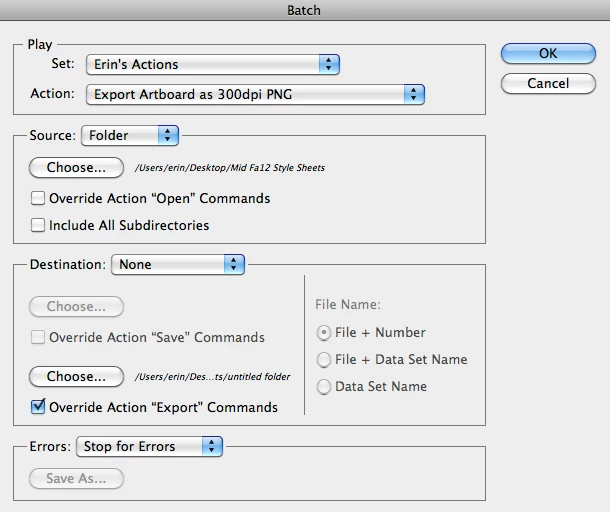
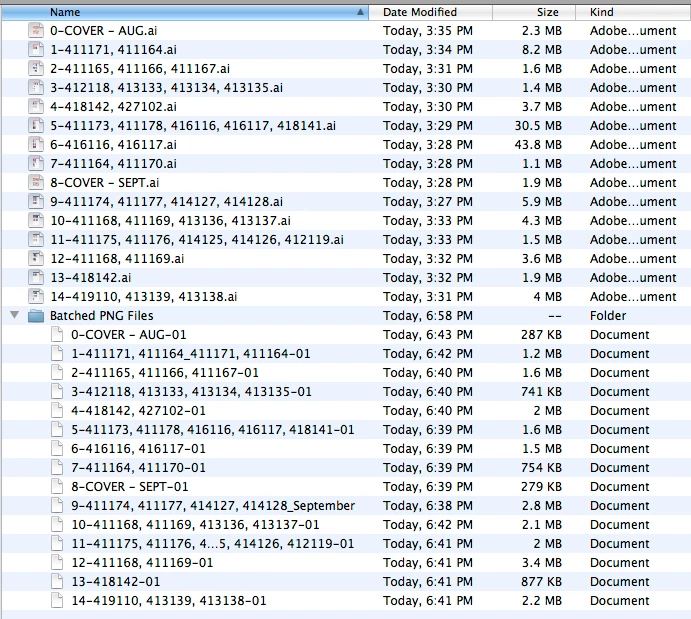
I created an Action to batch export a folder of .ai files to create 300dpi .png's of the .ai file's artboard. I did this by simply recording "Export...as png" with my desired settings then Batch running the Action on desired folder of .ai files.  The files were successfully exported, the trouble is that the exported files lack a .png file extension. My intent is to take these PNG files and

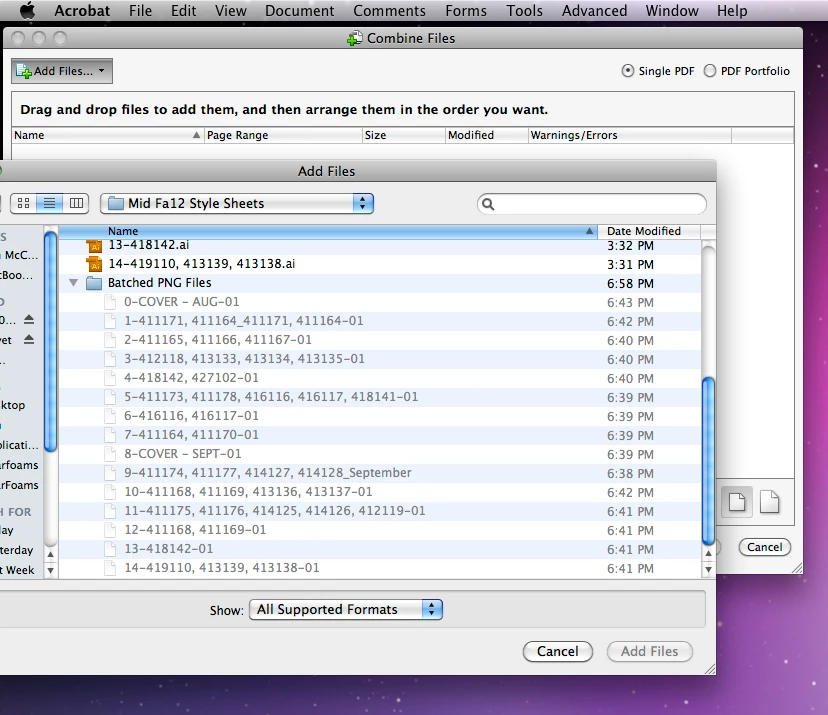
merge them into a single PDF using Acrobat Pro. Unfortunatly, without the .PNG extension, Acrobat Pro does not recognize the file types and does not let me use the Combine Files feature on them. Going back and manually adding a .png at the end of the exported files defeats the time-saving purpose of Batch Processing all together. Is there something I am missing or doing incorrectly? I have included screenshots of 1) My Batch Action settings 2) folders showing files without .png extension and 3) visual of what I see when I am trying to combine PNGs into a PDF. Assistance would be greatly appreciated!
- Erin

This topic has been closed for replies.
Correct answer Silly-V

It all depends on whether you name your initial file something custom when recording your first action. Try to 1) name your output file something custom and see if the PNGs are with an extension and then if not, 2) leave the name of your output file alone and see if the PNGs are with an extension. One of these two might work!

3 replies

candieland
Participant
March 20, 2018

I'm having this very same issue and I'm on a PC. I get all the unnamed files and I have to individually add the PNG extension to get them to show up correctly. So yes, the Bridge thing from Muppet Mark is a completely viable option even though it's an extra step. When we "Export as PNG" it keeps overriding the original file name and we get one good file. As TEbert stated when you use "Save as Copy" you get individual files however a PNG is not option when using that particular command. I verified this by exporting to an SVG but that's not the file type I want. What we need is a function "Export as Copy" so it will work in a batch export like "Save as Copy" does.

Silly-V
Silly-VCorrect answer
Legend
March 20, 2018

It all depends on whether you name your initial file something custom when recording your first action. Try to 1) name your output file something custom and see if the PNGs are with an extension and then if not, 2) leave the name of your output file alone and see if the PNGs are with an extension. One of these two might work!

Participant
May 17, 2021

Thank you! Changing the original output file (while recording the action) is what worked for me! It was confusing though bc sometimes leaving the name alone was fine,  but other times it caused issues.

Participant
December 5, 2013

The Bridge thing is an extra unnecessary step. When creating your action, don't use "Save as..." Instead, use "Save as Copy..." Select the file extension you'd like to save as just like normal, and you should have extensions when you run the action on a batch.

Larry G. Schneider
Community Expert
Community Expert
October 3, 2011

What OS? Sounds like a Mac. Try doing Get Info on the Batched PNG Files folder and unclick Hide Extension.

October 4, 2011

Yes, I am on a Mac running Snow Leopard 10.6.8 with CS5 (Illustrator 15.0.2, Acrobat Pro 9.4.6). Your suggestion did not help as "Hide Extension" is not checked. I even set "Open With" to Acrobat Pro and still get no extension or ability to import into Combine in Acrobat. Thanks anyhow. Please see below.

Inspiring
October 4, 2011

Use Bridge's or some other file re-naming utility… Current file name + text should do you… An odd workflow thou…