

Cut, Subtract, or Mask Complex Path Group From a Path or Image
I was digging through this post for a solution that would help me, but I didn't find one. I learned that it is best to be as specific as possible from the beginning in order to get the best help, so I'm going to attempt to do just that.
PROBLEM:

I have a vector image of a horseshoe with multiple holes / slots through it (see attached image). When I downloaded it, for some reason it is in EPS format instead of SVG. But the "holes" arent transparent, they are six individual white shapes. I want to cut the holes out of the horseshoe so that there are transparent holes where the individuals shapes/components/objects/paths used to be.
My mental approach was somehow combine all the hole/pill paths into one shape. Then subtract that shape from the horseshoe path.
Seems like a simple enough request. But, I haven't been able to figure it out yet. Open to other approaches as well
HOW TO REPRODUCE THE ISSUE:
- Open latest Illustrator CC
- Create new doc 1000 px square
- Drag in horseshoe EPS file
- Click the chain to ensure proportional scaling
- Make horseshoe height 1000 px
- Center horseshoe on artboard vertically and horizontally
- Embed horseshoe image via links panel
Observe in the Layers panel:
- Layer 1 contains a <Group>
- The <Group> consists of multiple paths (which appear to represent the white pill-shaped "holes" I mentioned earlier) and <Clip Group>
- The <Clip Group> consists of a <Clipping Path> and a <Path> which appears to hold the black horseshoe shape
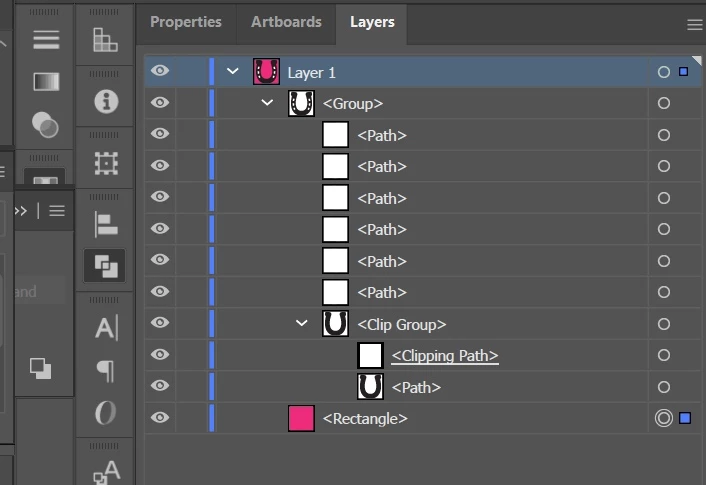
(Now, I don't want nomenclature and terminology to be a stumbling block. I'm proficient with InDesign, so I understand a lot of the tools, but I'm still learning as I go. So, just understand, I'm doing my best to explain with the terminology I know.)
MY ULTIMATE GOAL:
I need this horseshoe to have transparent holes where the white pills are. I want to know how to do this the most efficient way. Sure, this is only 6 and I could possibly subtract each individually. but what if there were hundreds of shapes?
WHAT I'VE TRIED:
I've attempted this several different ways and none of them worked:
Attempt 1:
- Pathfinder > Minus front
Attempt 2:
- Select all white pill paths in the group
- Pathfinder > Merge
I've tried other attempts as well, but I can't recall the specifics and it might make this post way too long.
Thanks in advance for your help!
 AdChoices