Vivacious_problem0101
Participant
August 9, 2017
Answered

Help! Weird Illustrator behavior, can see my work progress in outline mode but not in normal mode?!

  • August 9, 2017
  • 1 reply
  • 1186 views

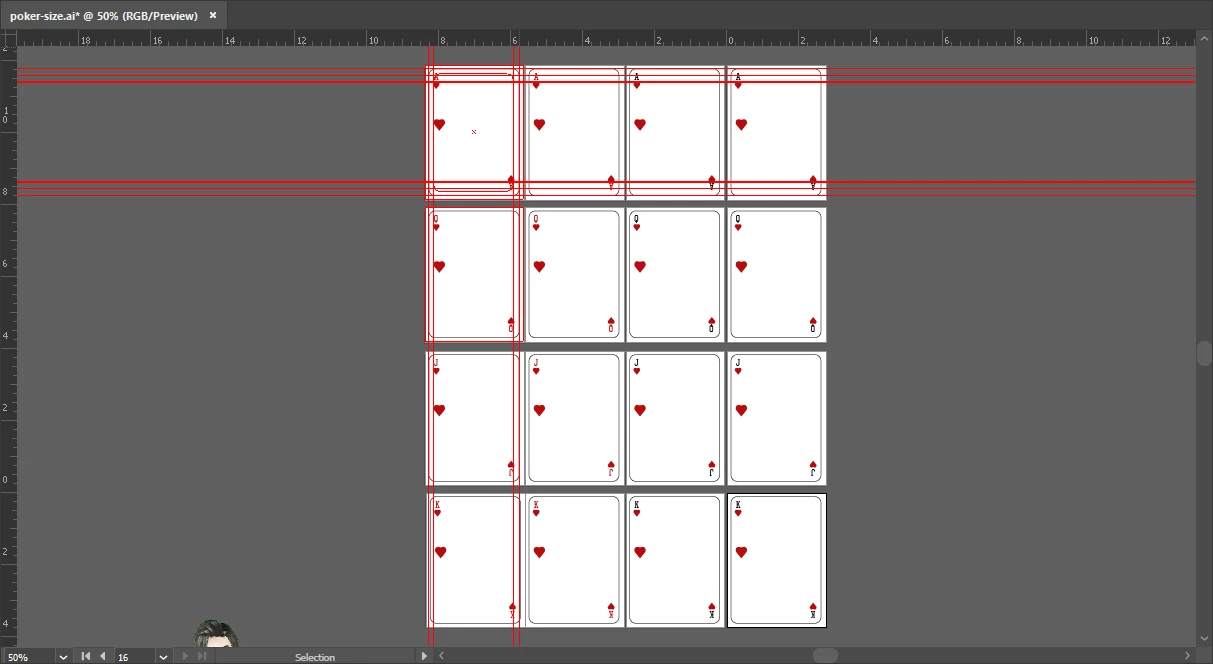
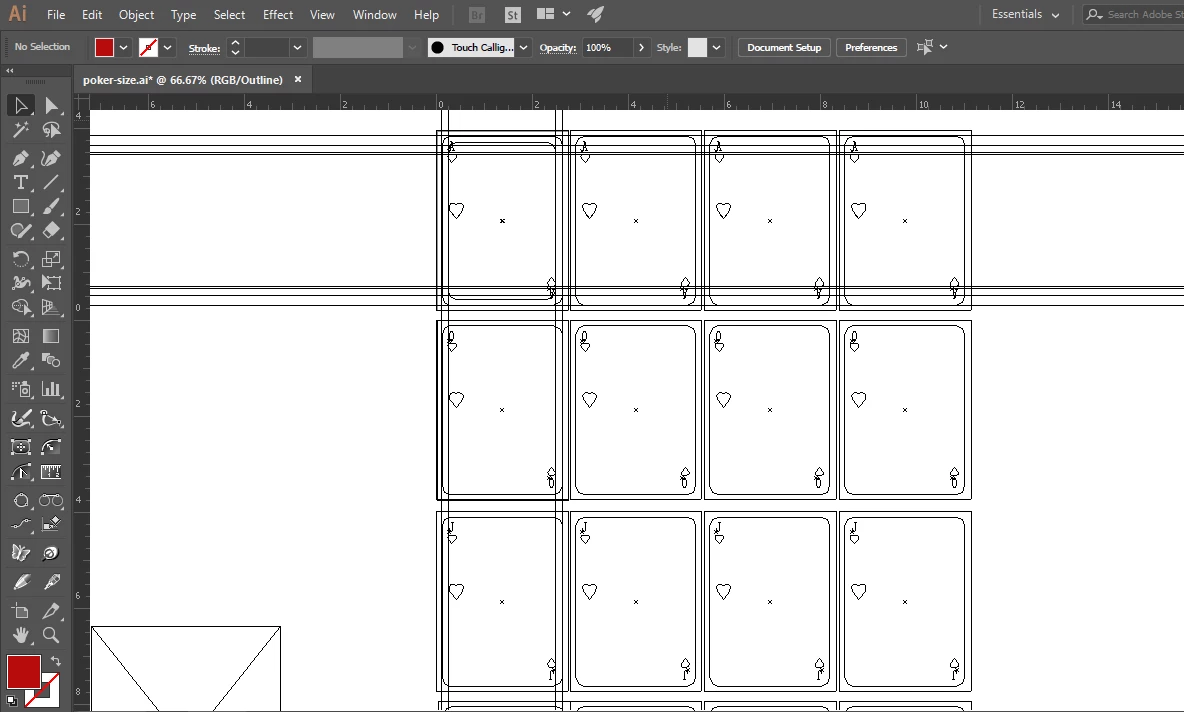
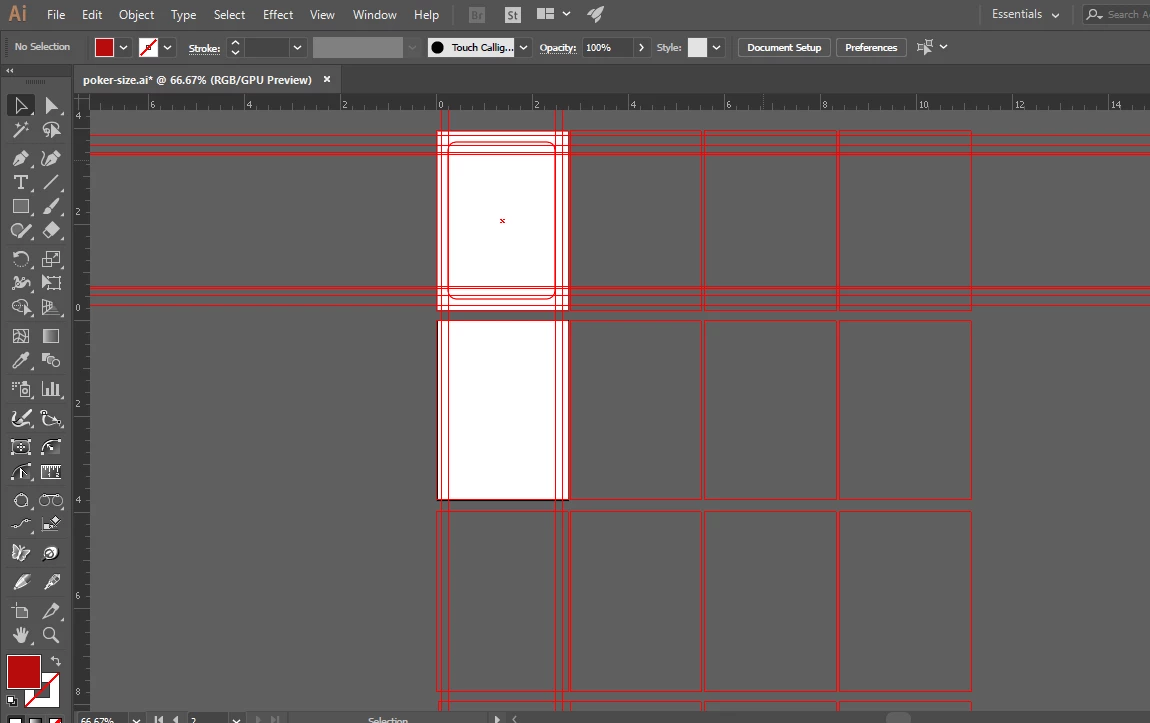
Hello people! I was working on illustrator cc 2017 and suddenly it started behaving weirdly. I can see my work progress in outline mode (ctrl+y) (Image 1) but when I go in normal mode its blank. Please any solution?
This topic has been closed for replies.
Correct answer Vivacious_problem0101

snappingrose  schrieb

Yes I have checked, the alphabets and symbols are half in red and other are in black. There are no groups at all.

What about the layers?

Please show a screenshot of the layers panel.


I rechecked what might be causing the problem and realized that I recently installed the Astute plugins so I uninstalled them and now I can see all the elements

1 reply

Monika Gause
Community Expert
Community Expert
August 9, 2017

CHeck all the colors that are applied to

- fills of your object

- the group

- the layer

Maybe some of those are white

ALso check the opacity of all of them

If there's nothing suspicious: when did you last restart the computer?

Vivacious_problem0101
Participant
August 9, 2017

Yes I have checked, the alphabets and symbols are half in red and other are in black. There are no groups at all. I was just about to that when it started acting weird. I saved the file and closed illustrator then reopen it but its still the same.

I will try to reboot the computer and see if something else is causing the problem.

Bill Silbert
Community Expert
Community Expert
August 9, 2017

If restarting the computer doesn't help try resetting your Illustrator preferences.

To do so:

For Macintosh Users: With Illustrator closed launch a Finder Window in column view and click on your home folder. With the Option Key pressed choose Library from the Finder Go Menu. Within the Library folder find the folder called Preferences and within it find the following two files and delete them: “Adobe Illustrator <Version #> Settings” (earlier versions of Illustrator might just say “Adobe Illustrator”) and “com.adobe.Illustrator.plist”. When Illustrator is next launched it will create new preference files and the program will be restored to its defaults.

After you’ve reset up the program (make sure that no document window is open) to your liking, it is a really good idea to create copies of your personalized “mint” preference files (make sure that you quit the program before copying them—that finalizes your customization) and use them in the future to replace any corrupt versions you may need to delete.

For Windows Users: Hold down Ctrl + Alt + Shift when launching Illustrator and respond affirmatively when asked if you want to reset.