


Participant
April 1, 2024
Answered

How to make text image curve along a curve

  • April 1, 2024
  • 3 replies
  • 13054 views

Can someone help me explain how make the text "Beethoven" curve along 30" radius without warping the letters? Attached is a  file I am working with.  Thank you. 

Correct answer kphotopage

Edit: Resave your file as an .ai file. No need to work with .eps file.


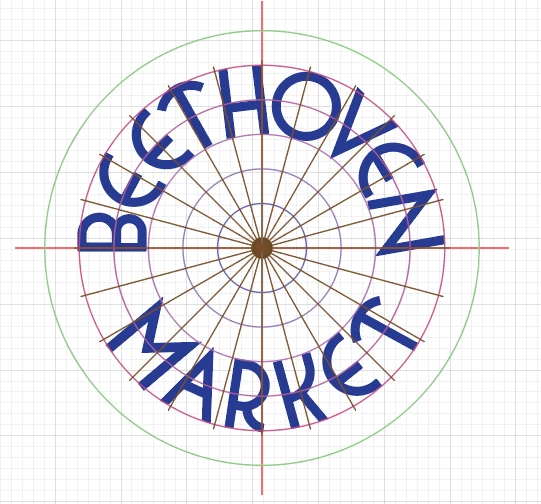
Julie, because the text has been outlined, the only other choice is to manually place your characters.


Here I created a radial grid, place on an upper layer and lock. It’s just a visual guide for rotation and placement.


On a lower layer, Ungroup all your text. Manually place.


K
3 replies

kphotopage
kphotopageCorrect answer
Legend
April 2, 2024

Edit: Resave your file as an .ai file. No need to work with .eps file.


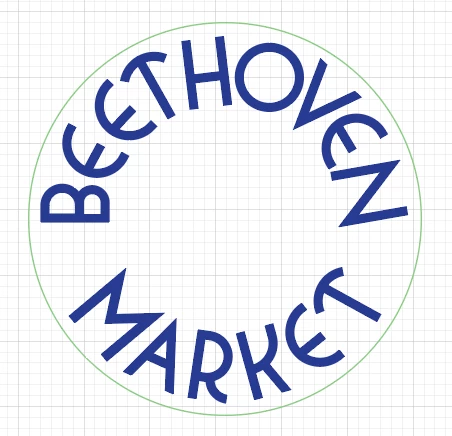
Julie, because the text has been outlined, the only other choice is to manually place your characters.


Here I created a radial grid, place on an upper layer and lock. It’s just a visual guide for rotation and placement.


On a lower layer, Ungroup all your text. Manually place.


K
ooberificAuthor
Participant
April 2, 2024

Thank you for your help K , this was the type of answer I was looking for (a visual example) as a guide. 


kphotopage
Legend
April 2, 2024

Julie, I'm very happy I could help.


I often times use visual files/ getting started files to help. Not Expanded, very flexible.

I have a very large collection of files, all custom made. (20+years)

Saved as Illustrator templates, .ait.

No need to keep reinventing the wheel! 😀

Depending upon the task, what to use.


K


Participant
April 1, 2024

Just draw a big circle in Illustrator, grab the Type on a Path tool (it’s like the text tool), click on the circle, and type "Beethoven." Your text will curve nicely around the circle without squishing the letters. You can move the text around the circle until it looks just right. How's that? 

Participant
April 2, 2024
quote

Just draw a big circle in Illustrator, grab the Type on a Path tool (it’s like the text tool), click on the circle, and type "Beethoven." Your text will curve nicely around the circle without squishing the letters. You can move the text around the circle until it looks just right. How's that? 


By @Jefferson364491397a1o

Did my answer help you or not ?

Monika Gause
Community Expert
Community Expert
April 2, 2024

@Jefferson364491397a1o  schrieb:
quote

Did my answer help you or not ?


Probably not, because there is no text in that EPS. The letters have been outlined.

Mylenium
Legend
April 1, 2024

You have to place them individually or re-create the text natively so it can be attached to a path.


Mylenium