

MassiCucci
Participant
February 18, 2019
解決済み

How to recover items created outside of the bleed area in a PDF saved file

  • February 18, 2019
  • 返信数 4.
  • 1500 ビュー

Hi all!

After years of experience on Illustrator I did a trivial mistake.

I was working on a PDF file with Illustrator CC and I wrote some important notes outside of the bleed area and saved it again, in PDF version (what a mistake...).

Now, opening again that file, I can only see what's inside the bleed area. Everything else seems gone.

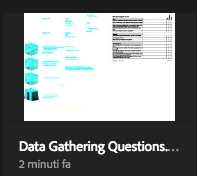
But, looking at the small thumbnail preview on the Illustrator starting page, I can still see the data: the light blue text on the left side is still there.

Do you have any idea on how I can recover that data outside of the bleed area?

I tried everything, even other softwares, but no way...

I really hope someone can help me.

And thank you in advance!

Massimiliano
このトピックへの返信は締め切られました。
解決に役立った回答 Monika Gause

mark-heaps  schrieb

Myra and SJRiegel are spot on. These are the only two ways I'm aware of recovering things that are cropped out for the bleed settings in a PDF. Get it back into Illustrator and remove any Clipping Paths/Masks and also release any compound paths just incase. If you can, also do an outline view inside of Illustrator and see if there's anything visible there.

It doesn't get exported into the PDF. So there's no way to get it back.

返信数 4

sharp_hands16B8
Community Expert
Community Expert
February 18, 2019

Myra and SJRiegel are spot on. These are the only two ways I'm aware of recovering things that are cropped out for the bleed settings in a PDF. Get it back into Illustrator and remove any Clipping Paths/Masks and also release any compound paths just incase. If you can, also do an outline view inside of Illustrator and see if there's anything visible there.

Monika Gause
Community Expert
Monika GauseCommunity Expert解決!
Community Expert
February 18, 2019

mark-heaps  schrieb

Myra and SJRiegel are spot on. These are the only two ways I'm aware of recovering things that are cropped out for the bleed settings in a PDF. Get it back into Illustrator and remove any Clipping Paths/Masks and also release any compound paths just incase. If you can, also do an outline view inside of Illustrator and see if there's anything visible there.

It doesn't get exported into the PDF. So there's no way to get it back.

Myra Ferguson
Community Expert
Community Expert
February 18, 2019

I just did a quick test where I put a graphic on an artboard, added a bleed, put text outside the artboard, and saved a copy as a PDF. When I opened the PDF in Acrobat, like you said, I couldn't see the text outside of the artboard. I resaved that PDF in Acrobat, writing over the PDF saved in Illustrator. Then I opened the PDF in Illustrator. The text outside of the artboard showed up. If you open your PDF in Illustrator, are you not seeing the text?

I tried it again, but I used the crop tool inside of Acrobat and saved the PDF. When I went back into Illustrator to try to open it, I got a message that the document had been modified outside of Illustrator and was presented with the option of discarding the changes or keeping the changes. I first tried keeping the changes which had, in fact, removed the text outside of the artboard. I didn't save the PDF and closed it. I reopened it, and this time when I got the options, I selected Discard the changes. When Acrobat opened the file, the text outside the artboard was there.

If you haven't tried opening it back up in Illustrator, if you haven't gotten the message in Illustrator asking you to keep the changes in case you cropped the PDF, and especially if the text is still showing up in the thumbnail, I suspect the text is still there. Of course, there's the possibility that you saved different PDF options or are using a different version that may be causing a different outcome. I'm using 23.0.2 on a Windows 10 machine and was able to get to the text in my test.

Kurt Gold
Community Expert
Community Expert
February 18, 2019

Myra, are you sure that you saved the .pdf without enabling the Preserve Illustrator Editing Capabilities option?

Myra Ferguson
Community Expert
Community Expert
February 18, 2019

When I did the test, Massimiliano hadn't mentioned the options that were selected in the process of saving the PDF, so I tried it out using default settings. Preserve Editing Capabilities is one of the defaults, so I used that because they would have had to actively deselect it. If that option is deselected, Illustrator warns it may disable editing features (unless at some point the Don't Show Again box was selected). Because there's a warning that could have been encountered, it was possible to save a PDF (with editing capabilities), open it in Acrobat, and not see the text but have it actually still be there. In that case, they only have to go back to Illustrator to open it. In another scenario also with Preserve Editing Capabilities, if they cropped the document in Acrobat, they could still go back to Illustrator, but they'd get another warning. If they discard the changes, again, they can still get to the text.

Luke Jennings
Inspiring
February 18, 2019

This is just a guess, In Acrobat, select the the crop tool and double click on the PDF to bring up the Set Page Boxes panel, click on Change Page Size (at the bottom) and choose a custom size several inches larger than your PDF. Note, saving the file in Acrobat may break the Illustrator file, but might allow you to recover your copy.

Kurt Gold
Community Expert
Community Expert
February 18, 2019

That won't work, Luke.

If there is no backup – as Larry already hinted at – the stuff is gone with the wind.

Larry G. Schneider
Community Expert
Community Expert
February 18, 2019

Do you have a backup? Try an earlier versoon.

MassiCucci
MassiCucci作成者
Participant
February 18, 2019

Hi Larry!

I actually started from a PDF file and absently continued on that and saved the file.

So I don't have an .ai file as backup.

Do you think opening the PDF with Illustrator CS6 i could see the text outside of the bleed area?

Thanks for your quick reply

Legend
February 18, 2019

One thing you could try (no guarantees) is to select the outer boundary of the art in Illustrator, and choose Object > Clipping Mask > Release

If the information is still included in the file, that at least might bring it back.