Participant
September 24, 2020
Answered

How to transform full icon to outline icon?

  • September 24, 2020
  • 2 replies
  • 2657 views

Hello.

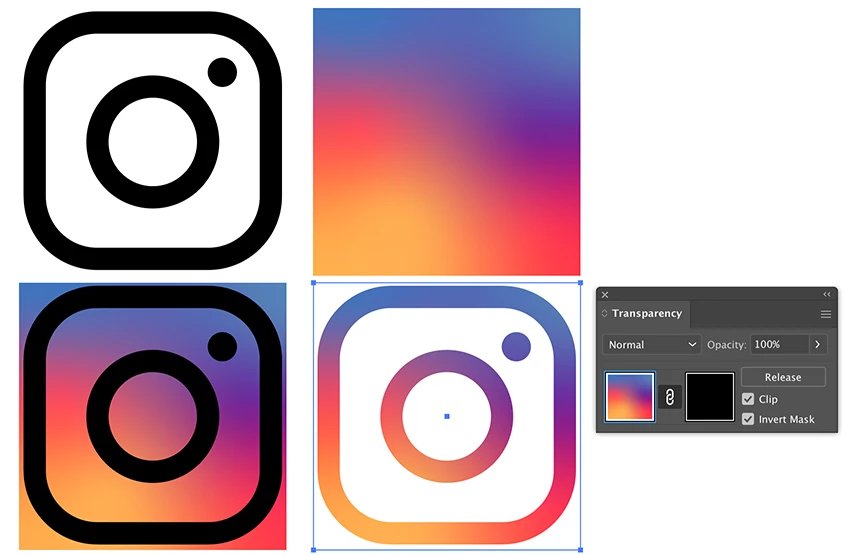
I created an icon with Adobe Illustrator that is similar to the instagram icon that is shown on the left side.

What would be the easiest way to transform that icon to the outline version that is shown on the right side?

In other words, how to take the background color from left and put it as the actual color of the icon on the right side?

Thanks!

This topic has been closed for replies.
Correct answer Ton Frederiks

I would draw the parts in black, create the gradient and use the Mask option in the Transparency panel.

2 replies

Jacob Bugge
Community Expert
Community Expert
September 24, 2020

T,


If you have created the full icon with white stroked parts on a colour transition background, I believe you can select the white paths and scale up as desired with Scale Strokes & Effects unticked, then adjust the Stroke Weights if/as desired (you could increase it for the dot and make it the same for the outer and inner paths to make it correspond to the image on the right), then Ctrl/Cmd+8 to turn them into a Compounsd path, then also select the background and Ctrl/Cmd+7 to create a Clipping Mask.


Ton Frederiks
Community Expert
Community Expert
September 24, 2020

The easiest way is just to redraw this simple icon with strokes instead of filled shapes.

T B5C29Author
Participant
September 24, 2020

Thanks for your comment.

I can redraw the small white parts again, but how do I fill them all with that background gradient on the same position?

If you can point me with a tutorial link or the actual steps for doing each part it would be very helpful!

Thanks.

Ton Frederiks
Community Expert
Ton FrederiksCommunity ExpertCorrect answer
Community Expert
September 24, 2020

I would draw the parts in black, create the gradient and use the Mask option in the Transparency panel.