


Known Participant
February 21, 2023
Question

Make White Shapes in Artwork Transparent- Knockout Group?

  • February 21, 2023
  • 2 replies
  • 3719 views

Hi everyone,


I've been struggling with making an icon that I'm needing to have trnsparent to be able to go onto both black and white surfaces. I did the artwork on a white background and just used white shapes to make gaps between my shapes to have them not overlap instead of forming the shapes around other shapes or learning about knockout groups beforehand(I know, rookie move). Basically, my artwork looks the way I want it to on a white surface but you can see there are white strokes and shapes that really form this into what it is which is ruining any chance on a dark background. Screenshots below:

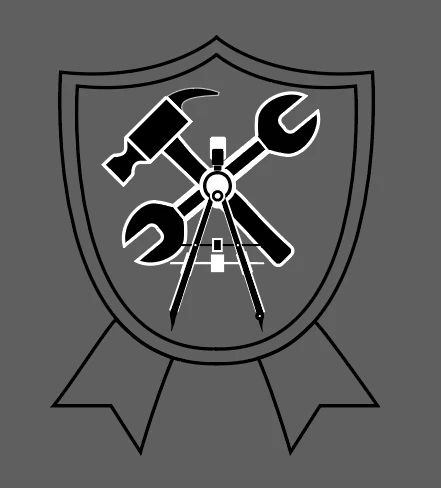
 

I've spent quite some time searching on forums and youtube videos to see how I can turn these white shapes into transparent, lots say using the knockout group function is where to go but notyhing has worked for me. Is a knockout group even possible to solve this? I've tried to follow tutorials on that and it hasn't worked at all. The reason there is a wgite stroke around the hammer and the wrench is that after I made the shapes, I decided I wanted them both a little skinnier and used the stroke. Is there any way to keep the black shapes, or do I have to manually change the shapes after deleting this white stroke?


I tried to upload an ai file for reference but it's not letting me. I know I did some stuff in a janky way, I am new and learning... Any help is much appreciated!! Thank you.


This topic has been closed for replies.

2 replies

Jacob Bugge
Community Expert
Community Expert
February 21, 2023

COAC,


Presuming you have used a full black and a full white, you can use what you have and get it to work straight away on both a white surface and a black surface in the following crude way:


1) Group the the entire black&white artwork that you have on top of the white surface;

2) Copy the white surface behind itself (Ctrl/Cmd+C+B, hold Ctrl or Cmd and press C then B), then change the surface colour to black, then lock the black surface which will be hidden behind the white surface until the next step; the locking is optional, just to avoifd your selecting it be mistake depending on how you select in the next step;

3) Select both the artwork Group and the white surface, then click Make (Opacity) Mask in the Transparency panel with both Clip and Invert Mask ticked, then unlock the black surface,


This ought to give you the exact complementary white on black appearance.


You can refine the way of doing it later.

Monika Gause
Community Expert
Community Expert
February 21, 2023

The final part in this video is about knockout groups in a situation like yours: https://www.youtube.com/watch?v=68u6LlDF2x0

COACAuthor
Known Participant
February 21, 2023

I tried doing the exact knockout group process in the last part of the video and nothing changed:(

Monika Gause
Community Expert
Community Expert
February 21, 2023

Can you and set your View to View > Preview on CPU?

Does that change anything?

If not, please upload your file to Dropbox or the like and post a link.