


Community Expert
December 3, 2020
Answered

Removing Overlaps in Lettering from Variable Fonts

  • December 3, 2020
  • 3 replies
  • 7757 views

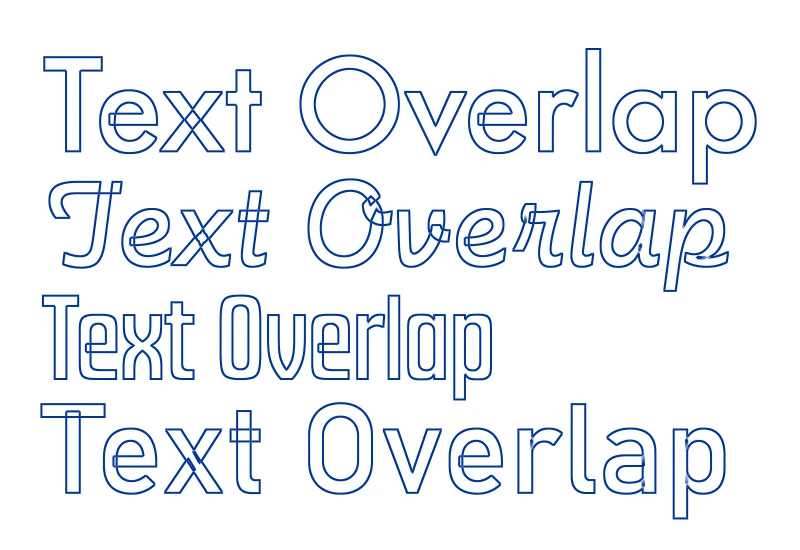
I think OpenType Variable Fonts are pretty nifty. But they can include a side-effect of letter forms with overlapping parts, even a single shape overlapping on itself. See the attached image for an example. That side-effect of overlapping parts can be pretty harmful if that lettering will be sent to something like a vinyl cutting machine or computerized routing table. A knife blade or router bit will cut through material wherever a path line is present.

A long time ago Macromedia Freehand featured an "Xtra" called "remove overlap." With one click it would weld over the overlapping lines in objects similar to the letters from those Variable Fonts. CorelDRAW has a similar (but not obvious) Weld function (Object menu>Shaping>Weld). The normal weld function buttons in CorelDRAW don't remove the overlaps. You have to use that drop-down menu item.

Does the current version of Adobe Illustrator have a similar one-click function anywhere to get rid of overlaps? The Shape Builder tool is the only thing I can find that delivers a desirable result, but you have to manually go letter by letter using the tool to draw through the overlaps. It's not bad if it's just a few objects to touch up. It can be a waste of time if you're having to fix a bunch of lines of copy.

IIRC, some years ago, the Unite function in Illustrator's Pathfinder palette was able to automatically get rid of overlaps with one click. It doesn't do that now.
 

This topic has been closed for replies.
Correct answer Ton Frederiks

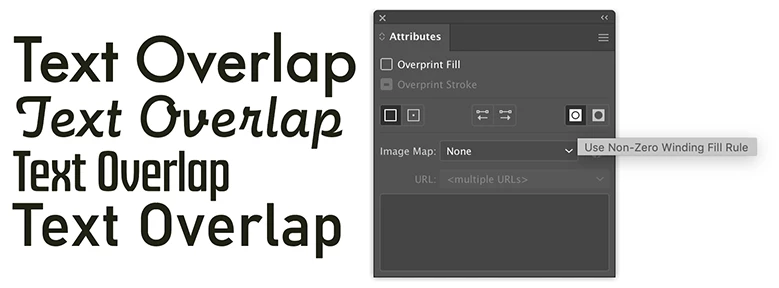
You can also select the outlined type and click the Use None-Zero Winding Fill Rule followed by Pathinder Unite.

3 replies

Ton Frederiks
Ton FrederiksCorrect answer
Community Expert
December 3, 2020

You can also select the outlined type and click the Use None-Zero Winding Fill Rule followed by Pathinder Unite.

Community Expert
December 4, 2020

That's more like what I was trying to find. I don't know why I didn't remember the Attributes palette. A long time ago I used to bring up that palette on a frequent basis to correct issues with expanded line strokes. They would often overlap at the corners, creating all sorts of issues. When the non-zero winding setting was applied to the object that would allow the unite pathfinder function to eliminate all the path overlaps. Line strokes in modern versions of Illustrator do not behave like that when expanded. The non-zero winding button in the Attributes palette combined with the Unite pathfinder is still not quite as straightforward as the old "remove overlap" xtra in Freehand. But a couple clicks is a lot better than having to use something like the Shapebuilder tool to manually fix the issues.

Ton Frederiks
Community Expert
December 4, 2020

Good to hear you found it useful. You may reduce the number of clicks by creating an action and use Button mode.

Monika Gause
Community Expert
December 3, 2020

What Doug said.

My test font was Decovar, which adds some nice complication to the issue. But Pathfinder Unite gets rid of that (most of it, because the font is kind of messy with  its 10 variable axes).


You can also add the effect "Outline object" followed by the "Pathfinder > Unite effect" to solve this in the live text. Then in the exported PDF (or EPS or whatever) the text will be outlined and united automatically. But still I would not want to send anything to a plotter without checking it thoroughly first.

Doug A Roberts
Community Expert
December 3, 2020

There's no obvious reason Pathfinder's Unite shouldn't work.

Can you share a file?

Also, what fonts are you using here? I can't replicate the overlaps when expanding any of the variable fonts.


Edit: found one, Bahnschrift. But clicking Unite worked as I would expect, so still not sure what you're experiencing.

Community Expert
December 3, 2020

I've narrowed down the problem some. If the Variable Font text objects are created within Illustrator the Unite button in the Pathfinder palette will remove the overlaps in one click. If the artwork is created in another application and converted to outlines prior to export then the Pathfinder operation won't work properly. At best it only seems to add anchor points where path lines intersect. The issue appears to behave according to how the objects are filled. If they're filled solid even in the overlapping areas then the Unite button will merge the parts together properly. But if the overlaps create negative holes then the weld operation won't work as desired. I would attach an Illustrator file that has the issues I describe but the forum's server functions won't let me upload an AI file.


FYI, the fonts used in the sample are Futura Now Variable, Futura Now Script Variable, Futura Display Variable and Bahnscrift.

Side note: not all Variable Fonts have these messy overlapping parts. Acumin Pro doesn't appear to have any of those issues. TT Supermolot Variable is another example. Just out of a lucky accident I first saw these overlaps in Bahnscrift, a typeface I don't use very often at all in projects. But its appearance in outline view set off the warning alarm to be on the lookout for the same issue in any other variable fonts.

Monika Gause
Community Expert
December 3, 2020

You could upload your fle to Dropbox or the like and post a link in here.