Participant
April 22, 2013
Answered

Scale multiple items by specific size without moving their positions

  • April 22, 2013
  • 10 replies
  • 180234 views

I need to scale / tranform 30 - 40 circles from .5 to .25 that are in specifice locations, without moving the circles when scaled.

Any suggestions are welcomed.

Thanks

Danny

AI CS6

Correct answer Larry G. Schneider

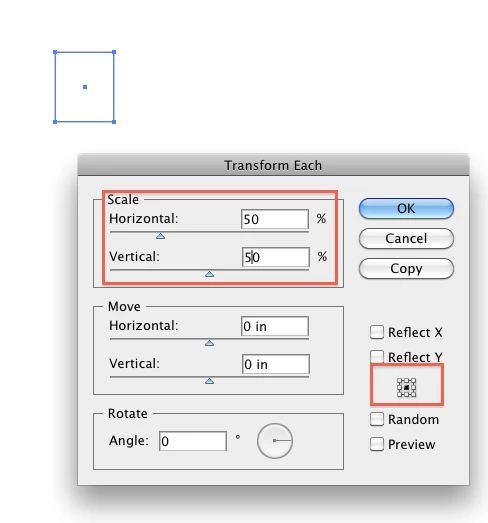
Try using Object>Transform>Transform Each with the following

10 replies

Participant
December 14, 2024

Some may have frustration with the answers marked as correct in this thread IF their individual items (the 30-40 circles in this case) are in a group.  If the items are in a group, the items will move away from their original location when they are scaled (even with "scale each").  If the items are ungrouped, they will remain in place when "scale each" is used.

Anshul_Saini
Community Manager
Community Manager
December 19, 2024

Hi @Butcher & Swede


Thanks for pointing out this important detail! It’s definitely frustrating when scaling grouped objects leads to unexpected repositioning. Let me break this down for anyone facing similar issues and clarify how to scale multiple items accurately without altering their positions in Adobe Illustrator:


Key Considerations When Scaling Multiple Items


1. Grouped vs. Ungrouped Items

• When objects are grouped, Illustrator treats the entire group as a single entity, scaling based on the group’s bounding box. This can cause individual objects to move relative to their original positions.

• To maintain the original positions, ungroup the objects first (Object > Ungroup) before applying any transformations.

2. Scaling Ungrouped Items Individually

• Use the Scale Each option to apply precise scaling while keeping objects stationary.


Steps to Scale Multiple Items Without Moving Them


1. Select All the Objects

• Use the Selection Tool (V) to select all the objects you want to scale.

2. Ungroup (If Necessary)

• If the objects are grouped, ungroup them via Object > Ungroup.

3. Use Scale Each

• Go to Object > Transform > Transform Each (or press Shift+Ctrl+Alt+D / Shift+Command+Option+D on Mac).

• In the Transform Each dialog:

• Set the Horizontal and Vertical scale percentages to your desired size.

• Ensure Move values are set to 0 px to prevent displacement.

• Check the Preview box to see the changes live.

• Click OK to apply the changes.

4. Maintain Appearance

• If your objects have strokes or effects, check the Scale Strokes & Effects option in the Preferences > General menu to ensure they scale proportionally.


Let us know if these steps help you achieve the scaling you’re aiming for. If you’re working on a specific type of artwork (e.g., patterns or grids), feel free to share more details, and we’ll be happy to assist further!


Best,

Anshul Saini

_Aaron_9278756
Known Participant
November 7, 2023

Good solution down there. Adjunct question: How to do the same with an exact amount so, for example, every object in selection becomes the same exact width as every other?

Kurt Gold
Community Expert
Community Expert
November 7, 2023

Aaron,


there are scripts to do that. One that I'd recommend is generously provided by Josh Duncan.


Match Objects


_Aaron_9278756
Known Participant
November 7, 2023

Thank you Kurt! I'll check it out. At a glance it looks much more evolved than the old one I found (which does still work though):

Set ALL the Things

NMNj
Participant
October 26, 2018

I like the script (Set All the Things), but what if I want to change only one value (height or width), and keep the original proportions for the other one?

tromboniator
Community Expert
Community Expert
January 6, 2019

The first field in the script says <width,height>. If you want to adjust the height but leave the width unchanged, delete <width,> or type height. In the next field, type the value (in points) that you want for the height of all selected objects.

Peter

pctechtv
Inspiring
August 2, 2019

Are there other properties that you can type in besides width and height? Thanks

Participant
November 16, 2017

But what we do if we want to scale 40 px object to 24 px form transform each option .

transform each shows the percentage of scaling how someone type correct percentage to transform each object

Doug A Roberts
Community Expert
Community Expert
November 16, 2017

manojk63856826  wrote

But what we do if we want to scale 40 px object to 24 px form transform each option .

then you scale it by 60%

Participant
June 23, 2017

I have a variation on this question. I have 30 circles on a map of various sizes. I want to scale them all to be the same size, keeping their center points the same. Doesn't appear this method works since there is no option to specify the exact size.

Any ideas on how to do this?

Monika Gause
Community Expert
Community Expert
June 23, 2017

I have a variation on this question. I have 30 circles on a map of various sizes. I want to scale them all to be the same size, keeping their center points the same. Doesn't appear this method works since there is no option to specify the exact size.

Any Illustrator version: use the script "Set all the things" by John Wundes

Current version: convert all your circles to live shapes and then adjust their size using the transform panel.

linasj13255330
Participant
December 4, 2016

I also want  to know how to do that. I tried my best, but all my objects are being scaled. But they also move without my permission... I failed this task many times.

Ton Frederiks
Community Expert
Community Expert
December 4, 2016

They are probably grouped.

Ungroup them first before applying Transform Each.

linasj13255330
Participant
December 4, 2016

Hmm.. That is quite strange. I did it with grouped as well as with ungrouped objects… Didn't get the goal..

OK, gonna restart software and try more.

Thank you for help!

Khlouded
Participant
September 18, 2016

Um, thanks for solving this, but how do you do the opposite? [2] I don't want to move things individually, (but i could), is there a way to scale the objects without changing there size (so scale just the position of the objects). Before i used really thick strokes on single anchor points to make circles and then was able to scale them or warp their positions without affecting their size. but now, for some reason, anchor points by themselves are not usable. [2] was this feature changed?

Monika Gause
Community Expert
Community Expert
September 18, 2016

khlouded schrieb:

Um, thanks for solving this, but how do you do the opposite? [2] I don't want to move things individually, (but i could), is there a way to scale the objects without changing there size (so scale just the position of the objects). Before i used really thick strokes on single anchor points to make circles and then was able to scale them or warp their positions without affecting their size. but now, for some reason, anchor points by themselves are not usable. [2] was this feature changed?

If you want to do the opposite then why don't you create your own thread for that.

Also: please post an example image.

dabaron2Author
Participant
April 22, 2013

Perfect, thank you!

Have done this before, but forgot the command.

Got the job done.

Danny

Larry G. Schneider
Community Expert
Larry G. SchneiderCommunity ExpertCorrect answer
Community Expert
April 22, 2013

Try using Object>Transform>Transform Each with the following

dabaron2Author
Participant
April 22, 2013

Just a note to anyone else that may benifit to this thread.

If you have multiple objects you want to use Transform Each on, they cannot (that I know of) be grouped. I tried the objects grouped first, and not only were they scaled properly, but their positions were moved in respect to the grouped objects. Not what I wanted.

But... if you select the multiple objects making sure they are ungrouped, then scale as has been noted above, the objects will be scaled properly, and remain centered to the original objects.

Participant
May 13, 2013

Here is another note:

When you select all objects on a sublayer, that selection is behaving as it is a group.

Therefore it does not transform as you should expect.

If you leave one object out of your selection, everything is working fine (selection is not treated as a group).

This is not happening when all objects on a layer are selected.

I don't know if this is just a coincidence or is it meant to work this way.

If it was designed to work this way, it would be nice to find something about it in the help file.

Mylenium
Legend
April 22, 2013

Apply the Distort & Transform --> Transform effect or use Object --> Transform Each

Mylenium

youthful_Fountain5D50
Participant
December 7, 2021

You save my time! Much Appreacited