Inspiring
September 12, 2021
Answered

Steps to Merge Path with Shape?

  • September 12, 2021
  • 6 replies
  • 817 views

I can't seem to copy the paths from one section of my shape over to another section in my shape and merge the two together.

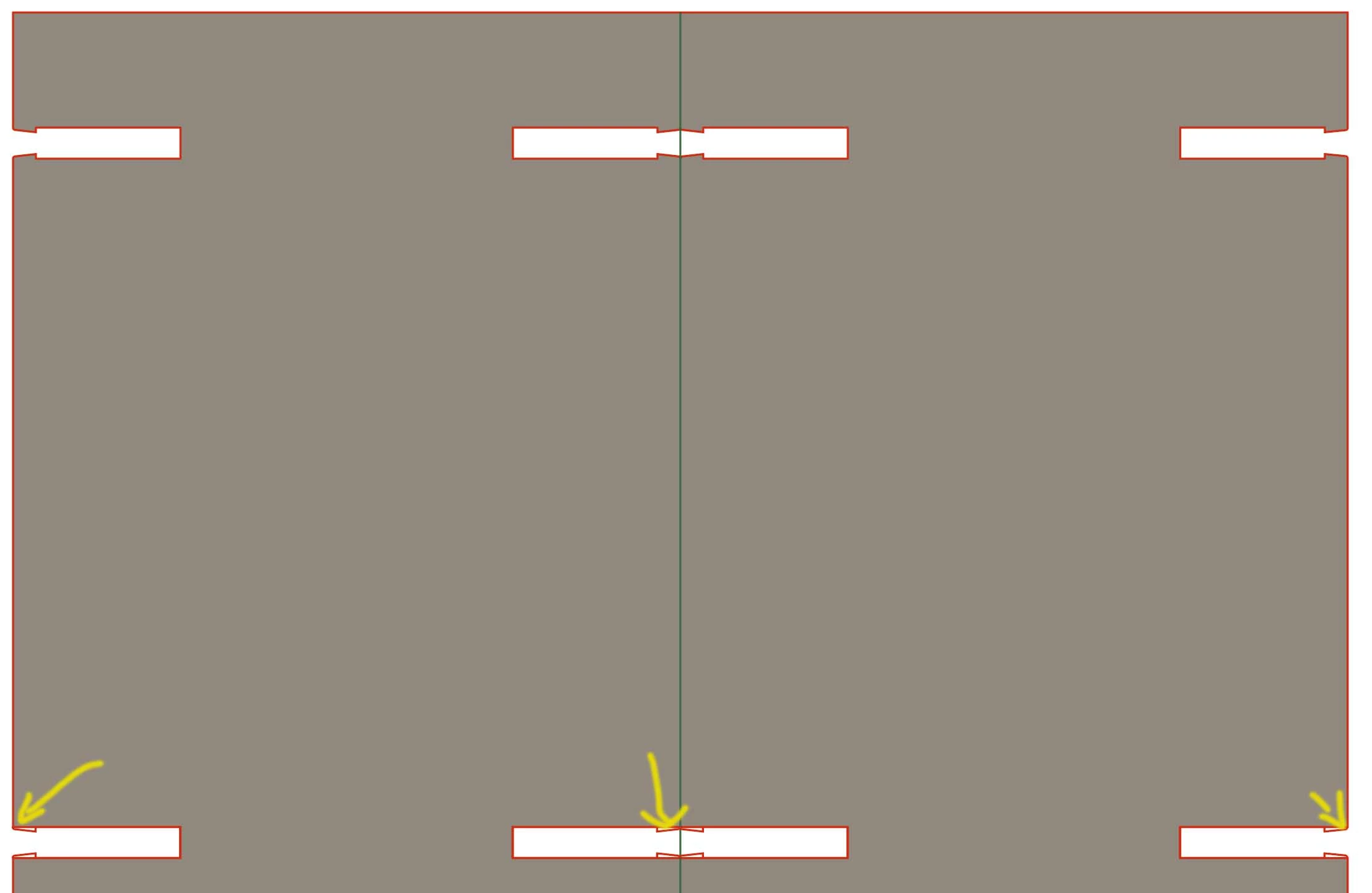
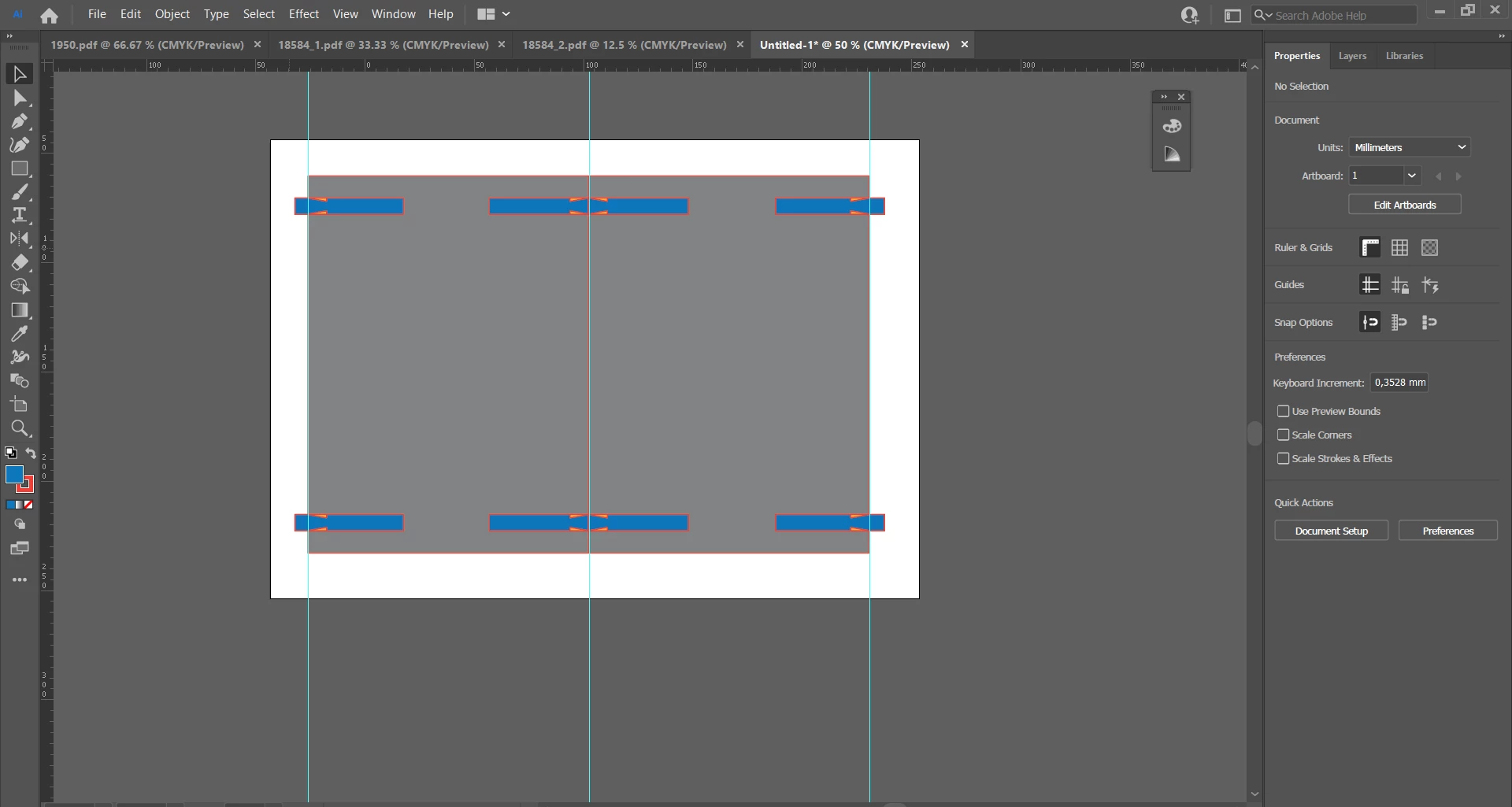
I want to add the "teeth" in the first row in the image to SEVERAL other areas of my drawing and I'm struggling on how to merge the path with the rest of the shape once I've copied and pasted and lined up the anchor points. I've tried the options in Navigator, I've tried join... I can't seem to get the path to add more to the overall shape. What is the proper steps to have these paths become part of the rest of the shape? Thank you for your time and help!


This topic has been closed for replies.
Correct answer Anna Lander

Ok, let me remind you the way.
1. Draw the main shape, the rectangles, and the "teeth" (it's useful to fill each object type with its own color)

make sure to create the main shape as a united object, not some separate details (or do the work with 1 element half of the details amount).

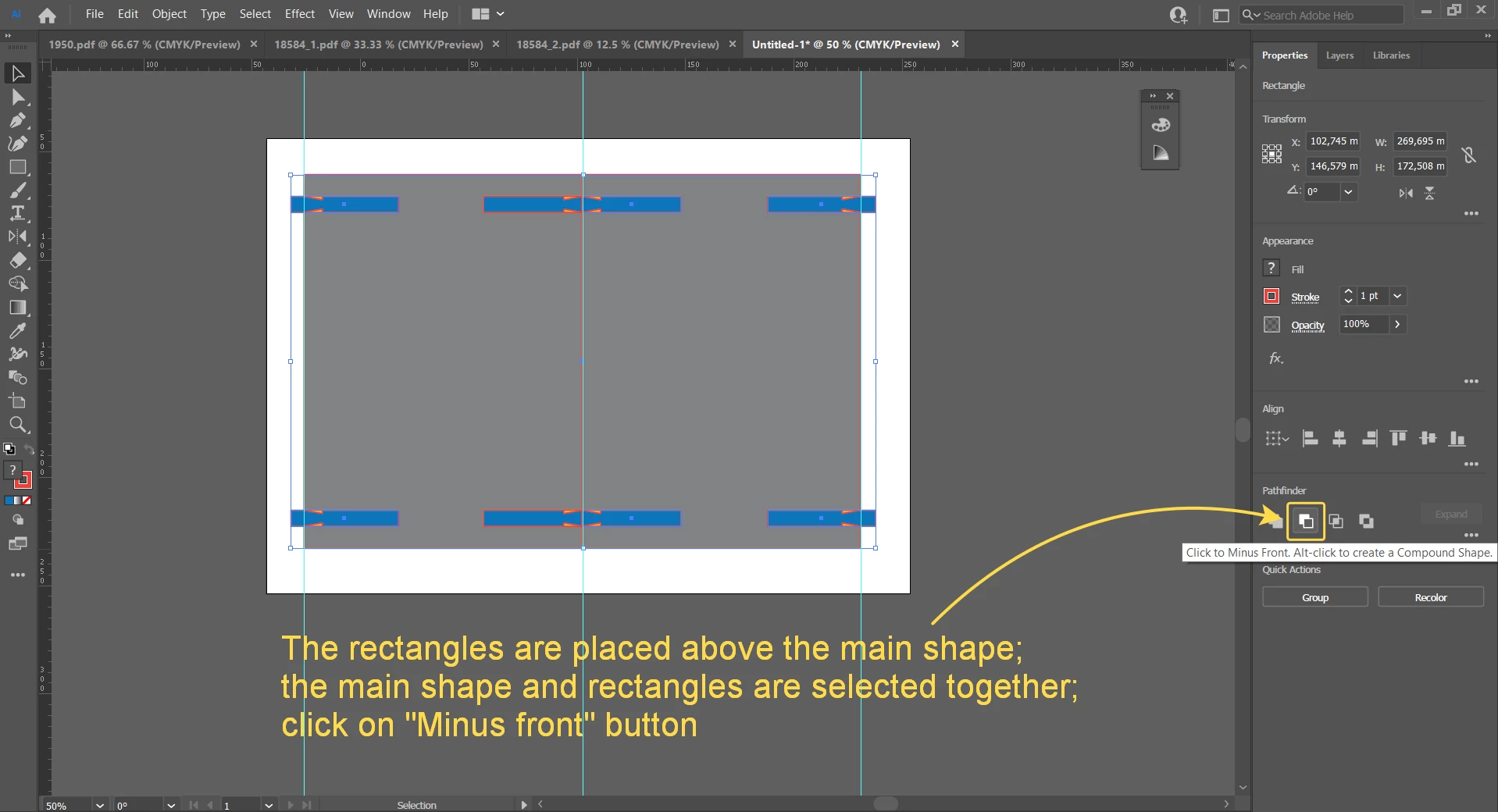
Put the rectangles above the main shape and the triangles above the rectangles.

Align the triangles with the respective sides of the rectangles.

2. Select the main shape and the rectangles and click the "Minus Front" button on Pathfinder or Properties panel.

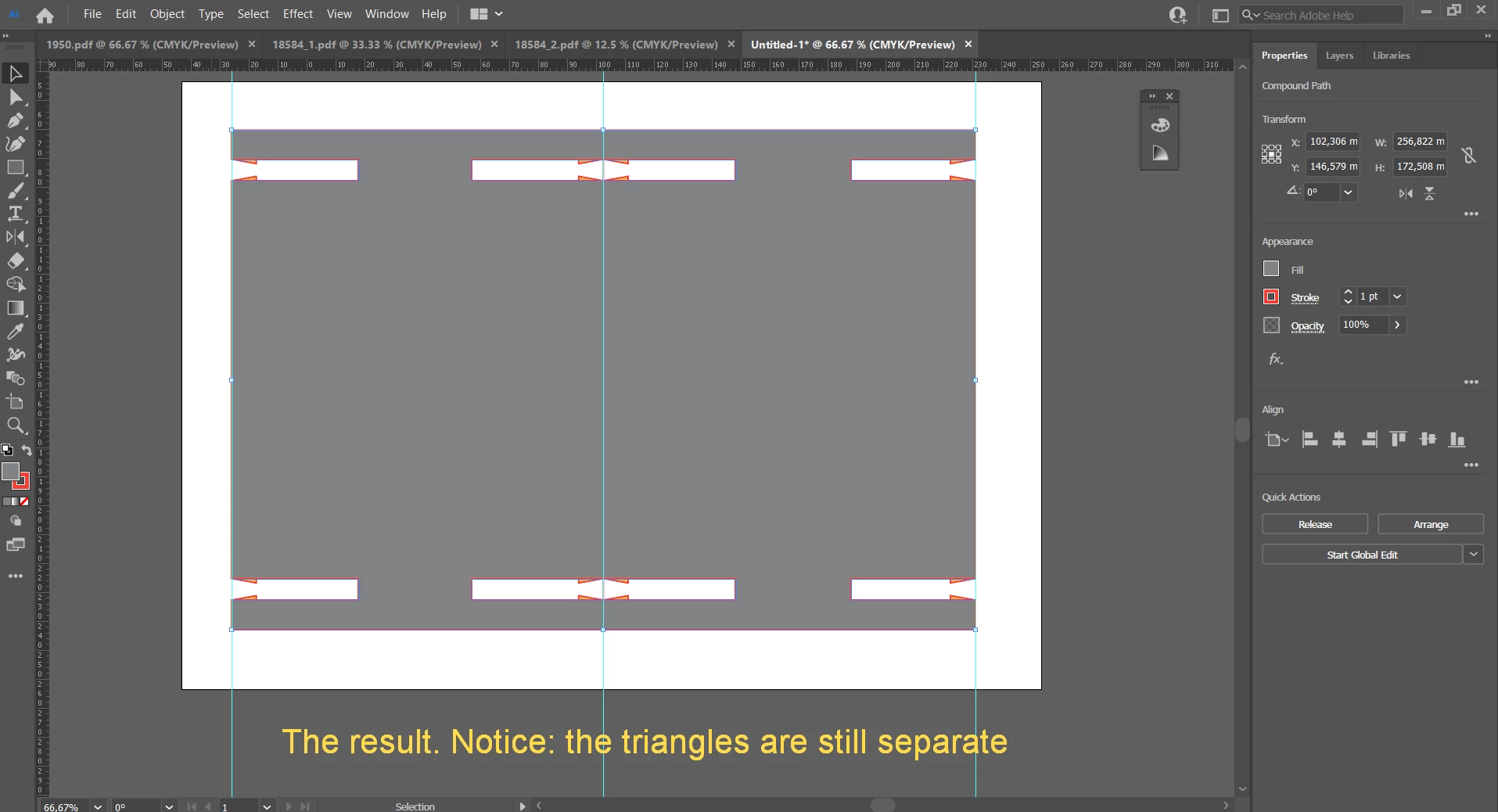
Now you have the main shape and the "teeth", no any other shapes.

Make sure to have all the "Teeth" above the main shape.

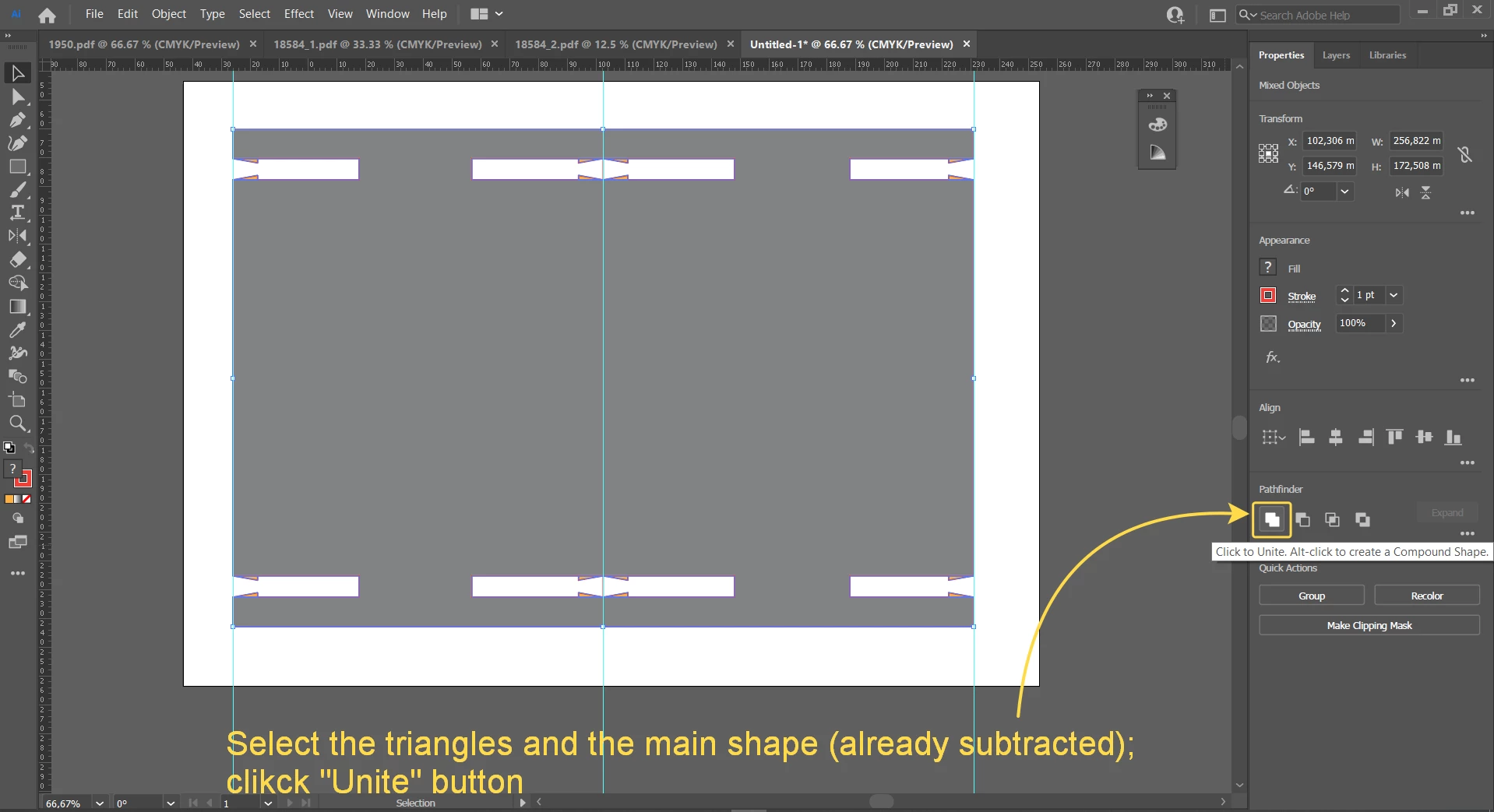
3. Add the "teeth" to the main shape: select all and click on the "Unite" button.

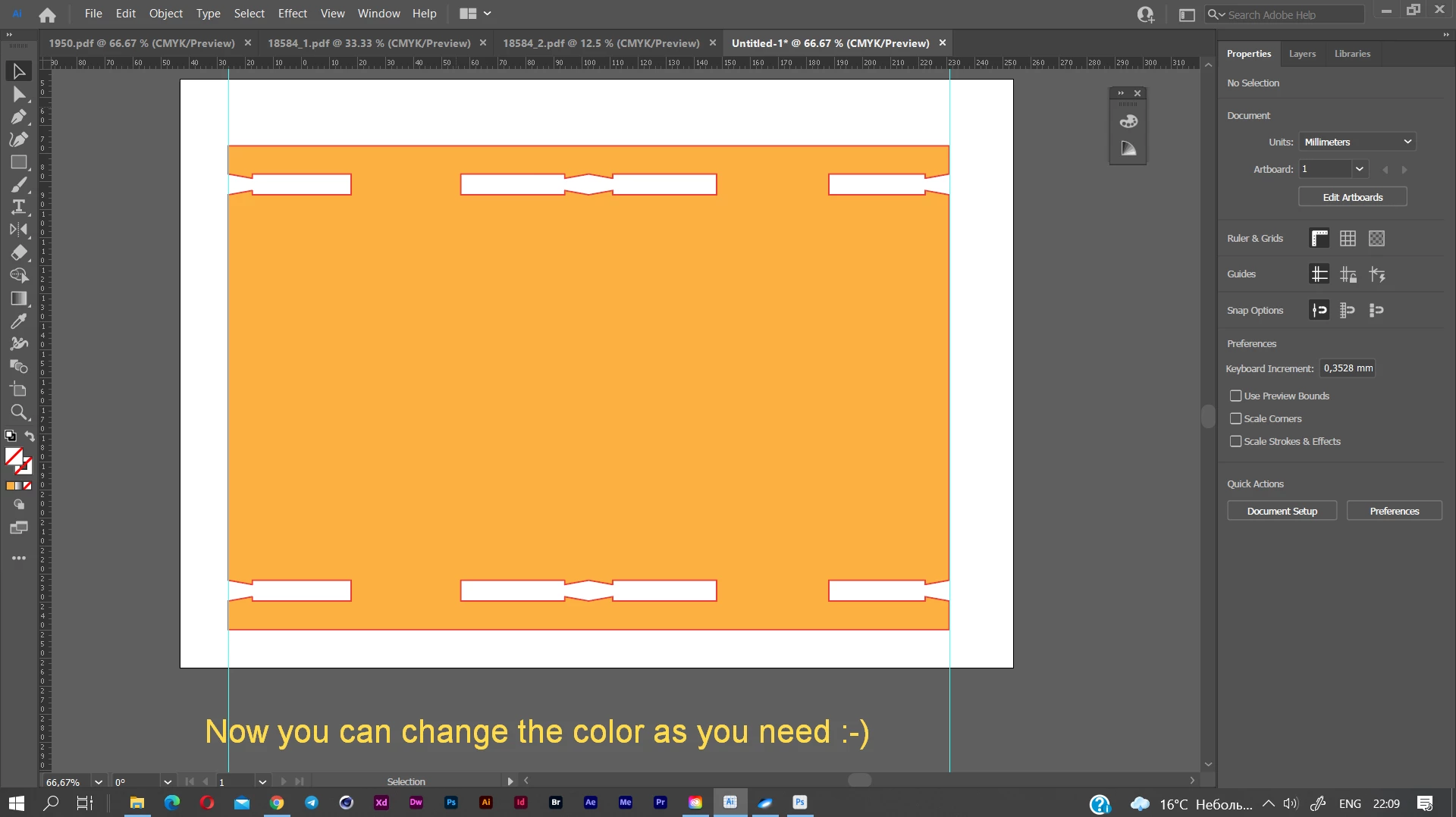
I changed colors to be more visual but you can fill the "teeth" with the same color as the main shape before the uniting, then you will have the right color finally without any advanced work.

6 replies

Anna Lander
Anna LanderCorrect answer
Inspiring
September 12, 2021

Ok, let me remind you the way.
1. Draw the main shape, the rectangles, and the "teeth" (it's useful to fill each object type with its own color)

make sure to create the main shape as a united object, not some separate details (or do the work with 1 element half of the details amount).

Put the rectangles above the main shape and the triangles above the rectangles.

Align the triangles with the respective sides of the rectangles.

2. Select the main shape and the rectangles and click the "Minus Front" button on Pathfinder or Properties panel.

Now you have the main shape and the "teeth", no any other shapes.

Make sure to have all the "Teeth" above the main shape.

3. Add the "teeth" to the main shape: select all and click on the "Unite" button.

I changed colors to be more visual but you can fill the "teeth" with the same color as the main shape before the uniting, then you will have the right color finally without any advanced work.

Inspiring
September 13, 2021

Holy pooh balls, that was a lot of effort for my problem.

You've hammered it home though, I conceptually understand how to do this in the future (I manually did all the teeth on about 30 different areas because I couldn't figure out a better way).

Thank you so much for your time and effort, it's genuinely appreciated that you took the time to help me out. Thank you.

Anna Lander
Inspiring
September 12, 2021

Maybe I ordered the steps wrong. Could you share the fail to suggest you the shortest workflow?

pixxxelschubser
Community Expert
Community Expert
September 12, 2021

Select all.

Try to use the Shape Builder Tool to add the tooths to th gray background.

Inspiring
September 12, 2021

If I use the Join Path function, it ends up like this:


Anna Lander
Inspiring
September 12, 2021

Hi, gregand!
As far as I can see, the rectangles are "holes" that are subtracted from the main grey shape. If so and the "teeth" (small triangles) are at their right places, just select all, open the Pathfinder panel and click a "Unite" button. All triangles will combine with the shape. If the central rectangle is still not a hole but a separate shape, previously subtract it (select the main shape and the rectangle and click a "Minus Front" button on the Pathfinder panel.

Inspiring
September 12, 2021

Hello! Thanks for your help on this. I had tried this already, and this is the result that I got. I lose the full outline of my shape and the fill dissapears.

Jacob Bugge
Community Expert
Community Expert
September 12, 2021

gregand,


As I (mis)understand it, if you have filled paths, you can use Pathfinder>Divide on each selection of paths which then forms a Group.


Inspiring
September 12, 2021

Thanks for taking the time to try and help! With the "Divide" tool I end up with the following result. I lose most of the teeth and then the teath that remain are still not a part of the overall shape.