Guy_Ne_eman
Inspiring
October 15, 2018
Answered

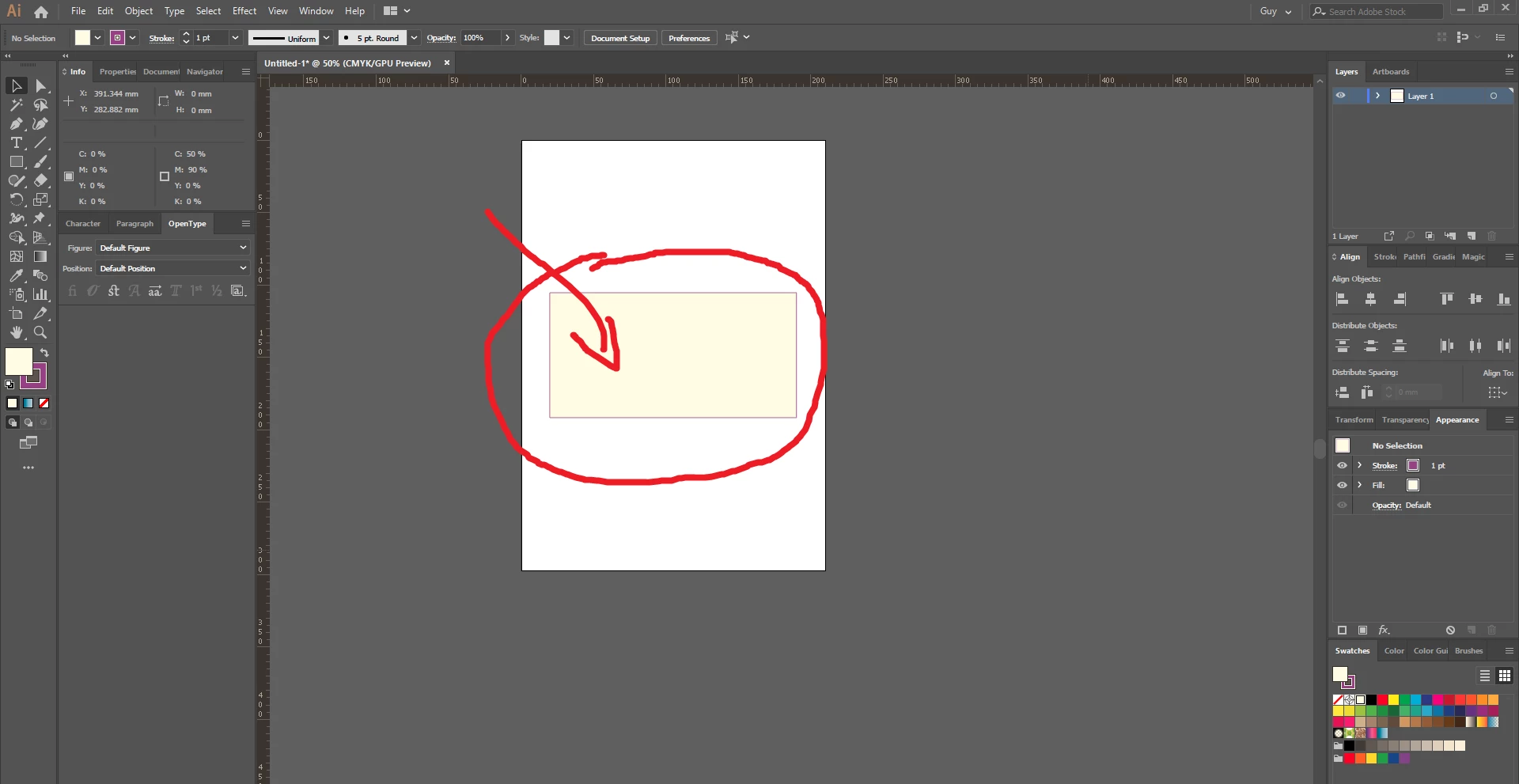
The white color FFFFFF in the Ai has become yellowish

  • October 15, 2018
  • 9 replies
  • 7838 views

[Moderator moved from Adobe Creative Cloud to Illustrator.]

Hello everyone and thanks for your help.

After I made an update to Adobe's softwares,the white color in the Illustrator suddenly turned yellow.

Before this update everything was ok.

I did restart the computer but the result is still the same, yellow hue.

When exporting to PNG, the white color looks right,looks good,

The problem is only in the display in the software itself.

What can and should be done to solve this?

THANK YOU!

Edit:

After updating the Illustrator it gets very slow.

So much so that the pen tool made it crash.

Is it possible to go back one step before updating?

I feel really frustrated.

Thank you.
    This topic has been closed for replies.
    Correct answer Monika Gause

    mojahidmahin  schrieb

    I find your answer i have already faced this same problem and i fixed it.now I am telling you the process.

    Go to

    Edit>

    Color Settings(shift+ctrl+k)

    then change the workspace RGB color to your (monitor RGB)

    You should never set the RGB color working space to your monitor profile. Just don't do that.

    If the latest build 23.0.1 doesn't solve the issue, then there is another solution in this thread: White is appearing as yellow in new Illustrator CC 2019 23.0

    9 replies

    Mojahidmahin
    Participant
    November 9, 2018

    I find your answer i have already faced this same problem and i fixed it.now I am telling you the process.

    Go to

    Edit>

    Color Settings(shift+ctrl+k)

    then change the workspace RGB color to your (monitor RGB)

    Monika Gause
    Community Expert
    Monika GauseCommunity ExpertCorrect answer
    Community Expert
    November 9, 2018

    mojahidmahin  schrieb

    I find your answer i have already faced this same problem and i fixed it.now I am telling you the process.

    Go to

    Edit>

    Color Settings(shift+ctrl+k)

    then change the workspace RGB color to your (monitor RGB)

    You should never set the RGB color working space to your monitor profile. Just don't do that.

    If the latest build 23.0.1 doesn't solve the issue, then there is another solution in this thread: White is appearing as yellow in new Illustrator CC 2019 23.0

    The Invid
    Participating Frequently
    October 18, 2018

    Try printing.  See what color it actually is.  I always change the color in preferences. 

    Ton Frederiks
    Community Expert
    Community Expert
    October 18, 2018

    https://forums.adobe.com/people/The+Invid  wrote

    Try printing.  See what color it actually is.  I always change the color in preferences. 

    It is a bug, white should display as white.

    TadzuLempke
    Participant
    October 18, 2018

    I am also having this exact issue after updating. Has anyone found a solution to this issue?

    TadzuLempke
    Participant
    October 18, 2018

    Update: I too rolled back to the previous version and everything now works fine, but it would be nice to have the current version working as well.

    al78770967
    Participating Frequently
    October 17, 2018

    You can see the light tan yellow arc. That arc is supposed to be pure white. You can also see in my color picker, the white is NOT white.

    mariec35231025
    Participant
    October 16, 2018

    Reverting back to the previous version, to me, is NOT a solution. This new version has to run !

    Ton Frederiks
    Community Expert
    Community Expert
    October 16, 2018

    Marie and DrifterZach

    Can you show a screenshot of your Color Settings?

    Edit > Color Settings... With "More Options" clicked to see the Conversion Options?

    I suspect the Color settings.

    mariec35231025
    Participant
    October 16, 2018

    In french indeed

    Participant
    October 16, 2018

    I'm having the same problem after CC2019 update. The grays are also appearing as shades of brown. But they print correctly. The attached image shows the illustrator file with an swatch next to the printed PDF. Also, GPU performance is grayed out so that's not an option.

    CC2019.jpg

    mariec35231025
    Participant
    October 16, 2018

    How to envisage to realize a model without white? For me it's impossible! This bug annoys me a lot! It's scandalous.

    Participant
    October 16, 2018

    I just Turn off "GPU Performence" in Preferences Setting ... And everything's back to normal

    Ton Frederiks
    Community Expert
    Community Expert
    October 15, 2018

    Can you show a screenshot of your Color Settings?

    Edit > Color Settings... With More Options clicked to see the Conversion Options?

    Guy_Ne_eman
    Inspiring
    October 16, 2018

    Hi Ton.

    I'm already  back to the old version

    And now everything is back to normal

    Thank you for your willingness to help

    Ton Frederiks
    Community Expert
    Community Expert
    October 16, 2018

    If you ever want to try the newer version again;  you can install the  CC 2019 version (which has some nice new features), on the same machine without erasing the older CC 2018 version.

    Check if the Color Settings have changed and reset them to the way they used to.

    Participant
    October 15, 2018

    Having the exact same issue after updating (although not experiencing performance issues).

    Looked at other posts suggesting to calibrate monitors etc but it was fine before the update which tells me there's something in Illustrator I just need to switch over (a new view mode maybe).

    Edit: I reverted back to the previous version (v22.1). You can do this in the Adobe Creative Cloud app manager and simply opening another version. My white is now back to normal but would still be keen to know what happened so I can use the update.

    Participant
    October 15, 2018

    I had this issue right after the update. I re-calibrated my monitor and it seemed to fix the issue. Hope it works for you guys.