
Participant
January 13, 2015
Question

Workspace Panels Disappearing and/or not opening

  • January 13, 2015
  • 56 replies
  • 126306 views

Hello.

I'm on Mac OSX Yosemite and Adobe CC 2014. I am having a constant issue with my workspaces disappearing and/or panels not opening. I can fix the problem by deleting preferences, but I'd rather not do that every time I start up. Also, for workflow efficiency, I would REALLY love for my preference to be customized and saved. This problem is preventing me from doing that.

Specifically, when I launch Illustrator, my workspace panels will sometimes have all been removed. There is nothing there. If this happens, I can add my panels manually from the Windows menu. If I do that, I can only use the panels with the panel dock expanded. If I collapse the panels and click on a panel icon, it will not open. Let me know any way I can further help to solve this issue.

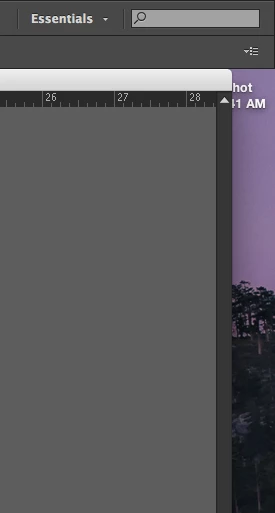
Below: Essentials workspace at start up. All panels missing.
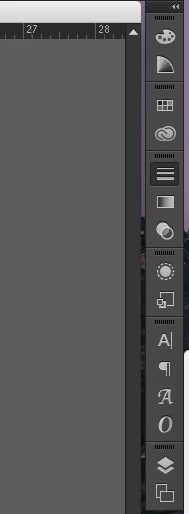
Below: After manually opening panel windows. Collapsed view. Notice Strokes panel highlighted, but not open.
This topic has been closed for replies.

56 replies

erikg68212475
Participant
November 6, 2015

Uninstalling Adobe Extension Manager solved the issue for me.

Adobe CC 2015 Mac OS 10.10.1

Known Participant
October 20, 2015

Illustrator has been behaving itself since I upgraded to OS X 10.11 - hopefully it stays this way.

Has anyone else upgraded to El Capitan and noticed an improvement?

Inspiring
October 19, 2015

Same issue here. I'm not seeing anything in my collapsed right-hand panels bar. When I go to "Window > Art Boards" I can usually selected it to make it appear, but not anymore. It's currently checked, as if the window is open somewhere on the screen but it's not. If I select again to uncheck, the function does not work. Continues to show it checked. Previously, I used to be able to uncheck, then recheck to make it appear but now nothing makes it appear. Guess it's time to dump all of my preferences.

Inspiring
October 19, 2015

I would suggest dumping your preferences as a last resort. Adobe help often wants me to do this and I have to spend so much time building my preferences back to how I (ahem) prefer them.

Try this first.. Window > Application Frame. If it is off, turn it on (check it). This seems to be the quickest, dirtiest fix for this dumb bug.

I don't think dumping your preferences will fix this issue. For me, this issue seems to be random. Often times, closing/reopening Ai a number of times will fix the issue, and so after dumping prefs you might see the issue fixed, but it could be just a random thing; just a correlation. For me, turning on the application frame fixes the issue while Ai is running.

Participant
October 16, 2015

I'm having the same issue. The fly-out windows don't open on the panels when working in Application Bar mode. And if I switch to a different panel setting there is nothing there. The only work around is to work in Application Frame and I don't like working in that. Adobe needs to fix this bug with Application Bar mode. This is happening over and over even after deleting Prefs.

pixel_priest
Participant
October 16, 2015

Having the same problem. Almost a year later and no fix.

Participant
October 13, 2015

I had been suffering the same issue since I switched to CC. Searched online after Adobe initially provided zero help and the best I found was this thread. Like most of you I also refuse to work in Application Frame, defeats the purpose of a dual screen setup. I hit up Adobe again and after some heavy pushing they were actually able to fix this issue for me! That's right, I have my palettes back and all of my custom workspaces work too!!! I asked them to send an email with the steps they took so I could share it on here. I really hope this solves all of your issues with this as well!

This email is in reference to the issue you are facing with Ai.

Please follow below steps to fix the issue.

* Close Ai

* Go to Go to folder -> Type "~/library" without quotes

* Select Application Support-> Get Info -> Sharing Permission -> Add the user -> Give Read and Write access

* Repeat the above steps for Cache and Preferences.

* Launch Ai and check

Thanks

Adobe Support


Let me know if this works for you or not.


my system:

OS X - 10.10.5

MacBook Pro (Retina, 15-inch, Early 2013)

2.7 GHz Intel Core i7

NVIDIA GeForce GT 650M 1024 MB

Latest version of Adobe CC

Inspiring
October 13, 2015

Thank you for this, but I'm not sure I follow. On the third step.. which user am I adding? It says "add the user".

I'm currently signed in as the admin user and I already have read/write access with all three folders you mention.

Larry G. Schneider
Community Expert
Community Expert
October 13, 2015

But are those permissions applied to all enclosed items? Check the Gear icon at the lower edge of the window and make sure Apply to enclosed items (I think) is checked.

Participant
October 11, 2015

As with Illustrator, this has now started happening on Indesign.

Inspiring
October 6, 2015

Having the same issue. In fact I just made an original post about it without searching well enough to begin. Sorry!

Clicking 'reset' on the custom workspace does not help. So far only restarting a number of times eventually fixes it. There does seem to be a correlation of open a file from finder rather than first opening app, but I don't have enough of a sample size to make that determination.

I work with the application frame turned off. Next time I experience the panels missing I will try turning the app frame on/off to see if it helps and report back.

Participating Frequently
September 30, 2015

I'm having the same issue. And I just can't work with the application frame turned on, it's horrible.

Known Participant
September 22, 2015

Experiencing the same issue.

Yosemite

CC 2015