
Acrobat jacked up a reference to "9/11"
I typed a book title in InDesign -- a book about the events of 9/11 -- and exported the page to Acrobat using the Press Quality setting with default options. My question has to do with the resulting appearance of the "9/11" digits once the page is in Acrobat.
Potentially pertinent info: The default numerics in this particular font (FreightSans Pro, Book weight) are generally too small, and they don't all rest on the base line; several dip below the baseline. The client likes the font but not the default numbers, so I've replaced all the numbers with the glyph choice that standardizes the size and places them on the baseline.
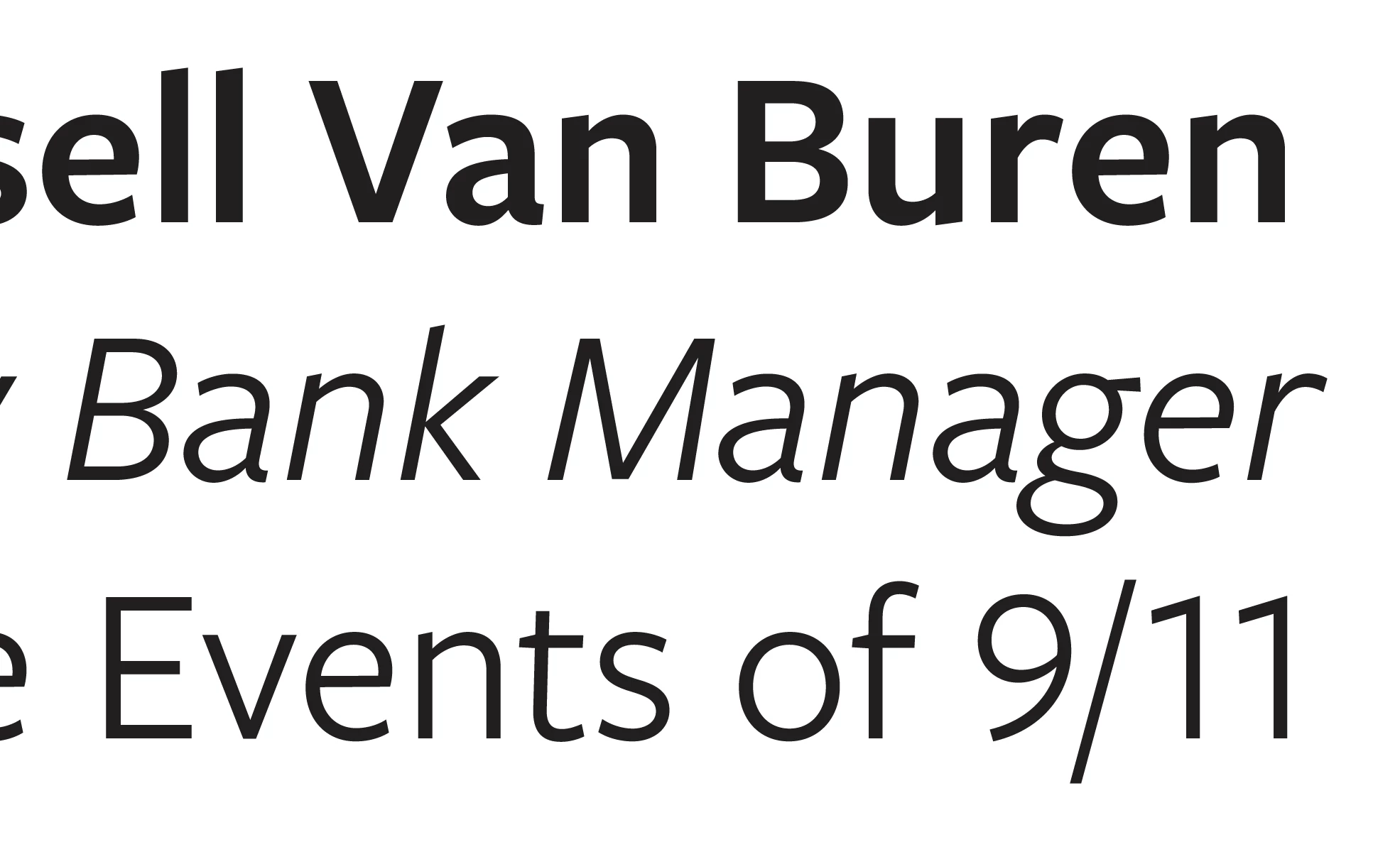
- 1ST ATTACHED IMAGE
- In InDesign, the "9/11" is the right size and is sitting on the baseline as desired.
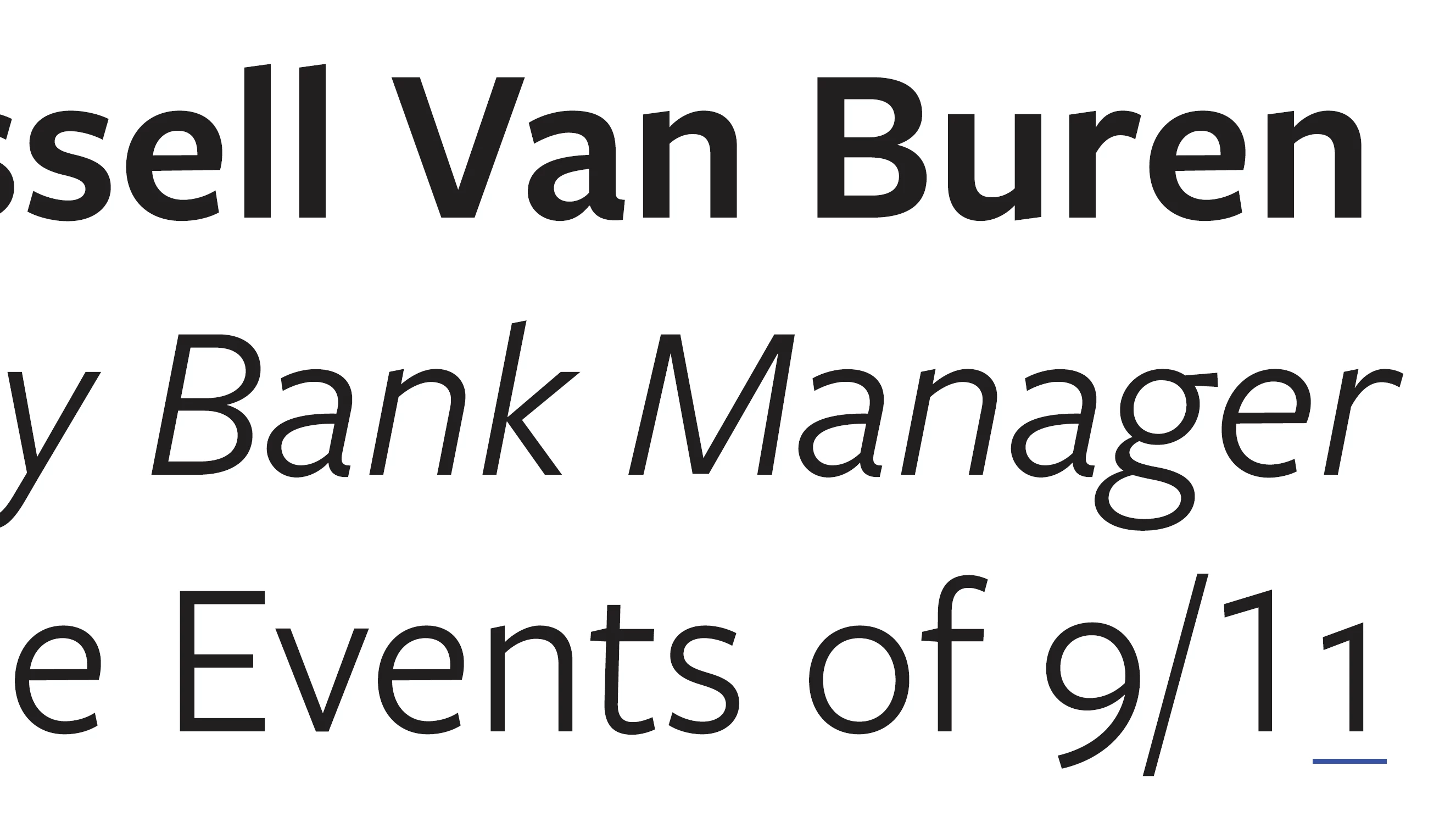
- 2ND ATTACHED IMAGE
- In Acrobat (again, exported to Press Quality, default settings), the "9" has reverted to the below-baseline default glyph.
- Further, the second "1" has not only reverted but has ALSO somehow acquired an underline -- which is a complete mystery since there is no underline applied.
- Everywhere "9/11" is mentioned in the manuscript, this happens.
- Other instances of these same digits (e.g., 19th) are not affected.
My first thought was that the "slash" in "9/11" was somehow triggering one of the programs to think "9/11" is a fraction. But if that was the case, wouldn't it look like a fraction in InDesign before I ever exported to Acrobat?
But I'm not sure that is really the problem because why would something that converted this combo of keystrokes to a fraction then also add that random underline under the second "1"? And why isn't Acrobat honoring the glyphs I've chosen, to start with?
This is a real head-scratcher and actually a big problem because the client is waiting for their book layout and the deadline is tomorrow. Does anyone know why this quirk would happen when I export to Press Quality and how I can prevent it or turn it off? Or is there is a bug in InDesign related to glyphs or fractions or both? Or is there some palette I've missed with some option I need to tweak or maybe something in preferences in one program or the other? I've looked but I haven't found anything yet. Hope it's just something I've missed!
See "9/11" in the two images below and thanks in advance for any help!
(Note: I gathered these images in two different screenshots. The typefaces are actually the same size, but the 2nd image looks a little smaller because I took my Acrobat screen capture at a slightly different zoom; just didn't want someone to spot that and mistakenly think thinking it might imply something about the problem.)
PS -- I've temporarily solved my problem by converting the "9/11" figures to outlines for purposes of meeting my deadline. But I'd still love to get feedback on this question.
 This is a very weird situation but I am beginning to think it was just a one-time quirk (unless it happens again in future, obviously). As I mentioned in my first posting, the font I'm using is FreightSans Pro, Book weight in this instance. It is a front from TypeKit, so it is synced and therefore, I presume, installed only once.
 AdChoices