
davecourtemanche
Legend
May 15, 2025
Answered

All Spots To Process as part of saved PDF export preset

  • May 15, 2025
  • 5 replies
  • 677 views

Is it possible to have All Spots to Process stick as part of a PDF export preset?
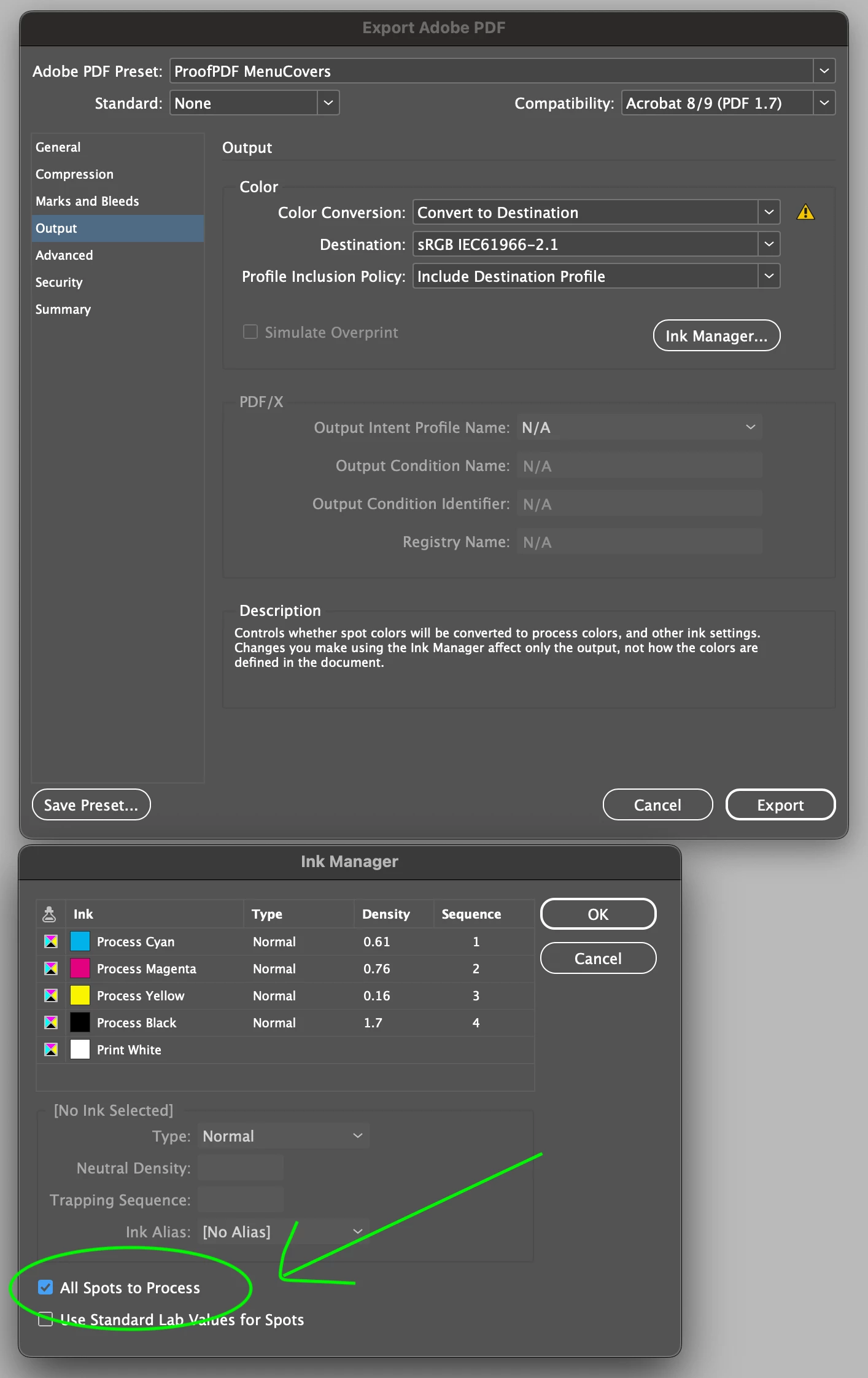

Correct answer Laubender

To filter the export event, script should be executed only when PDFs are exported, see this script code snippet by Manan Joshi:

#targetengine "session"
app.eventListeners.add("beforeExport",
        function ex(e){
			alert(e.format)
})

See source:

https://community.adobe.com/t5/indesign-discussions/an-event-listener-before-exporting-to-pdf/m-p/13020413#M481591


Regards,
Uwe Laubender
( Adobe Community Expert )

5 replies

davecourtemanche
Legend
June 3, 2025

Thanks all for the feedback. I was just looking at the request as part of the export pre-set, not running a script, converting in Acrobat or using the checkbox in the Ink Manager settting. I've added a feature request, for what it's worth. 

Community Expert
June 3, 2025

Well in case it's not obvious - the answer is no.

The only way I could do it is by exporting to Interactive PDF which would do it  and doesn't require a script.


I offered a script for a double click or assign a shortcut to it as a offering to make it easier.


Others have created more robust scripts that does it. 


So you can make an interactive PDF - either manually or using my attempt of a script

Use one of the scripts posted here. 

Or convert in Acrobat after you export

Or convert swatches before making a PDF. 

Or I think someone mentioned using the ink manager also. 


So there's no direct way - but if you need it it can be done. 

You could be a while waiting for a solution from Adobe.

Community Expert
May 16, 2025

If you export to PDF Interactive then you won't have to do any conversion, spots are automatically changed - in my tests anyway.


File>Export>PDF Interactive from the drop down. 


It's a menu proof setting by your name in the setings - so this would make it all RGB. 


Does that help?


A script can do it for your proofs so you don't have to remember toggle to interactive pdf each time. 


// InDesign JavaScript (ExtendScript)
if (app.documents.length !== 0) {
    var doc = app.activeDocument;

    // Prepare default file name: DocumentName_proof.pdf
    var baseName = doc.name.replace(/\.indd$/i, "");
    var defaultName = baseName + "_proof.pdf";

    // Prompt for save location with default name
    var pdfFile = File.saveDialog("Save Interactive PDF", defaultName);

    if (pdfFile !== null) {
        // Clean up document metadata to avoid "Proof" titles
        doc.metadataPreferences.documentTitle = baseName;
        doc.metadataPreferences.author = "";
        doc.metadataPreferences.description = "";

        // Set export options
        var pdfExportPreset = app.interactivePDFExportPreferences;
        pdfExportPreset.pageRange = PageRange.ALL_PAGES;
        pdfExportPreset.exportReaderSpreads = false;

        // Ensure file has .pdf extension
        if (!/\.pdf$/i.test(pdfFile.name)) {
            pdfFile = new File(pdfFile.fsName + ".pdf");
        }

        // Export to interactive PDF
        doc.exportFile(ExportFormat.INTERACTIVE_PDF, pdfFile, false);
        alert("Exported to Interactive PDF:\n" + pdfFile.fsName);
    }
} else {
    alert("No document open. Please open an InDesign document first.");
}
Brad @ Roaring Mouse
Community Expert
Community Expert
May 16, 2025

I personally just do the switch in the Ink Manager in InDesign before export. You can always toggle back to spots (as a whole or selectively) if you need them spot for another purpose.

Robert at ID-Tasker
Legend
May 15, 2025

Or done in Acrobat? 


leo.r
Community Expert
Community Expert
May 15, 2025

Can't be done in the UI (as far as I know).


Can probably be done with a script that's invoked "on export".

Community Expert
May 20, 2025

@leo.r said: "Can probably be done with a script that's invoked "on export"."


Hi @leo.r ,

well yes, that's an option we should explore. The sample below is using "beforeExport". Another one could reset the inks after export.


The script that should be executed before every export could be:

app.documents[0].inks.everyItem().convertToProcess = true;


And the startup script with the "beforeExport" event could be this:

#targetengine "allSpotsToProcess"

main();  
  
function main(){  
	var appEventListener = 
	app.eventListeners.add
	(
		"beforeExport",  
		allInksOfDocToProcess, 
		false
	);
} 


function allInksOfDocToProcess( eventWithBeforeExport )
{
	if( eventWithBeforeExport.target == app.documents[0] )
	{
		app.documents[0].inks.everyItem().convertToProcess = true;
	};

};


Did a quick test with InDesign 2025 and it worked as expected.

Ok. It's missing some controls to turn it off/on during an InDesign session, but it's a start to resolve the issue.


Regards,
Uwe Laubender
( Adobe Community Expert )

Community Expert
May 20, 2025

Oh, I forgot one option that could be useful as well when converting spot color inks to process:

// If you want to use the LAB colors of a spot for the conversion process:
// Ink Manager check box: [ x ] Use Standard Lab Values for Spots
app.documents[0].accurateLABSpots = true ;


Regards,
Uwe Laubender
( Adobe Community Expert )