Participant
October 22, 2018
Answered

colors look dull in indesign after upgrade

  • October 22, 2018
  • 11 replies
  • 52952 views

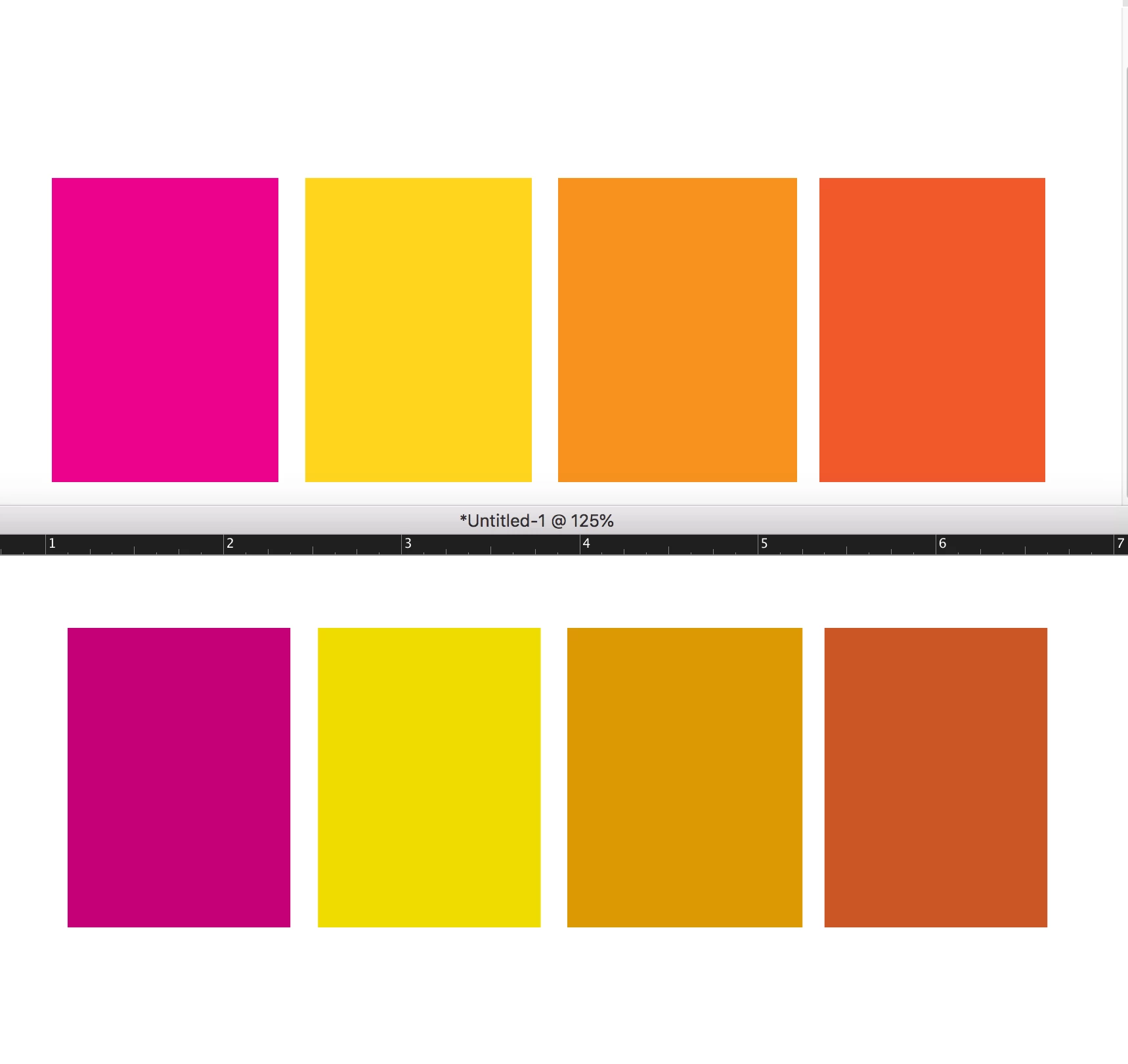
In the picture below the top row of colors is what the boxes look like when exported to pdf.

the bottom row is how they look in indesign, like they all have cyan added to them.

What setting in indesign is shifting my colors. New problem after upgrading to indesign 2019.
This topic has been closed for replies.
Correct answer Erik5ECA

Just wanted to reply to this thread in case Adobe is watching, as I had the same problem just now. After trying several solutions in this thread, the one that worked for me was the one beccaru posted about changing the color settings back to North America General Purpose 2 worked for me, but I don't know how it changed in the first place. It's concerning that this issue lingers three years after others have the same problem.


Specs for me:

  • MacBook Pro 16" (2019)
  • MacOS Catalina 10.15.7
  • InDesign 2021 16.1.0.20
  • Bridge 2021 11.0.1.109 (Included because Bridge is mentioned as a potential soure of problems below)

11 replies

mcswainwt
Participant
December 17, 2021

Hi, I've tried every solution on this page for InDesign 22 and 21 and my colors are still dull and don't match any other program or source. Does anyone else have ideas? I've wasted nearly an entire day. I've checked color settings, GPU settings, blend transparency space and followed the whole Bridge synchronization steps (uninstall, trash color profile, re-install...) Nothing has worked and I'm losing my mind. When I open older files the colors seem fine. If I create a new swatch in the old document, it's dull and doesn't match. If I create a new document and new color swatch the color is dull. The attached pdf shows colors as they should appear on top, bottom row is same color codes but from InDesign. 

rob day
Community Expert
Community Expert
December 18, 2021

When I open older files the colors seem fine


Could you share the old InDesign file that has the correct color appearance with the new swatch that doesn’t match?

jeffreyjamessyrop
Known Participant
December 18, 2021

I'm sorry that I can't help you. I think it's almost crimiinal that InDesign still is causing people this huge and frustrating problem. I've been retired for about 7 years, so I'm out of the fight, and it would take me a while to figure out how to help you. I hope you will report this problem to Adobe. They sure care about our money, but not so much about ease of use and logical interface.


Participating Frequently
October 29, 2021

Why does Adobe keep changing color settings on all the apps on every update now? I had to come here figure out the fix again because I couldn't remember.

Jaqueline-DS
Participant
August 26, 2021

Thank you! I have this issue with InDesign 2021 and got fixed with North America General Purpose 2.

Erik5ECACorrect answer
Inspiring
April 20, 2021

Just wanted to reply to this thread in case Adobe is watching, as I had the same problem just now. After trying several solutions in this thread, the one that worked for me was the one beccaru posted about changing the color settings back to North America General Purpose 2 worked for me, but I don't know how it changed in the first place. It's concerning that this issue lingers three years after others have the same problem.


Specs for me:

  • MacBook Pro 16" (2019)
  • MacOS Catalina 10.15.7
  • InDesign 2021 16.1.0.20
  • Bridge 2021 11.0.1.109 (Included because Bridge is mentioned as a potential soure of problems below)
mecreative.com
Participant
May 27, 2021

I recently discovered a surprising (to me, anyway) fix for this issue on my system, so I thought I'd share. In InDesign, under File > Document Setup..., if Intent: Print is selected, any RGB images appear dull (CMYK-converted). The solution is to choose Intent: Web instead and edit the Page Size dimensions to match your original. Voilà! Bright RGB images again. Now you can export vibrant RGB PDFs for screen display (by choosing to not convert colors) and CMYK PDFs for print use as needed (by choosing to convert colors). Hope this helps somebody else.

jeffreyjamessyrop
Known Participant
May 27, 2021

I love the simplicity of this. Amazing that Adobe won't solve this problem that should have never existed.

Participant
May 22, 2019
Participating Frequently
October 29, 2018

These are the steps that have been working for me and my creative team:

1. If you use an Adobe supplied Color Settings preset, go to next step, otherwise use Photoshop Color Settings, to create your desired color settings, and then Save a named Preset.

2. Quit all Adobe apps

3. Hold down the Option key, and choose the Go Menu.

4. Chose Library.

5. Go to Preferences/Adobe/Color

6. Delete this file: ACEConfigCache2.lst

7.  Go into Bridge 2018 (or 2019 if you have already deleted Bridge 2018), and go to Edit, Color Settings, and chose your desired preset, and click Apply.  If done in Bridge 2018, you don't need to do it in Bridge 2019.

8.  Quit Bridge, and now all your 2018 and 2019 apps will be "Synchronized" and will not revert back to the factory defaults!

Hakte
Participant
October 23, 2018

It seems like there is temporary solution:

Creative Cloud 2019 - Not respecting color settings

bigchair2Author
Participant
October 24, 2018

This link has the solution. You need to throw away the color preferences for bridge, then restart bridge and all the apps stay synced.

Thank you everyone for all of your help.  ; )

marianalopez
Participant
August 7, 2019

wheres the link ?

Hakte
Participant
October 23, 2018

Unfortunatelly, this color issue has nothing in common with GPU performance, nor Transparency Blend Space.

The point is - after upgrade to CC 2019 it is impossible to set (and synchronize) color settings other than default.

In Bridge - default settings are "North America General Purpose 2" - I can change it to (my preferred) Europe Prepress 3. After I hit "Apply" button - it should be synchronized across all CC apps. But no, it is not. Next time I run Bridge - color settings are set to defaults.

The same in InDesign CC 2019 - default settings are set to "Emulate Adobe InDesign 2.0 CMS Off". I can change it, bu only during current session. Next time I run ID CC2019 - color settings are back to default. Even in document saved with different color settings - after next ID run color settings are back to default.@

I hope it will be fixed soon, because it is really annoying especially in production enviroment...

best regards, Artur.

PS

if this helps - I run MacOS 10.14.

beccaru
Participant
October 23, 2018

I am happy to report that I solved it! I went into the indesign edit>color settings> then updated it to North America General Purpose 2.

Steve Werner
Community Expert
Community Expert
October 23, 2018

Great! Glad  you solved it!

Participant
April 1, 2021

Thank you! this worked for me as well. 

beccaru
Participant
October 23, 2018

Hello, I am having the same issue. Just did the update today. My OS is Sierra 10.12.6 and don't have the rocket ship for the GPU. Does anyone know another way to fix it?

Steve Werner
Community Expert
Community Expert
October 23, 2018

Check Edit > Transparency Blend Space. Your document in CC 2019 could be set to Document CMYK instead of Document RGB in CC 2018.

beccaru
Participant
October 23, 2018

Thank you for your quick response, but I checked and my document is set at CMYK.