Chris  P.  Bacon
Inspiring
November 13, 2022
Answered

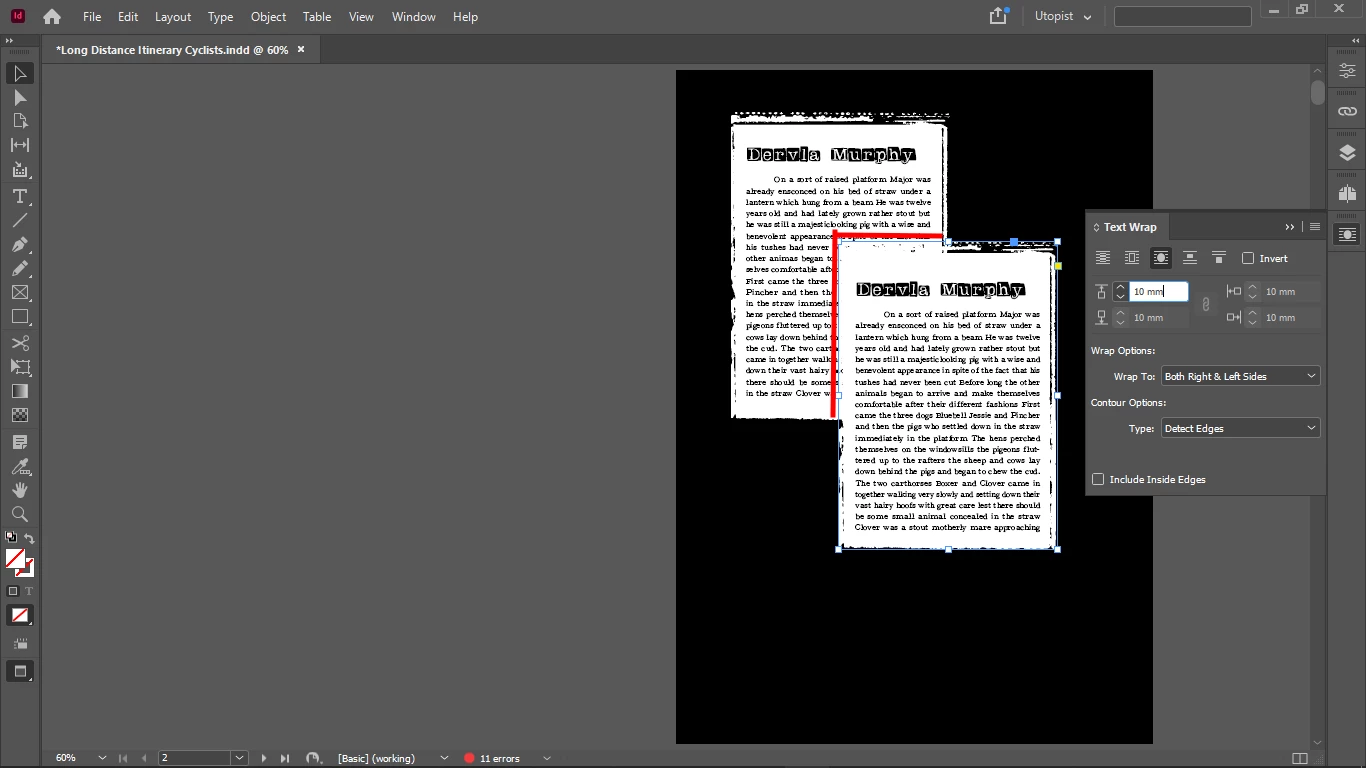
How do I wrap the bottom objects text around the red lines?
  • November 13, 2022
  • 11 replies
  • 2127 views

For some reason the text wrapping doesn't work.

The text of the bottom object should wrap around the edges of the top object.

This topic has been closed for replies.
Correct answer pixxxelschubser

Hello
thank you very much for your sample file.

I can tell you what you have done. In return, can you please tell me why you did it?
😉


The text frame again has the option: ignore text wrap switched on. Why?
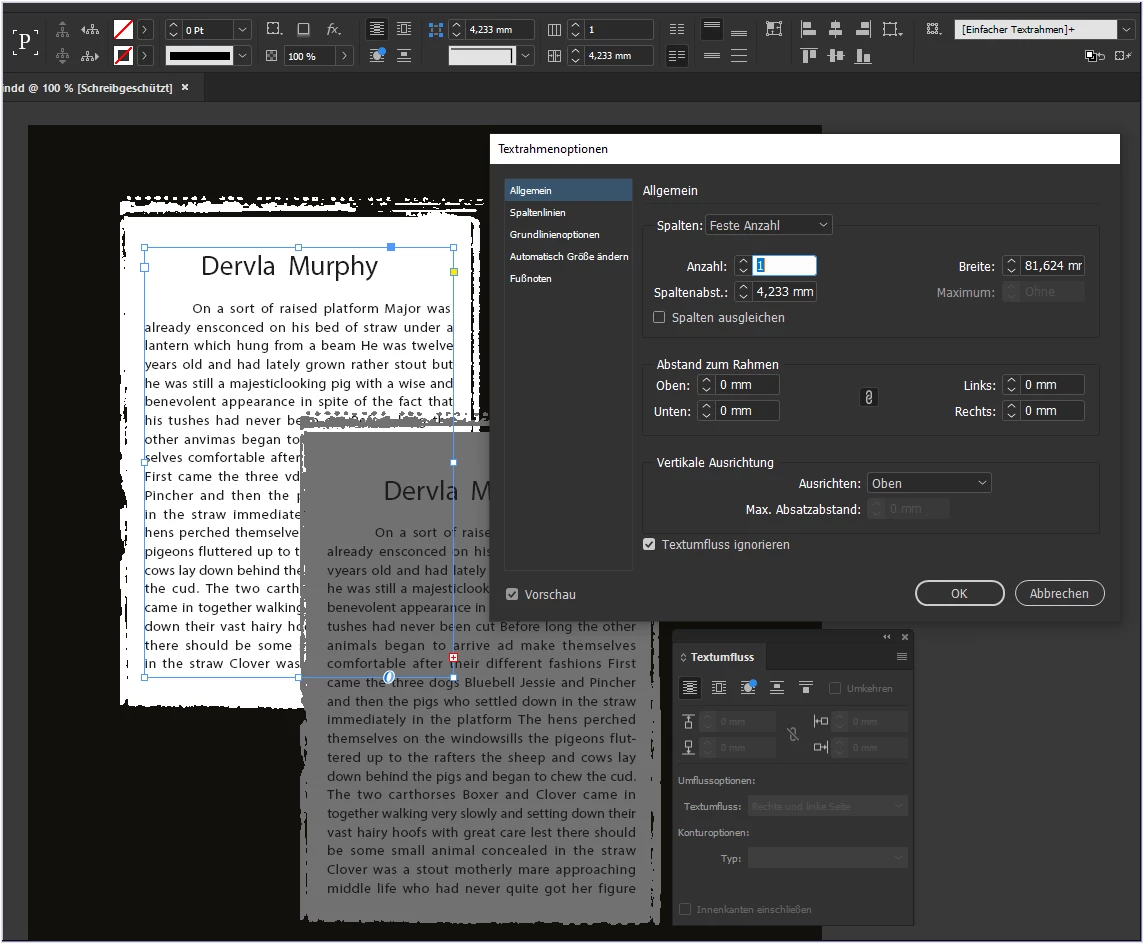
 

If the option is switched off, the text "disappears" completely.
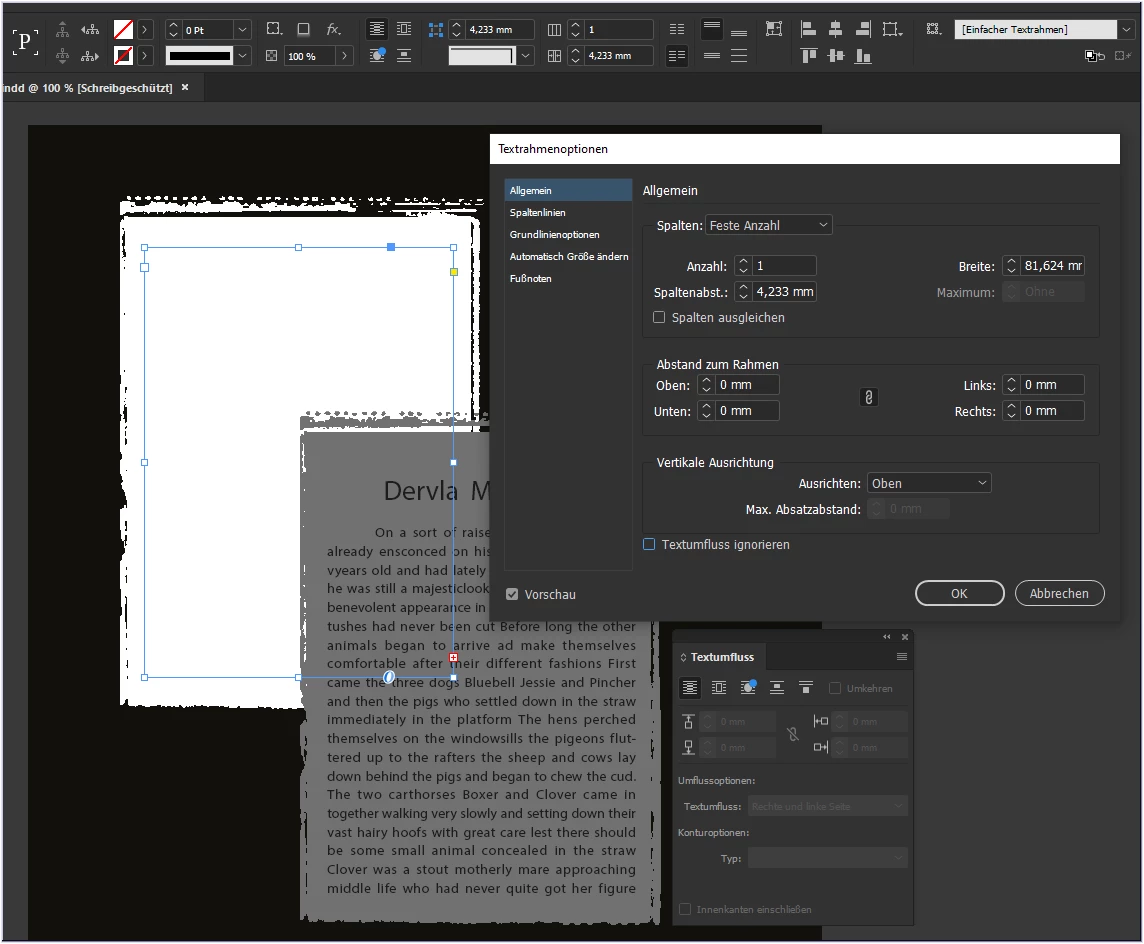
 

This is because of the lowest text frame that goes across the whole page. This text frame has an active text wrap.
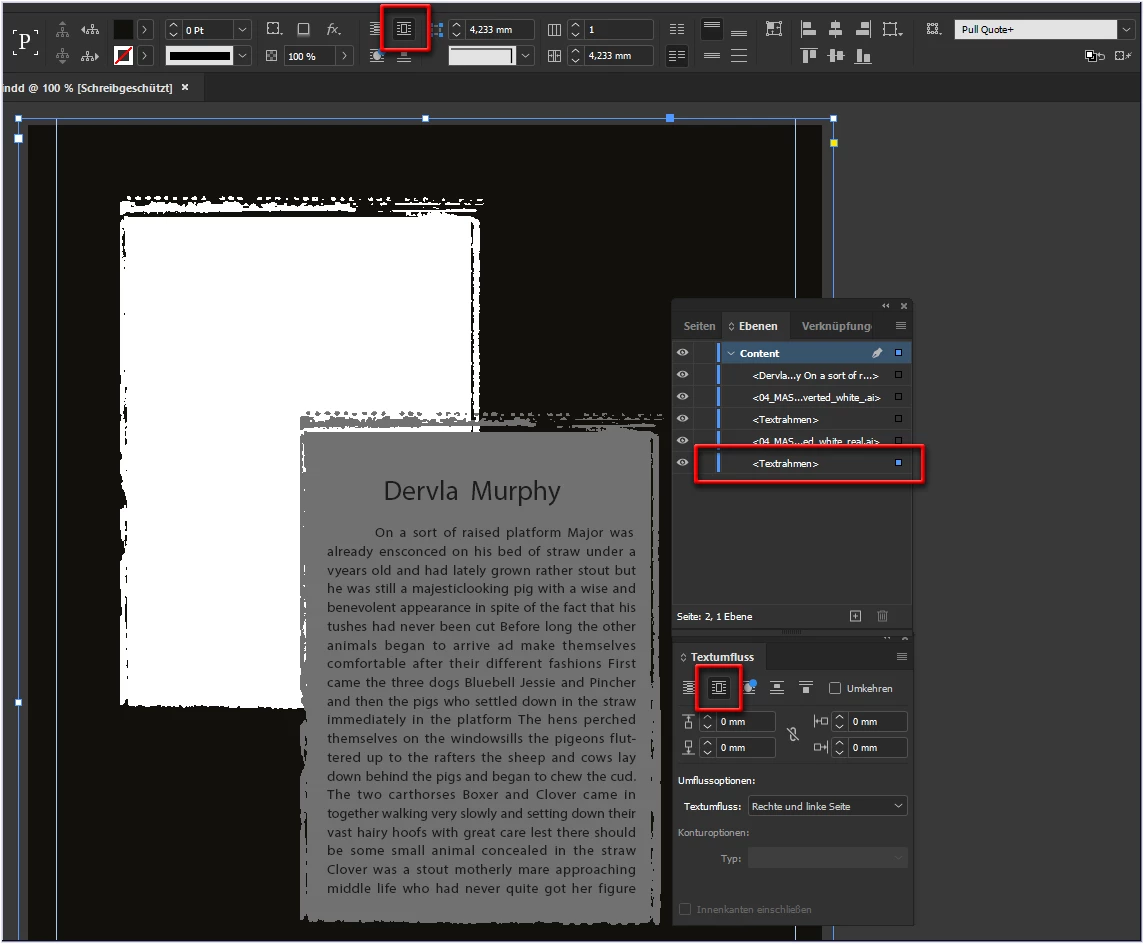
 

Switched off - and everything works as desired.
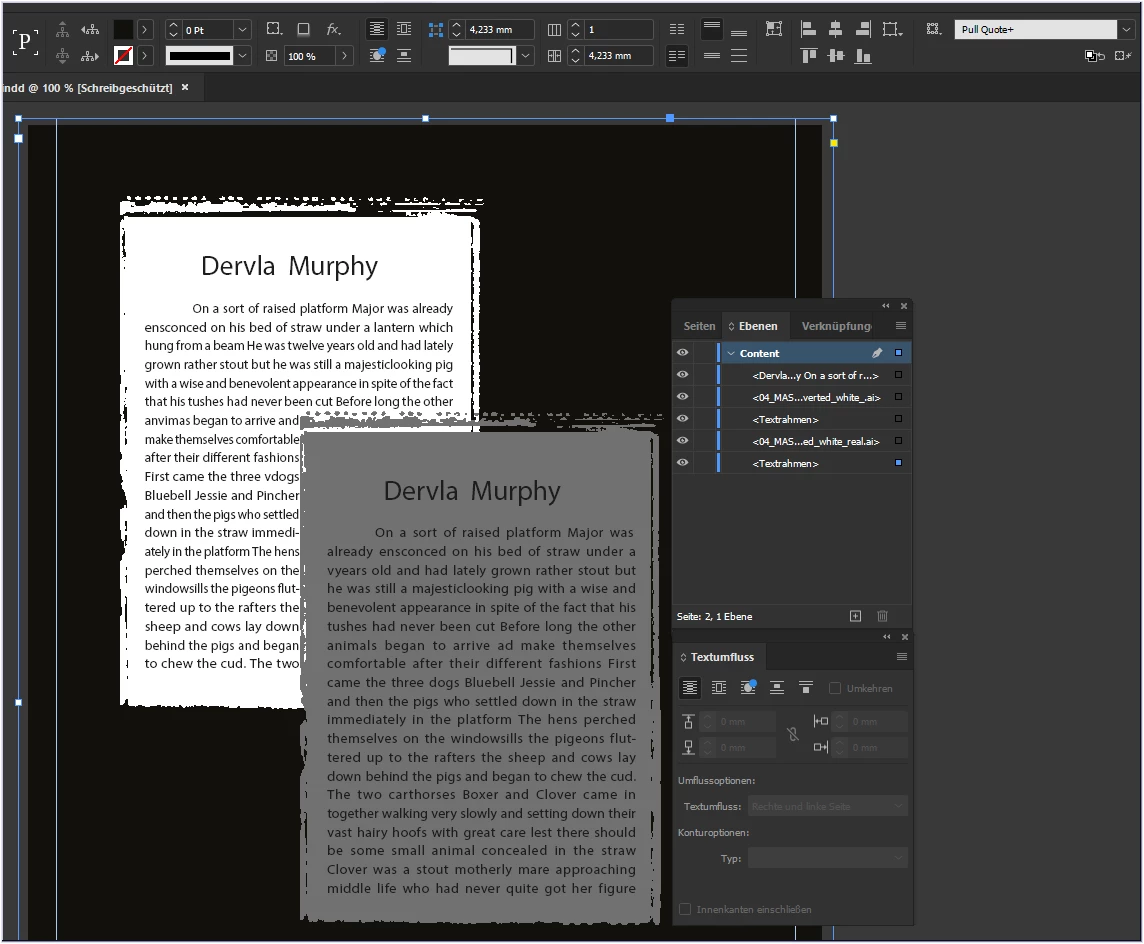
 

Oops.
Careful with irony: I love precision, but this is the very highest precision I have ever seen in an InDesign document - 0.001mm - wow.
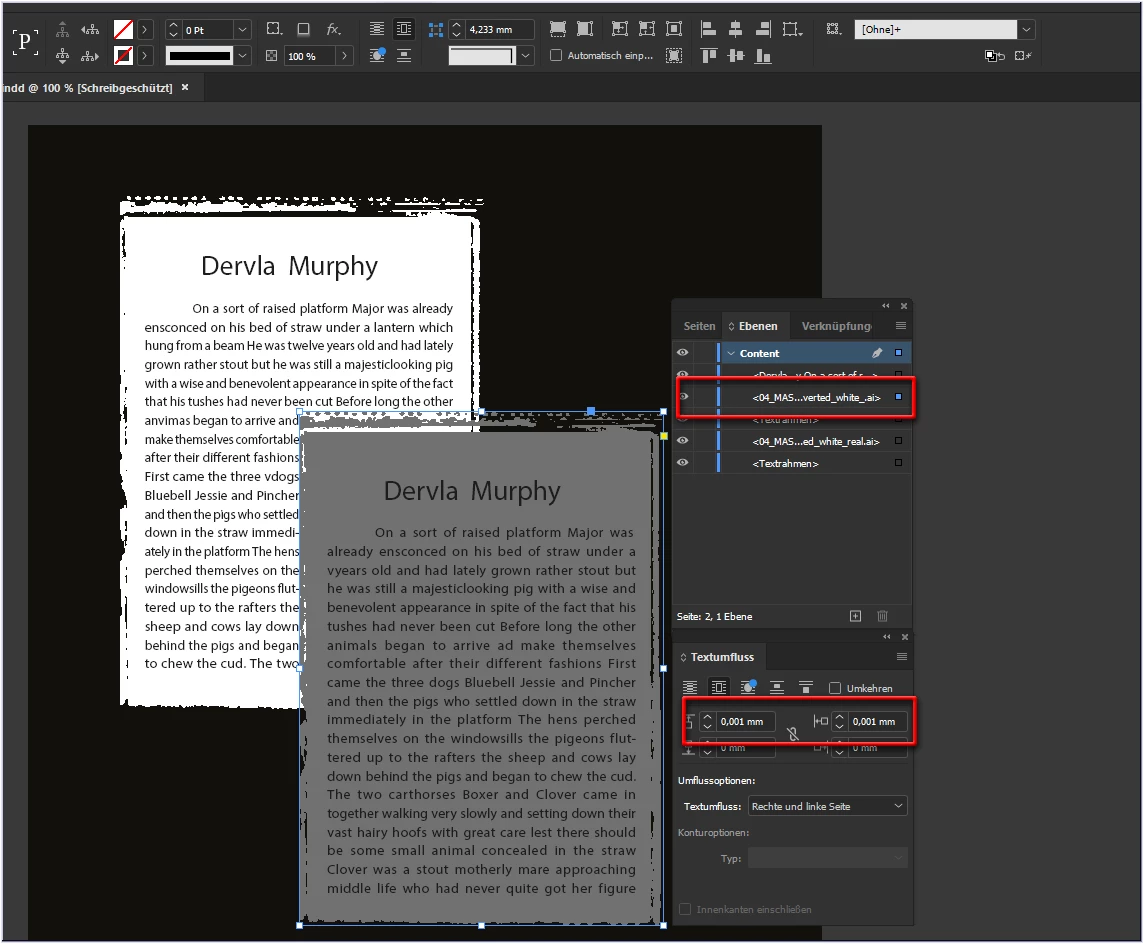
 

Text wrap set to plausible values gives the desired result:
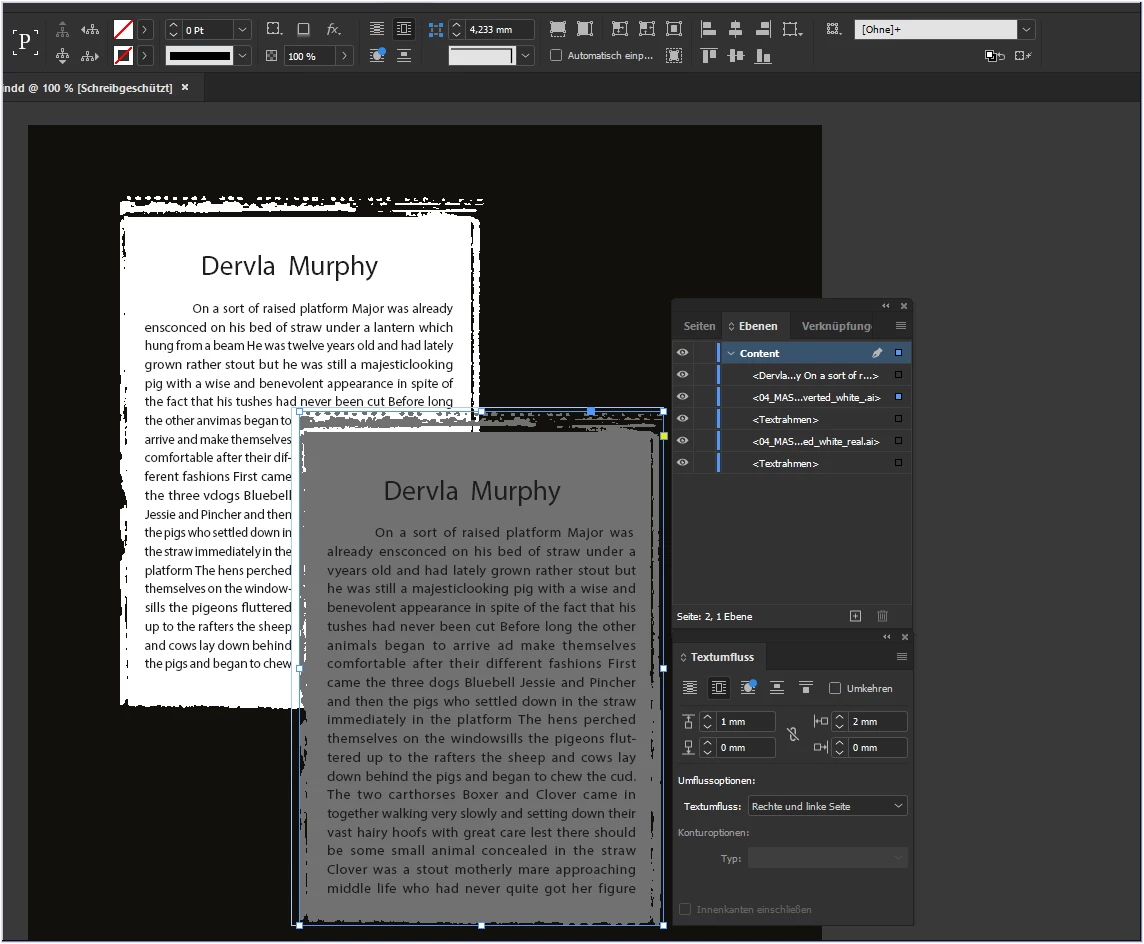
If that works for you
have fun

😉

11 replies

pixxxelschubser
Community Expert
Community Expert
November 14, 2022

Hi ~Barb,
Lol. You were much faster.

😄

Barb Binder
Community Expert
Community Expert
November 14, 2022

Yes, but I missed the text wrap enabled on the black frame, even though removing it solved the issue. I was rushing to get back to start my class. I was leaning towards an effect but they all seemed to be off (and they were). 😂 


~Barb

~Barb at Rocky Mountain Training
pixxxelschubser
Community Expert
pixxxelschubserCommunity ExpertCorrect answer
Community Expert
November 14, 2022

Hello
thank you very much for your sample file.

I can tell you what you have done. In return, can you please tell me why you did it?
😉


The text frame again has the option: ignore text wrap switched on. Why?


If the option is switched off, the text "disappears" completely.


This is because of the lowest text frame that goes across the whole page. This text frame has an active text wrap.


Switched off - and everything works as desired.


Oops.
Careful with irony: I love precision, but this is the very highest precision I have ever seen in an InDesign document - 0.001mm - wow.


Text wrap set to plausible values gives the desired result:

If that works for you
have fun

😉

Chris  P.  Bacon
Inspiring
November 14, 2022

Ah thanks.

That shouldn't be a text frame even, that is a background color frame, so i will have to make it a non-text object.

However that will still not switch off the 0 text wrap.

I will find out why I used 0.001 offset and tell it but I am sure I had a reason.

Barb Binder
Community Expert
Community Expert
November 14, 2022

Hey Chris:


I'm on a short class break and while this is not the answer, it may point us in the right direction...


With the three other frames in place, my results are inconsistent. Some times it works, sometimes the text turns white so I can't see it until I remove the black frame. When I removed the other three frames, you can see that the back one sill has Ignore Text Wrap enabled in the file you delivered. Disabling it and adding text wrap to the top frame works exactly as expected. It's something with the two background frames, but I don't see it and I'm out of time. 


~Barb


Removing the other three frames first:


Leaving the other three frames (you didn't package the file so I can't examine the two background graphics.):


~Barb at Rocky Mountain Training
Chris  P.  Bacon
Inspiring
November 14, 2022

Here is the packaged file.

It seems then that the issue is with my .ai background shapes.

pixxxelschubser
Community Expert
Community Expert
November 13, 2022

Thank you for the file.


But you are wrong. Please select only the text frame and open the text frame options. Ingnore Text Wrap is checked on! Uncheck it and that's all.


Chris  P.  Bacon
Inspiring
November 13, 2022

That's right.

Thanks.

Chris  P.  Bacon
Inspiring
November 13, 2022

The top vector shape's color need to be slightly changed though for this to work.

Barb Binder
Community Expert
Community Expert
November 13, 2022

Chris: 


But isn't grouping the answer? Just group the top objects, then enable text wrap.


If that doesn't work, can you share this page of the file?


~Barb

~Barb at Rocky Mountain Training
Chris  P.  Bacon
Inspiring
November 13, 2022

Hi @Barb Binder 

this is the file.

I tried grouping, but still didn't work.

Chris  P.  Bacon
Inspiring
November 13, 2022

To clarify:

there are 4 objects, a text object placed on an svg shape, each 2.

The text objects are not (yet) grouped to the svg shapes.

Ignore text wrap is activated for both text boxes, but changing ignore text wrap settings will not change anything.

Here is a new screenshot:


Community Expert
November 13, 2022

The object you have selected look like a placed image. If the text is a part of the image, it will not be affected by text wrap. The text needs to be editable live type in InDesign.

Steve Werner
Community Expert
Community Expert
November 13, 2022

One thing which could prevent the text wrap would be if the text frame behind had Ignore Text Wrap turned OFF. To see, select the frame behind and choose Object > Text Frame Options. See if there is a checkbox at the bottom of the dialog checked "Ignore Text Wrap"


Barb Binder
Community Expert
Community Expert
November 13, 2022

Hi Chris:


They both look like images to me. Text wrap pushes editable text out of the way. It has no impact on images of text. 


~Barb

~Barb at Rocky Mountain Training
pixxxelschubser
Community Expert
Community Expert
November 13, 2022

Unfortunately, you have neither the Control Bar displayed nor the Layers Panel (unfolded).
So I wonder: Did you use a special contour style? Or are these images. In the latter case, of course, the text wrap does not work (on text in an image).