Participant
Feb 26, 2018 4:27 PM UTC
Answered

How to remove vertical spacing between pages

Hi,

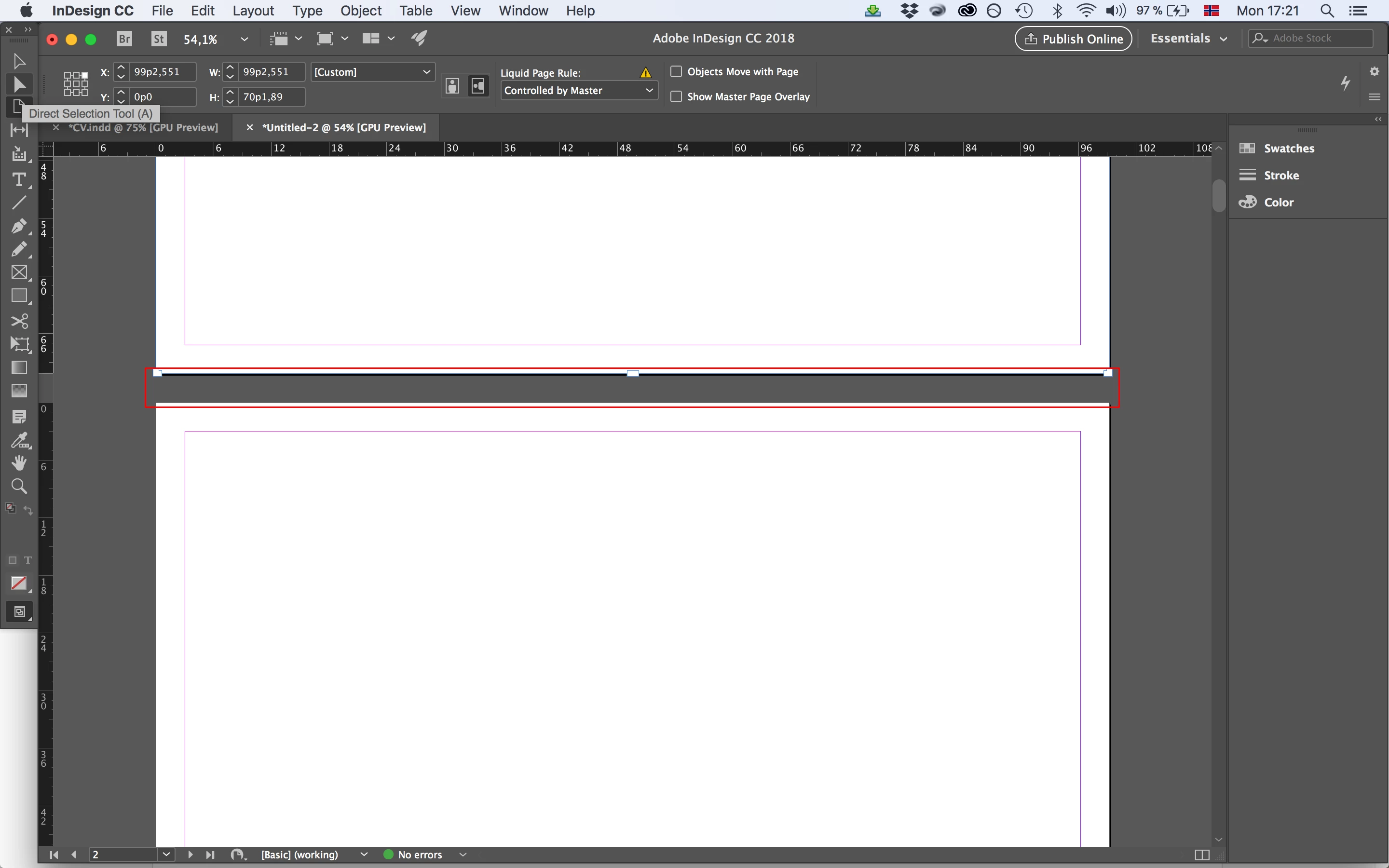
I have tried to google the matter but cannot find the answer anywhere. I simply want to view my pages touching each other top against bottom so they form one continuous row. Is this possible somehow.

I have gone to preferences-guides and pasteboards and set the vertical margin to 0, but the marked spacing is still there.

Please see attached screenshot with spacing I want to remove marked in a red rectangle.
Steve Werner
Steve WernerCorrect answer
Community Expert
Feb 26, 2018 4:39 PM UTC

Not possible. The minimum pasteboard size is 0, set in Guides & Pasteboard preferences. Nevertheless, there is still a gap between pages.

Instead, make a PDF file. In Reader or Acrobat, make sure you Enable Scrolling in View > Page Display and if necessary turn off the gap.

16 replies

Mike Witherell
Community Expert
Community Expert
Nov 5, 2026 2:08 PM UTC

Anna, what are you trying to accomplish? The area past the page is called the Pasteboard and it cannot be turned off completely. Maybe if you explained what you are doing, a better suggestion could be offered? For example, maybe you could define a larger sheet size to begin with, and subdivide it with margins and columns and custom guides so as to appear continuous? As already stated below, if you go into Preferences and set the vertical dimension of the Pasteboard to zero, there will still be a separator.

Translate
Mike Witherell
Participant
Nov 5, 2026 12:50 PM UTC

How do I turn off the gap?

Translate
Anubhav M
Community Manager
Community Manager
Nov 5, 2026 2:00 PM UTC

Hello ​@Anna Severine29702622ads4 


Thanks for reaching out. Could you share more details, like the version of Illustrator you’re using, a sample file, and screenshots or a brief screen recording of your workflow, so we can better assist you?


Looking forward to hearing from you.
Anubhav

Translate
Participant
Feb 16, 2025 9:28 PM UTC

New to this and my examples not showing automatically, but here's a combo comparing size difference between pages better. : )

Translate
Robert at ID-Tasker
Legend
Feb 16, 2025 10:04 PM UTC

@Patty Berglund


To change the size of the pasteboard, choose Edit > Preferences > Guides & Pasteboard in Windows or InDesign > Preferences > Guides & Pasteboard in MacOS.


But sometimes it can be a side effect of the corrupted file: 


https://community.adobe.com/t5/indesign-discussions/1-page-of-pasteboard-suddenly-extending-far-out/td-p/15138590


Translate
Participant
Feb 16, 2025 9:18 PM UTC

There has to be a setting for vertical space between pages (gray area seen as you scroll). The smaller space is my default setting, and the second (much larger) is a file set up by someone else. I would also like to know how to reduce the space.

Translate
Community Expert
Feb 26, 2018 5:53 PM UTC

Hi,

under specific circumstances one page can touch the other one the way you want it.


1. You need a non-facing pages document.
2. One single spread with a maximum of 10 pages. My screenshot is showing one spread with 4 pages:

To make that happen I turned off "Allow Page Shuffle" for the first spread of the document and added pages to the spread or moved pages from other spreads to the first one in the document:

3. Then I re-arranged pages with the Page Tool and moved page 2 below page 1, page 3 below page 2 and so on:

Regards,
Uwe

Translate
Participant
Feb 26, 2018 5:57 PM UTC

Thank you Uwe! This was the solution to my problem.

Translate
Steve Werner
Community Expert
Steve WernerCommunity ExpertCorrect answer
Community Expert
Feb 26, 2018 4:39 PM UTC

Not possible. The minimum pasteboard size is 0, set in Guides & Pasteboard preferences. Nevertheless, there is still a gap between pages.

Instead, make a PDF file. In Reader or Acrobat, make sure you Enable Scrolling in View > Page Display and if necessary turn off the gap.

Translate
Participant
Feb 26, 2018 4:41 PM UTC

OK. Thank you for your answer Steve. The output view mode you describe is the way my document is intended to be viewed, thats why I would like to actually view it like this while working on it in Idesign itself. But I guess that's not gonna happen then.

Translate