Hi @rehana36276218,
The indents for all lists, whether they are bullets or numbers, are set in the Bullets and Numbering settings in the Paragraph Style.
Your example is a hierarchical, multi-level numbered list; that is, each level is nested underneath the previous level and has its own unique number that is automatically numbered by InDesign.
You must use Paragraph Styles to correctly format and number this type of list. See Adobe's online help for basic instructions (scroll down to the section about Multi-Level Numbered Lists): https://helpx.adobe.com/indesign/using/bullets-numbering.html
The steps:
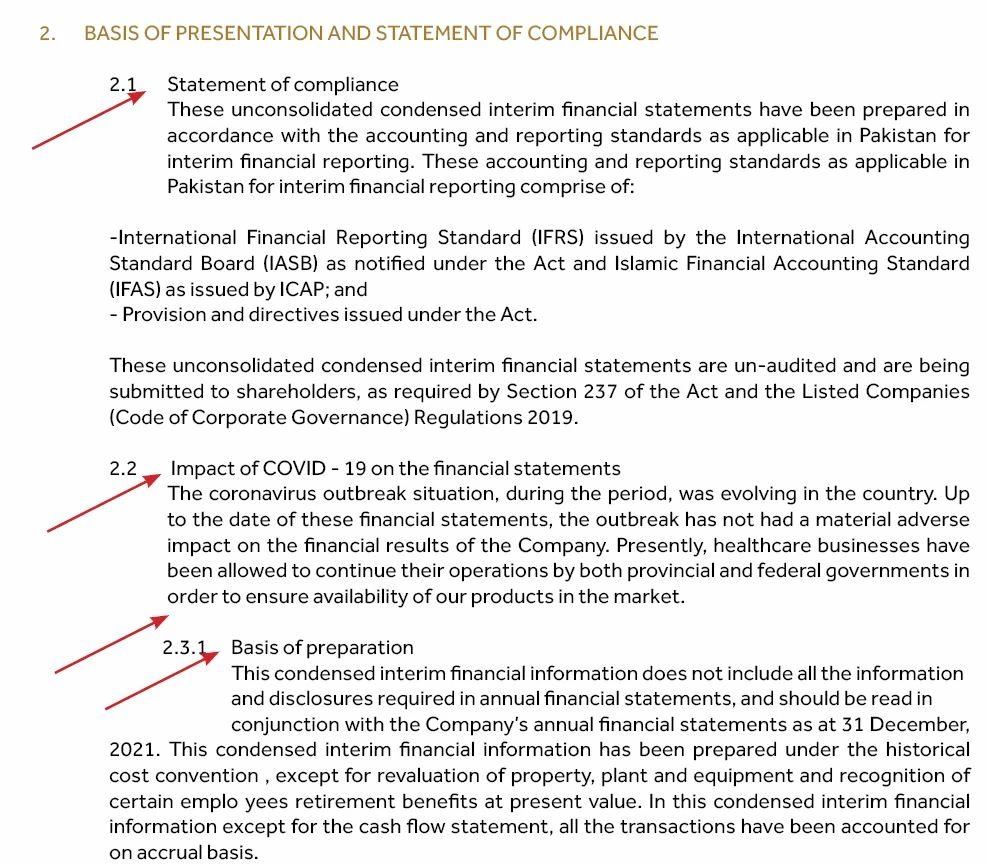
- Make a new Paragraph Style for each level in the numbered list. Example from you screen capture above, 2.1 and 2.2 would both use the same Paragraph Style with its settings for indents (as well as the space before / after / and in between the paragraphs). The next level in your sample, 2.3.1, needs its own Paragraph Style with its settings for indents and spacing, too.
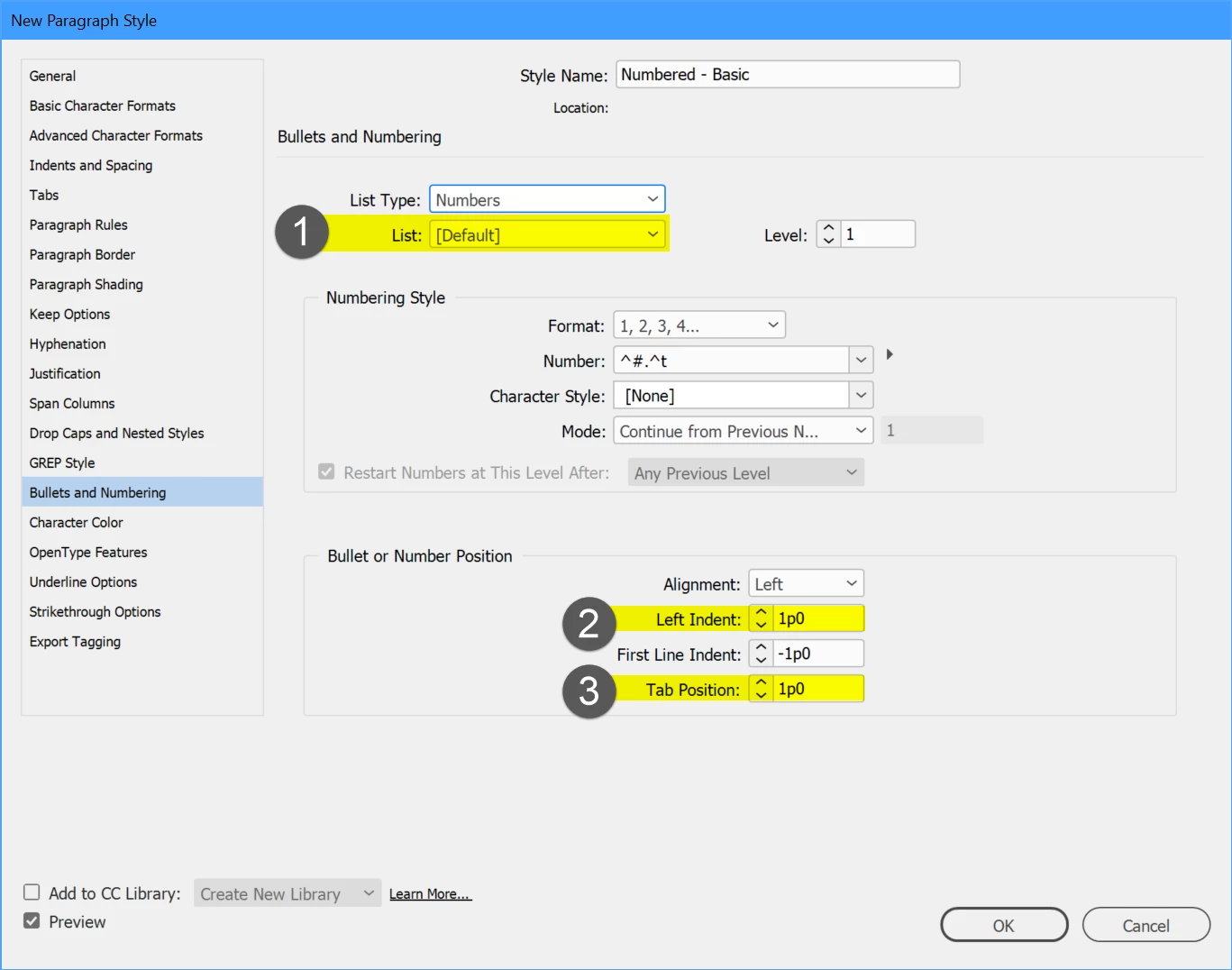
- When you make the first Paragraph Style, give it a List name for the entire group of styles for your list (#1 in the screen capture below). In your sample, maybe "Compliance Statement" would work. Only you and InDesign see this name, so give it a name that will help you.
- Each of the individual Paragraph Styles will:
- Create the visual formatting for each list level.
- Use the same group list name from the List menu.
- Set the list Level for each style.
- Set the numbering pattern.
- Set the Left Indent, First Line Indent, and Tab Position.
- Set the spacing before / after / inbetween in the Indents and Spacing section.
- In my screen capture below, note that the Left margin indent is the same as the Tab Position (#2 and #3). Making these two the same ensures that the first and following lines align correctly. I think this might be what you're trying to control. FYI, it's very rare that these 2 would not be the same value.
- A negative number in the First Line Indent field creates the back-dent that hangs the number in the left margin. Use whatever amount of back-dent that works for your design, but note that it can never be greater than the Left indent.
Hope this helps.


 AdChoices