



Participant
Jan 1, 2024 4:25 PM UTC
Answered

I don't know what this floating panel is but I can't figure out how to hide it

I have this little floating panel all of a sudden and can't figure out how to hide it. I'll try and describe it. On the far left is a home button, next to it says Adobe InDesign 2023, to the right has a light bulb symbol and a blue share button, then my workspace name. then an Adobe Stock search bar. Its getting annoying just floating around. Its a horizontal skinny panel.

Barb Binder
Barb BinderCorrect answer
Community Expert
Jan 1, 2024 10:34 PM UTC

Hi @Russell241955630vsb:


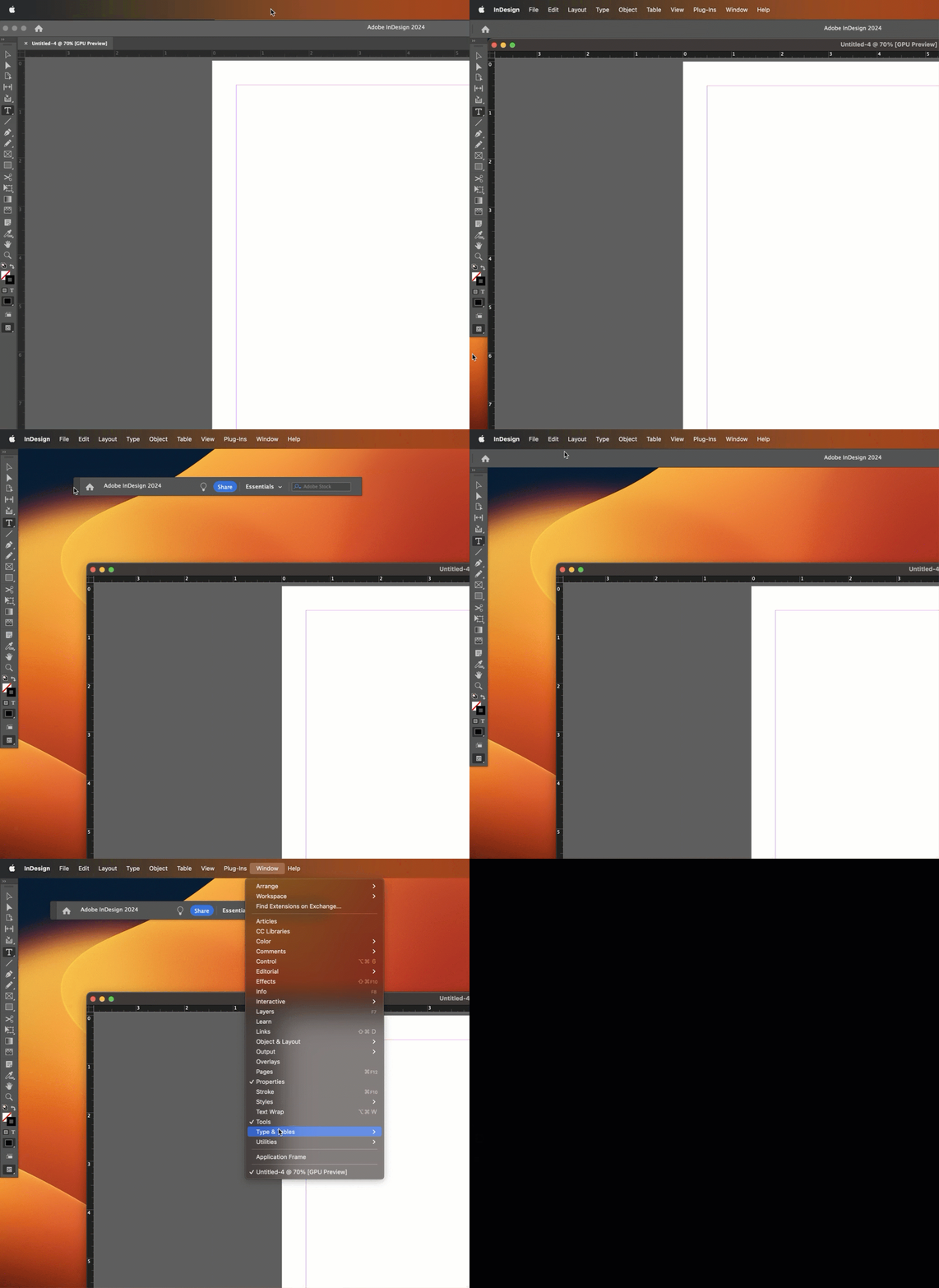
Window > Application Frame on a Mac makes the Adobe apps behave more like Windows.


Long time Mac users tend to turn it off so that they can see their desktop, and if you do that, and then if you undock the Application Bar as you did in your screen shot, the Application Bar will float and get in the way. If you are a new Mac user, and would prefer your Mac to act more like Windows, then definitely go ahead and re-enable the Application Frame, as per Derek. That will take care of it.


Or if you disabled the Application Frame on purpose, you can just redock the Application Bar by dragging it up to the menu bar. Release the mouse when you see the blue horizontal bar. 


~Barb
 

~Barb at Rocky Mountain Training

12 replies

Participant
Feb 25, 2025 4:47 PM UTC

I stumbled upon a workaround...

Reset your workspace to "Essentials" and the annoying bar goes away.

Then open up all the tool panels you usually use, and save that as a custom workspace.

Enjoy the additional screen space you used to take for granted before this annoying 'feature' was added.

Translate
Barb Binder
Community Expert
Community Expert
Sep 11, 2025 8:04 PM UTC

Hi @Jennifer378815629mgc:


Just a quick clarification: resetting a workspace does not impact the floating Home bar which was what the OP asked about. This is a Mac-only issue because on Windows, the Home bar is integrated into the Menu bar. See labeled images, below.


Windows


Mac


As per the answers marked as correct above, redocking it or re-enabling the Application Frame takes care of the floating Home bar issue. 


Based on your suggested workaround, I think you are referring to the Control Panel—which can also become undocked (Mac or Windows) and get in the way. You can hide it or show it using Window > Control, and if you intend to use it but it is blocking content, you can redock it manually or restore any of the workspaces beside Essentials, which is the only one that hides it initially (out of the fear that all of the controls will intimidate a new user).


Restoring the Essentials workspace does restore the panels to the way InDesign a new user will see it after they install the application, and this includes hiding the Control panel and showing the Properties panel, which is a simpler variation of the Control panel—context sensitive controls for the selected object—but only offering commands that a new user might be looking for. I teach my intro students to use the Control panel from the beginning, but InDesign gives us options, and that includes preferring the Properties panel over the Control panel.


~Barb

Translate
~Barb at Rocky Mountain Training
andyd13592988
Participating Frequently
Dec 3, 2024 6:53 PM UTC

So my choices are:

• Work in the application frame (hate it).

• A floating bar that I never use blocks screen content.

• A docked bar that I never use wastes space.

Why force this one specific bit of non-critical interface on users who don't want it?

Great job.

Translate
leo.r
Community Expert
Community Expert
Dec 3, 2024 8:39 PM UTC
quote

• A floating bar that I never use blocks screen content.


By @andyd13592988


Yes, it's a long-standing complaint. In the meantime, you can move the bar somewhere to a bottom corner so that most of the bar is beyond the display boundaries. This way it stays pretty much hidden.


There's also a way to hide the home bar by editing some settings file. I'll post it if I find it, but it's a messy process that doesn't always work.

Translate
leo.r
Community Expert
Community Expert
Dec 3, 2024 8:41 PM UTC

p.s. you can also vote for this request here:

https://indesign.uservoice.com/forums/601021-adobe-indesign-feature-requests/suggestions/40086700-just-want-to-turn-off-the-home-bar


in the top reply there you can also find a link to the solution i mentioned above.

Translate
Barb Binder
Community Expert
Barb BinderCommunity ExpertCorrect answer
Community Expert
Jan 1, 2024 10:34 PM UTC

Hi @Russell241955630vsb:


Window > Application Frame on a Mac makes the Adobe apps behave more like Windows.


Long time Mac users tend to turn it off so that they can see their desktop, and if you do that, and then if you undock the Application Bar as you did in your screen shot, the Application Bar will float and get in the way. If you are a new Mac user, and would prefer your Mac to act more like Windows, then definitely go ahead and re-enable the Application Frame, as per Derek. That will take care of it.


Or if you disabled the Application Frame on purpose, you can just redock the Application Bar by dragging it up to the menu bar. Release the mouse when you see the blue horizontal bar. 


~Barb


Translate
~Barb at Rocky Mountain Training
Derek Cross
Community Expert
Community Expert
Jan 1, 2024 4:37 PM UTC

Try: Window > Application Frame

Translate
Participant
Oct 19, 2024 3:41 PM UTC

Thank you Derek Cross! been looking months for this.

Translate