hekselsior
Known Participant
November 3, 2025
Answered

Illustrator file does not appear correctly when imported to InDesign

  • November 3, 2025
  • 13 replies
  • 2652 views

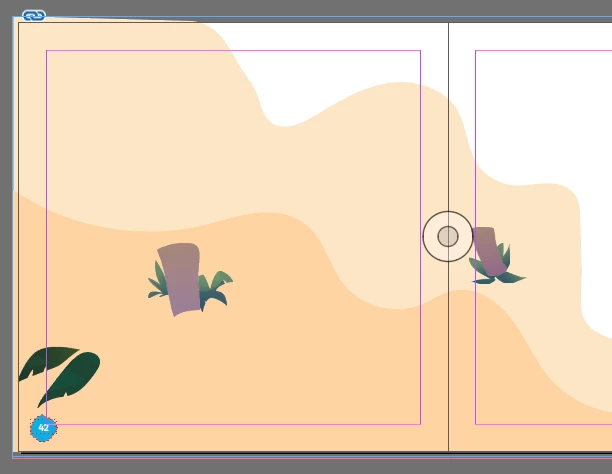
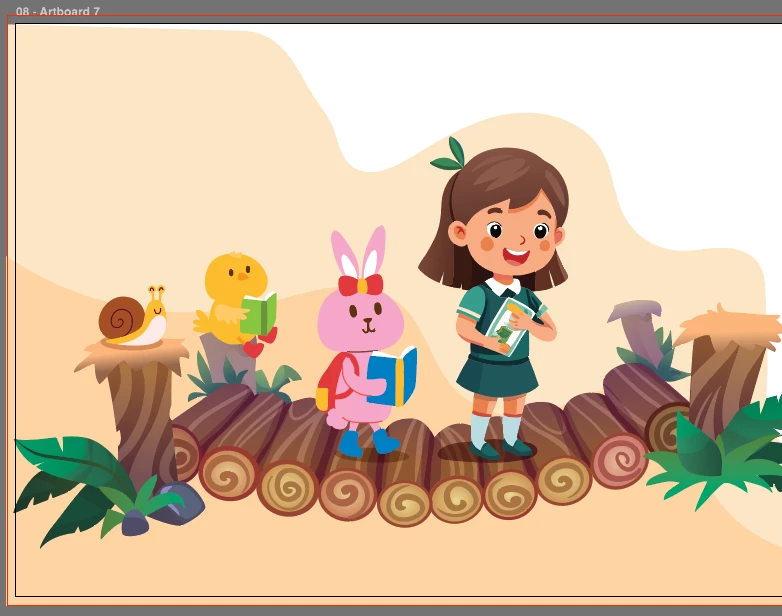
So I have sets of illustration in separated artboard (same layer) in Illustrator. But when I am importing it to InDesign, some parts of the illustration is missing. It occurs on some illustration, especially reused graphic asset from Freepik. 

Funny enough, this isn't happening using the previous version of Indesign. Right now I am using the current latest 21.0 (not beta).


What I have done for the workaround;

  • saved into a new file, only the error artboard. not working.
  • saved the error artboard into EPS, works. But I wish everything works in native format. 
 

Correct answer RCH Creative Studio - CB

I have been having this issue too with graphs that I have created from scratch in Illustrator. For me, it doesn't drop colours, but it moves columns around and doesn't put them in the same place. And this is not something I can outline and expand, as I need to update the numbers as needed.


I have found that if I copy and paste into a new Illustrator document and import that, it fixes my issue. But I should not need to do this.

13 replies

Participating Frequently
March 26, 2026

Still happening on AI 30.2.1 and ID 21.2 (March 26, 2026). People on Reddit have said they've gone to print not knowing the image placing issue. This boggled my mind for a week and couldn't figure this issue out...I got resolution with copying and pasting but wasn't aware this was the resolution only for it to come back on the same file. Copying an element then pasting it back into the same file works as a temporary fix but why is this even needed? WTF adobe! Adobe keeps giving reasons to hate it and this has been the case for a very very long time.

leo.r
Community Expert
Community Expert
March 26, 2026

So did you try to disable the Save in Background preference in Illustrator?

Participating Frequently
March 26, 2026

Yes, this seems to work 🤞

Abhishek Rao
Community Manager
Community Manager
March 6, 2026

Hi everyone,


Thank you for continuing to share your observations on this issue. I’ve raised this internally with the InDesign product team so they can review the behavior further, and I’ll update the thread as soon as I have more information from them.

In the meantime, to help us investigate this more accurately, could you please share a sample Illustrator file where the issue occurs after packaging it via File > Package in Illustrator? This ensures that all linked assets and resources used in the file are included for testing.

If the file is confidential, you’re welcome to share it with me via DM here on the community. You can upload the packaged folder using any public cloud sharing service such as Google Drive, Dropbox, or similar and send the link privately.


Looking forward to your update so we can review this with the team.

Abhishek

Known Participant
March 4, 2026

Currently and still having this issue - using 30.2.1 on each. Working in 1 layer doesn’t work, but embedding the image fixes the problem. Seems to happen (to me) only with linked images. 

leo.r
Community Expert
Community Expert
March 4, 2026

Did you disable the ‘Save in Background’ preference in Illustrator?

Known Participant
March 5, 2026

I did, this fixed it after forcing a save-as /overrwite on the file.

Participant
February 17, 2026

I’m still having this issue, missing linked images and vectors once placed into InDesign. I’m updated fully to the latest Beta version without any success. Adobe need to sort this out ASAP!

leo.r
Community Expert
Community Expert
February 17, 2026

I’m updated fully to the latest Beta version without any success.


Beta? Are using beta versions of both Illustrator and InDesign? And do you experience this issue with the released (stable) versions? Also, have you tried the suggestions mentioned in this thread?

vlovegrove
Participant
February 12, 2026

Same here. My illustrator files look different when placed into indesign. Very different, stuff has moved and it is a real pain. 

vlovegrove
Participant
February 12, 2026

to solve my recent one, I’ve deleted layers, recreated them and grouped and put everything in clipping masks, then it was solved. A massive faff

leo.r
Community Expert
Community Expert
February 12, 2026

Just to make sure, is your Illustrator updated to its latest version?


If you do experience the problem with the latest update, then there are two other potential solutions mentioned in this thread:


-Disable Save in Background preference in Illustrator

or

-Revert to Illustrator 2025


TomHolmes_G&I
Inspiring
February 6, 2026

I’ve been having issues like this for a couple of months now. I work on vector images in Illustrator, and place them in InDesign image boxes. If I go back to Illustrator and make an amendment, then refresh the linked file in InDesign, occasionally things will be incorrect, like it made the preview at a random point mid change, rather than when I hit save in Illustrator. 

For example, here I made a black logo in Illustrator, then updated it to an off white colour in Illustrator. Indesign now shows half the lettering in black and half in the new colour. (Screenshots show file in Illustrator (all off-white as it should be), the file preview in Mac Finder and the file as it appears placed in InDesign (shown on textured background).

I’ve had similar issues with items appearing in the wrong place or missing too.

Kevin330664232toh
Participant
February 4, 2026

This “new” functionality is odd. There were certainly a few hoops to jump through to get this “normal” again.

Abhishek Rao
Community Manager
Community Manager
November 14, 2025

Hi everyone,


Thanks so much for sharing your files and observations. The product team is actively working on this, and the latest updates are being posted on the UserVoice report for this issue. Please keep an eye on the thread here for progress and fixes as they roll out: https://adobe.ly/3WXLj3A

If you notice any new behavior, feel free to share it, so we can work on it.

Looking forward to your update.

Abhishek
Participant
November 20, 2025

Hi Abhishek, I find that if I delete any empty layers in Illustrator, the linked Illustrator file tends to appear in InDesign correctly. Also, I've had a couple of Template layers cause the links not appearing correctly. Might be worth looking into to solve the above issue.

Participant
November 11, 2025

Hi,

My collagues & I are having the same issue. Our illustrator files are not linking through to our indesign proofs properly even when all links are updated etc. The issue is inconsistent but definitely there. We have all recently updated to the newsest 2026 versions for Indesign & Illustrator. Have attached screenshots of the same file in Illustrator, Indesign & then exported from Indesign to PDF.

Koos Verdegaal
Participating Frequently
November 4, 2025

Hi, when I import an Illustrator file in Indesign, some of my last saved changes are not properly updated in the preview.


Also, when I choose Object layer options, I see the layers for every artboard in the document.


When I save my Illustrator document as an older version and directly after as the latest version, the document layer options are ok again, but the preview remains sketchy.


This is obviously a bug, can this be fixed?

Thanks!

Ton Frederiks
Community Expert
Community Expert
November 4, 2025

Can you try to save the Illustrator file with Preferences > File Handling > Save in Background turned off?

Koos Verdegaal
Participating Frequently
November 4, 2025

Thank you, that worked indeed. But like saving as an older version, this seems more like a workaround than a solution.

Why would turning this option off matter?