hekselsior
Known Participant
November 3, 2025
Answered

Illustrator file does not appear correctly when imported to InDesign

  • November 3, 2025
  • 102 replies
  • 4428 views

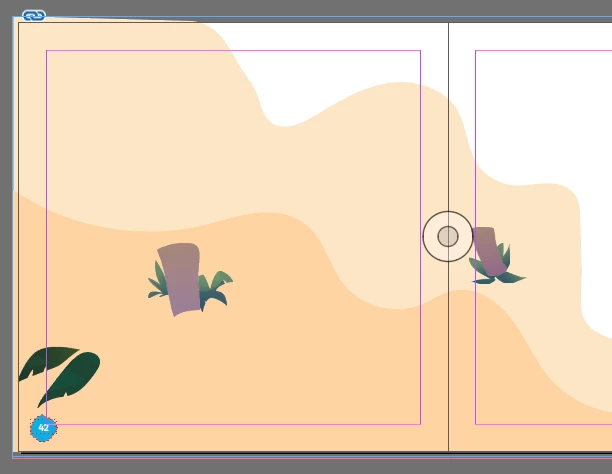
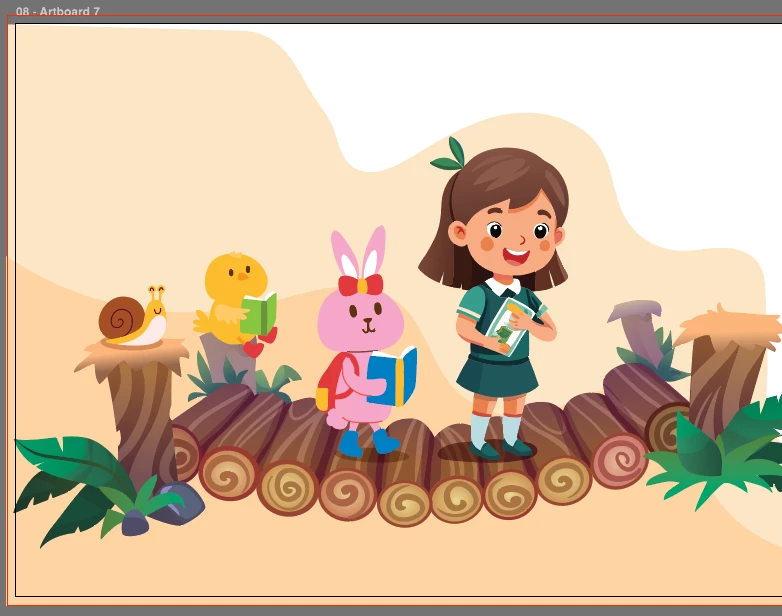
So I have sets of illustration in separated artboard (same layer) in Illustrator. But when I am importing it to InDesign, some parts of the illustration is missing. It occurs on some illustration, especially reused graphic asset from Freepik. 

Funny enough, this isn't happening using the previous version of Indesign. Right now I am using the current latest 21.0 (not beta).


What I have done for the workaround;

  • saved into a new file, only the error artboard. not working.
  • saved the error artboard into EPS, works. But I wish everything works in native format. 
 

Correct answer Abhishek Rao

Hi everyone,


Thank you all for your continued patience and for sharing your observations, sample files, and workflows.

I wanted to share an update from the product team. They have tested this issue on Illustrator 30.7.0.102 and later (including the latest 30.8 builds) and were unable to reproduce the behavior. 

If you're still experiencing the issue, could you please update to Illustrator 30.7.0.102 or later (or the latest available version), open the affected AI file, save it again, and then place or relink it in InDesign to test the workflow?

If the issue still persists, please share your exact Illustrator and InDesign versions, along with a screen recording of the complete workflow and the packaged Illustrator and InDesign files. If the files are confidential, feel free to send them to me via Direct Message using Google Drive, Dropbox, or another cloud-sharing service.


Thank you again for your continued support and patience. Your feedback will help us determine whether you're encountering the same issue or a different scenario.

Abhishek

102 replies

Participant
November 3, 2025

Hello,


Since your EPS workaround is proof that the vector data itself is fine, here's the quickest and most effective fix to try on the native AI file:

Open the Illustration in Illustrator.

Select the entire illustration (the one with the missing parts).

Go to Object > Expand Appearance.

Then go to Object > Expand... (check both Fill and Stroke options).

This process simplifies complex strokes, effects, and gradients into basic paths, making it much easier


Best Regard,

harriet

hekselsior
Known Participant
November 3, 2025

thanks for the suggestion, I will try it later and see if it works. 

leo.r
Community Expert
Community Expert
November 3, 2025
quote

Funny enough, this isn't happening using the previous version of Indesign. Right now I am using the current latest 21.0 (not beta).


By @hekselsior


If you can consistently reproduce it in InDesign 2026, while not in InDesign 2025 with the same Illustrator files, then it sounds like a bug in InDesign 2026. Are you also using the same import settings? Click Show Import Options when you place Illustrator files in both versions.

hekselsior
Known Participant
November 3, 2025

Can't say it's a consistent occurence. Some assets from stock graphic works just normally, some don't, but ONLY happening in the current InDesign (v 21.0). I was working with the same file with previous indesign never had this problem at all. I do use "Show import options" as well. 


Yes I guess it's a bug. 

Participant
November 3, 2025

I'm seeing the same issue. Inconsistently, but definely there. Opening the file in previous versions works completely fine, and exporting as a PDF shows the files properly... just seems to impact Illustrator files that are imported to InDesign and, at least for me, directly conincided with the 21.0 update.