
Inspiring
November 4, 2025
Answered

InDesign 2026: Drop Shadows graphical glitch

  • November 4, 2025
  • 24 replies
  • 2290 views

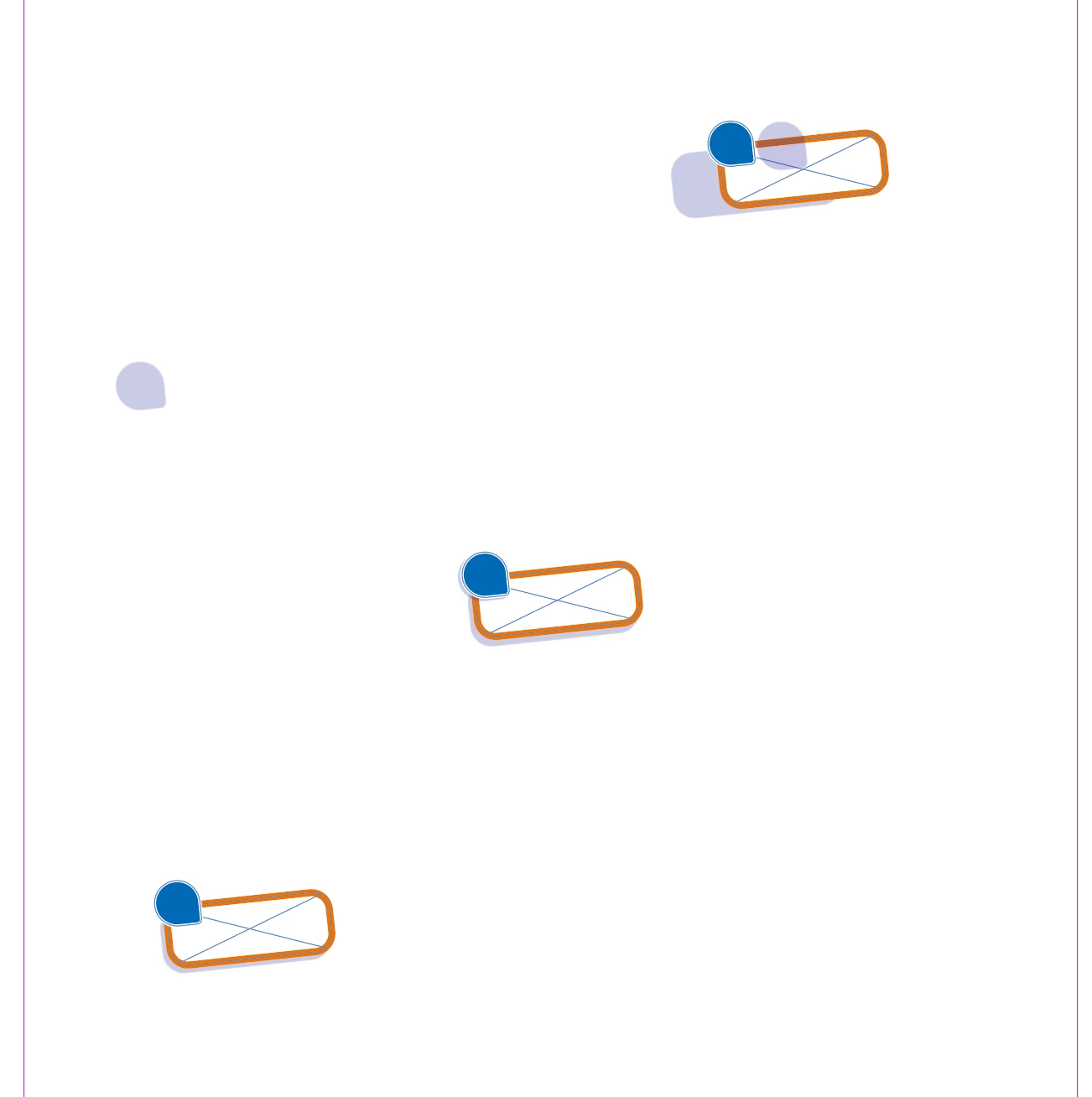
After the most recent update I had to create a document using assets from older indesign files that previously never gave any issues. Now the dropshadows from multiple (different objects) move all over the place (away from the object as if theres a fixed lightsource) when I move these objects. When I turn off the dropshadow of the object, move the object and then turn the shadow back on it will have the shadow in it's correct position. When I move the object around multiple times it will start glitching the entire page until I move my cursor over it again. When I change the path of the object the displaced shadow will snap back into it's correct position, making me think this is a graphical display issue. 


In the example below you can see how the dropshadows moved. (left one moved up when moving the object down and to the left. Right one stayed closer to it's original position but offset, middle is the original position before copying and moving). 


i'm working on a Macbook Pro m2MAx Sequoia Version 15.6.


Correct answer Trancilian

[temporary one click workaround below, RGB users read the important note first]

Hi Everyone,

5 months later and still no official fix. I’m very disappointed in Adobe. At this point adobe should consider giving discounts for the inconvenience of having a broken product.

Here’s a quick trick to reset all the glitched shadows in a document at once.

  • Go to View and choose Proof Colours. Every time you turn it off/on, it will update all the shadows to their correct position. In RGB (web etc.) documents be sure to set the colour profile to sRGB or Adobe RGB, else it can make your objects invisible.

Now assign a hotkey to it so you can quickly fix the shadows while working:

  • You can find the hotkeys at the bottom of the edit menu. 
  • then choose View in the Product Area.
  • Choose Proof Colours
  • add the new hotkey (I picked: command + control + v)
  • click assign. If it prompts you to make a new set just press ok. 

Hope this helps and a real fix will be patched soon.

IMPORTANT Be aware that ‘proof colours’ may change the way you see the colours, depending on how your document is setup. In an RGB document with a CMYK proof setup it can make objects invisible when Proof Colours is turned on. To fix this go to View > Proof Setup, choose Custom and assign the correct Colour Profile, like sRGB or adobe RGB for RGB/Digital use. For print use whatever colour profile your printer recommends.


[edit] It seems my thread has been mixed with a different issue regarding png exports which I haven’t encountered yet myself. I exported my design to both 300 and 92 dpi and saw no shadow problems in the result. Can anyone tell me what steps I need to take to replicate that issue?

24 replies

troyjack
Inspiring
March 31, 2026

Where is the fix, please?

I prefer solid workflow over “workarounds.”

Just updated to 21.3 and this bug still persists.

Participant
March 31, 2026

Same with me. After the update it let’s me export at 96 dpi pngs now without distorting drop shadows but still not 72 dpi. 

squarecloudsD
Participant
March 22, 2026

for me → if i export my PNGs at 300 dpi the shadows are shown correctly, but if if i change to lets say 72 dpi then the gap between element and shadow becomes huge.

Participant
March 23, 2026

Thank you for that tip! At least there is a work around for now to save at 300 dpi. Super annoying though. I have had this problem for a few months and have just been avoiding drop shadows. I can’t believe they haven’t fixed it yet!!

Participant
February 16, 2026

I also have this ugly problem since more than 2 months - no solution after the last updates. Every day it makes me crazy and I've tried everything to find a workaround. What I´m doing now is: select the object with the shadow, cut it (command-X) and undo. Then the shadow is correct again. Not a solution, but a workaround. I hope there will be soon an update that solves the problem.

Participating Frequently
February 11, 2026

This appears to be two different problems: the on-screen graphical glitch (which I have seen, but am no longer exeriencing), and the export-to-PNG problem, which is still a hugely disruptive bug for me. Like the examples above from ​@jas0ntho and ​@dalef48115216, it appears to only be in the Y-axis for me. I have found that reducing the Y offset of the shadow in the effects panel by about 15 pixels or so (getting into negative numbers, if necessary) mostly compensates for the issue when exporting.

Steph34573869dt94
Participant
February 9, 2026

For anyone still experiencing this glitch, I just noticed it for the first time, but a workaround seems to be to make a copy of the object with the drop shadow.

For me it only happened with certain objects that had been freshly added to the document (copied from another document in my case), but duplicates within the document showed normal behaviour.

jas0ntho
Participant
February 6, 2026

I commented about getting this 3 months ago and still no fix. Also now when i export PNG files from indesign it glitches and moves the drop shadow. I can’t export PNG at ALL from indesign now which has really screwed up my workflow. I’m attaching a screen shot of what it looks like in the file VS when exported to PNG. 


Participant
February 11, 2026

I to am still having the same problem when exporting it into a PNG. It’s find on the actual document though. I have tried all the tips in this thread, like grouping and then chaning the % down then up, but nothing helps. I just do see how Adobe have allowed the glitch to occur for so long, it’s rediculous. It’s not just me either, all the designers in my department are experiencing it as well.  


Participant
February 5, 2026

Have this bug, probably form 2 or 3 months already. 2 or 3 indesign updates have passed, but this thing still persists.


Inspiring
February 5, 2026

So what? The problem still exists in InDesign 21.2 on Mac.

Thomas Gregorc
Participant
January 29, 2026

So, what's the status now? The bug report is two months old and the error still exists! My tests haven't been able to confirm rotation as the cause. It doesn't matter what text or object is positioned, how, or where; the drop shadow is always shifted when exporting to PNG. This is extremely annoying and it's high time it was fixed.

Participant
January 28, 2026

This is still a HUGE issue, why hasn’t this been fixed already?