Participant
December 28, 2019
Answered

InDesign export error message

  • December 28, 2019
  • 16 replies
  • 38919 views

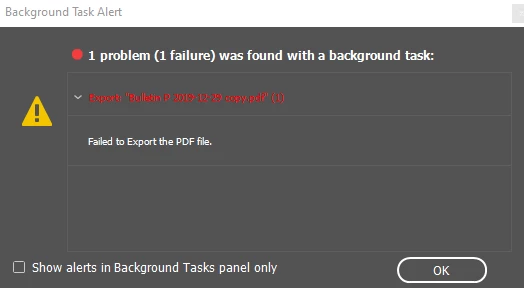
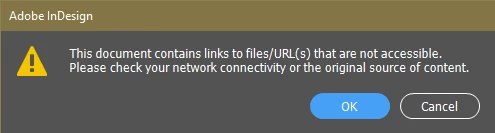
I am trying to export an InDesign file to PDF and am receiving two error messages.  First - "This document contains links to files/URL(s) that are not accessible.  Please check your network connectivity or the original source of content."  Second - Failed to Export the PDF file."  Preflight window there are no errors.  Links window are to the placed photos.  I can't find a URL or email address in the document that is not correctly associated under the hyperlinks window with the real URL or email address. I have read to export as a mark up file and have done that, but to no avail, continue to receive the error message.  Document is a two page bulletin to be emailed to a group.  Operating system is Windows 10 Pro. Creative Cloud just updated recently, automatically.
 

Thank you for your help,

Edith

Correct answer khtzoo

Are you on a mac or PC? It is all about the permissions on macs. Go to system preferences, security and privacy, privacy tab. Click the lock icon and login. In the full disk & access and files & folders, make sure all adobe programs are checked. If you can't do this which I couldn't at first, you will need to update your os. 

16 replies

Participant
January 13, 2025

Could someone please share the fix for this problem in windows?


Abhishek Rao
Community Manager
Community Manager
January 13, 2025
 
Sorry to hear about the trouble you're facing while exporting a PDF. I’d be happy to assist you further!
Could you please share the following details to help us understand your issue better?

1. The version of InDesign you’re using.

2. The version of your Windows operating system.

3. Are you working with files and linked files stored locally on your device or on a network/shared drive, external drive or server?

 
Additionally, have you already tried any of the suggestions shared in this thread? For instance:
  • Running InDesign as an Administrator.
  • Saving your file as an IDML (File > Export > InDesign Markup (IDML)), relinking all your images, and saving it as a new file.
  • Checking if the files you’re working with are marked as “Available Offline” (if stored in cloud locations like OneDrive, SharePoint, or Dropbox).
Let me know the details, and I’ll provide further guidance.
 
Looking forward to your response!
 
Best,
Abhishek
Participant
May 20, 2024

I am having the same problem but can't find a solution for PC users. Please help.

Anshul_Saini
Community Manager
Community Manager
July 2, 2024


I'm sorry you're having trouble exporting PDFs and delayed response. It can be quite frustrating when things don't work as expected.

I would suggest try saving your document as an IDML file. To do this, go to File > Export and choose InDesign Markup (IDML). After exporting, open the IDML file and save it under a new name.

Additionally, after saving as IDML, make sure to relink your images to ensure everything is connected correctly. Also, keep everything on the desktop folder so there are no additional issues, such as read-and-write problems, and then try to export it again.


Please let us know if this helps or if you need any further help.


Best regards,
Anshul Saini

jeffh64585784
Participant
January 27, 2024

I have a brand new MacBook and I'm running the most current OS and I'm still running into this issue even when I relink my files.


Rishabh_Tiwari
Community Manager
Community Manager
January 31, 2024

Hi,


Sorry to hear about the trouble. Can you confirm if InDesign has full disc access? To provide full disc access, please go to Apple Menu > System Settings > Privacy & Security > Full Disc Access and check if InDesign is listed there. If not, please add InDesign and test again. Let us know how it goes. 

Thanks

Rishabh

Troopster
Participant
March 20, 2023

*Dropbox Note - I had a similar issue and notice when I tried to print or export as a PDF. I use Dropbox Desktop and my files were pulling from online. Some of my files from Dropbox though weren't marked as 'Available Offline.' which was creating this error. Once I made that specific folder 'Available Offline' then everything started working.

susane38616721
Participant
May 1, 2024

On Windows 11 Pro, I had a similar issue with files that are stored on SharePoint. Checking "Always keep on this device" for the only linked file in a particular document solved the problem.

mariab48202169
Participant
March 12, 2023

This solved the issue for me as well. Thank you so much. This would have been impossible to figure out.

Participant
September 7, 2022

khtzoo - GENIUS! Who would have ever thought? (This is why I hate to update & change computers...catalyst for the problem.) So thankful that you shared your knowledge. I was struggling with a 47+ page document that contained nearly 500 image links, and the thought of redoing that was devestating. I am sure many of my other files will have the same issue, so very thankful to have it fixed!

mblistein
Participating Frequently
September 2, 2022

This worked for me too, in OS Monterey in 2022. Suddenly got the error message for first time in 7 years! Thanks.

elizabethh16460729
Participant
September 8, 2021

The advice to check permissions worked right away. My sincere thanks! This had been driving me crazy for a couple of days until I found this advice in  Support!

Participant
August 31, 2020

This worked for me from this page:
(Relinking the folder) 
Here is the orgiginal source: http://www.filerepairtool.net/blog/fix-indesign-missing-links-issue

Fix 4 – Copy links to Another Folder

The Copy Link(s) To command is especially for copying graphic files to another folder and then redirect those links to the copied files. This command is generally used for moving files to another drive like shifting documents from a DVD to Hard Drive.

  1. First, select the file links you want to copy and then chose Utilities then from the Links panel menu select Copy Link(s) To.
  2. Select the folder where you want to copy the files linked. After this choose your OS Windows or Mac OS.

Now after copying links to another folder check if you are able to restore missing links problem in InDesign.

ashsinash
Participating Frequently
May 3, 2020

Try running Indesign as Administrator. It worked for me.