Sheena Kaul
Community Manager
Community Manager
June 16, 2020
Answered

InDesign Share for Review - FAQ

  • June 16, 2020
  • 137 replies
  • 63438 views

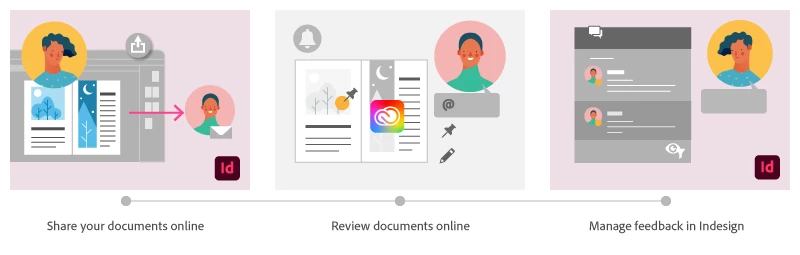
Using Share for Review in InDesign’s June 2020 release, you can share your designs for online review, and manage feedback right within the app. Stakeholders can open the shared document in a browser to provide feedback. Share for Review streamlines and simplifies the review process for both designers and their stakeholders 


The following FAQs provide clarity on common questions around Share for Review 

Share the document for review - FAQ

View reviewer comments - FAQ 

Review the document - FAQ

Best practices


How is Share for Review different from the ‘Integrated comment and review’ feature in InDesign CS5? How does it compare to the Import PDF Comments (IPC) feature?  

Adobe is investing in features and services that make creative collaboration easier and more enjoyable.  

With Share for Review, our aspiration is to make reviewing and editing InDesign creative more seamless, and address the following limitations in CS Review: 

  • Requirement for a flash plugin to use this feature 
  • Lack of support for key features such as email notifications 
  • User challenges with feature discoverability 

Compared to Import PDF Comments (IPC), Share for Review reduces time by eliminating the need to create and share PDFs and collate the resulting feedback. We will be working to enhance the reviewing features and capabilities in Share for Review, which will soon help this tool surpass the experience of IPC, from end to end.   


Does Share for Review include text commenting capabilities? 

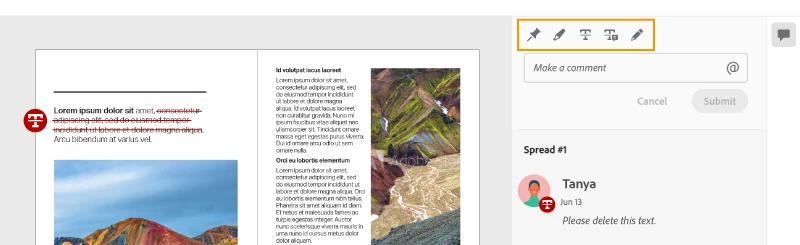
This first version of the feature allows you to provide feedback through the sticky note and pencil tools. We will continue to improve the experience, and we will soon incorporate more text commenting capabilities, including text highlight, text strikethrough, and the ability to accept text comments in a single click. 


Is this feature being introduced into InCopy?  

It is not. Instead, we’ll be making significant updates to InCopy by taking it to the Web to provide better collaboration capabilities. Stay tuned!    


What text capabilities do I have as a reviewer?  

As a reviewer, you will be able to highlight text, strikethrough text, and replace text corresponding to your comment. 


Let us know of any challenges, or questions you have for us around Share for Review and we’ll be happy to assist you. 

Correct answer Nathan Marroquin

This has worked for others:

  1. Save any work and close all open
  2. Sign out of InDesign (Help > Sign out). This will cause indesign to quit.
  3. Launch InDesign again, at which point you should be prompted to sign in again.

137 replies

Participant
July 18, 2020

Hi! Is Adobe ID required for this function? Or can any email address be used for this?

Sheena Kaul
Community Manager
Community Manager
July 21, 2020

Hi there,


Adobe ID is required to view the document on the web. 

Please see Review the document - FAQ to understand the use of Adobe ID. 


Regards,

Sheena


Participant
July 16, 2020

I am trying to share a document for review with my client and the comments are not mapping. I came across a snippet saying this was addressed in the last update, but I'm still having the problem. 

Is there anything I should be doing differently on my end?


Thanks!

Sheena Kaul
Community Manager
Community Manager
July 21, 2020

Hi there,


Are you referring to the discussion as here: 

https://indesign.uservoice.com/forums/601180-adobe-indesign-bugs/suggestions/40863646-share-review-not-showing-online-pins ?


Regards,

Sheena

Participant
July 16, 2020

Hi our studio is trying out Share and Review... which is a great feature! However, when people use the pencil or pen tool to highlight an area and submit the comment the pencil or pen icon disappears.

Do we need to change something in preferences? Thanks!

Sheena Kaul
Community Manager
Community Manager
July 21, 2020
Inspiring
July 16, 2020

Think this will be a work-flow game changer, well done!

However, I'm seeing there is a problem with review on Legacy files (docs before v15.1) where users/reviewers/stakeholders cant actually pin their comments to teh page and it just slides into "Unmapped Comments". Do we know when this will be fixed?

Have tried saving as new and also saving as a IMDL.

Sheena Kaul
Community Manager
Community Manager
July 21, 2020

Hi there,


Yes. We're already aware of this issue and this is being tracked on UserVoice

I'd suggest you upvote for this issue on UserVoice so that the product team updates you directly.


Regards,

Sheena

Participant
July 15, 2020

Hey there!  Used this feature with great success previously, but now InDesign keeps crashing while it tries to build the review file.  Have tried restarting, and am running the most current version.  HELP!

Sheena Kaul
Community Manager
Community Manager
July 21, 2020

That's strange. 

Is the crash happening while sharing this particular document for review or does this happen with all the files?

Could you also check the formatting of this document?

Quadrien
Participating Frequently
July 15, 2020

This is a great new feature! Unfortunately, the person who comments (on Safari or Chrome and on Mac) can't see where he or she is commenting and what he or she is drawing ... So not very user friendly.
I'm looking forward to the text correction options before implementing this with my clients!

Participant
July 15, 2020

Hi - any news when this bug will be fixed? Having same issues as other users. Marking all pin and shape comments as unmapped comments.

Sheena Kaul
Community Manager
Community Manager
July 15, 2020

Hi there,


There's no specific timeline yet but you can always follow the UserVoice thread for more updates.


Regards,

Sheena

ywoolf
Participating Frequently
July 13, 2020

Each time I update the file - the client says they have to login again - and they need a password even though I set no password - so I have to create a password.

RaviKiran
Adobe Employee
Adobe Employee
July 13, 2020

Are you creating an 'Invite Only' link and adding the client's email id in the Share for Review dialog? Does your client have an Adobe ID?


If you are sending the invite to an email address of your client & this email address is associated with an Adobe ID, when  they click on the Review button in their email, it will open the Review. If the client is already signed in using their Adobe ID in the browser where they are opening the Review, the link opens without asking for a password or requiring to sign in with an Adobe ID.


If, however, you've chosen an 'Invite Only' link and the email address you specified in the Share for Review dialog does not have an Adobe ID associated with it, then the client has the option of creating an Adobe account when they try to open the Review.


If you choose to create a 'Public' link and specify an email address in the Share for Review dialog, your client can open the Review link without having to enter any password or without the need to sign in with an Adobe ID. They have the option to comment on the Review as a Guest.


Hope this helps.


Sheena Kaul
Community Manager
Community Manager
July 13, 2020

In addition to Ravi's response, feel free to refer to Review the document - FAQ where this question is answered. 


Community Expert
July 10, 2020

Hi DomP,

ich nehme mal an, dass Du die Datei erst "Fürs Review" freigeben kannst, wenn diese gespeichert wurde.

Noch steht da ja Unbenannt-1 als Vorschlag für den Titel. Also nehme ich an, die InDesign-Datei ist noch nicht gespeichert.


Gruß,
Uwe Laubender

( ACP )

Participant
July 10, 2020

Hi everybody,

can me explain anyone why i cant get "public"? (screenshot)
Its a Business-Account from my company.

Thx for help.

DomP

RaviKiran
Adobe Employee
Adobe Employee
July 13, 2020

If it is a Business-Account, then your enterprise/company must have disallowed the creation of a Public Link (as the screenshot seems to suggest) - there is no drop-down option next to 'Invite Only' in your screenshot. Otherwise, the option to choose Public is usually available in the Share for Review dialog.