



Léonard Roussel
Participant
April 19, 2021
Answered

InDesign Stuck in "Touch" Workspace on First Launch, Unable to Click or Use Shortcuts

  • April 19, 2021
  • 24 replies
  • 24761 views

Hello. Brand new laptop (HP Zbook with touchscreen, Windows 10), just installed InDesign and open for the first time, I get this unfriendly "touch" screen (see screenshot) but cannot click (or touch) anything, or press any keyboard shortcut. I also tried what's described here without success (this is the first time I open InDesign on this computer). I'm running out of ideas, please help, thanks!
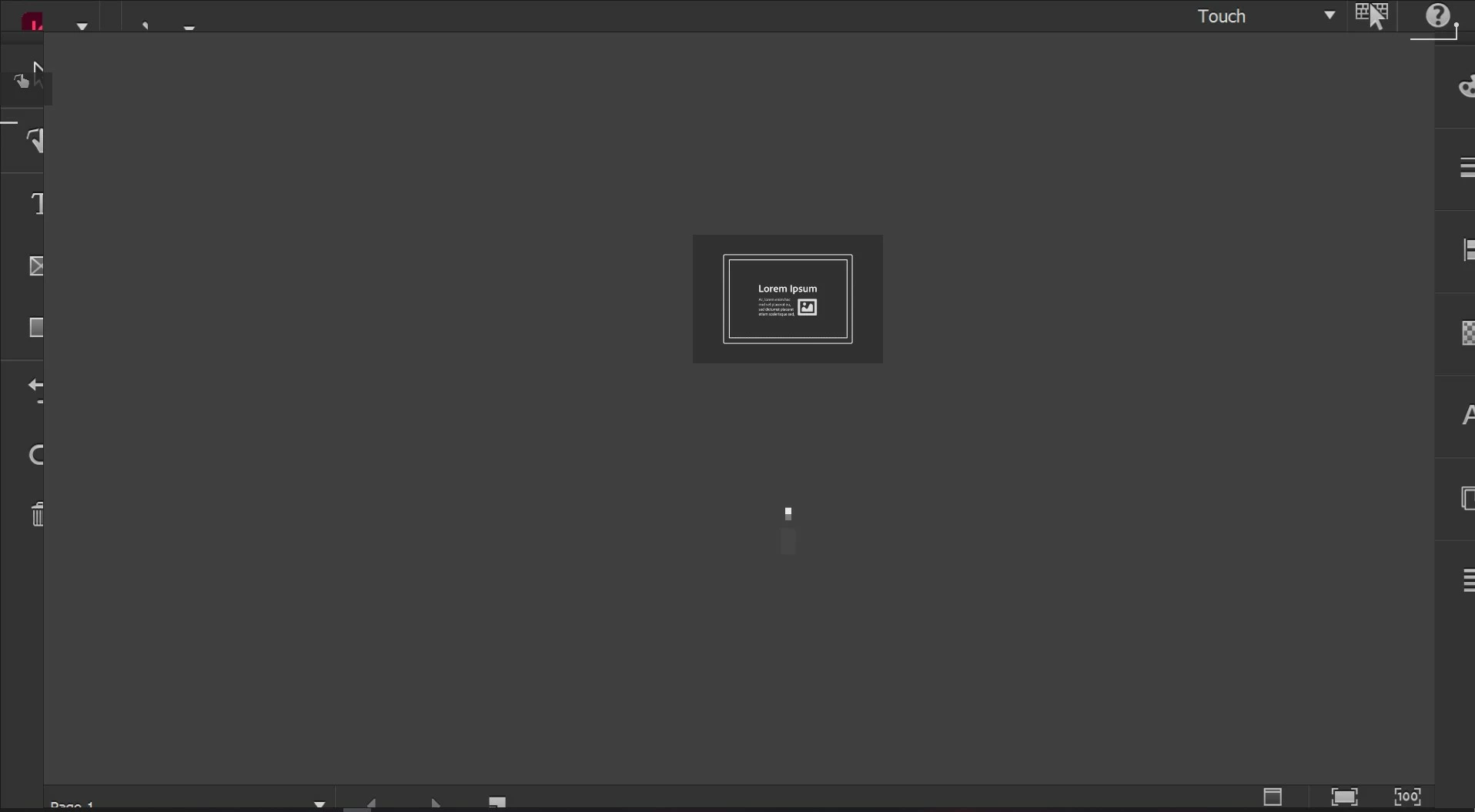
 

<Title renamed by moderator>

Correct answer Mike-Witherell

This worked for me on Windows 11:

  1. Right-click on the Start  menu and select Device Manager.
  2. In the Device Manager window that opens, select the arrow next to Human Interface Devices to expand it.
  3. Under Human Interface Devices, right-click on HID-compliant touch screen and select either Enable device or Disable device depending on which action is desired.
  4. If there are multiple HID-compliant touch screen devices listed, repeat the steps for each device.

24 replies

Participant
May 22, 2024

May 2024 and this bug still persists. A fresh install of InDesign opens in Touch mode with ridiculous scaling and no buttons (including the Workspace selection) work with touch or cursor. This thread should not be marked as 'Solved' by Adobe because the solution given is a workaround with intermittent results. The solution is to fix the bug permanently and advise which version has this resolved.

Participating Frequently
April 10, 2024

April 2024 and this bug still exists. My Dell computer does not have a touchscreen, yet software defaulted to the touchscreen demo with no visible means to dismiss it.  However the software makes the determination to do this, it goofs up. Best to change the install or start-up to ASK if the user wants to start in touchscreen mode. My first impression of Adobe is not good.

Participant
March 7, 2024

Hi,

Same problem for me.
I simply closed the InDesign window and relaunched InDesign.

Rishabh_Tiwari
Community Manager
Community Manager
March 7, 2024

Hi,


Thank you for reaching out and sharing the solution that worked for you. If anyone experiences this, even after restarting, please try the suggestions shared in this discussion. 


Thanks

Rishabh

Participating Frequently
February 2, 2024

Hi all. So I have the same issue however I am on a Desktop system with laptop hooked up to dual monitors. My none of my screens are touch. I have shut Indesign, restarted computer, then opened existing Indd file (before launching Indd) but with same issue, still stuck on this screen? Help!

Martha M.
Participant
February 2, 2024

Rod, after I rebooted and opened InDesign again, I was able to click on the dropdown next to "Touch" and select "Essentials Classic" instead of Touch (any of the choices in that list should work, though!). Good luck--I hope that resolves the issue for you!


Participating Frequently
February 2, 2024

Thank you for your reply Martha. For some reason I have come back after lunch and it now works. Odd but I will take it. Thanks again.

Community Expert
November 17, 2023

@aReuhl said:

"… although I still had to start a new document and switch the workspace to Essentials.  BTW on a desktop workstation Windows 10 with zero touch capability unless I attach an iPad using Duet Display …"


Hi Michael,

thank you for pointing this out!

That's a new one for me. That issue goes deeper than I ever thought…

Until now I only experienced the touch workspace with laptops that had a touch screen ( plus a keyboard, of course ) .


Regards,
Uwe Laubender
( Adobe Community Expert )

Known Participant
February 19, 2024

Just happened to me on a desktop with only keyboard and mouse interfaces - it's never had a tablet or touchscreen or stylus. I hadn't opened InDesign in a few months, and would not be able to use it at all if 1) I hadn't found this thread, 2) didn't have an old .indd file that wasn't archived. At the very least, the first time Touch Workspace is used, the user should have the option of selecting which workspace they want to use - and be able to select it with a mouse, an arrow key, or a finger. Out of all the suprises I've been getting opening Adobe apps, this is the one that flummoxed me the most. It may not be a bug, but it is a terrible idea to be so confident in the new features you want to share with users that you deny them the chance to get something done first and experience the wonders when they have the time to do so.

Known Participant
February 19, 2024

Didn't help that it just came off the heels of Microsoft being equally "helpful". Had to reboot to finish remapping a drive and when I did, instead of getting back to my project I had to sit through a full-screen introduction to the wonders of AI and how CoPilot will change my world. I'm already familiar with the topic and have used several versions. Had to search for ways to turn off CoPilot so I could get back to work without having a chatbot interrupting. Is this Clippy's revenge? I just wish I could update my tools on my timeframe, not whenever the infrastructure decides it wants to make friends. 

Participant
November 14, 2023

This is one of the most ridiculous UX decisions ever. I've had to disable the touchscreen on my laptop so I can actually use InDesign. Do better, Adobe

Participant
October 23, 2023

This just happened to me on my desktop. I don't have a touch screen monitor, nor do I have any type of touch input connected to the tower. It's 100% a bug.

Known Participant
August 30, 2023

I uses to deal with this problem for a while, but not long ago i found a setting in Preferences > Touch workspace > uncheck switch to touch workspace when keyboard detached.  Not show how long this option been there but i uses to fight this every time i remote in to indesign.  It was a pain to fix remotly all the time.

Participant
June 14, 2023

I had the same probleam and unfortunately none of the solutions above worked for me.
While I was playing around I found a very easy solution...

Windows Settings --> System --> Tablet --> Change "When I sign in" dropdown to "Never use tablet mode".

Tada!


Participating Frequently
June 14, 2023

I tried this and it still opened in tablet mode, on the regular desktop monitor, even! 

Participant
August 10, 2023

When opening InDesign, hold down "Control + Shift + Alt" as it's loading (or "Apple + Cmd" if on Mac).  It will give you the option to delete preferences - say yes. Then you can use your mouse instead of the touch screen.

James Gifford—NitroPress
Legend
January 3, 2023

Just as a more general answer, don't most dual-mode devices have something like an app list where the preferred usage mode can be set? Something like associating certain file types with apps — is there no "open this app in Touch mode, this one in Keyboard mode, etc." setting?