Inspiring
November 13, 2023
Answered

InDesign tagged PDF" Read Out loud" question

  • November 13, 2023
  • 4 replies
  • 871 views

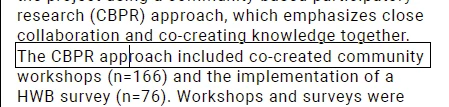
Why the "read out load" option is reading paragraph as seprate lines (I have to click each single line) ?

why it is not just reading the whole paragraph? 

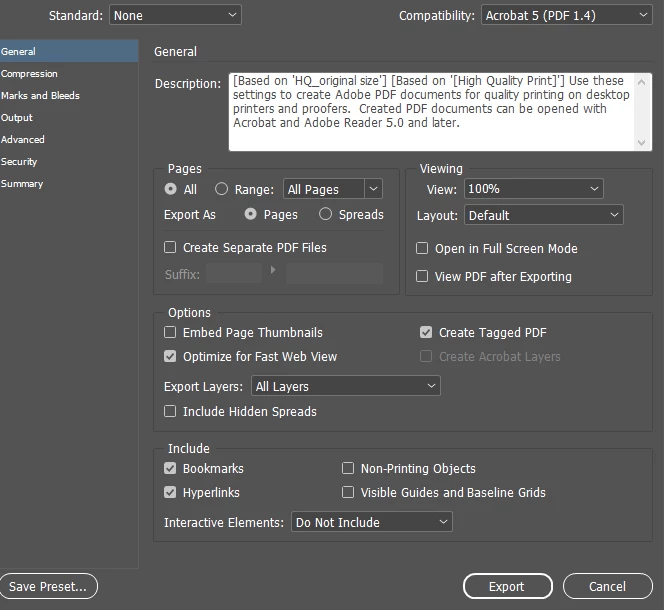
when i export the pdf i choose print pdf, is this setting correct below?  (i have already assigned each paragraph style to tagged style in the docment)


Please help.

 thankyou


This topic has been closed for replies.
Correct answer Bevi Chagnon - PubCom.com

Please, don't shoot this messenger!


But Acrobat's Read Out Loud is not a compliant screen reader. It's an ancient text-to-speech program that Adobe put into Acrobat a few years before the PDF/UA accessibility standard was even developed. Consequently, this software is never going to read content correctly unless Adobe invests quite a bit of R&D money to overhaul it completely.  It's a fairly useless utility.


Therefore, the accessibility community does not recommend testing for accessibility with Acrobat's Read Out Loud. It will always fail. Real testing must be performed with true screen readers (JAWS or NVDA, both of which are Windows programs). There are no valid screen readers on the Mac, although Apple's free VoiceOver has been slightly improved, but not enough to call it a screen reader with user controls.


There are things you can do to improve how text-to-speech programs (like ROL) voice and access PDFs: ensure the PDF's Order panel (the architectural reading order, that is) is in a good logical reading order. This is done by controlling the stacking order in your InDesign layout.


For instructions on how to use ROL, see https://www.adobe.com/au/acrobat/hub/how-to/how-to-read-pdf-aloud.html  As you can see, there's very little you can control in the program.


Sorry for the bad news, but hoping you can find better ways to review and test your PDFs form PDF/UA compliance.


—Bevi

US delegate to the ISO committee that writes the PDF/UA standard

 

4 replies

Bevi Chagnon - PubCom.com
Legend
November 14, 2023

Your screen capture is showing PDF Export settings for print/press PDFs, not interactive/accessible.


Under File / Export, choose Interactive PDF instead and choose the appropriate options to make an accessible PDF.


Also, this is the InDesign forum. I caught your post earlier today in the Acrobat forum but have been in class teaching today and not able to chime in. For accessible PDFs, I suggest posting there because there are many accessibility experts in Acrobat.  In fact, search for  Read Out Loud in that forum and you'll find quite a few discussions with the answers to your questions. You're not the first to run up against ROL's shortcomings!


I also answered your questions there, too.


|    Bevi Chagnon   |  Designer, Trainer, & Technologist for Accessible Documents ||    PubCom |    Classes & Books for Accessible InDesign, PDFs & MS Office |
Inspiring
November 14, 2023

Thank you so much! these infomation is so helpful, i will explore the acrobat forum since now to learn more about the accessible pdf. really appricate your answeres.

Bevi Chagnon - PubCom.com
Legend
November 14, 2023

Please, don't shoot this messenger!


But Acrobat's Read Out Loud is not a compliant screen reader. It's an ancient text-to-speech program that Adobe put into Acrobat a few years before the PDF/UA accessibility standard was even developed. Consequently, this software is never going to read content correctly unless Adobe invests quite a bit of R&D money to overhaul it completely.  It's a fairly useless utility.


Therefore, the accessibility community does not recommend testing for accessibility with Acrobat's Read Out Loud. It will always fail. Real testing must be performed with true screen readers (JAWS or NVDA, both of which are Windows programs). There are no valid screen readers on the Mac, although Apple's free VoiceOver has been slightly improved, but not enough to call it a screen reader with user controls.


There are things you can do to improve how text-to-speech programs (like ROL) voice and access PDFs: ensure the PDF's Order panel (the architectural reading order, that is) is in a good logical reading order. This is done by controlling the stacking order in your InDesign layout.


For instructions on how to use ROL, see https://www.adobe.com/au/acrobat/hub/how-to/how-to-read-pdf-aloud.html  As you can see, there's very little you can control in the program.


Sorry for the bad news, but hoping you can find better ways to review and test your PDFs form PDF/UA compliance.


—Bevi

US delegate to the ISO committee that writes the PDF/UA standard
 

|    Bevi Chagnon   |  Designer, Trainer, & Technologist for Accessible Documents ||    PubCom |    Classes & Books for Accessible InDesign, PDFs & MS Office |
James Gifford—NitroPress
Legend
November 14, 2023

"I'm... sorry... Dave. I can't... do that."

Bevi Chagnon - PubCom.com
Legend
November 15, 2023
quote

"I'm... sorry... Dave. I can't... do that."

By @James Gifford—NitroPress

Ok, Hal 2001. Thanks for trying!

🙂


|    Bevi Chagnon   |  Designer, Trainer, & Technologist for Accessible Documents ||    PubCom |    Classes & Books for Accessible InDesign, PDFs & MS Office |
Barb Binder
Community Expert
Community Expert
November 14, 2023

Hi @burgerqing :


Is there a ¶ at the end of each line? A paragraph is by definition, everything between two ¶¶s. Can you share a column of text in InDesign with Type > Show Hidden Characters enabled so that we can see?


~Barb

~Barb at Rocky Mountain Training
Inspiring
November 14, 2023

Thank you Barb, please check this screenshot for me. thank you so much.

Inspiring
November 13, 2023

i forgot to mention the "read out load" option is under Acrobat PDF

James Gifford—NitroPress
Legend
November 14, 2023

I think Read Out Loud is designed to play only a paragraph by clicking — you're seeing normal operation.


To have it read continuously, you need to use the keyboard commands - Ctrl-Shift-B to read to end of document; Ctrl-Shift-V to read to end of page, etc.


I am not sure clicking operations would be useful to someone with reduced sight. 🙂