Participant
April 5, 2017
Answered

MAJOR BUG? cant see the another character on selection of character

  • April 5, 2017
  • 2 replies
  • 561 views

i want this working. It did work earlier. Here is a capture of screen. On first line, on character selection i see other characters. In second line when i select character i dont see the blue line and other characters. Is anyone also seeing this or i am missing something?

I am Using Indesign 12.0.0.81 and on Windows 10
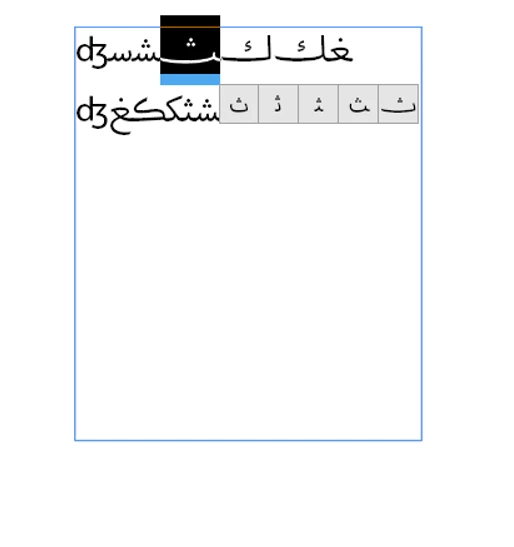
    This topic has been closed for replies.
    Correct answer amaarora

    Hi,

    Can you tell us what language(region) of InDesign your are using?

    Can you check the composer of the second line of the text? As much as i can tell, this seems that on second line of text you have "World Ready composer". To check do the following:

    1. Insert cursor on second line

    2. Open paragraph panel and check the composer from the paragraph panel menu

    If it is "World Ready composer" then this is not a bug, and it is a "as designed" behavior introduced in CC 2017.0

    Otherwise do submit a bug report on Feature Request/Bug Report Form

    Also, to see the "another characters" i recommend you see the Glyphs panel.

    -Aman

    2 replies

    jane-e
    Community Expert
    Community Expert
    April 5, 2017

    The blue line is for Alternate Glyphs. Not every typeface has Alternate Glyphs and not every glyph has alternate

    Here is the Glyphs panel, and this typeface has some characters with alternates and others without. The triangles indicated alternates, and you will see the blue line for these

    Here is the Glyphs panel, and this typeface has no alternates. There are no triangles and there will be no blue lines.

    Note: the blue line feature can be turned on or off in Preferences > Advanced Type > Show for Alternates

    My favorite method, however, is to select text, use the OpenType menu and create either a Paragraph or Character Style, depending on how much and what is changing. And if it's a Character Style, then apply it with GREP to the Paragraph Style when possible.

    amaarora
    Inspiring
    April 5, 2017

    jane-e  wrote

    The blue line is for Alternate Glyphs. Not every typeface has Alternate Glyphs and not every glyph has alternate

    Here is the Glyphs panel, and this typeface has some characters with alternates and others without. The triangles indicated alternates, and you will see the blue line for these

    An important piece of information I missed.

    -Aman

    amaarora
    amaaroraCorrect answer
    Inspiring
    April 5, 2017

    Hi,

    Can you tell us what language(region) of InDesign your are using?

    Can you check the composer of the second line of the text? As much as i can tell, this seems that on second line of text you have "World Ready composer". To check do the following:

    1. Insert cursor on second line

    2. Open paragraph panel and check the composer from the paragraph panel menu

    If it is "World Ready composer" then this is not a bug, and it is a "as designed" behavior introduced in CC 2017.0

    Otherwise do submit a bug report on Feature Request/Bug Report Form

    Also, to see the "another characters" i recommend you see the Glyphs panel.

    -Aman

    Participant
    April 5, 2017

    Perfect and quick.

    But i like the blue line.i dont know what glyphs panel is but i will see it.

    Thanks.

    amaarora
    Inspiring
    April 5, 2017

    Hi,

    I dont think you can get the blue line with the "World Ready composer". Use the glyphs panel this way:

    From type menu open Glyphs. Enter the unicode value of the character in the search bar of the panel. All the results you now see will be the ones you would have seen with the "blue line"

    PS: to get the uncode value, highlight the character and from the glyphs panel note the unicode value

    -Aman