

Reviewing the document - FAQ
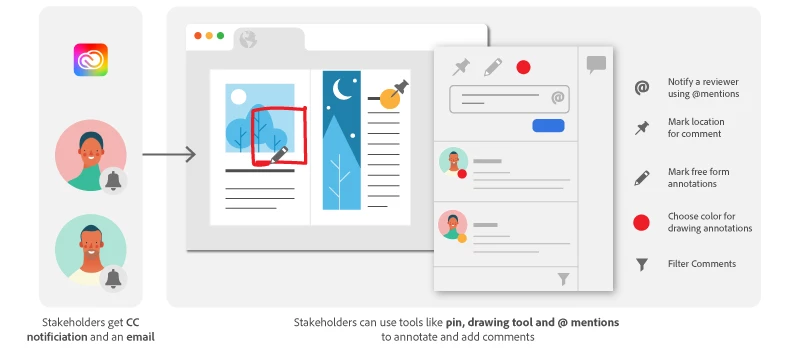
As a stakeholder, you will receive a notification either through email or through the CC desktop application when a designer shares their document with you. Click the link in the notification to open it in a browser for review. Refer the help document here to get more details on how these notifications show up.
1. I’m not getting emails to review the document shared by my designer. What should I do?
Once the designer shares the document, you’ll receive notification within the Creative Cloud app and email would also show up in your inbox. In case the email doesn’t show up, please check your junk/spam folder or refer to the best practices thread in the community.
2. I’m being asked to login when I click on review, but I don’t know the credentials. What should I do?
There can be multiple reasons for not being able to login:
- Incorrect Adobe ID: You are probably logging in with a different Adobe ID than the one specified by the designer.
Fix: Please ask the designer to send the document for review using the email address associated with your Adobe ID. Alternatively, sign out and sign in with the Adobe ID specified by the designer.
- Forgot password: In case you’ve forgotten the password, please reset your password.
- Don’t have an Adobe ID: If you’re being prompted to sign in and you don’t have an Adobe account, please create an Adobe ID.
3. What are the options available to me when I am reviewing the document?
You can review the shared documents and share feedback with designers by adding comments, using a commenting pin, using the @ mention and drawing free form annotations.
For more info, see Review documents online.
4. Do I need to send the document to the designer after reviewing it?
No. There’s no need to send the document separately to the designer after the review. The feedback you shared is accessible in almost real-time to the designer through the Review Panel in InDesign.
5. Can I see comments made by other reviewers?
Of course! The review link is always up to date with the latest comments. To the designer, comments will appear in the commenting panel automatically.
6. Can I hide annotations while reviewing the document?
Yes you can! Sometimes too many annotations can be confusing.
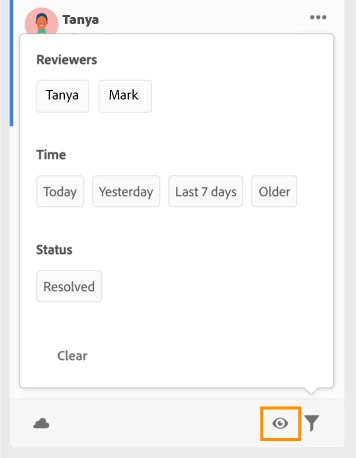
To hide comment annotations on the layout click the view button at the lower-right bottom of the panel.
7. Can I view updates made to the document in real-time?
No, you will be able to see changes made by the designer to the document after they click the update link. You must refresh the web page to see the latest updates.
8. What’s the difference between ‘resolve’ and ‘delete’ actions for a comment?
Marking a comment as resolved means that you’ve worked on it and it can now be hidden. Additionally, you can unhide the resolved comments using the filter options.
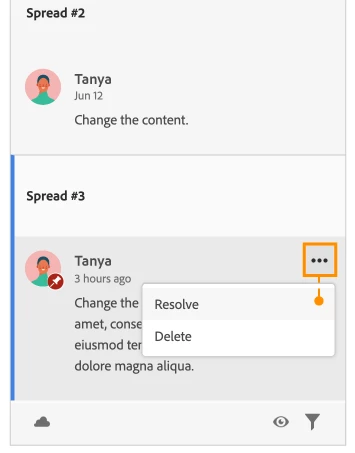
Deleting a comment happens permanently deletes the comment and this action cannot be undone.
9. What text capabilities do I have as a reviewer?
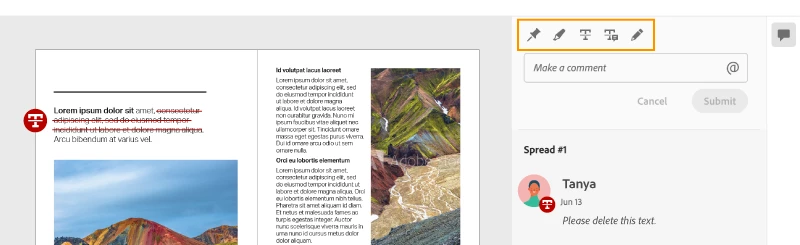
As a reviewer, you will be able to highlight text, strikethrough text and replace text corresponding to your comment.
9. Can I review a document without creating an Adobe ID?
Yes, the review is possible without signing in with Adobe ID. If the designer has created a public link, then you will not be prompted for any Adobe credentials and you can comment as a guest user.
Note: Guest login is available only if Commenting for public users has been checked under public settings by the owner of the document.
To view the ‘Share for Review’ FAQ, see InDesign Share for Review - FAQ.


 AdChoices