

Share the document for review – FAQ
As a designer, you can now initiate the review process directly from InDesign by clicking the “Share” button in the application to send their designs for review. Refer the help document here to understand the detailed workflow for sharing designs with stakeholders.
1. Does updating the document sent for review create conflict at the reviewer’s end?
No, it doesn’t. You can continue to make changes to the documents without reviewers seeing them come through.
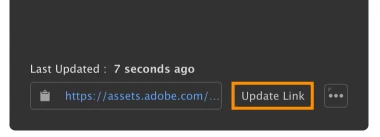
Once you’re ready for stakeholders to see the next iteration, you can push out the latest version of the document using the "Update link" button. Stakeholders will be able to see these changes when they reopen or refresh the page.
2. Should I select the option “invite only” or “public” when sharing the document?
You can choose these options based on the access level you want to provide to your document.

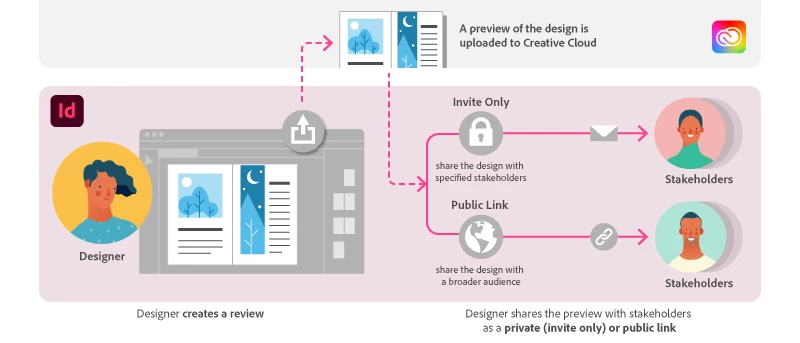
Invite only: Use this option to share the document with stakeholders using the Email address associated with their Adobe ID.
Note: Stakeholders cannot reshare this link for review with anyone else.
Public link: Any person with access to the URL can access the document. You can secure public links with a password that you share with stakeholders invited for review.
For best practices on sharing documents see Best practices.
3. Where can I find the documents that I’ve sent for review?
You can view and manage all published links on https://assets.adobe.com
You can also locate shared documents using the Share for review dialog after clicking the More options icon at the lower-right corner and selecting Manage reviews on the web.

4. I shared the document for review, but the reviewer hasn’t received the email yet. What should they do?
It is possible that the reviewer’s mail application has flagged this URL as spam. Request them to check their spam/junk folder. You can also ask them to look for notifications in their Creative Cloud desktop application.
We suggest sharing this link on best practices with stakeholders to avoid any confusion.
5. Can I share the document with multiple reviewers?
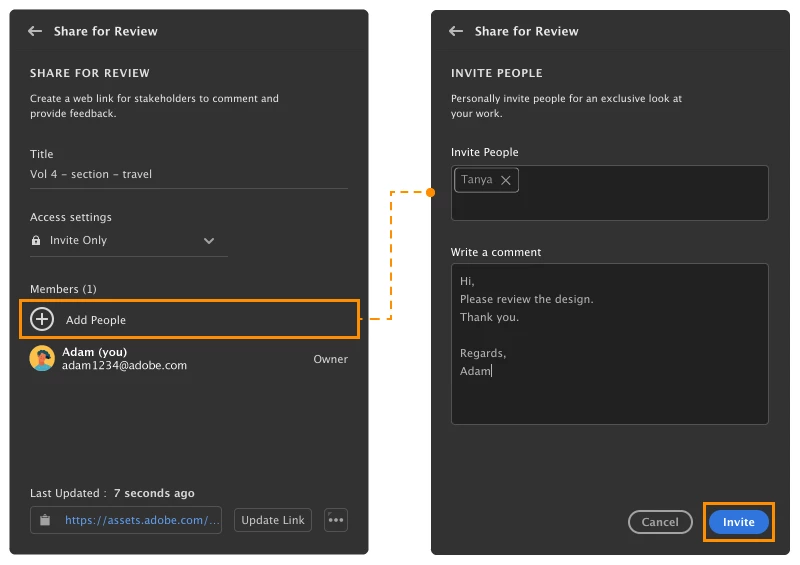
Of course! You can invite multiple stakeholders by adding them using the invite only option. Alternatively, create a public link and secure it with a password and then share the link with reviewers.
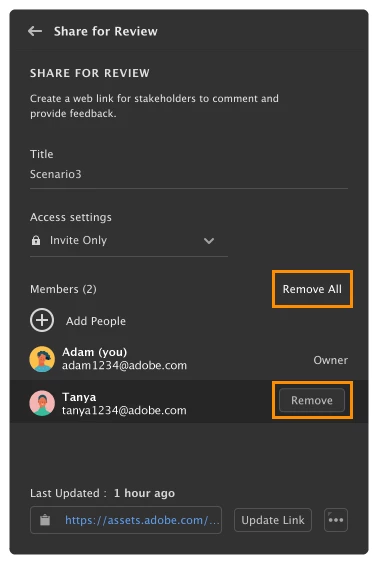
Note: You can also remove a reviewer later if required.
6. Does sharing the document with multiple reviewers cause conflicts in reviewing the document online?
Not at all. When you share the link with multiple reviewers, all the invitees receive the same version of the document that’s saved on the web for review.
The link is always up to date with the latest comments.
If the designer makes any changes to the document and updates the link, the reviewers working on the file must refresh the web page to view the latest changes.
7. How can I create or delete a new review?
The options for creating and deleting a review can be found under the More options at the lower-right corner in the Share for Review panel. Find more info, see Share your documents online.
8. How secure is my shared document?
Adobe ensures the security of your data using processes to comply with industry-accepted standards, regulations, and certifications. See https://www.adobe.com/ca/security.html for more information.
9. Can the reviewer review my document without creating an Adobe ID?
Yes, the review is possible without signing in with Adobe ID. If you have created a public link, then the reviewer will not be prompted for any Adobe credentials and they can comment as a guest user.
Note: Guest login is available only if Commenting for public users has been checked under public settings by the owner of the document.
10. Why is the quality of the document sent for review not the same as the document opened in InDesign?
The PDF uploaded for review is not a high-resolution PDF because the document is still a work in progress and this feature is just for collaboration purposes. Also, a small-sized PDF file is uploaded for review so as to make the review process easier for anyone who is on a low bandwidth connection.
To view the ‘Share for Review’ FAQ, see InDesign Share for Review - FAQ.


 AdChoices