

Ashutosh_Mishra
Inspiring
October 27, 2021
Question

UI Scaling in InDesign | Scale user interface based on screen resolution
  • October 27, 2021
  • 9 replies
  • 19084 views


One of your most requested features has now made its way into InDesign 2022 and InCopy 2022!


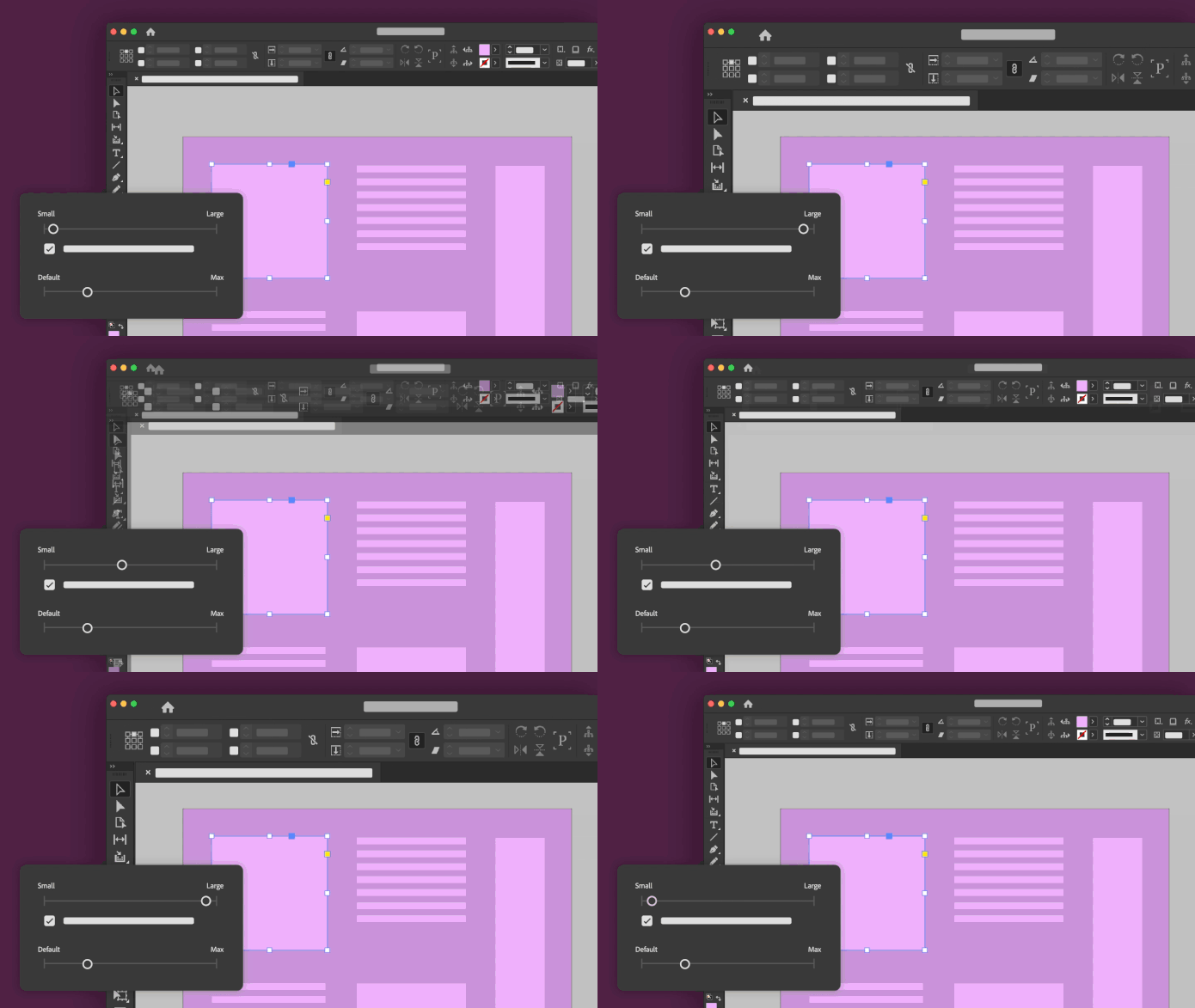
You can now configure UI scaling preferences in InDesign to uniformly scale the user interface based on your screen resolution.


Select Edit > Preferences > User Interface Scaling (on Windows) or InDesign/InCopy > Preferences > User Interface Scaling (on MAC) to access the UI Scaling options. A real-time preview option has also been included with the slider to help you make your decision regarding the size of the UI.


Additionally, you can also do the following:

  • Scale the Cursor in proportion to the UI size.
  • Change the display size of Anchor Points, Handles, and Bounding Box for InDesign (for InCopy, you can change the display size of Bounding Box only).


Let's hear about this feature from one of our InDesign Engineers.



Points to consider when using scalable UI: 

  • UI Scaling is supported on your primary monitor only. 
  • On some monitor resolutions, the UI Scaling option is grayed out/disabled. To enable it on Windows lower OS Scaling settings in the Display Settings on your monitor. To enable it on macOS, increase Scaled Resolution under System Preferences > Displays.
  • The scaling options differ based on the resolution of the monitor. For example, on a 4K monitor you may have 5 stops, but on the Full HD monitor, you might just see 2 stops.
  • As of now, only the workspace (which includes size of tools, text in panels, UI elements like buttons, icons) is scaled. The commands in the top menu or panel menu options are not scaled. We have planned to implement this in future releases.
  • To troubleshoot issues when using this feature, please try following the suggestions in this community post.  


Please feel free to share any suggestions or improvements regarding the app on Adobe InDesign UserVoice.  


Regards, 

Ashutosh

This topic has been closed for replies.

9 replies

Kelli Jae Baeli
Inspiring
May 7, 2024

My choice is greyed out on that, and NO, I can't reduce my resolution, as I use a large screen TV monitor by necessity. SO this is NOT A SOLUTION, and we have been asking for it for 20 years. The ID team doesn't care.


James Gifford—NitroPress
Legend
May 7, 2024

I thought your name looked familiar. 😞


Between system/OS settings, video adapter settings, sometimes monitor settings, and app settings, there is almost never a situation where a fairly well optimized display can't be obtained. But it rarely comes from raging at everyone in every venue.


If you are using a fairly cheap TV with no input or optimzation for monitor/PC use, there may be no better solution. TVs and computer monitors are not the same animal; while nearly all monitors can be used as a TV screen, not all TVs have the input circuitry and resolution (or just resolution management) to allow high-density computer display.

Kelli Jae Baeli
Inspiring
May 19, 2024

I'm using a 40" Smart Roku TV, with Full HD (1080p) Resolution, and my laptop is plugged into it with an HDMI cable.
Also, note that this problem does not exist with any of the 100 other programs I've used on this device. Not even with Photoshop.

Participant
October 13, 2023

Hello, 

Here is one question how is this scaling connected to system scaling for example in Windows? 

In which way are the stops calculated? 

Thanks in advance.

Regards,

Norayr

Kelli Jae Baeli
Inspiring
May 6, 2023

UI setting grayed out/can't use at necessary screen resolution

I use a very large TV monitor, so I can see all my work, and as such, the screen res is higher, but your UI scaling feature is grayed out, and info says it's because of my screen res, so does not allow those settings. It's the only software I own that does not enlarge UI along with everything else. Do you not think that if we need a larger screen, we don't also need a larger interface? We are not all squinting at laptops when we design books. As such, I can't make out the panel and menu options/ text. My eyes aren't what they used to be, and it causes lots of eyestrain and headaches (literally) and is the reason I stopped using ID years ago. I came back hoping that in 2023, they'd have fixed this, but NO. I pay for the use of Adobe products, and I expect them to be usable, and this is not the case with ID.

James Gifford—NitroPress
Legend
May 6, 2023

Well, note that this is a somewhat dusty thread, which is both a year and a half old from origin and has been superseded by a number of "better" ones that go into more detail about the options and alternatives for every system variation.


But no, no overwhelming majority of InDesign users is completely happy with the UI scalability. I think most, except some in certain niche situations, can use a combination of system, OS and app settings to achieve a harmonious balance, especially by setting multiple saved workspaces focused on different workflows. While it would be nice to have one master menu to rule them all, I can't think of many complex apps (even games) that do.


I share your bafflement at people who do this on a laptop screen, and agree that any system interface scaling and management system should accommodate secondary and multiple monitors gracefully. As someone who's been using multiple monitors since such advancements were written up in the magazines, and dealt with any number of "incompatibilities" from era to era and system to system, such things should be as transparent as they are at most modern OS/system levels. And, IME, they are, even when (as until recently) a monitor array was more complex than two or three current-generation devices and GPUs.


That said, I'd have some questions about your "TV sized display." TVs are TVs. Computer monitors are computer monitors. Using a device optimized in many ways for TV viewing for a computer, especially for the super-detailed, fine-control end of computer use, and not for (say) mega-gaming) is not always a satisfactory option. Size alone doesn't bring display clarity, and TVs often lack intermediate resolutions and detail enhancement necessary to get things like fonts and guidelines optimally crisp at a reasonable display scale.


Maybe I am misreading your post, but if you aren't running at least 4K resolution, on a screen no bigger than 30 inches, of a monitor that has optimized support for computer display... in 2023... then I'd mildly suggest your problems may not be with InDesign, as constricted as some of its abilities still are.

Participant
February 2, 2022

With my bad eyesight I am really thankfull for this update. I waited many years for this!

Still there are bugs and shortcomings.


The guides and grid lines are still hairlines that I can hardly see on a 5k Monitor. (This problem is not new. When will Adobe adress it?)

This is at 600 per cent.


With the larger settings some Element are not scaled correctly. This still persists with the 17.1 Update:

How do you read that? You can only use that feature with UI scaling off.


In genaral the User Interface lacks quality control:

Compare medium gray and dark gray UI: can you see the arrows and the Text in the little box? I cant.

I hope you keep working on this!

Kind regards

Bevi Chagnon - PubCom.com
Legend
December 23, 2021

WIndows scaling and interface looks and responds better now that I've updated 2 systems to Windows 11.

Still not perfect, especially with 2-3 external monitors, but greatly improved nontheless.


|    Bevi Chagnon   |  Designer, Trainer, & Technologist for Accessible Documents ||    PubCom |    Classes & Books for Accessible InDesign, PDFs & MS Office |
Participant
November 16, 2021

Hello,

After the Adobe update, Indesign has some blurred interface icons - with Photoshop or Illustrator, the interface is ok!

This is extremely uncomfortable for the eyes.

PC - Windows.

Hope have a solution soon.


Regards,

Sofia

Known Participant
November 8, 2021
  • As of now, only the workspace (which includes size of tools, text in panels, UI elements like buttons, icons) is scaled. The commands in the top menu or panel menu options are not scaled. We have planned to implement this in future releases.


Well, at least I know that the text size may be coming eventually.  Without the text being readable, all the rest is not so helpful. I'm one of those people who have been asking for YEARS. 

Known Participant
November 1, 2021

Hello, Windows here.
On Full HD monitor i only have 2 stops,which should be normal but: the UI sizing is waaay bigger than it used to be!This is really uncomfortable especially using custom workspaces with many panels. Is there a workaround?

Participant
November 1, 2021

Hey Windows,

I don't think so, from our friends (?) at Adobe.

But you have Scaling settings under Display, right? You could scale all views at one time. It's under Scale and layout.

Which is another thing that I was hoping Apple would incorporate.

But no, that's not in the Monterey "update" either.... Maybe they've been hiring "engineers" from Adobe...

AuroraPenticton
Inspiring
October 28, 2021

Nice new feature, but how come on my 5K iMac, the scaling option only has 3 stops? The same feature in Illustrator has 5 stops in Illustrator on the same iMac.

Srishti Bali
Community Manager
Community Manager
October 28, 2021

Hi there,


We are aware of this issue on the Mac platform. The increment of jump from one stop to the next is quite big.
We've plans to address this in a future update. But right now, please select the stop on the UI slider that suits you the most.
You can also change the scaled resolution on you Mac (under System Preferences > Displays) to see if choosing another scaled resolution helps resolving this issue.


Please don't forget to share your feedback on our UserVoice page ( https://indesign.uservoice.com/ ).  This way, you will keep getting all the updates related to this feature and other users can also upvote, which would help us prioritize.


Regards,

Srishti

Participant
October 29, 2021

I've been using Macs for 32 years. Adobe used to be much better at responding to customers requests. I see posts online for the last 6 years asking Adobe to fix this issue, and now they finally add UI scaling to the 2022 version. Just tried it, and it's crap. Only the first and second settings are useful, but I still can't adjust to what would help me. The other settings are massively large on my 4k setting, and therebyb useless.

I've had a 4k monitor for 2 years waiting for this feature (to get a little more real estate from my monitor), and this is what they put out? And then they say "wait for a future update". Yah, sure.....