
Known Participant
January 29, 2026
Question

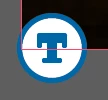
What is this new "T" icon on my images?

  • January 29, 2026
  • 3 replies
  • 128 views

I have an indesign document with a ton of different images, 1 on each page of the doc. I’ve updated a few of these links today and the newly linked updated images have this icon on the bottom left corner which I’ve never seen before. Any idea what this is or what it means? These are not text boxes, there are no primary text frames in this document and no threaded text.

It is definitely attached to the linked image and nothing else, as it moves around with the image when I move the image. 


    3 replies

    Mike Witherell
    Community Expert
    Community Expert
    January 29, 2026

    Hi Isoneryum

    You can go to Preferences > Generative AI and turn off two switches if you do not wish to see it.

    Barb, I have experienced it turned on at default when I patched up to 21.2. 

    Is it useful? It depends.

    An experienced who is subject to Section 508 rules knows that all images have to be alt-tagged with a usable description. So they might welcome it as a reminder nag; or they might not welcome the nag icon. Allowing AI to auto-generate a description for your graphic might give you accurate results; but might also give you nonsense. I would prefer to have a QA checklist that reminds me to go through each graphic and make sure the alt-text is present and also makes accurate sense.


    If you publish in private industry and you know that your documents are not legally required to be accessible, then you might well reason to turn it off in preferences.

    Mike Witherell
    Barb Binder
    Community Expert
    Community Expert
    January 29, 2026

    Hi Mike! 

    Yes, it was on for you after your upgrade to 21.2 because you presumably have an All Apps (Pro) plan, and therefore unlimited standard generative AI credits.

    I can see its usefulness—though it has struggled with a few of my test images—but of course all content needs to be reviewed before publishing, including the generated Alt text. I would be happy refine whatever is offered and see it as a timesaver when in a 508-compliant workflow.

    On the other hand, for people like us (trainers and forum helpers) who regularly place sample images to aid students and users understand InDesign’s features—if we had the single app plan and had this new feature enabled, we’d blow through those 25 credits in a few days. 

    — https://helpx.adobe.com/indesign/using/alt-text-generation.html

    At any rate, I spent some time here today getting up to speed on general vs premium credits, and which plans include credits and how many, all of which I have tended to not pay much attention to in the past. https://helpx.adobe.com/creative-cloud/apps/generative-ai/generative-credits-faq.html#monthly-generative-credits

    ~Barb at Rocky Mountain Training
    Barb Binder
    Community Expert
    Community Expert
    January 29, 2026

    Here are a few more things to add to ​@Abhishek Rao’s comment (and Abhishek, if anything is incorrect please let me know!):

    • Auto-Generate Alt Text is on as a default for users with unlimited general AI credits (i.e., Enterprise and Pro (or All Apps) subscriptions). 
    • Auto-Generate Alt Text is off as a default for users with a Single User subscription. Note that enabling it will consume one credit per use and the Single User subscription has 25 credits per month, per user. 
    Preferences > Generative AI


    • If Auto-generate Alt Text is off when you import an image, the T does not appear. 
    • If Auto-generate Alt Text is enabled when you place an image, the T appears. Turning it off for future imports leaves the T in place on the ones placed when it was on.
    Examples of the T appearing or not, based on if the feature was enabled when the file was placed.

    I haven’t found any global visibility options like we have in View > Extras for the Content Grabber, Live Corners and Anchored Object control.

    ~Barb at Rocky Mountain Training
    Abhishek Rao
    Community Manager
    Community Manager
    January 29, 2026

    Hi ​@Isoneryum,


    Thanks for reaching out. What you’re seeing is expected behavior in InDesign 21.2. This is a new feature introduced to support generating alt text for placed images, and the ‘T’ icon indicates that the image is associated with accessibility and alt text handling. 

    You can learn more about how this works and how to manage it in this article, which walks through the feature in detail: https://helpx.adobe.com/indesign/using/alt-text-generation.html
    What’s New: New and enhanced features | Latest release of InDesign

    Please let me know if this clears things up or if you’re seeing anything unexpected with these images.


    Looking forward to your update.

    Abhishek