
Participant
April 27, 2015
Answered

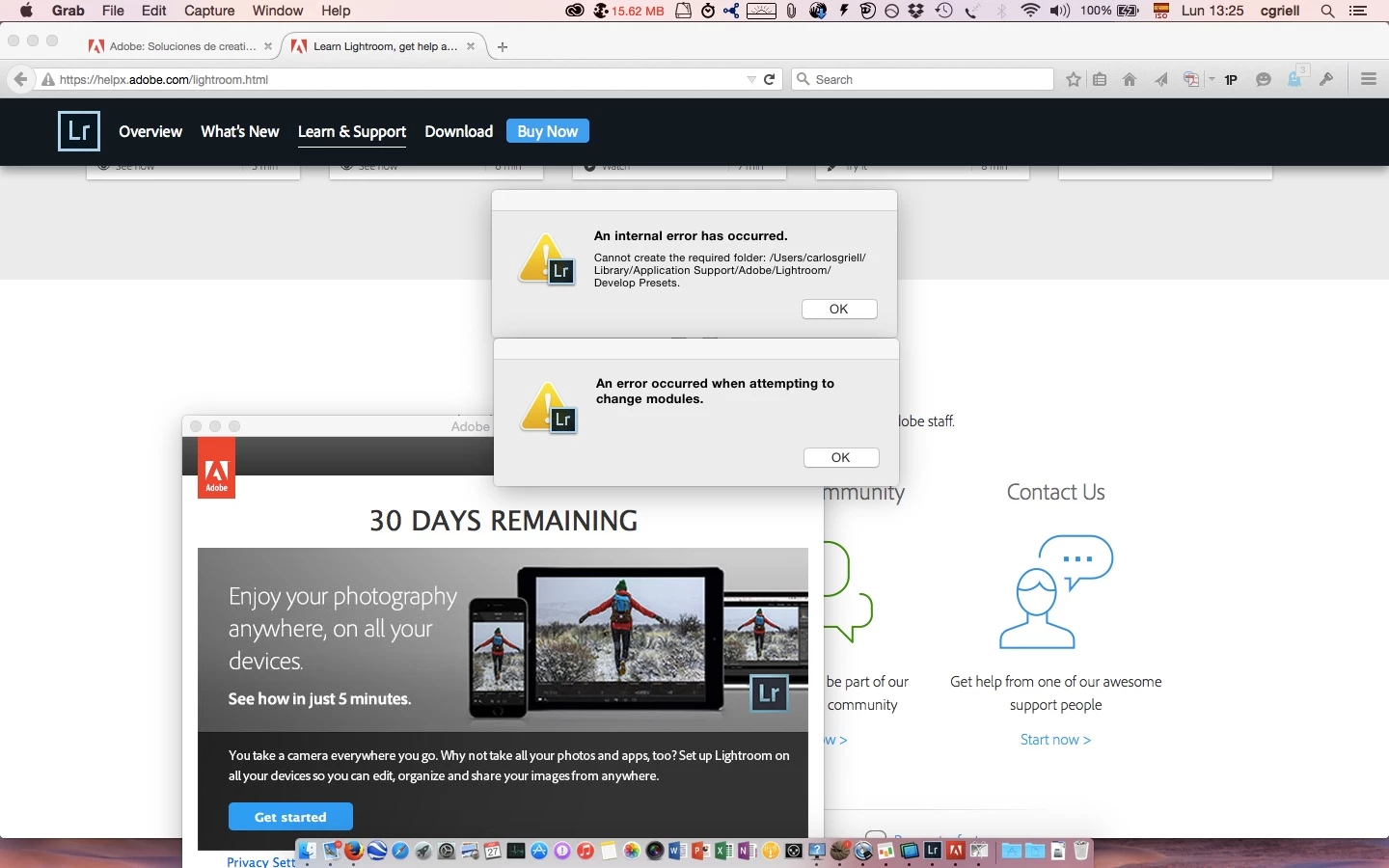
Cannot create the required folder

  • April 27, 2015
  • 23 replies
  • 31019 views

I am on a Mac with Yosemite, and I plan to migrate from Aperture (BTW, thanks, Apple!) to something else, and one of the options is LR. So, I downloaded the trial version but when launching it presents a window with a fatal error "Cannot create required folder). I am the sole user on my system, I have administrator privileges, I have tried to create a folder in the exact place where LR can't, and I created it with no error messages.. so, what's wrong? I add a copy of my error screen
    This topic has been closed for replies.
    Correct answer Govardhan.V

    Please follow below steps :

    1) Right click on Finder icon and  select "Go-To" Folder option.
    2) You will get a text box, type-in below command and then hit 'Return' key.( Do not miss ~ symbol)

    ~/library

    3)Then navigate to Application Support>Adobe.

    Right click on Adobe folder and select GetInfo option.

    Expand the Sharing & Permissions section.

    Click the lock icon in the lower-right corner. Enter your administrator user name and password when prompted, and then click OK.

    Please click on '+' symbol , it will open list of user accounts.

    Add all user accounts and then provide "Read & Write" permission to all user accounts. ( If not okay , just add currently logged in user name and Administrator)

    Click the Gear icon, and select Apply to Enclosed Item. Close the Get Info dialog box.

    Then launch Lightroom application and check.

    Let me know if you still face any issue .

    23 replies

    Participant
    May 26, 2015

    It worked! Thanks Brucgovn

    Govardhan.V
    Participating Frequently
    May 27, 2015

    You are welcome

    cgriellAuthor
    Participant
    April 27, 2015

    Brucgovn, thanks

    I have done everything you suggested (although only for Lightroom folder, not for all Adobe subfolders) and it worked!

    Govardhan.V
    Participating Frequently
    April 27, 2015

    Great, if you provide Full permissions to Adobe folder , it applies for all sub folders inside.

    In order to avoid future errors , it is better to provide permissions to whole Adobe folder.

    The permissions issue occurs in different scenarios also.

    You may check in the below link ,due to insiffucient permissions , Coresync was not getting created and prompting error. :

    https://forums.adobe.com/thread/1828087

    Hence it is Ideal to have Full permissions to entire Adobe folder , in order to avoid future error

    I am very happy to hear that issue has been resolved .

    You are mos welcome

    All the best .

    Govardhan.V
    Govardhan.VCorrect answer
    Participating Frequently
    April 27, 2015

    Please follow below steps :

    1) Right click on Finder icon and  select "Go-To" Folder option.
    2) You will get a text box, type-in below command and then hit 'Return' key.( Do not miss ~ symbol)

    ~/library

    3)Then navigate to Application Support>Adobe.

    Right click on Adobe folder and select GetInfo option.

    Expand the Sharing & Permissions section.

    Click the lock icon in the lower-right corner. Enter your administrator user name and password when prompted, and then click OK.

    Please click on '+' symbol , it will open list of user accounts.

    Add all user accounts and then provide "Read & Write" permission to all user accounts. ( If not okay , just add currently logged in user name and Administrator)

    Click the Gear icon, and select Apply to Enclosed Item. Close the Get Info dialog box.

    Then launch Lightroom application and check.

    Let me know if you still face any issue .

    Participating Frequently
    August 18, 2015

    I followed your instructions and applied full permissions to all user accounts but still get the same problem in my main user account. Previously I had opened a new user account and LR opened in it without any problems but I would just like to work in the one account rather than having to change accounts all the time.

    Govardhan.V
    Participating Frequently
    August 18, 2015

    Thats seems to be user account specific issue . which happens sometime with Mac OS .

    In this case , try repairing Disk permissions,

    Navigate to Applications > Utilities > Disk Utility.


    Run Disk Utility , first verify disk permissions for Mac HD and then run repair disk permissions.


    Still same ?


    You may refer below link :


    https://helpx.adobe.com/x-productkb/global/troubleshoot-unexpected-behavior-user-account.html