Participating Frequently
March 1, 2024
Question

Colors look different between apps with a specific set of images.

  • March 1, 2024
  • 2 replies
  • 1140 views

I've been editing this gallery and encounted this issue with four specific images. The colors look different when exporting. I'm viewing the exports in Bridge but the colors look equally as wrong when looking through Windows Photo. (I always view my exports in Bridge but i wanted to verify different apps.) What's even more curious is that when I preview the RAW file on Bridge, the colors are equally as wrong. I then opened up the image on Camera RAW through Bridge and while the settings are the same, there is a clear difference, the colors are bluer/cooler. I've looked through several forums and did all the steps of calibrating my monitor to srgb, I made sure to export in srgb, i've even tried exporting in other color profiles. I noticed no change between the diff color profiles exports (the exports honestly looked the same whether they were srgb, adobe rgb, or prophoto). The only difference is between the applications, and is specific to those four sets of images, as with all the other images in the gallery so far, the colors look the same between apps. I will upload two differente images, one where the colors match between apps, and the other where the colors don't match. The exported images are being view through Windows Photo, but like I said, the colors look equally as wrong in Windows Photo, Bridge Preview, and Camera RAW hosted on Bridge. Some guidance would be great. Thank you!


Lightroom is updated to most recent version.

GPU Driver is also updated.

Monitor has been calibrated to srgb per a previous forum here.

Windows 10, nvidia rtx 3060, AMD Ryzen 7 5700G, 32gb ram, lmk if more info in needed


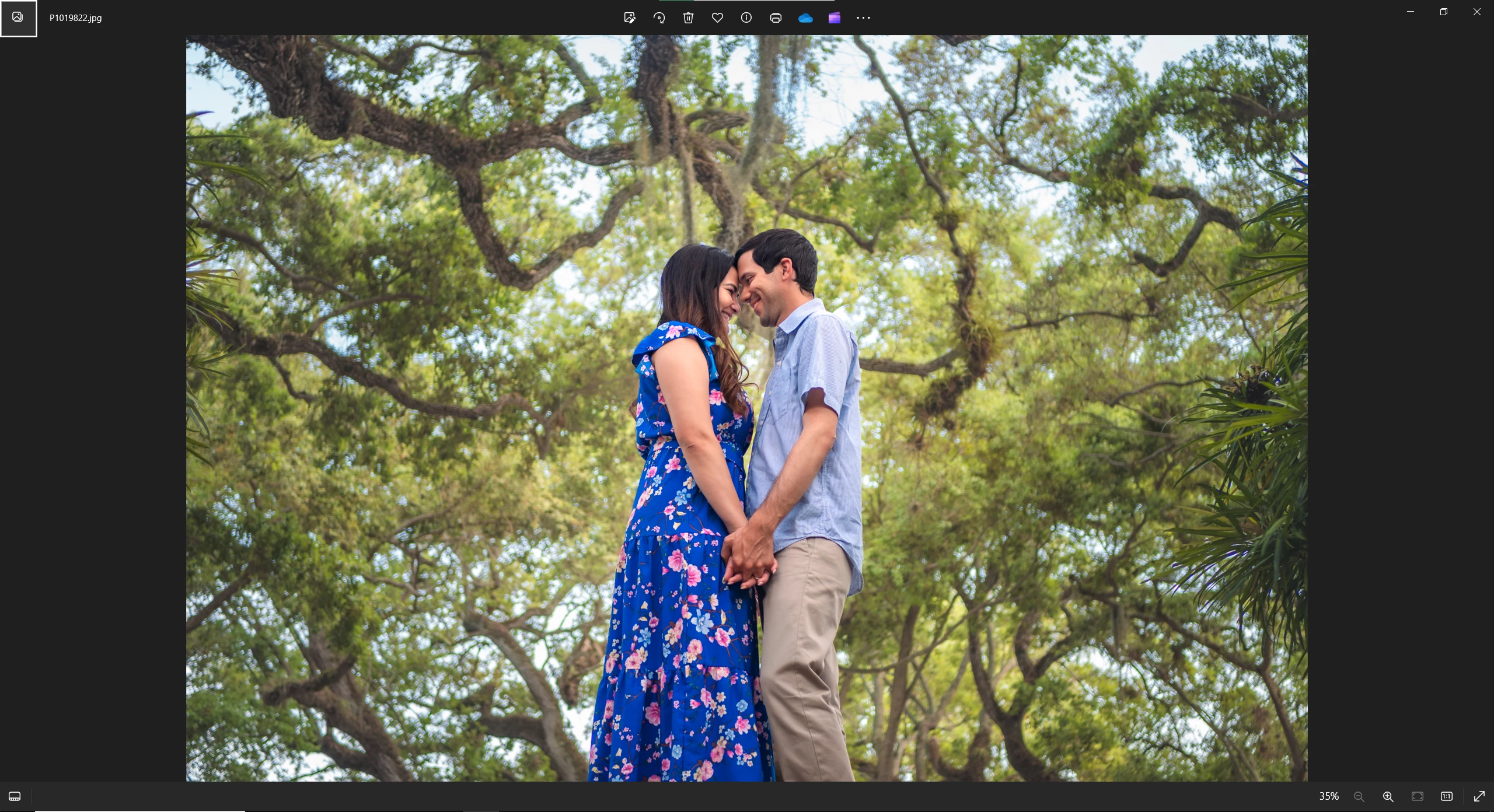
Image where color match:
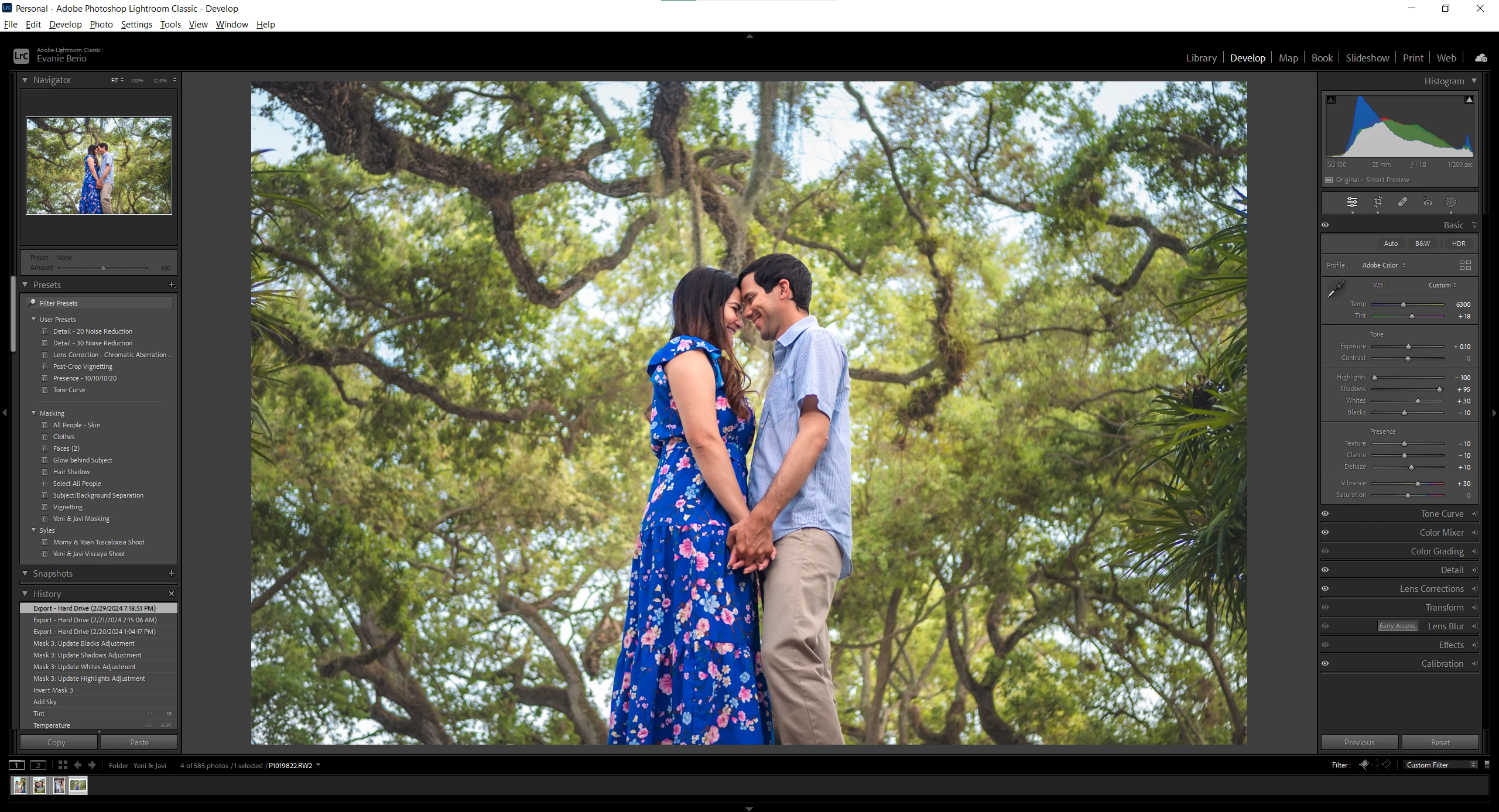
 

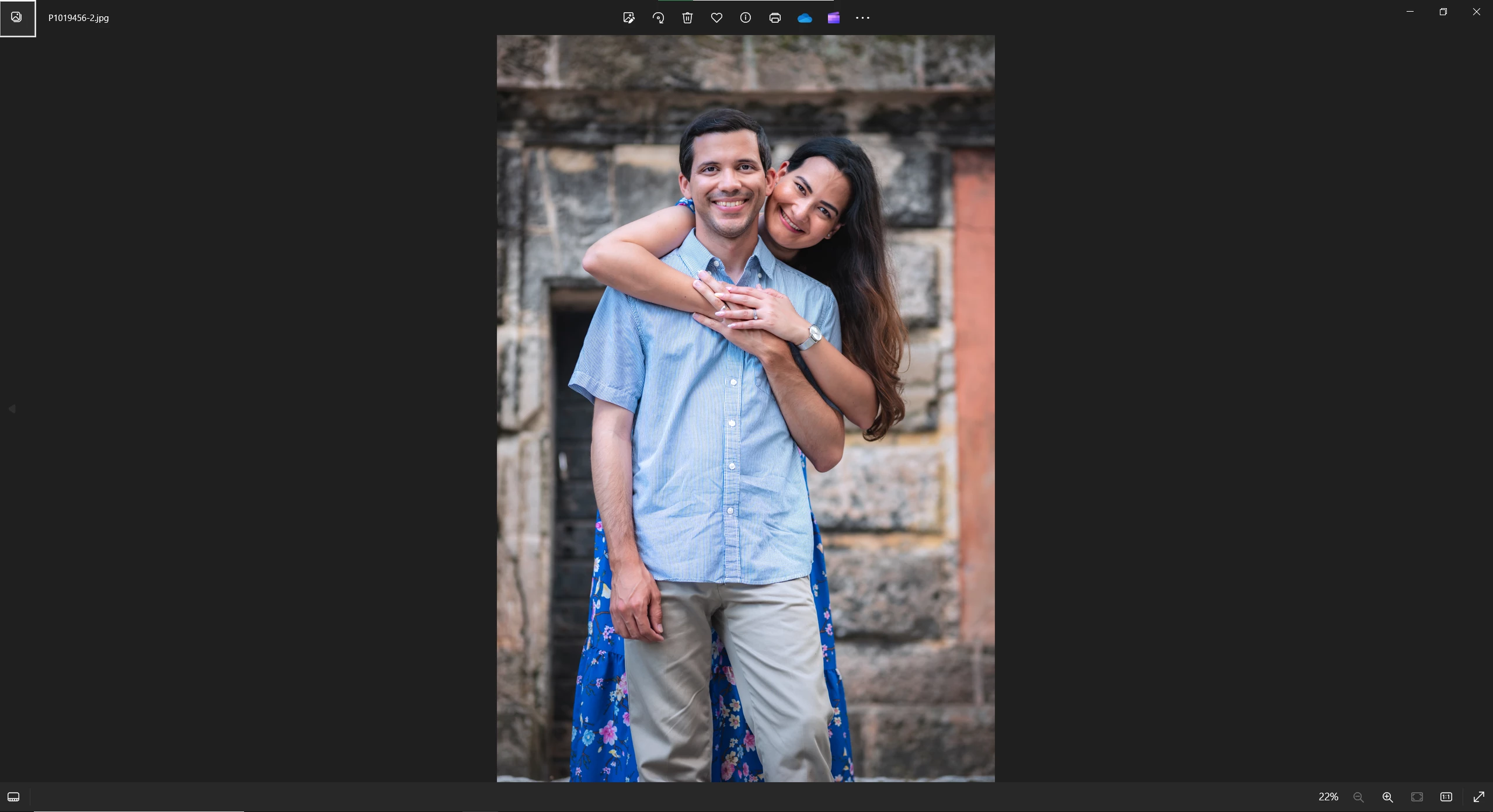
Image where colors don't match: 
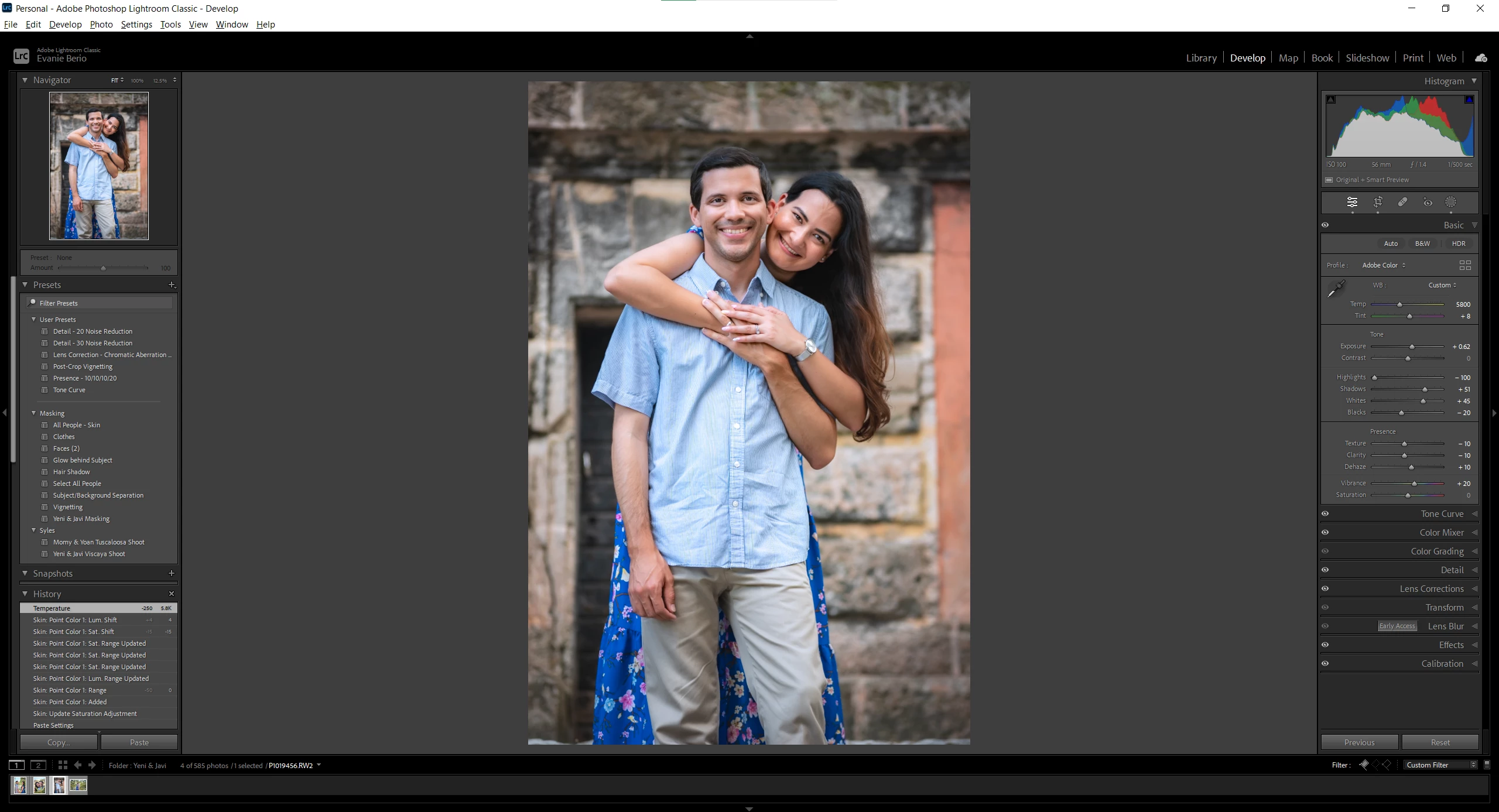
The colors are more blue and slightly more magenta.

This topic has been closed for replies.

2 replies

Community Expert
March 2, 2024

A few things. One you don't actually want to use the sRGB profile for your monitor in general. That is just a trouble-shooting step to see if the monitor profile is corrupt. You should calibrate your monitor with actual calibration hardware otherwise the color is guaranteed to ALWAYS be wrong. The only exception is if you have a moitor that you can set to a reference mode that makes it behave like sRGB (or adobeRGB or display P3). Then you can indeed do what you did. 


For now, since you did the trouble shooting step, I can tell you what the color difference is due to and it is something that is seldom seen. The shirt the guy is wearing is a blue striped shirt with stripes that are right around the resolution of your screen. Very interestingly, this makes the overall color appearance very strongly dependent on how the image is scaled to the screen resolution. So even more interestingly, this is the cause why images can appear slightly different in contrast and tone when you export at different resolutions. If you take this image and export it at a resolution that is lower than the screen and open it in a different program, you will see that it better corresponds to the image you see in Lightroom. This applies not just to the shirt but anywhere you have a lot of detail (or noise) in an image. Unfortunately, every single program uses a different scaling algorithm and scale in different color spaces and gammas. Even inside Lightroom Classic, you will see subtle differences between Develop and Library because of this. Note that you will only see that if your display is lowish resolution to the point that you can vsually see pixels. If the display is high enough resolution that you cannot see individual pixels with your eyes, this won't happen.


evanie14Author
Participating Frequently
March 2, 2024

Ok, I sort of understood that. My monitor's resolution is 2.5K, I'm not sure if that falls under a lowish resolution (i don't think so but I ask just in case). I do know the images are in a higher resolution than that. It's interesting how you mention the guy's shirt, as I have noticed in muliple images across the gallery where the shirt looks either more teal or more indigo even when its images with the same background/pose, the shirt's appearance is the only thing that changes. I did imagine it was because of the stripes that the colors of shirt were changing and worked around it. But I'm still unclear as to why that changes the appearance of the whole image with only these specific four images (all four images have the same background/compostion, just slightly differnet poses). And, I guess I can work around this knowing the preview is not exact, but which ones are then representing the correct colors of the images. Because even inside lightroom, thanks to the other person asking about seeing the colors at 100%, I noticed that the colors look different when viewing the FIT preview and when viewing at 100%. The view at 100% matched exactly what I was seeing on the exported images. So which one is a better representation of the color, the FIT preview in lightroom or the exported images? 


As for my monitor's calibration, do you then suggest I go back to the default settings and change it out of srgb? I do know about calibration hardware, but I don't think I have the money to invest on that yet. If you know of some budgeted alternative, I'm open to suggestions. Thank you! 🙂

Community Expert
March 2, 2024

2.5k resolution is probably too low for this issue to not be a real issue especially if the monitor is fairly large. You typically need 4k for it to disappear. The typical guideline for regular vision is that for 4k you need to be 1.5x the size of the screen away for the pixels to be invisible. So for a 32" screen, you need to be 4 feet away. People typically sit closer than that o optimal display size for 4k is more like 24". For 1080p, the rule is 2x the size. So for 2.5 k about in the middle of those two. Say 1.75x. So if you sit 3 feet away, your display should be smaller than 20" for this potentially not being a problem. Even smaller for a laptop display which people typically view even closer. Anything bigger and you'll be able to see the pixels.


Indeed the only accurate display in ANY program is when viewing at 100%. Every program uses different scaling algorithms to scale the image down to display resolution. In develop for example when you are in Fit view, the algorithm subscales the raw data, renders it into linear prophotoRGB and then scales it doen to display size in that color space and sharpens slightly. However in Library in Fit view, a jpeg preview (itself typically scaled down already) which is in adobeRGB or sRGB space is scaled down in the gamma corrected space to the display resolution. This leads to potential differences between the Fit view in Develop and in Library. Again this will only be visible if your display resolution is smallish. 

For the question about which is more accurate.. The most accurate for 100% is Develop. The most accurate (as defined by closest to a jpeg export) for scaled down views is surprisingly the Fit view in Library. When in a scaled view, they all are acccurate in their own way and they all are inaccurate in others. There is no one way to do this. These are consequences of how images have to be scaled and they lead to the small variations you see here. Also note, we haven't even started talking about output sharpening which radically changes this equation again! Most people never notice this and it took me a while to figure out what you were talking about. Also you should be aware that some of the differences might be psychological and based on what your brain perceives as context. For example, the background color makes an enormous difference on color perception.

That said, I took another look at your screenshots and there is adifference in there that is not explained by the scaling. The output is less warm in the skin tones and other tones where there is no major detail to cause scaling issues than the Lightroom view. This is clearly not right especially if this was in the situation where you set the display profile to sRGB. There really should be no difference in solid color areas. There is one more possible cause for issues such as this and that is GPU driver problems. Try turning off GPU acceleration in Lightroom and see if the issue persists. Also look for updated drivers. You typically have to go to the GPU maker's website to find those. Windows update doesn't automatically install them.

Per Berntsen
Community Expert
Community Expert
March 1, 2024

First of all, if you do the comparison at 100% view, do you still see a difference?


"did all the steps of calibrating my monitor to srgb"

Please describe in detail what you did.

Also post a screenshot of the Windows color management dialog. (Devices tab)


evanie14Author
Participating Frequently
March 2, 2024

Thank you for answering. So when previewing the image in Bridge at 100% the colors stay the same. But when viewing the image in lightroom in 100%, once it finishes loading, the colors change. And the colors change to match what I see in Bridge. Then I zoom out to FIT, and the colors stay the same. But when I select another image and then go back to that one image, I see the correct colors I want. I then again zoom to 100% and once again the colors change to match Bridge. I'm now guessing there's some sort of bug with the FIT view in Lightroom that it is not relfecting the settings properly. Is there a reason why this happens? And is there a fix I'm missing? 


As the the monito's color space I followed the instructions of this discussion. It best explains it there, better than I would. But i followed step by step.

Lightroom color are different when exported. - Adobe Community - 11158536

This is how my monitors is calibrated.


Thanks for the help again.