



ouiouiphoto
Known Participant
January 16, 2026
Answered

File size sometimes not displayed correctly when customizing the metadata display in Library

  • January 16, 2026
  • 2 replies
  • 192 views

W11

LrC 15.1


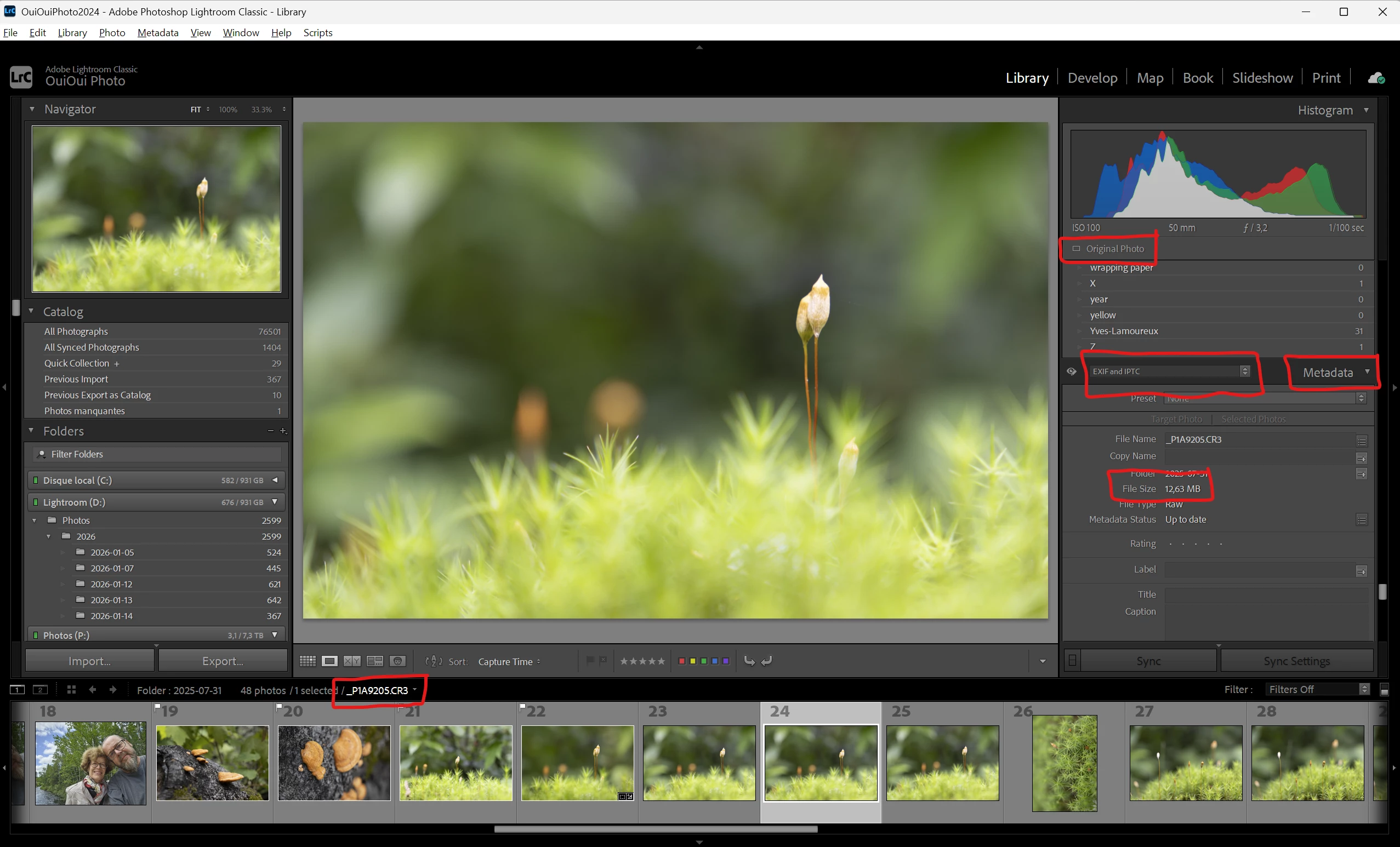
Step to reproduce. Look at the file size of a existing photo  in the Metadata Tab with the Exif and IPTC display all is OK
ouiouiphoto_0-1768555267778.png

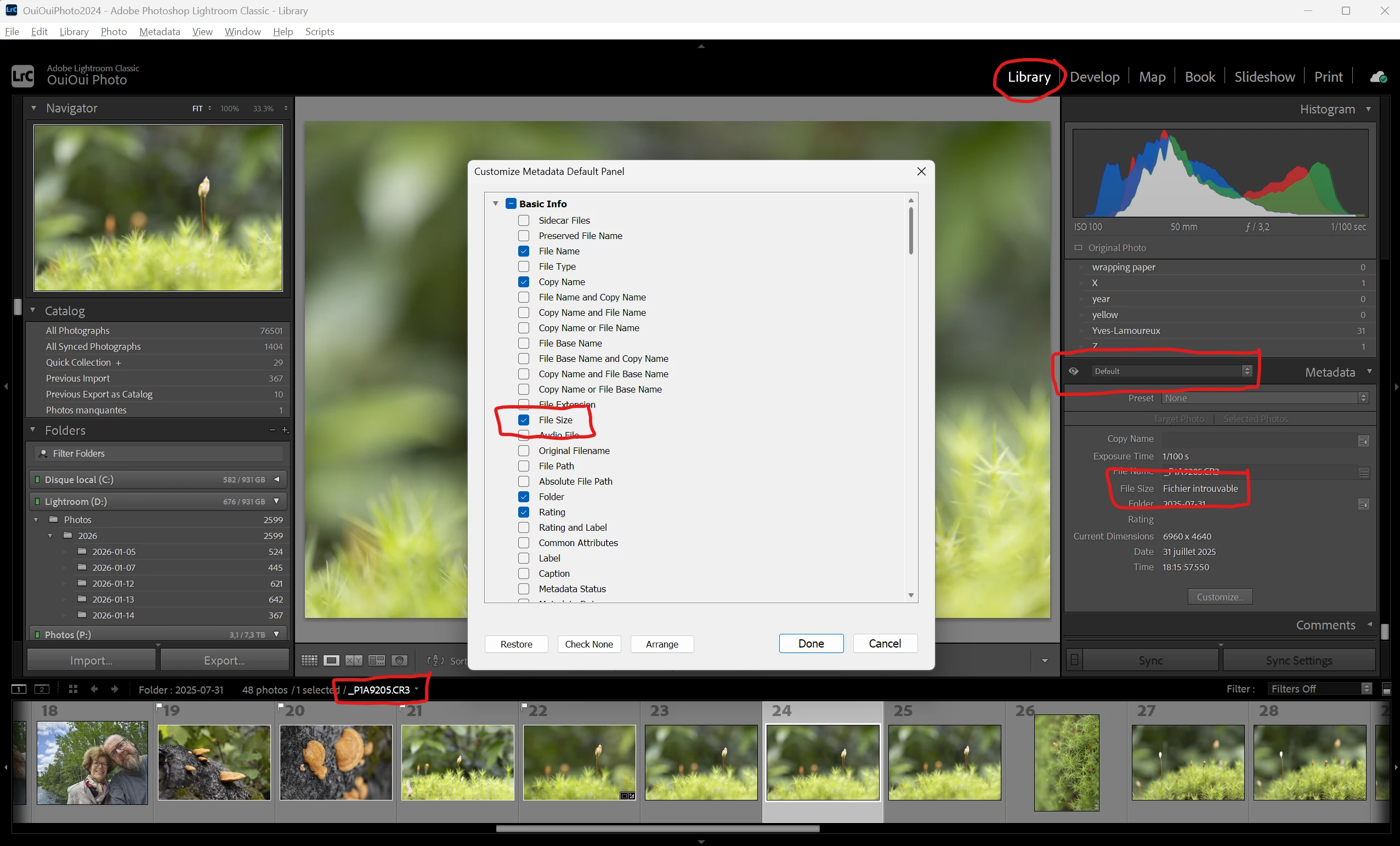
Switch to the default display and customize it to have the file size displayed. The file size is then wrong. It is writen "Fichier Introuvable"  (this mean cannot find the file in french) why in french Btw when LrC is in english. And the file is not missing as you can see under the histogram
 

ouiouiphoto_1-1768555482594.png


The problem is that this is not always the case. And I did not find a common criteria. This can happen with 50D, 7DMKII, R7 photos. This can happen with RAW or Jpg. This can happen with any lens mounted. But it is not random. If the problem appears on one photo, the problem won't disappear next time you look at the photo. 



Correct answer johnrellis

A bug was fixed last summer with these symptoms:

https://community.adobe.com/t5/lightroom-classic-bugs/p-file-not-found-shown-in-metadata-panel-s-file-size-after-reconnecting-a-drive/idi-p/13588619


When you disconnected the drive containing the photos and later reconnected it, the File Size field would still show "File not found" ("Fichier introuvable").  Have you ever disconnected or turned off the drive (D:?) containing the photos? 


1. Please do the menu command Help > System Info. What is the exact version of LR displayed?  If it's earlier than LR 14.4, then update to the latest version of LR (15.1). Does the bug still occur?


2. Try deleting  the Helper.lrdata folder and letting LR rebuild it:

a) Do Catalog Settings > General > Show to open Finder / File Explorer on the current catalog folder.
b) Exit LR.
c) In that folder, delete the folder "<catalog> Helper.lrdata".
d) Restart LR, and it will rebuild the folder.

Does the bug still occur?

2 replies

johnrellis
johnrellisCorrect answer
Legend
January 17, 2026

A bug was fixed last summer with these symptoms:

https://community.adobe.com/t5/lightroom-classic-bugs/p-file-not-found-shown-in-metadata-panel-s-file-size-after-reconnecting-a-drive/idi-p/13588619


When you disconnected the drive containing the photos and later reconnected it, the File Size field would still show "File not found" ("Fichier introuvable").  Have you ever disconnected or turned off the drive (D:?) containing the photos? 


1. Please do the menu command Help > System Info. What is the exact version of LR displayed?  If it's earlier than LR 14.4, then update to the latest version of LR (15.1). Does the bug still occur?


2. Try deleting  the Helper.lrdata folder and letting LR rebuild it:

a) Do Catalog Settings > General > Show to open Finder / File Explorer on the current catalog folder.
b) Exit LR.
c) In that folder, delete the folder "<catalog> Helper.lrdata".
d) Restart LR, and it will rebuild the folder.

Does the bug still occur?

ouiouiphoto
Known Participant
January 18, 2026

Hello @johnrellis  thanks for your interest


My version is LrC 15.1. 


The drive is a internal one


And deleting the Helper.lrdata did the trick 😉 the file size is now well displayed in the customize metadata view. 


Thanks


The drive is a internal One 


.Sheepdog trying to help Lightroom and Photoshop beginners
JohanElzenga
Community Expert
Community Expert
January 16, 2026

What happens if you reset the preferences? https://www.lightroomqueen.com/how-do-i-reset-lightrooms-preferences/


-- Johan W. Elzenga
ouiouiphoto
Known Participant
January 16, 2026

Done before to make the post 😉  and redone to be sure. No change. The problem still exist

.Sheepdog trying to help Lightroom and Photoshop beginners
Noel Orridge
Community Manager
Community Manager
January 16, 2026

Hi @ouiouiphoto! Thank you for reaching out! Could you please share some affected files, so we can try to reproduce the issue on our end? You can share it via Google Drive, WeTransfer, or another public file-sharing platform


In the meantime, here are a few things you can try for a fix:

1) Select an affected photo. Go to Metadata > Save Metadata to File (Ctrl+S). Then go to Metadata > Read Metadata from File and check if the "Default" view now populates correctly. If this fixes the issue. You can do it in batches.

2) If many files in the same folder are affected: Right-click the parent folder > Update Folder Location and point to the same folder again.


Hope this helps! 
Please use @ when mentioning my username so that I can be notified as soon as possible.

Noel