


Inspiring
December 4, 2025
Answered

GPU disabled, NVidia latest driver installed

  • December 4, 2025
  • 2 replies
  • 717 views

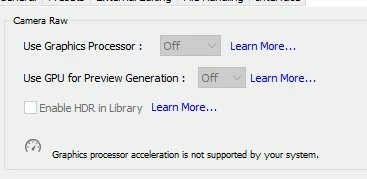
My LR was running much slower today so I checked the Performance tab and found this:
 

867842i99C539079167498C.jpg

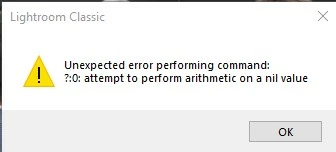
So I checked the NVidia control panel and found LR not optimized. I optimized it, restarted LR and problem was not solved (and the control panel reverted to not optimized. I clicked the "System Info" button and got this:
867843i6EEE21781CE357B6.jpg

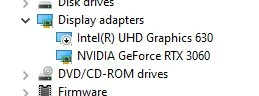
I have reset Preferences (which didn't help), checked for broken 3rd party plug-ins (no help). I also tried disabling the on-board display adapter which didn't help:
 

867844iE01105DD0C6E076C.jpg

Now when I click the System info button in LR, the error doesn't appear.

Jim

Correct answer johnrellis

"Graphics processor acceleration is not supported by your system."


1. In Windows Device Manager, triple-check the Nvidia GPU is still enabled.


2. Try deleting the file "Camera Raw GPU Config.txt" as detailed here:
https://helpx.adobe.com/lightroom-classic/kb/troubleshoot-gpu.html#solution-3

That will cause LR to reevaluate the capabilities of your GPU.

3. Delete any TempDisableGPU2 and TempDisableGPU3 files:
https://helpx.adobe.com/camera-raw/kb/acr-gpu-faq.html#6CheckanddeletetheTempDisableGPU3orTempDisableGPU2files


3. Go to Preferences > Performance > Camera Raw to verify that Use Graphics Processor is set to Auto.


4. If it's not, do Help > System Info and copy/paste the entire output here.

2 replies

johnrellis
Legend
December 6, 2025

"I clicked the "System Info" button and got this: Unexpected error performing command: 7:0: attempt to perform arithmetic on a nil value"


This bug was introduced in LR 15.0 and fixed in 15.0.1:

https://community.adobe.com/t5/lightroom-classic-bugs/p-lrc-v15-system-info-error-unexpected-error-performing-command-0-attempt/idi-p/15570006


So as a first step, update to LR 15.0.1.

johnrellis
johnrellisCorrect answer
Legend
December 6, 2025

"Graphics processor acceleration is not supported by your system."


1. In Windows Device Manager, triple-check the Nvidia GPU is still enabled.


2. Try deleting the file "Camera Raw GPU Config.txt" as detailed here:
https://helpx.adobe.com/lightroom-classic/kb/troubleshoot-gpu.html#solution-3

That will cause LR to reevaluate the capabilities of your GPU.

3. Delete any TempDisableGPU2 and TempDisableGPU3 files:
https://helpx.adobe.com/camera-raw/kb/acr-gpu-faq.html#6CheckanddeletetheTempDisableGPU3orTempDisableGPU2files


3. Go to Preferences > Performance > Camera Raw to verify that Use Graphics Processor is set to Auto.


4. If it's not, do Help > System Info and copy/paste the entire output here.

uncleoatAuthor
Inspiring
December 6, 2025

Thanks John, updating to 15.0.1 fixed the issue. Appreciate the help!

KR Seals
Community Expert
Community Expert
December 4, 2025

Try disabling the Intel GPU in the computer BIOS and Windows system. LrC and PS do not work well with more than one GPU.


Ken Seals - Nikon Z 9, Z 8, 14mm-800mm. Computer Win 11 Pro, I7-14700K, 64GB, RTX3070TI. Travel machine: 2021 MacBook Pro M1 MAX 64GB. All Adobe apps.
uncleoatAuthor
Inspiring
December 5, 2025

Thanks Ken. If you're saying what I did in the Device Manager wasn't sufficient, I'll do a search on how to disable in the BIOS. Is disabling in the Windows System a different operation?

KR Seals
Community Expert
Community Expert
December 5, 2025

Yes, the BIOS controls the hardware settings. On most PCs, hitting DEL before the Windows loads will put you into the BIOS settings. If you have never done that before, it's definitely a good idea to watch some YouTube videos on it.


Ken Seals - Nikon Z 9, Z 8, 14mm-800mm. Computer Win 11 Pro, I7-14700K, 64GB, RTX3070TI. Travel machine: 2021 MacBook Pro M1 MAX 64GB. All Adobe apps.