


Participant
March 6, 2018
Answered

Greyed out images in lightroom

  • March 6, 2018
  • 6 replies
  • 25429 views

When I import images in Lightroom they are greyed out.If i go into develop and pick a greyed out image it shows on the screen and i can work on it.When it returns to the library it is again grayed out.This has only happen very recently .The rest of the catalog is fine and all correct.Have tried importing  nef DNG and jpeg files all to the same result .Cant see any way of actually get information from abobe so any help would be appreciated.

This topic has been closed for replies.
Correct answer Per Berntsen

The gray previews are caused by a defective monitor profile, and the brownish tint in the gray areas of the histogram is also an indication of this. Windows 10 is known to install bad monitor profiles when doing updates, which is probably what happened to you.

To fix the problem, calibrate your monitor with a hardware calibrator, which will create a profile that accurately describes your monitor.

If you don't have a calibrator, set the monitor profile to sRGB (Adobe RGB if you have a wide gamut monitor).

This will not be entirely accurate, but may be close enough, depending on your requirements.

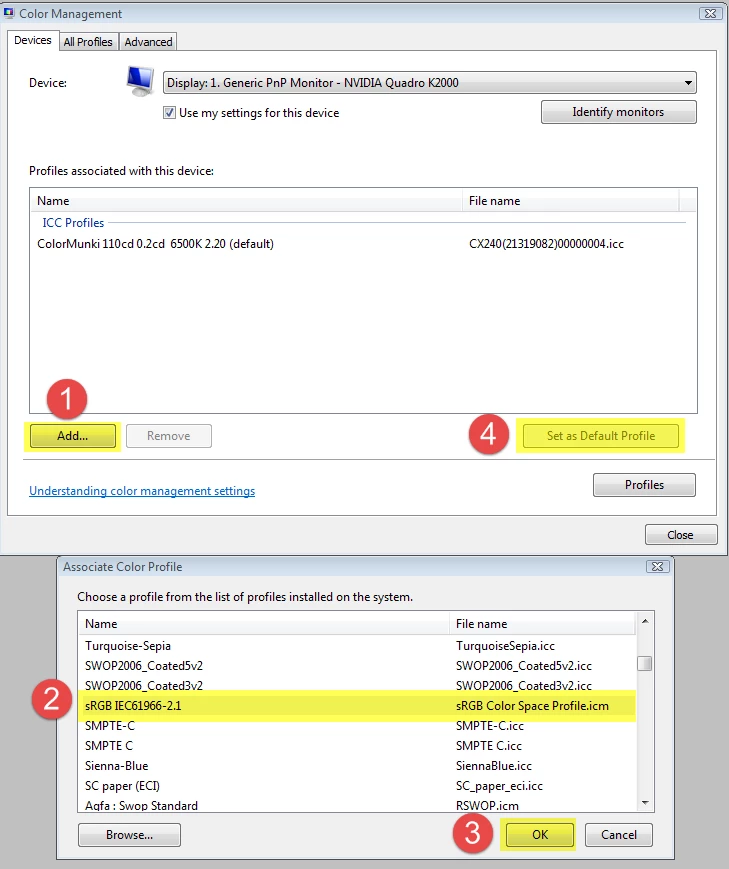
Go to Control panel > Color management.

Add the sRGB profile and set it as Default.

Make sure Use my settings for this device is checked.

6 replies

Known Participant
September 17, 2019

I found another reason for Greyed image in Library. I had accidentally marked a bunch as rejcted (pressed the X key). The solution was to Unflag them.

sreggogAuthor
Participant
March 9, 2018

Hi Folks

Thank you all for your help re my problem.I deleted the previews folder  attached to this catalog and on reopening Lightroom all my images are now visible.

Thanks for your help and i will keep all your suggestions in mind for my next problem .

Bye

Per Berntsen
Community Expert
Community Expert
March 9, 2018

So it seems that you had two problems - a corrupted preview cache, and a broken monitor profile.

To fix the monitor profile, follow the directions given above.

Your histograms probably still have the brownish cast in the  areas that should be neutral gray.

Participating Frequently
June 28, 2019

I was going crazy trying to figure out why recently I could see images in develop mode just fine but not all images in loupe or grid view. Image would literally appear and disappear intermittently.

So after resetting preferences, updating drivers, changing video settings, etc., I found your post about defective color profiles. After recalibrating, all is well again.

Too bad Adobe didn't explain it was a defective color profile. All they say to do is associate an sRGB profile to my color calibrated wide gamut monitor which was certainly not an option for me!

So thanks again for clarifying the issue about defective color profiles.

sreggogAuthor
Participant
March 7, 2018

Hi Folks sorry about the layout first time ive tried this .The image at the top is what I have in the library after i imported the pictures.The below image is in the develop screen where i can see the photo and work on it .Then if I return to the Library screen it still looks like the above..Hope tha explains things a bit better.

Just Shoot Me
Legend
March 7, 2018

It look like the Previews aren't being created. Try Deleting the Previews folder which is found in the same folder as the LR catalog you are using. Have LR closed when you do this. The next time you open LR the Previews folder and subfolders will be recreated.

You can also try resetting the LR preferences.

https://www.lightroomqueen.com/articles-page/how-do-i-reset-lightrooms-preferences/

JohanElzenga
Community Expert
Community Expert
March 6, 2018

sreggog  wrote

When I import images in Lightroom they are greyed out.If i go into develop and pick a greyed out image it shows on the screen and i can work on it.When it returns to the library it is again grayed out.This has only happen very recently .The rest of the catalog is fine and all correct.Have tried importing  nef DNG and jpeg files all to the same result .Cant see any way of actually get information from abobe so any help would be appreciated.

If you mean that your images are greyed out in the Library after you've imported them, then most likely you have flagged them as 'Rejected' (black flag with an 'X'). Maybe you added this to a metadata preset that you apply on import...

-- Johan W. Elzenga
JohanElzenga
Community Expert
Community Expert
March 6, 2018

Strator  wrote

Hello. I have been able to correct with phone support.

Can you tell us what the problem was?

-- Johan W. Elzenga
dj_paige
Legend
March 6, 2018

sreggog  wrote

When I import images in Lightroom they are greyed out.If i go into develop and pick a greyed out image it shows on the screen and i can work on it.When it returns to the library it is again grayed out.

This isn't really clear to me what you are describing. You first talk about Import, then develop, then Library module. Can you show us screen captures of what you are seeing?

JohanElzenga
Community Expert
Community Expert
March 6, 2018

dj_paige  wrote

sreggog   wrote

When I import images in Lightroom they are greyed out.If i go into develop and pick a greyed out image it shows on the screen and i can work on it.When it returns to the library it is again grayed out.

This isn't really clear to me what you are describing. You first talk about Import, then develop, then Library module. Can you show us screen captures of what you are seeing?

An image that is flagged as 'Rejected' is greyed out in the library. You can still edit it normally in the develop module however. And when you return to the library grid it would still be greyed out.

-- Johan W. Elzenga
Just Shoot Me
Legend
March 6, 2018

Grayed out images in the Import dialog window mean those images are already imported into the catalog.

As for grayed out images in the Library module could you post a screen shot of this. Please show the Full LR Library window not just a part of it.